Interview Template - Template Settings Overview
Last updated: February 26, 2026
GoodTime has several layers of settings: Company settings (default), interviewer/user settings, and Template settings.
Any adjustments made on this level will only apply when you are utilizing this specific interview template and will override any company level defaults.
TL;DR: If you would like a walkthrough of all "Template Settings" please watch the video below:
Here is a written overview of each setting + common reasons we see these settings adjusted at the template level:
Itinerary is always shared with the interviewers:
- To format the automated interview itinerary in the interviewer-facing calendar event.
Share Itinerary with Candidate
- To include & format an automated interview itinerary in the candidate-facing calendar event.
Require Review before Scheduling:
- This toggle will allow you to build a stop gap for your schedulers to review and confirm the candidate’s availability before finalizing the interview if turned ON.
- Common use case: You can turn off require review for all simple 1:1 interviews so they schedule automatically, and only require review for complex interviews
Allow Candidate to Suggest Times:
- This toggle will allow candidates to suggest times or to provide additional availability if their schedule doesn’t match your team’s availability.
- Common use case: Enable for interview teams with challenging calendar availability
Make This Interview Private:
- Enabling this will make all interviewer calendar events private
- Common use case: Enable for executive level templates
Override Interviewer Calendar (Google only):
- Allows you to choose where the copy of the interviewer event lands
- Common use case: When larger companies schedule on several different on segmented calendars (ie. 'GTM Interviews' or 'Tech Interviews')
Automatically confirm Hold interviews when everyone has accepted:
- When using the Hold function, we will send out tentative calendar invites to interviewers only.
- This setting allows GoodTime to automatically confirm the interview once all interviewers have “accepted" the invite, changing the status in GoodTime from HOLD to CONFIRMED, and will send out the calendar invite to the candidate.
Automatically Replace Declined Interviewers
-
Best utilized if you have at least 2
alternate interviewers or a tagged group listed in your interview panels, which
then allows GoodTime to automatically replace an interviewer if they decline
an interview calendar invite.
Generate Video Link inside Location Field of Calendar Invitation
- Adds the video conferencing link to the location field inside of the calendar event
Allow duplicate interviewers in multiple events
- By default Goodtime doesn’t allow the same interviewer to be selected for more than one event. We’d prioritize options with different interviewers. You can enable this setting to override that default.
- Common use case: If doing a presentation with a panel, then meeting with each interviewer separately on this interview template, you'd want to enable this setting.
Start Time Interval
- Adjusts the options Goodtime will search based on the start time of the interview.
- 30 min interval means the interview can start at 9:00am, 9:30am, 10:00am, 10:30am..., vs. a 15 min interval which is an interview starting at 9:00am, 9:15am, 9:30am, 9:45am, 10:00am...,
- Smaller intervals = More scheduling options
Request Availability Buffer
- This means from the moment the candidate opens the link, what is the earliest time they would be able to select.
- Common use case: Recruiter screens have shorter buffer (ie. 4 hours) and final rounds have larger buffers (ie. 24 hours)
Min/Max Time Between Events
- By default, GoodTime will schedule events back-to-back (0 minute minimum) and will find options with up to a 15 minute break (15 minute maximum)
- By default, GoodTime will search for open space on your interviewer’s calendars to book interviews. Interview blocks work in the opposite manner, forcing GoodTime to book within specific interview blocks.
- This feature is not recommended unless your interviewers have less than 25% of calendar availability.
- Click here to learn more about GTIB
Default Business Hours
- This would enact special business hours for this template
-Common use case: If interviewers are flexing their hours for a particular role that is based in a different region, but want all other interviews scheduled within regular business hours
Candidate Reschedule Settings
When it comes to rescheduling, GoodTime can help automate how the candidate reschedules and allow the candidates to select new availability all in one process.
Allow Candidates to Reschedule Interviews
- If you would like to allow candidates to reschedule via GoodTime, we recommend turning this ON.
- If you turn this OFF, your candidate will have to reach out to the scheduler to reschedule their interview.
Maximum Number of Reschedules
- You can manage how many times you allow a candidate to reschedule by themselves before GoodTime requires the candidate to reach out directly to the scheduler.
Reschedule Cutoff Window
- Time prior to the start time of a confirmed interview in which the candidate can reschedule by themselves. After this timeframe, GoodTime requires the candidate to reach out directly to the scheduler.
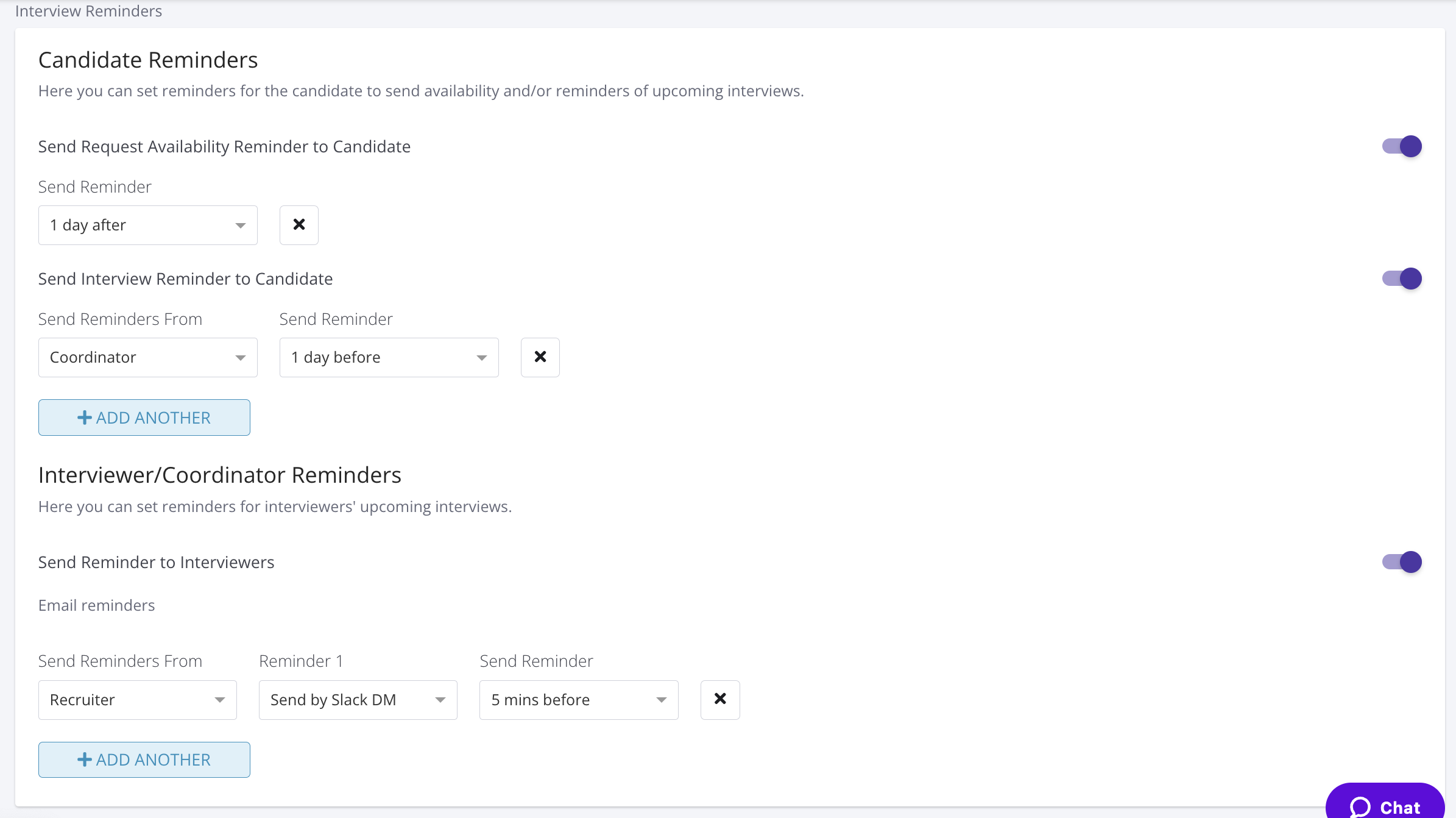
Interview Reminders
GoodTime can send interview reminders to both Candidates and Interviewers. Your team can choose who reminders are sent from, the frequency and the timeframe. GoodTime interview reminders will send in addition to any reminders automated from your ATS.