Interview Templates - Min and Max Times Between Interview Events
Last updated: October 16, 2026
- Go to Settings >
- Interview Templates > Select the template you want to adjust >
- Go to the “Template Settings” section >
- Scroll down to “Min/Max Time Between Events” and select your preferred option
- > Click “Save” in top right corner
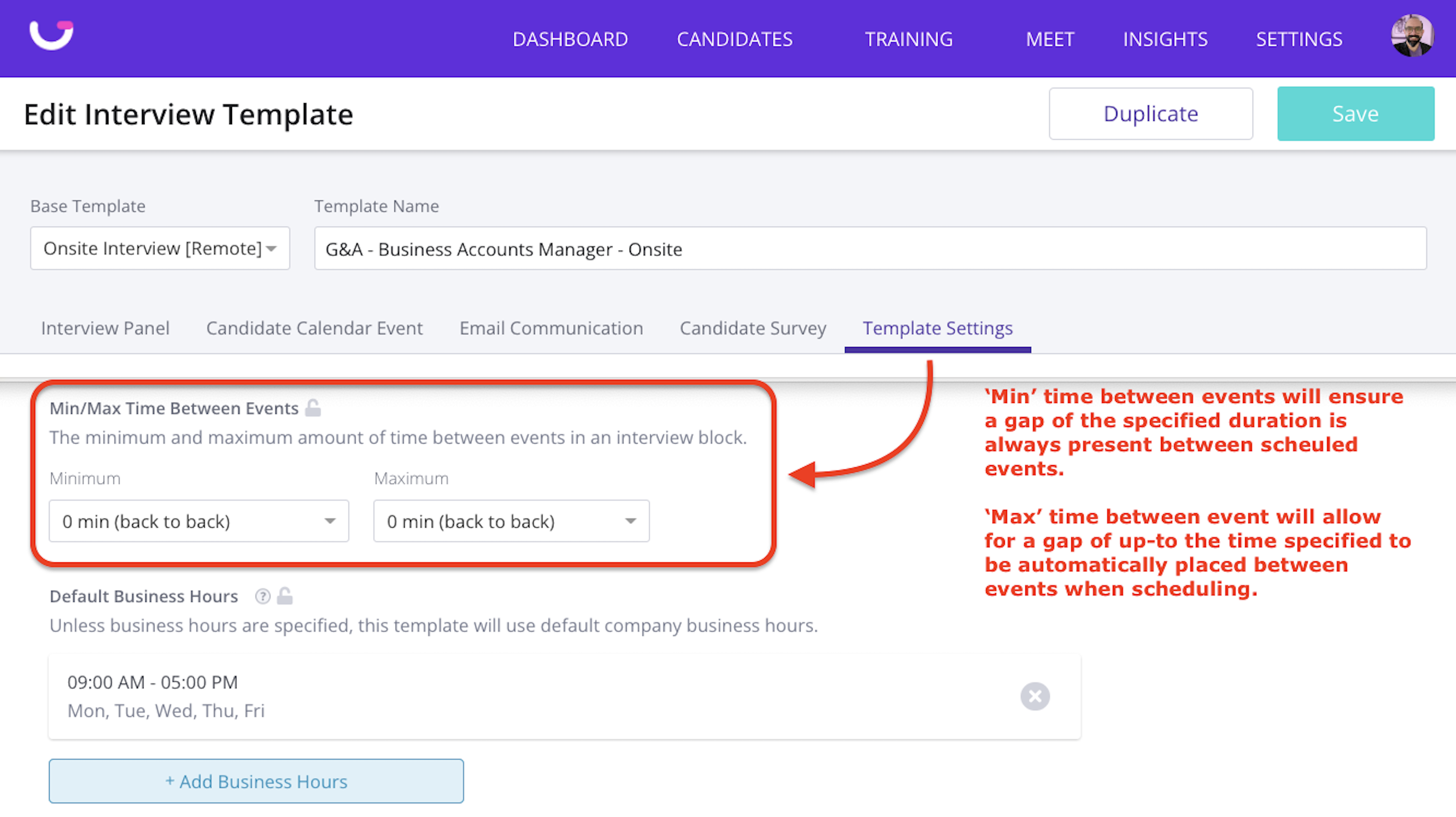
NOTE:
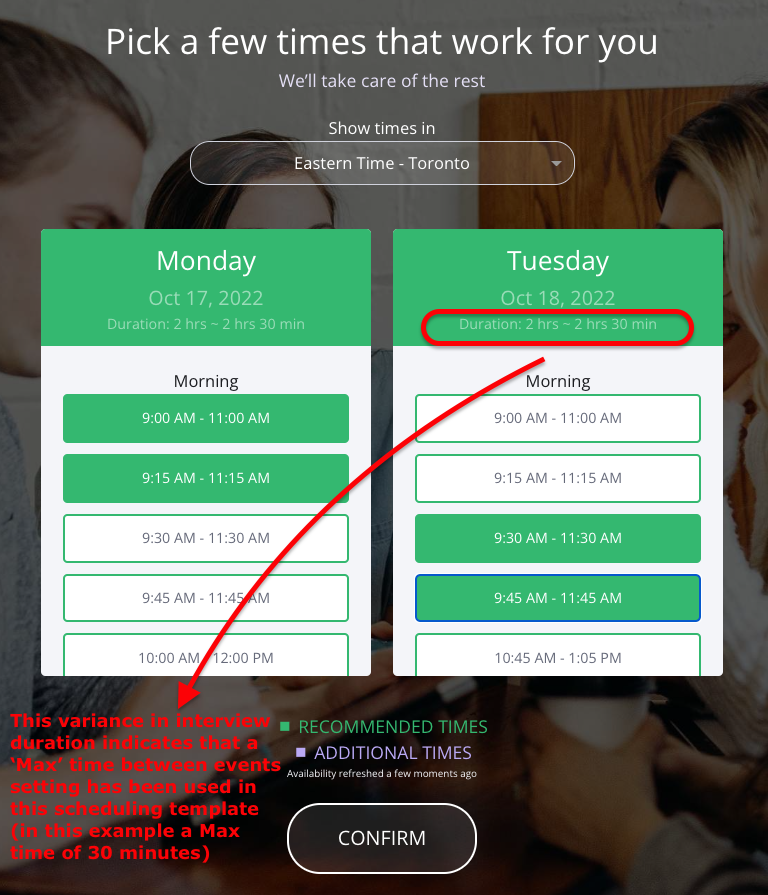
When options are clustered on fewer days
For a multi-event search, if the returned options are clustered on fewer days than the candidate submitted availability for, review the Min/Max Time Between Events setting. For an individual interview, this setting is under Advanced Settings > Template Settings. In one tested case, the setting was 0 minutes minimum and 15 minutes maximum; changing both values to 120 minutes produced a four-day option. In that interface, changing the minimum to 120 minutes automatically updated the maximum to 120 minutes. This is a case-specific example, not a universal recommendation or guarantee: results still depend on the candidate's availability and other scheduling constraints. After changing the setting, run Search Options again and review the returned options.