Azure + GoodTime Integration Guide
Last updated: July 30, 2026
More info on SAML Integrations can be found by clicking here.
A step-by-step guide.
Please work with an IT point of contact at your company to configure your IdP. The SAML protocol is generic and should work with any SAML Identity Provider service.
Custom Connector:
Navigate to your Microsoft Azure portal
In the search bar, search for and select Enterprise Applications
Click + New application
Click + Create your own application
Name your app e.g. GoodTime SAML 2.0 SSO
Select Integrate any other application you don't find in the gallery (Non-gallery)
Click Create
Navigate back to Enterprise applications
Select your newly created app
Click Single sign-on
Click SAML
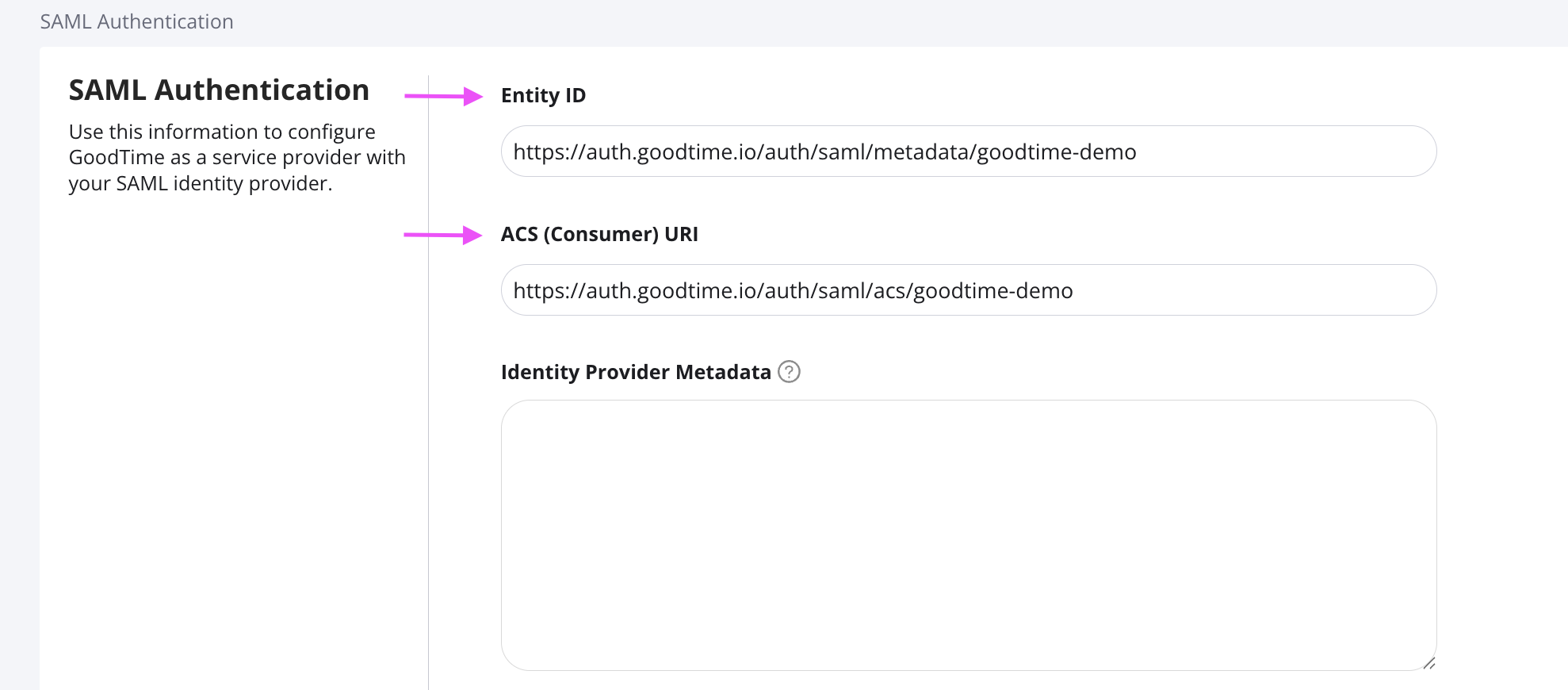
Under Basic SAML Configuration click Edit and paste in Entity ID and ACS URL found in GoodTime -> SETTINGS -> Account Management -> SSO (or for eu.goodtime.io customers: GoodTime -> SETTINGS -> Account Management -> SSO )

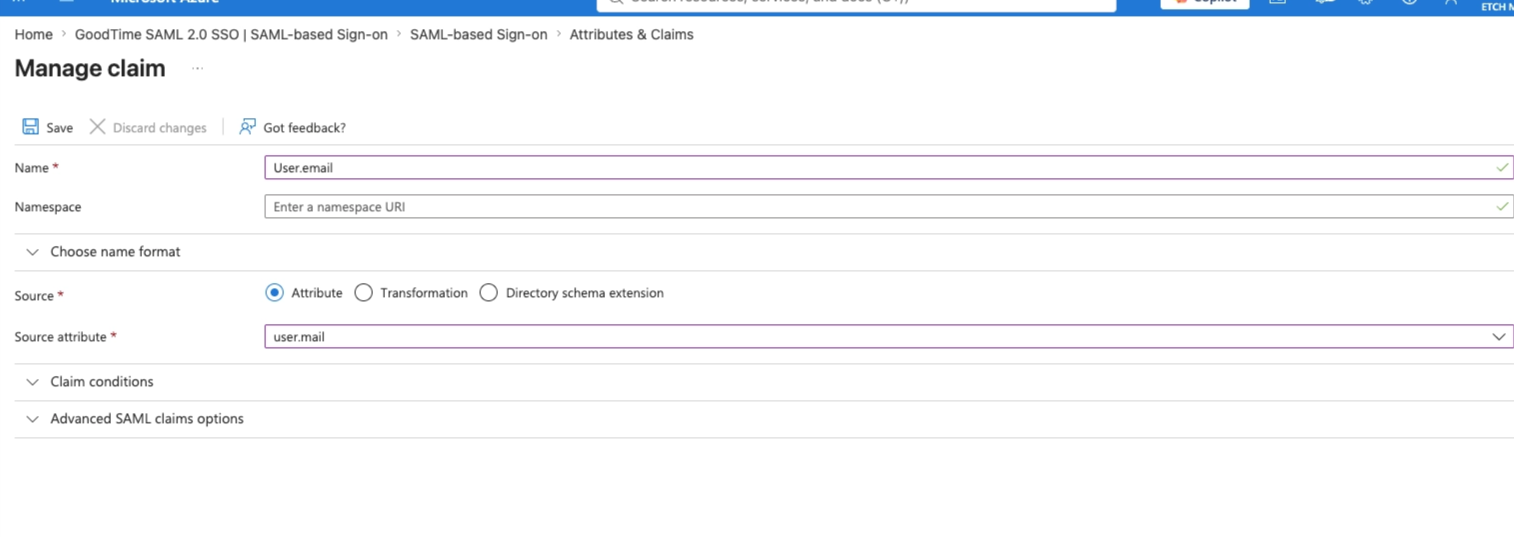
Under User Attributes & Claims click Edit and add new claim
Name: User.email
Source attribute: user.email
Under SAML Certificates, click Download for Federation Metadata XML
Open this file in a text editor and copy its contents
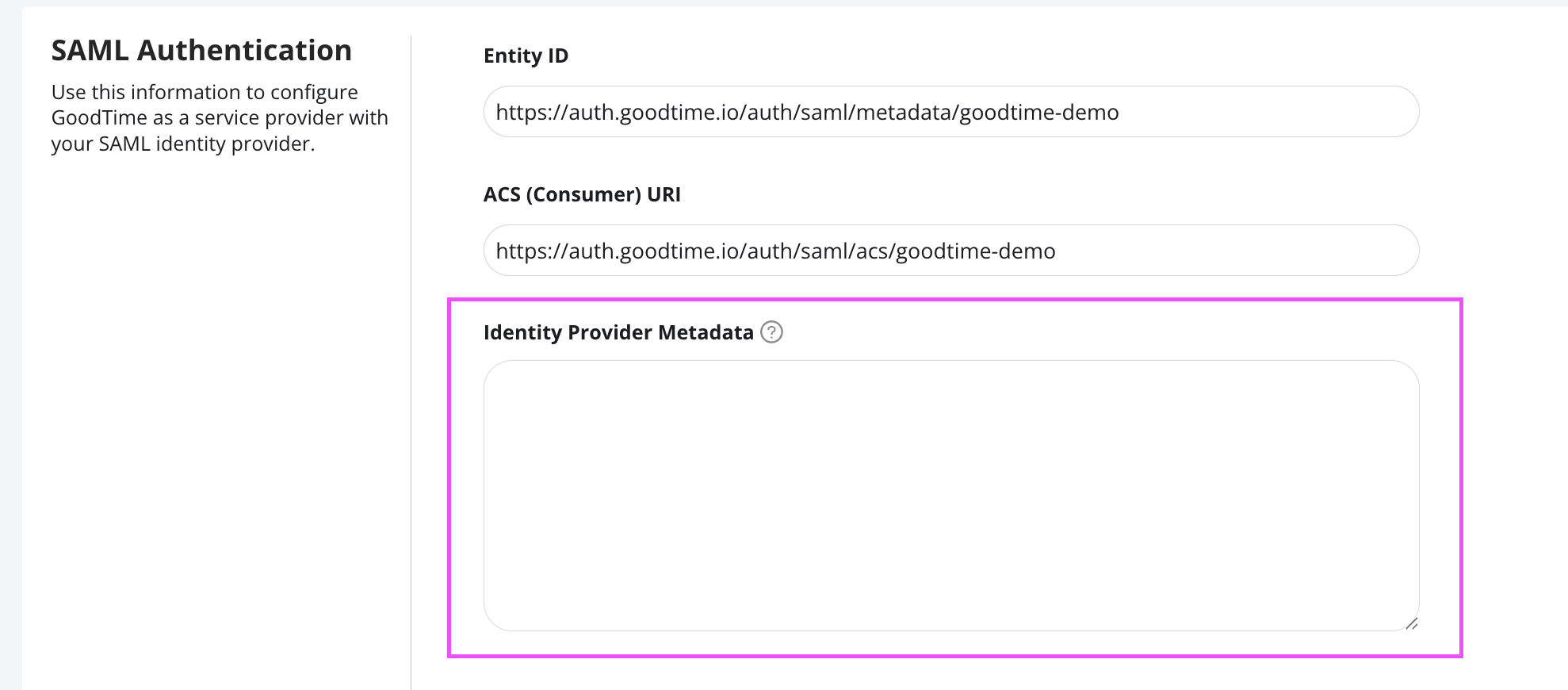
Navigate back to GoodTime -> SETTINGS -> Account Management -> SSO and paste the XML contents under Identity Provider Metadata
Toggle on/off these optional settings:

Click Save