Okta + GoodTime Integration Guide
Last updated: August 12, 2026
More info on SAML Integrations can be found by clicking here.
A step-by-step guide.
Please work with an IT point of contact at your company to configure your IdP. The SAML protocol is generic and should work with any SAML Identity Provider service.
Custom Connector:
Sign in to your Okta portal and navigate to your applications in the Admin console.
On the left, click Create New App.
Select SAML 2.0 for Sign-in method.
Click Next.
Give the app a name.
e.g. GoodTimeand click Next.In another browser tab or window, open up GoodTime --> Settings --> SSO page.
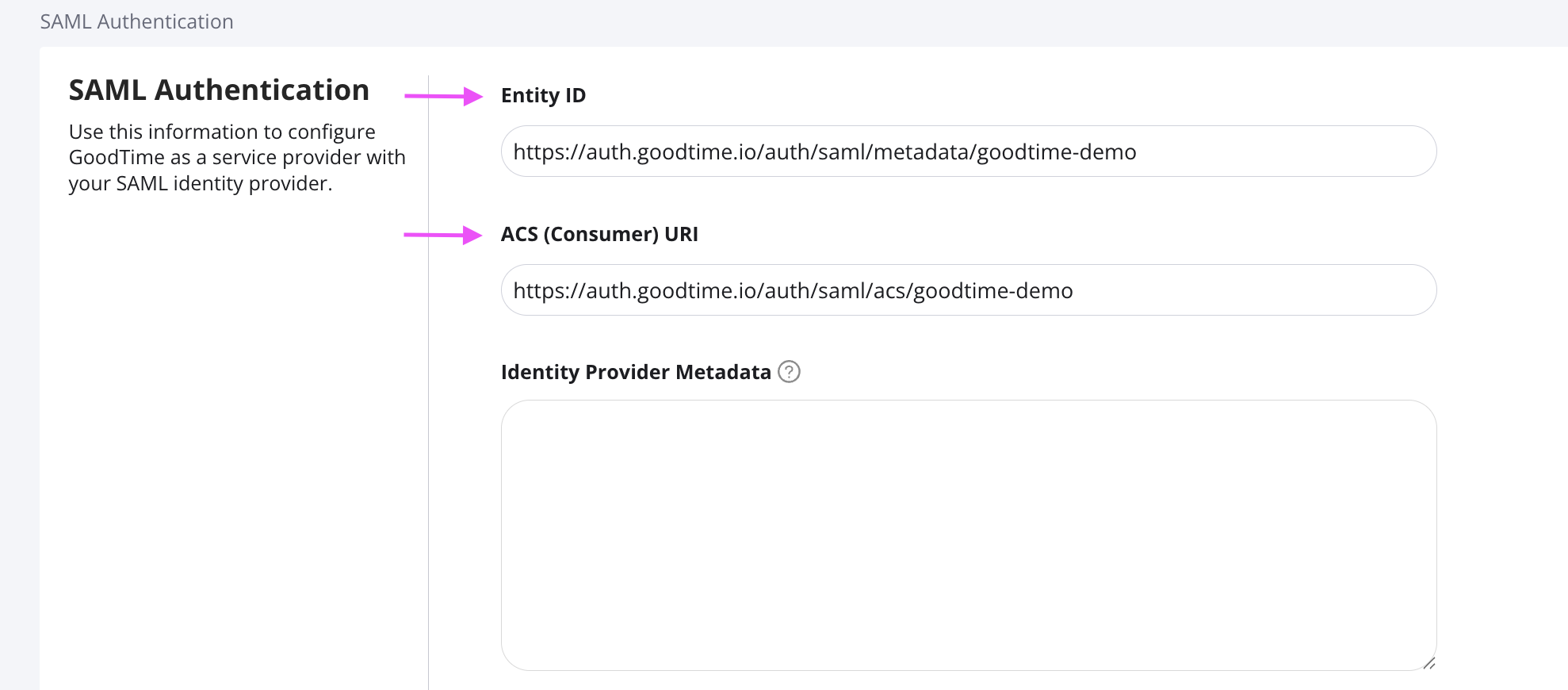
Copy the Entity Id and paste it into the Audience URI (SP Entity ID) field of the Configure SAML step in Okta.
Copy the ACS (Consumer) URL and paste it in the Single sign-on URL field of the Configuration Tab in Okta.
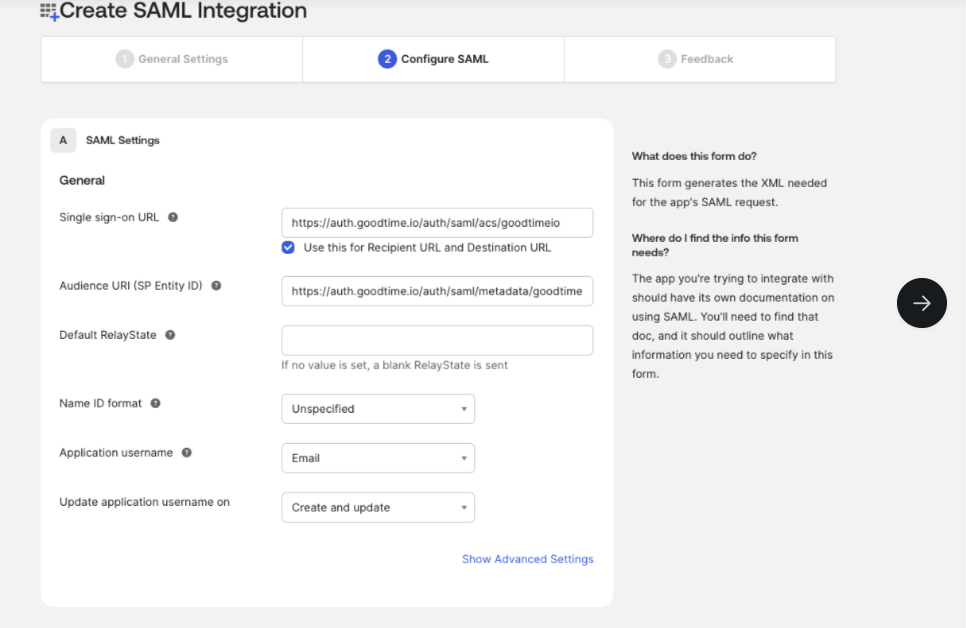
Click Next and then finish the setup.
Navigate to the newly created Goodtime SAML app.
Navigate to the Sign-on tab.
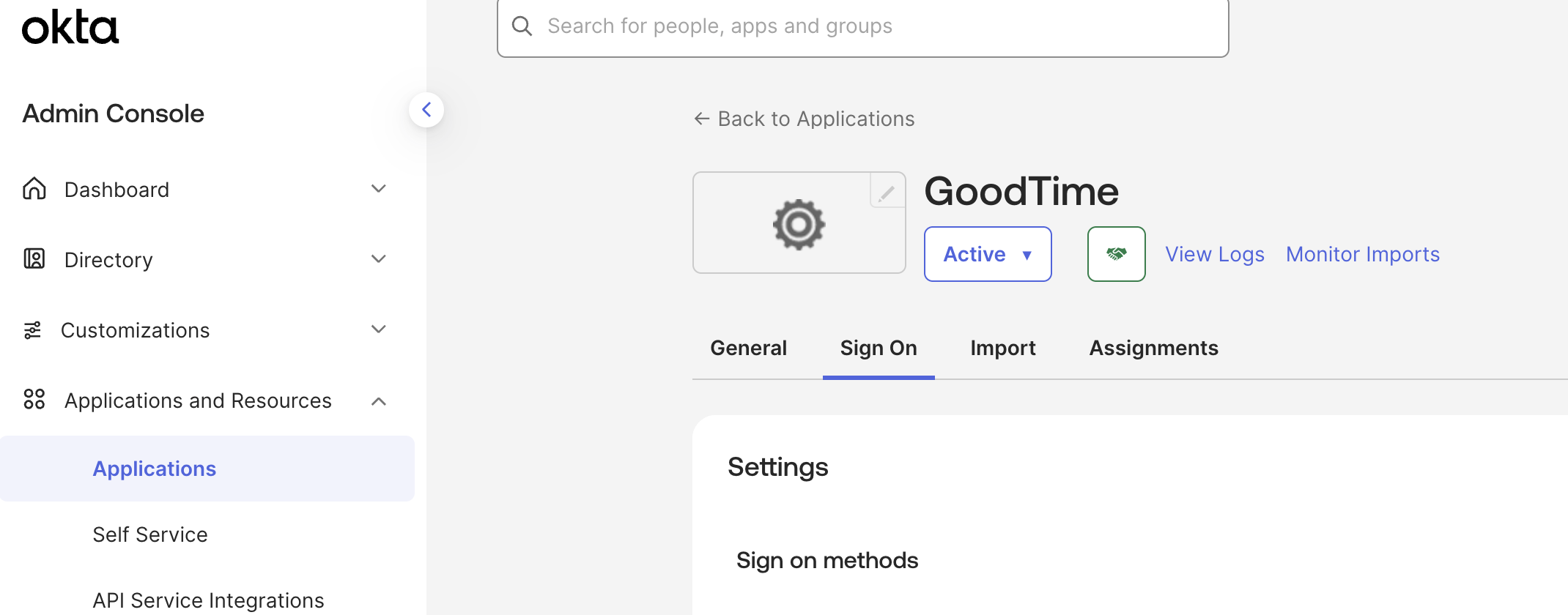
Scroll down to Attribute statements and click Add expression. Put
user.emailin the Name field anduser.profile.emailin the Expression field.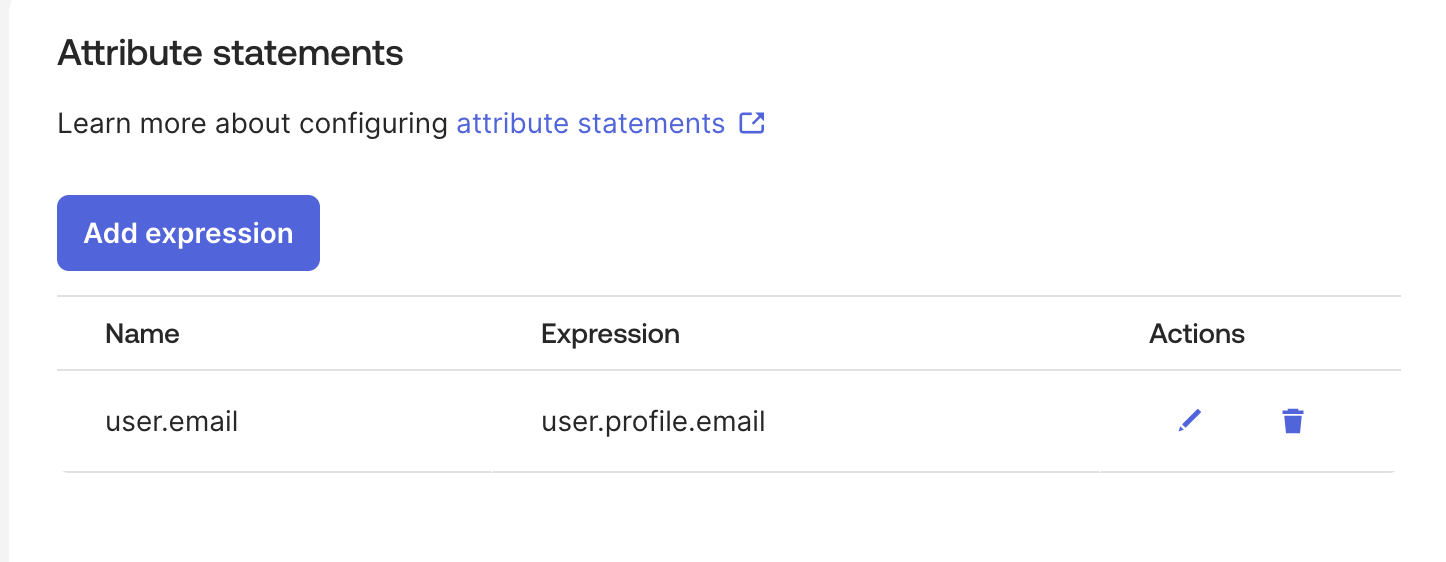
Now scroll up to the Sign-on methods section. In a new tab, navigate to your Metadata URL and copy the xml formatted content.
Then go to configure GoodTime > Settings > Account Management > SSO. Paste the content of the metadata into "Identify Provider Metadata" field.
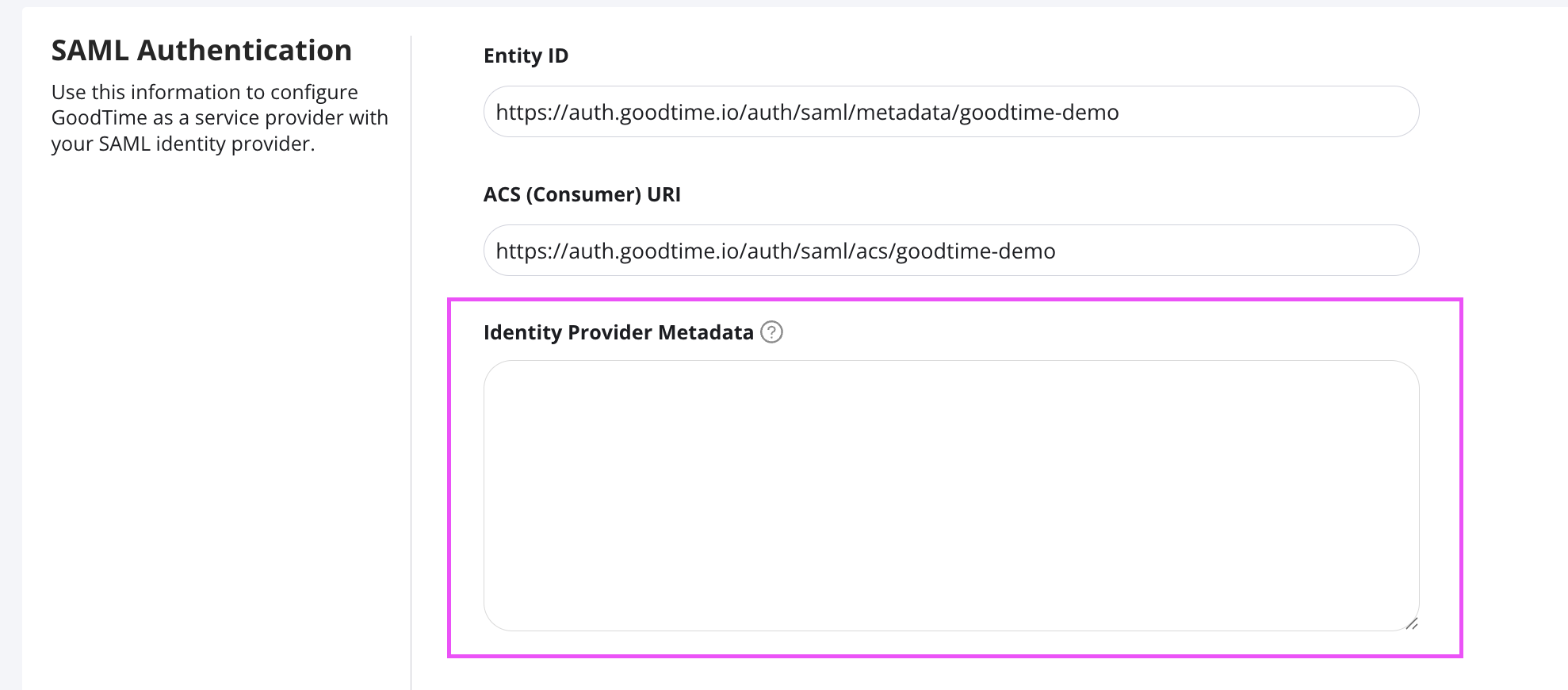
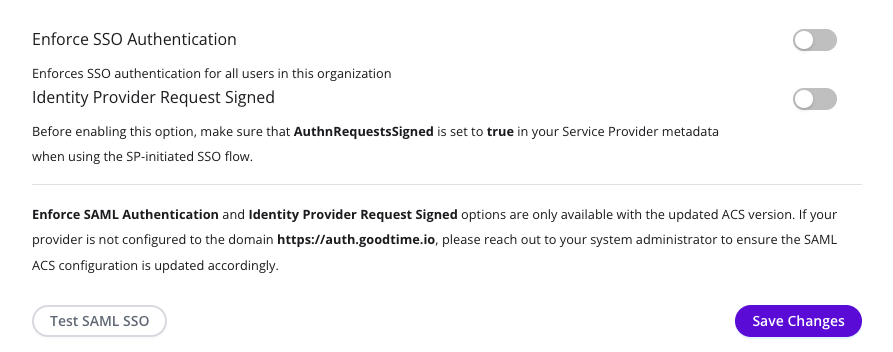
Toggle on/off the 2 optional settings & hit the "Save" button.