SMS & WhatsApp Messaging - Setup & Usage
Last updated: August 27, 2026
TL;DR: GoodTime HIRE: Agentic Plan allows recruiting teams to communicate with candidates through SMS/Text and WhatsApp in addition to email.
Once your organization's messaging channels are configured, recruiters and coordinators can send personalized messages, communicate with candidates individually or in bulk, use messaging as part of scheduling workflows, and manage conversations through GoodTime.
This article covers setting up and using SMS and WhatsApp.
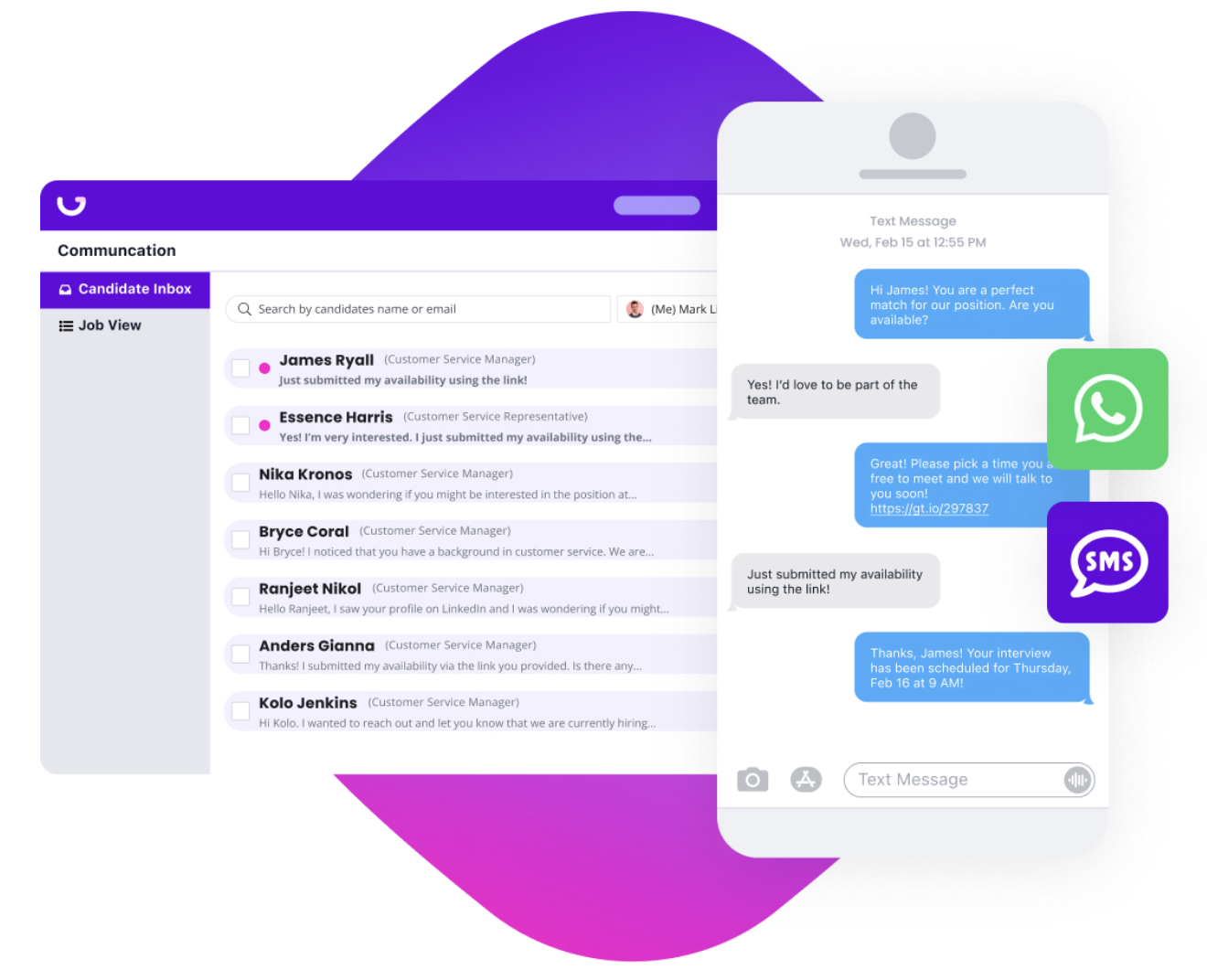
What can I do with SMS and WhatsApp?
With GoodTime messaging, your recruiting team can:
Send personalized 1:1 candidate messages
Communicate with candidates through SMS/Text
Communicate through WhatsApp when configured
Message groups of candidates for high-volume workflows
Communicate with candidates while working in your ATS
Use the GoodTime Chrome extension to initiate candidate communication
Incorporate messaging into scheduling workflows
Use templates to standardize common messages
Schedule messages to be delivered later
Candidate conversations can be viewed and managed through Candidate Inbox.
SMS Setup
Before your organization can send SMS/Text messages through GoodTime, GoodTime must establish a dedicated phone number for your organization.
This number is:
Unique to your organization
Used by your GoodTime users when messaging candidates via SMS
Presented to candidates as the number sending your organization's GoodTime SMS communications
Please reach out to your GoodTime Customer Success Manager if SMS has not yet been configured for your account.
Localized Phone Numbers
By default, your organization send SMS messages from its configured GoodTime phone number. Organizations that want a more localized candidate experience can also configure additional regional phone numbers. When multiple localized numbers are available, GoodTime can use a number geographically closer to the candidate.
Additional localized numbers may require an additional cost. Contact your GoodTime CSM to discuss availability and configuration.
WhatsApp Setup
Before your organization can communicate with candidates through WhatsApp, your organization's WhatsApp account must be configured and validated.
Because WhatsApp is part of Meta, this process requires access to your organization's Meta/Facebook Business account. The person who administers your organization's Meta Business account - often someone on your marketing, IT, or social media team - may need to participate in the setup process.
Follow the WhatsApp configuration process within Company Settings in GoodTime or contact your GoodTime CSM for assistance.
Sending a Message
Once the appropriate channel has been configured, your team can initiate candidate communication from supported GoodTime experiences, including GoodTime HIRE and the GoodTime Chrome extension.
Messages and replies can then be reviewed through Candidate Inbox.
Using Message Templates
Templates can help your team standardize frequently used candidate communications and reduce repetitive work.
When designing a message template for SMS or WhatsApp:
Keep the message concise and easy to read on a mobile device
Personalize the content where appropriate
Clearly explain the action you want the candidate to take
Include any required consent or opt-out language for the communication channel you are using
Templates can also be incorporated into scheduling and automated recruiting workflows.
Screening & Knockout Questions
For applicable workflows, you can incorporate screening questions into your candidate messaging experience. These questions can help collect basic qualification information before moving a candidate further through the interview process.
For example, a high-volume recruiting workflow may ask candidates about required qualifications before requesting interview availability. Additional explanatory or disclaimer text can also be included when additional context is necessary.
Scheduling Through Messaging
SMS and WhatsApp can also be used as part of the candidate scheduling experience. This can be especially useful for mobile-first recruiting processes where candidates are more likely to engage from their phone than through email.
Depending on your GoodTime workflow, candidates can receive scheduling communications and take the next scheduling action directly from the message experience.
Schedule a Message to Send Later
You can schedule a candidate message to be sent at a later time rather than sending it immediately. This is useful when preparing communications outside normal business hours or when you want outreach to reach candidates at a more appropriate time.
Select the desired delivery time when preparing the message and GoodTime will hold the communication until that time.
Before Sending SMS: Review Consent Requirements
Organizations sending SMS messages are responsible for following applicable messaging and consent requirements. GoodTime includes functionality to help manage candidate SMS preferences, including handling candidates who reply STOP.
Before launching SMS outreach or automated SMS workflows, review: SMS Consent, Opt-In & Opt-Out
This article covers:
Candidate consent
Application-based opt-in
STOP and opt-out behavior
Greenhouse consent configuration
What happens when a candidate opts out during an automated workflow