GoodTime Chrome Extension - Setup
Last updated: October 12, 2026
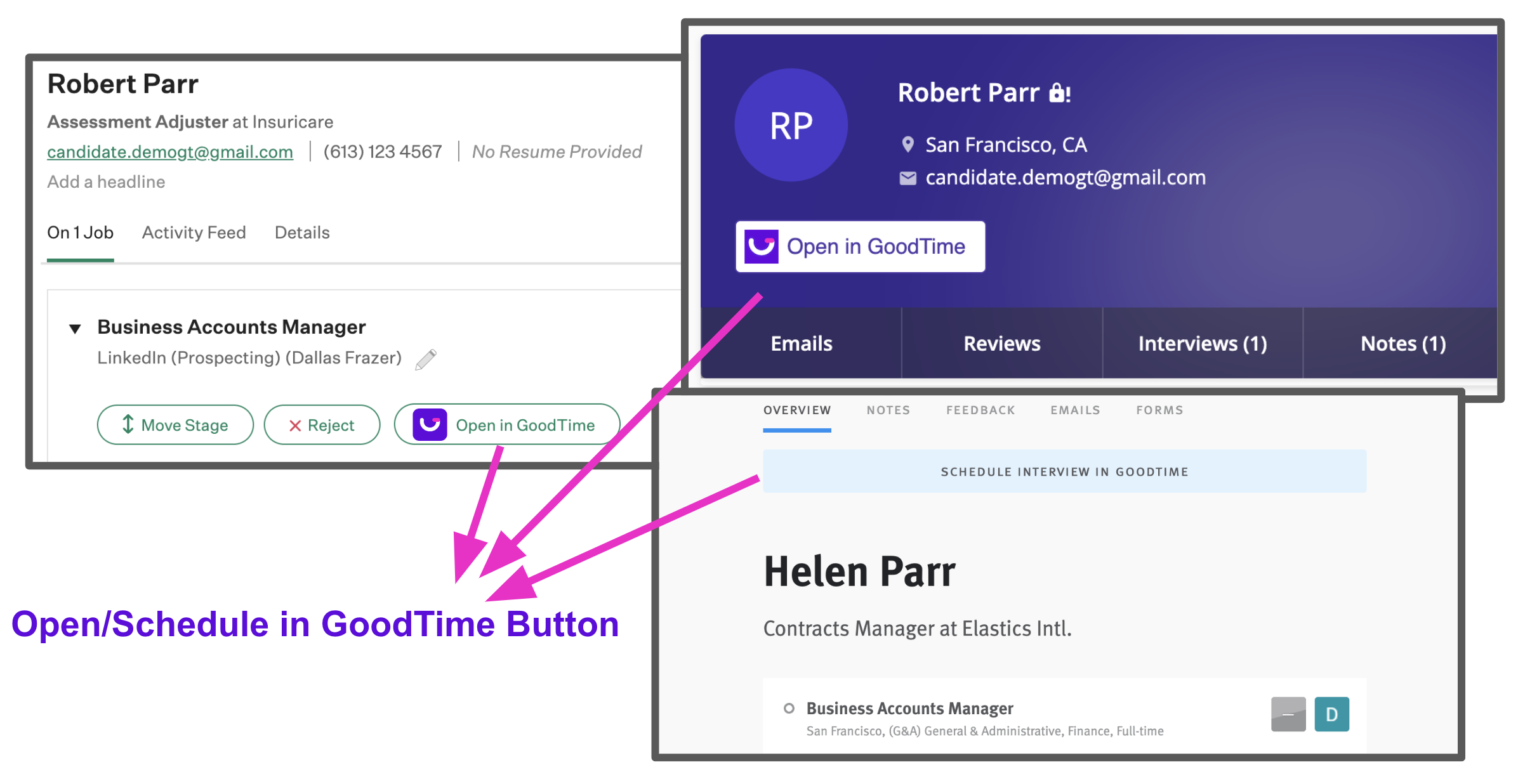
TL;DR: GoodTime is optimized to operate on the Google Chrome browser and to get the most from GoodTime you will want to also download the GoodTime Google Chrome plugin. The GoodTime Google Chrome plugin will allow for the 'Open/Schedule in GoodTime' button to appear within your Applicant Tracking System (ATS).
Download and Setup
Follow these steps to install the extension for your Application Tracking System((we integrate with a few different ones):
Click on your profile picture in the top right corner of the screen
Click on 'Download Plugin' menu item
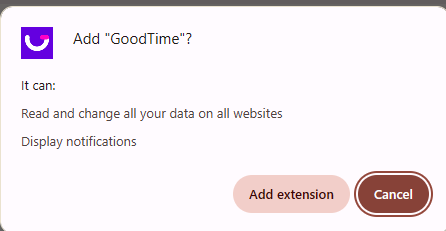
On the Chrome Web Store page, click Add to Chrome, then confirm by clicking Add Extension.
Refresh your ATS browser window to verify the Open/Schedule in GoodTime button appears.
How to Check Your Extension Version
Click on the puzzle piece icon in the top-right corner of Google Chrome to see your installed extensions.
Click the three dots (More Actions) next to the GoodTime extension and select Manage Extension.
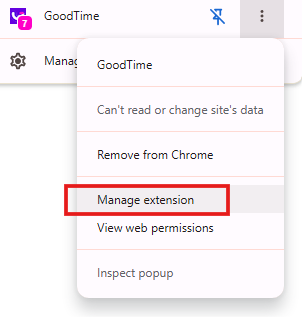
Locate the 'Version' listed near the top of the details page.
TROUBLESHOOTING:
Button is missing or not functioning properly
If you find that your chrome extension is not working or the 'Open in GoodTime' button fails to appear after downloading the plugin please step though the following:
Confirm if Extension is Enabled
Click the Puzzle Piece icon > Manage Extensions.
Ensure the toggle switch next to GoodTime is turned ON

Update the Goodtime Extension
Open a chrome web browser window and go to: chrome://extensions
Click the 'Details' button on the GoodTime Chrome extension tile
Toggle on 'Developer Mode' in the top right of your screen
Click the 'Update' button in the top left (you should see you version number update)

Turn OFF Developer mode.
Check that your Google Chrome browser version is up to date
Open a chrome web browser window and go to: chrome://settings/help
If you browser is not up to date please click on the button to update it.
Contact GoodTime Support
If the issue persists, reach out via the in-app chat widget or email support@goodtime.io.
Include: The candidate profile URL, your Chrome extension version number, and the name of your ATS.