Codility + GoodTime Integration Guide
Last updated: October 12, 2026

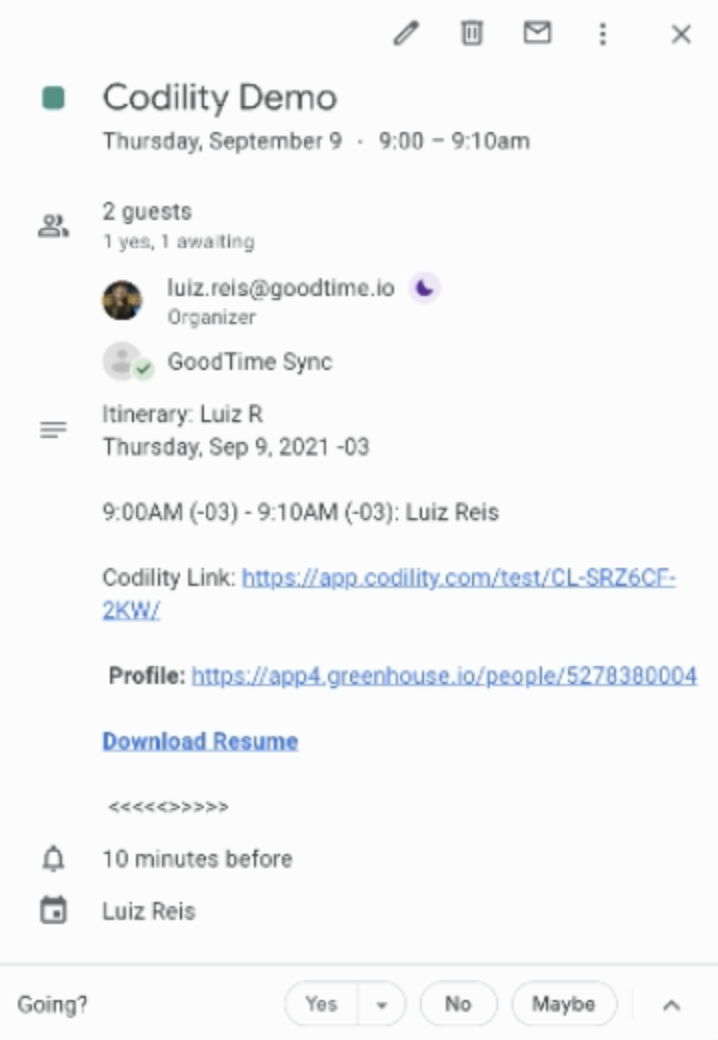
TL;DR: This is a step-by-step guide for integrating Codility with GoodTime. With this integration, you can easily create and add Codility CodeLive interview session links while scheduling your interviews in GoodTime.
First, make sure you have the following permissions:
You must have the admin role in Codility
You must have super admin access in GoodTime
In this guide, you will learn how to:
Set up the Codility > GoodTime integration
Insert a Codility live interview URL in GoodTime
Set up Codility > GoodTime integration
From your Codility “My Account”>“Account details” > “Integrations tab”, navigate to the “Create an integration” panel. Give the integration a descriptive name and click “Create”.
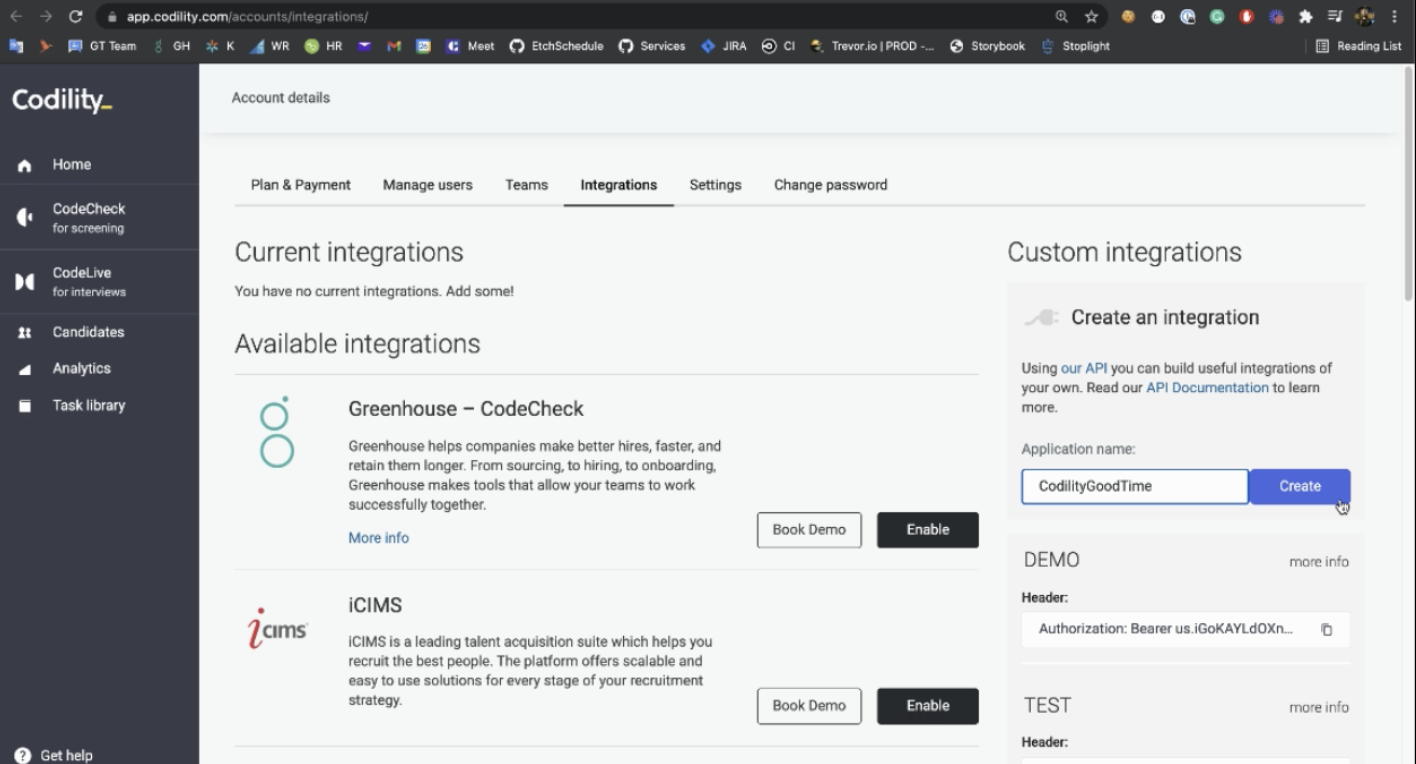
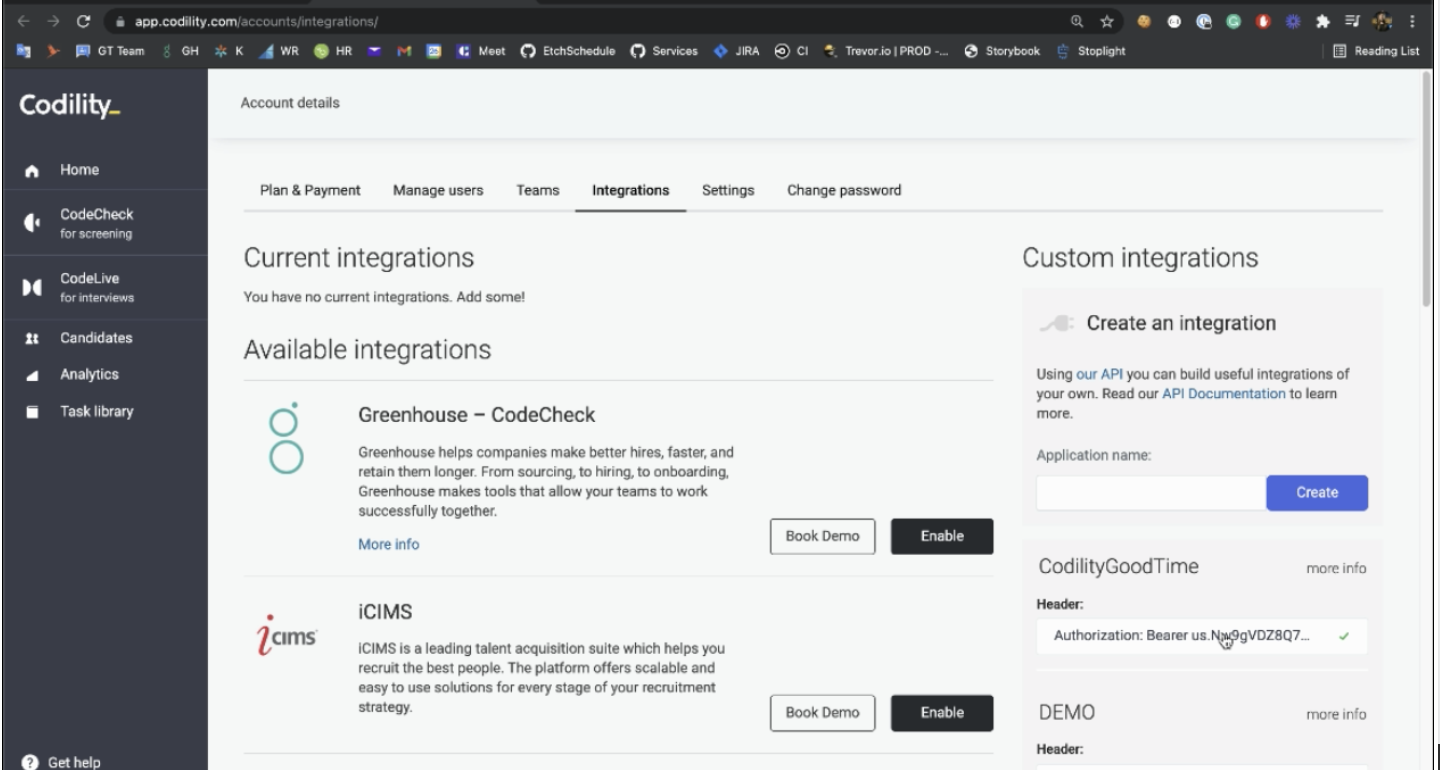
2. A new key will be generated inside the panel area. Click on the header to copy it.
3. From your GoodTime account, navigate to GoodTime > Settings > Company. Scroll down to the Collaborative Coding section and select Codility.
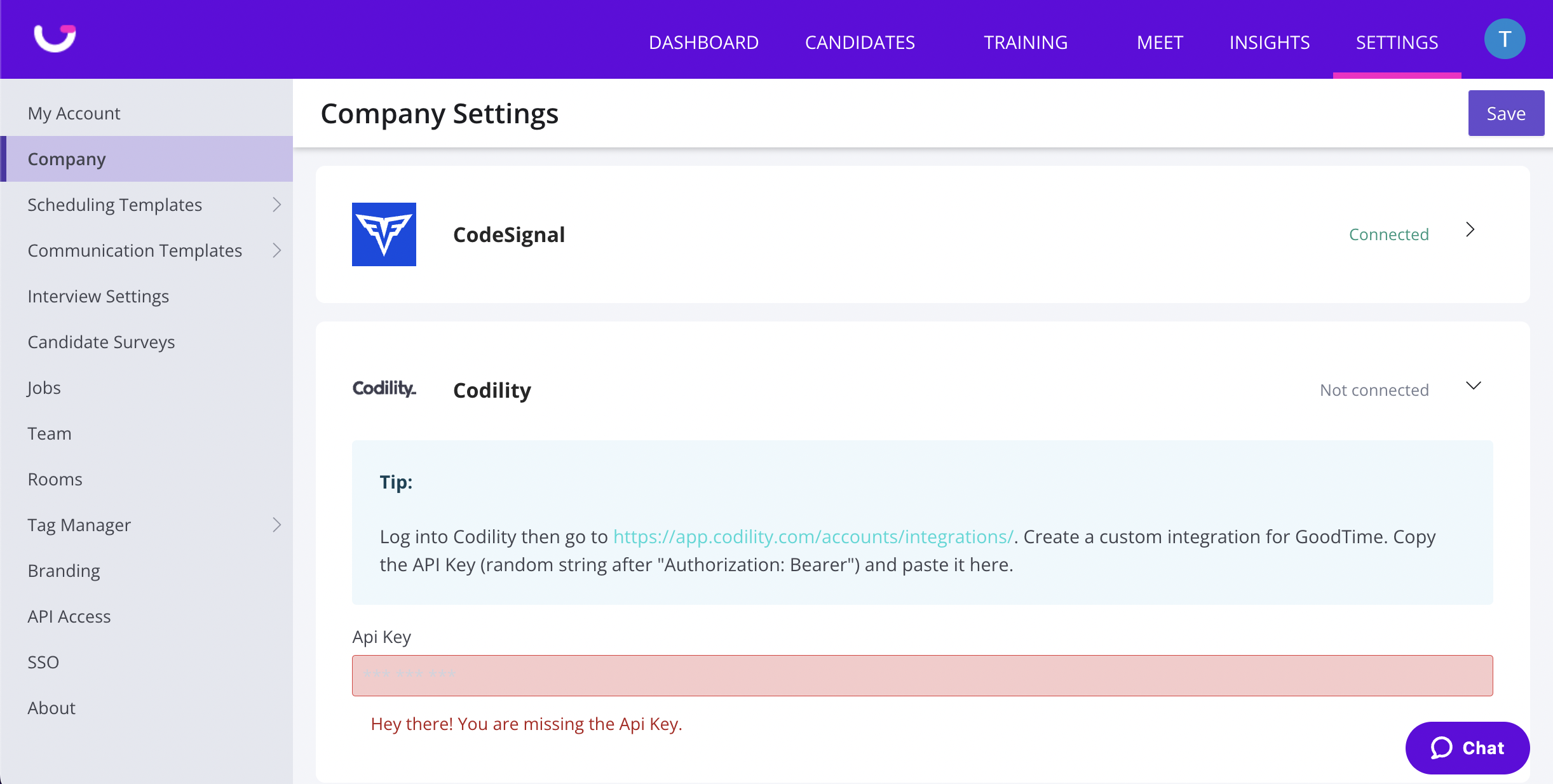
4. Paste your Codility API key in the input area. Remove the leading “Authorization: Bearer” and make sure there are no leading white spaces.
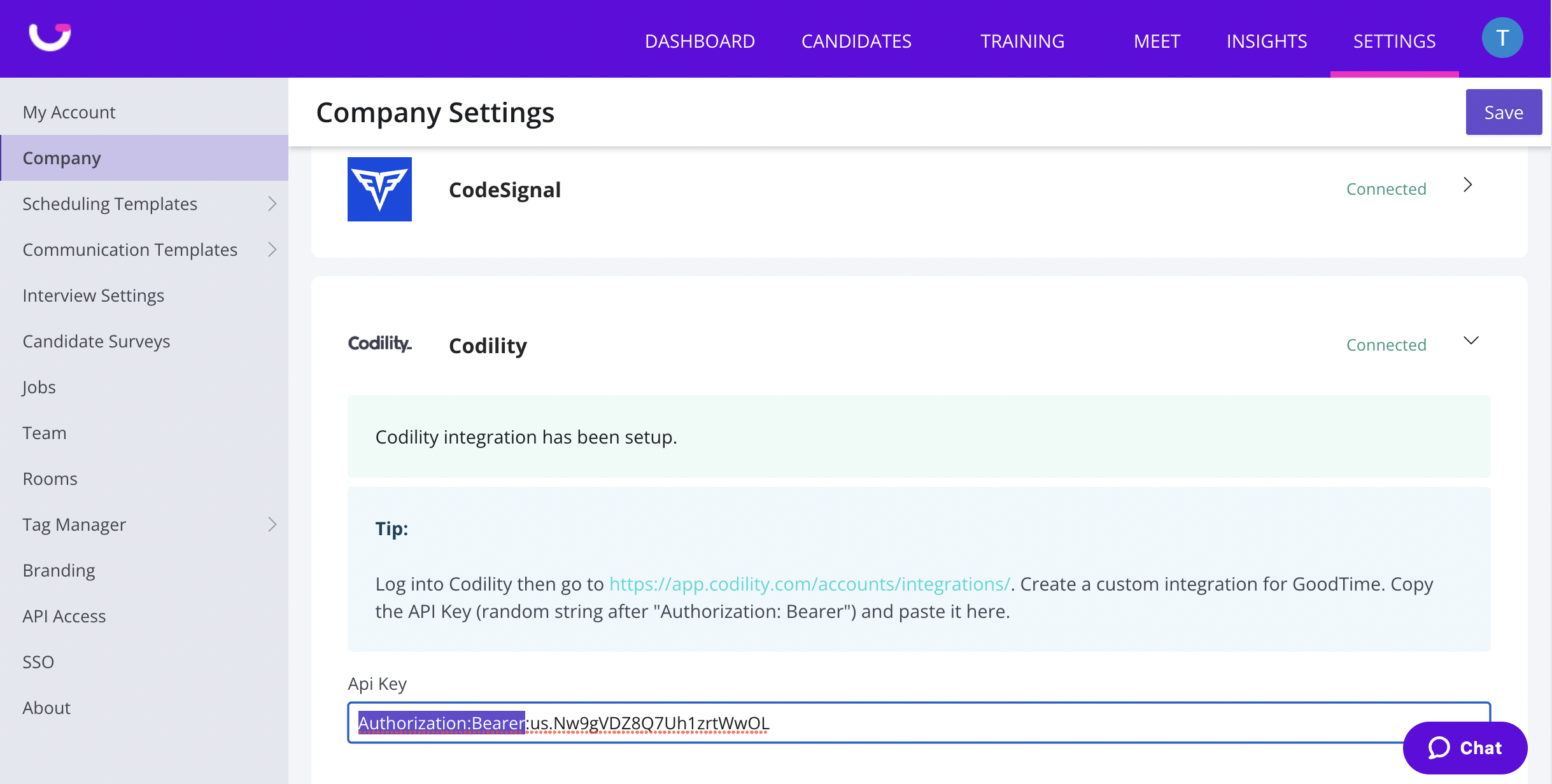
5. Click Save, and the integration set up is complete!
Insert a Codility CodeLive URL in GoodTime
In GoodTime’s “Schedule Now” workflow a user can insert variable tokens into the Calendar Invitation body text area.
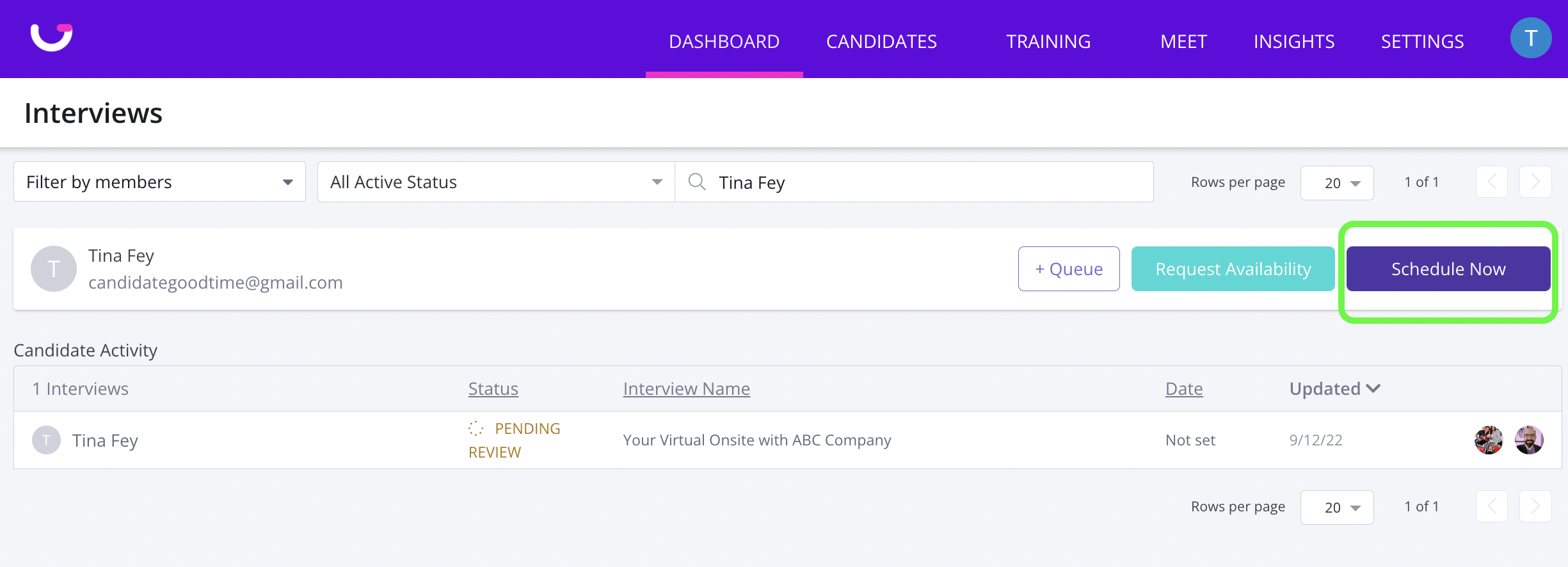
Variables supported are:
$Interview.Codility.Live.Link - for a single session live interview
$Event.Codility.Live.Link - for a panel interview with multiple interviewers’ sessions, where each session needs its own unique live interview URL
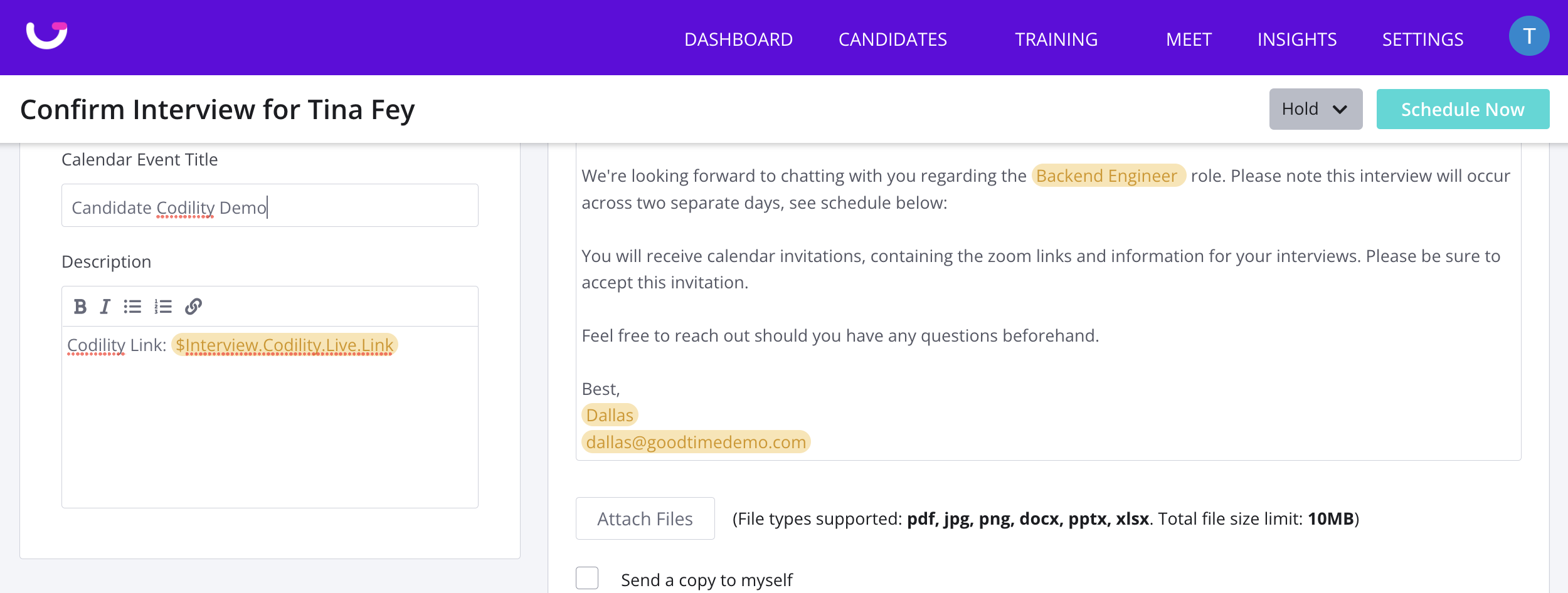
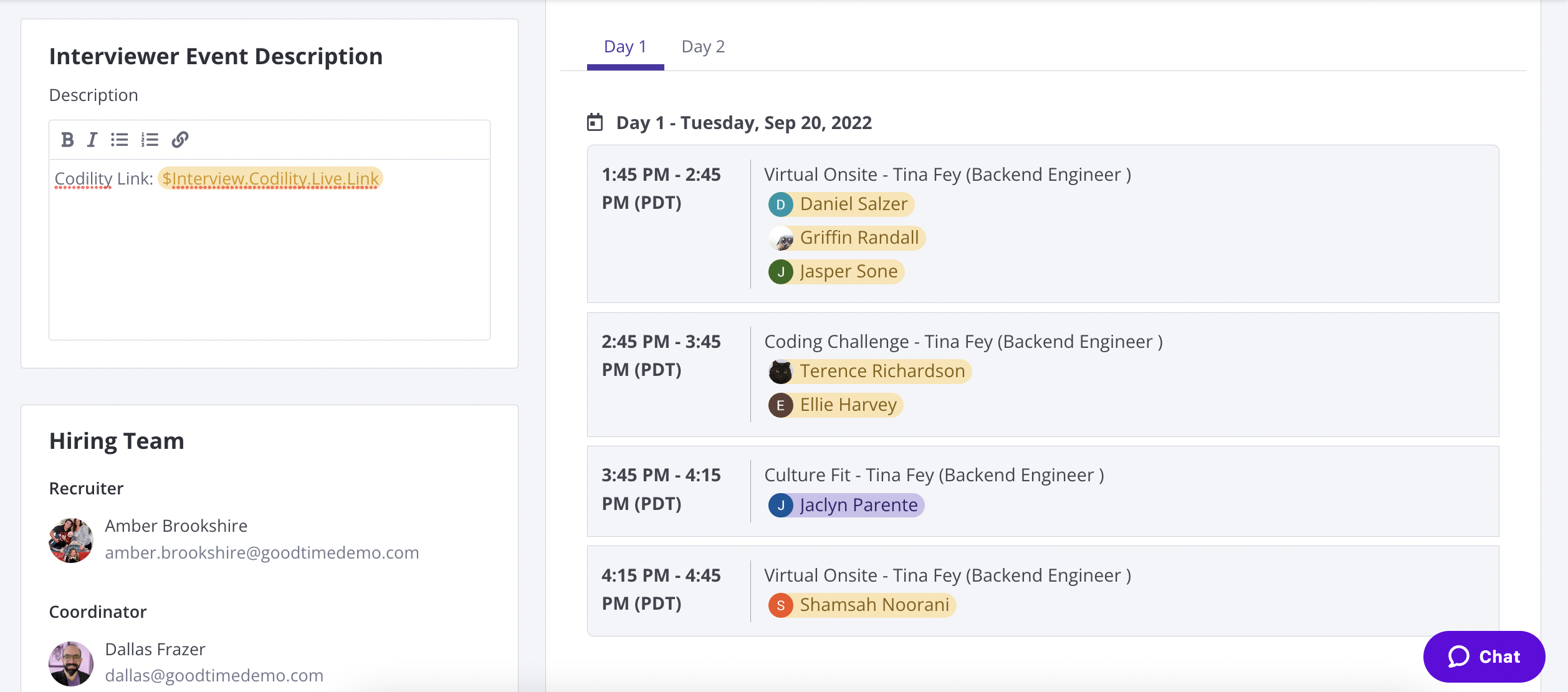
When the interview is scheduled, the variable tokens will be resolved into an actual Codility URL.