How To - Jobs Tab and Linking Scheduling Templates
Last updated: October 6, 2026
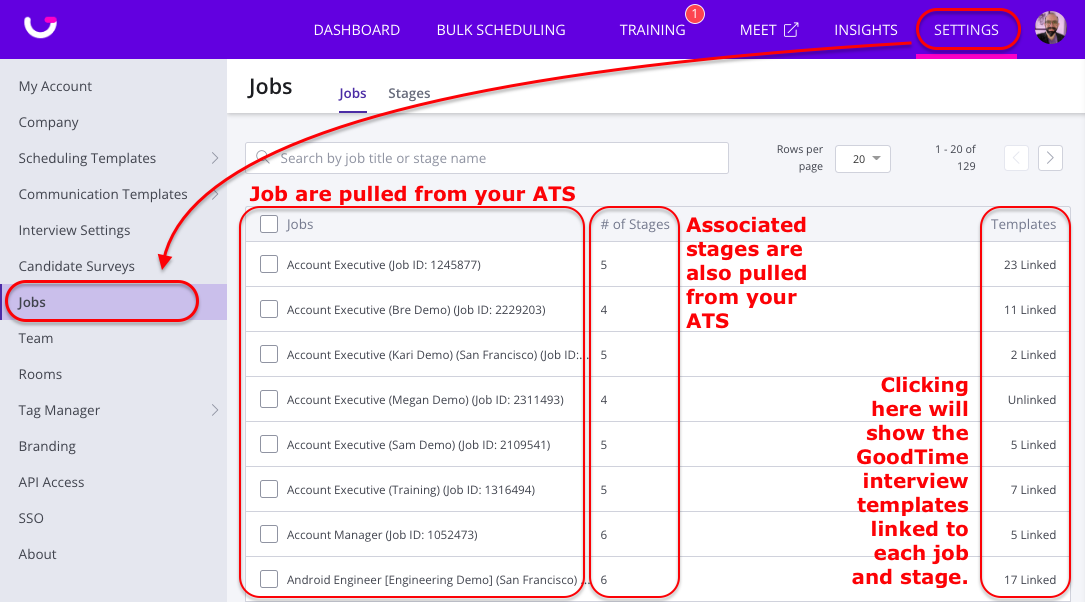
TL;DR: The GoodTime 'Jobs' tab (found within your GoodTime Settings menu) provides an overview of every Job and their associated Stages from within your Applicant Tracking System (ATS).
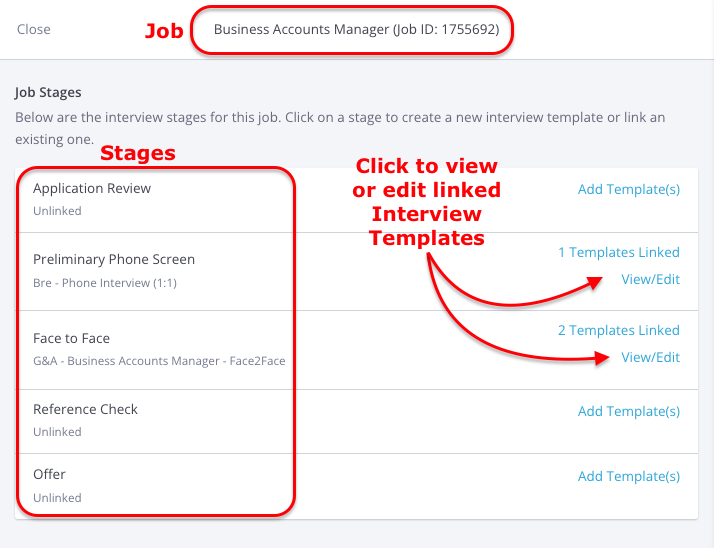
Through this view you can also manage the linking of your GoodTime interview templates to each combination of Job and Stage from within your ATS. Linking your interview templates to Jobs and Stages in your ATS further optimizes your scheduling workflow as it allows GoodTime to automatically pull the appropriate interview template based upon the role and stage you are scheduling for. The Jobs tab also provides an easy means of editing your linked interview templates.Job + Stage template links: To assign the same default or generic interview template to only selected jobs or stages, update the relevant Job + Stage links individually in Settings > Jobs. There is currently no supported bulk action to relink a template across a selected set of jobs or stages, so these changes do not automatically apply to other jobs.
Bulk actions available from the Interview Templates area—such as linking a base template, moving templates to folders, adding prep or training paths, or archiving templates—manage the templates themselves. They do not change which interview template is associated with a particular Job + Stage.
Video Overview of the Jobs Tab:
How to find the Jobs Tab:
1. Click 'Settings' (top right)
2. Click 'Jobs' (on the Right Hand menu)
Overview of the Jobs Tab: