Superdays: Setup + Best Practices
Last updated: October 20, 2026
A step-by-step guide to building and running a Superday — GoodTime's tool for on-site, campus, intern, and other high-volume interview events.
Before You Start
GOAL: Understand the building blocks so the steps below make sense.
Please ensure your team watches this end-to-end demo of Superdays here:
A Superday is slot scheduling for a hiring event. Instead of running the day from a spreadsheet and a flood of manual emails, you build the event once in GoodTime — days, interviewers, and the interview plan — and GoodTime generates a grid of bookable slots. You send one request to all your candidates, and they grab open slots on a first-come, first-served basis. A slot disappears the moment it's taken. GoodTime then handles the confirmations, calendar invites, and reminders.
Think of it as speed dating. You tell GoodTime the days, the interviewers, and the interview plan. GoodTime builds the grid, sends one request to every candidate, and they claim open slots until the event is full — no back-and-forth over who can come at ten o'clock.
The building blocks
Term | What it means |
|---|---|
Superday | One hiring event: its name, linked ATS job(s), location, days, and time windows. |
Event | One interview a candidate attends during the day (e.g. "Engineering interview," "Culture interview"). Every event in a Superday shares the same duration. |
Interview plan | The sequence of events every candidate goes through. A Superday supports exactly one plan. |
Interview group | A set of interviewers paired for the day — one per event. Adding more groups multiplies how many candidates you can see at once. |
Time Blocks | The days and daily windows the event runs in. The start time is a floor; gaps between windows (e.g. lunch) create no slots. |
Block / slot | A bookable time in the grid. Superday blocks behave like interview blocks — they override interviewer calendars. |
Grid | The matrix of days, times, and groups that GoodTime generates automatically from your Time Blocks, panel, and groups. |
Superday template | A dedicated interview template GoodTime auto-creates for each Superday. All invite content, emails, reminders, surveys, and the confirmation page live here. |
Events vs. groups, in plain terms: Events are the interviews each candidate attends (for example, an engineering interview and a culture interview). A group is the set of interviewers who run those events for the day — paired together, one per event, swapping candidates each rotation. Adding more groups lets you interview more candidates at the same time.
One plan, one duration per Superday. Many roles can share a single Superday if they share the same interview plan and the same event duration. A different plan, or a different length, needs its own Superday. You can link several ATS jobs to one Superday as long as they share the plan.
On-site or remote: Superdays was built for on-site events, but it runs remotely too. You choose the format when you create the Superday — On-site (pick a location) or Remote (set a time zone). For remote events, the video links (Zoom, CoderPad, etc.) come from the Superday template, so each candidate and interviewer gets a link automatically. The grid and rotation work exactly the same either way.
Superdays vs. standard Request Availability: A Superday reuses GoodTime's familiar Request Availability experience, so the candidate's booking page looks identical to the rest of GoodTime. The difference is that a Superday shows only your pre-built event slots across the event days, and fills the grid first-come, first-served — ideal when you need to see many candidates in a short, fixed window.
Pre-Launch Checklist
GOAL: Confirm these before you build, so the event runs end to end without surprises.
Lock the dates early. Campus and seasonal teams usually plan months ahead, with peak event season in the fall. Get dates on the first planning call and work backward to leave time for build, testing, and interviewer training.
Secure interviewer commitment. Interviewer buy-in is the single biggest factor in a successful event. Interviewers should commit to at least a half day — ideally a full day — and clear their calendars, because Superday blocks override calendar availability.
Confirm candidates are in the ATS. A Superday schedules candidates from the linked ATS job(s). Make sure the candidates you want to invite exist on those jobs before you send.
Count interview plans, not roles. Group roles that share one plan and one duration into a single Superday; split anything else into separate Superdays.
Size the event. Use the capacity formula in Step 1 to check that your interviewer pool can see the number of candidates you plan to invite.
Why this matters: Once a Superday is active, you can't add more events or times to it. Build and review the whole structure before you invite anyone, and remember that GoodTime does not check interviewer calendars — so the people in your groups must genuinely be free for their shifts.
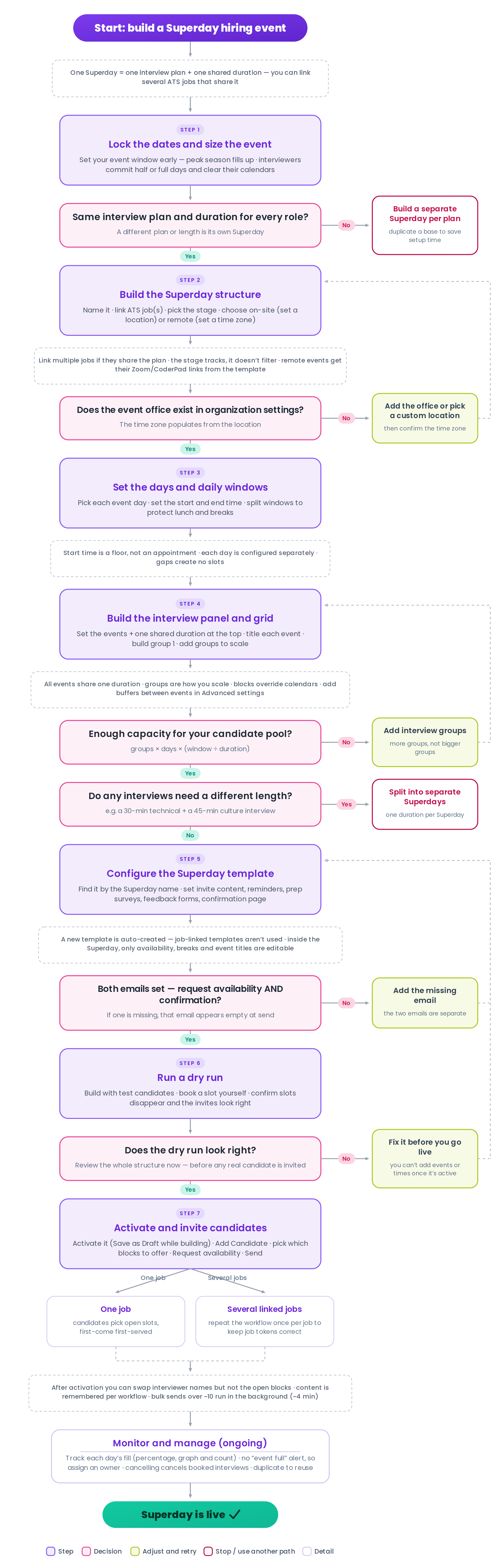
At a Glance
The full build flow on one page. Each step is explained in detail in the sections that follow.
Step 1 — Plan the Event
GOAL: Lock the dates and confirm the event is the right shape before you build anything.
1.1 Lock the dates
Pick your event window as early as possible and back-plan build, testing, and interviewer training from there. Clients rarely want to deploy new scheduling right before a big event, so dates first.
1.2 Confirm interviewer commitment
Superday blocks override interviewer calendars — GoodTime will book any open slot, even over an existing meeting. So interviewers must truly clear their calendars for their shifts. Ask for committed half or full days rather than "I can do one at 10," and consider a short interviewer training so everyone assesses against the same rubric.
1.3 Count interview plans, not roles
One Superday = one interview plan + one duration. Interns, full-time engineers, and managers can share a single Superday if they go through the same interviews for the same length of time. Different plans or durations mean separate Superdays.
1.4 Size the event
Each group processes one candidate per event length. With two 30-minute events, a group sees two candidates an hour.
Candidate slots ≈ groups × days × (window minutes ÷ event minutes), rounded down to whole rotations.
Interviewers needed = groups × events per candidate.
Setup | Estimated slots |
|---|---|
2 events × 30 min, 1 group, 8 hours, 1 day | 16 |
Same, plus a 2nd group for a 4-hour afternoon | 24 |
2 events × 30 min, 2 groups, 8 hours, 3 days | 48 |
3 events × 30 min, 3 groups, 6 hours, 2 days | 72 |
Note: This assumes each group works the whole window. Split windows (like lunch) can lose a partial rotation at each break, so count each window separately if precision matters.
Checkpoint: You have dates, committed interviewers, one plan and duration per Superday, and a capacity estimate that fits your candidate volume. Move to Step 2.
Step 2 — Build the Superday Structure
GOAL: Create the event shell — what it's called, which jobs it covers, and where it runs.
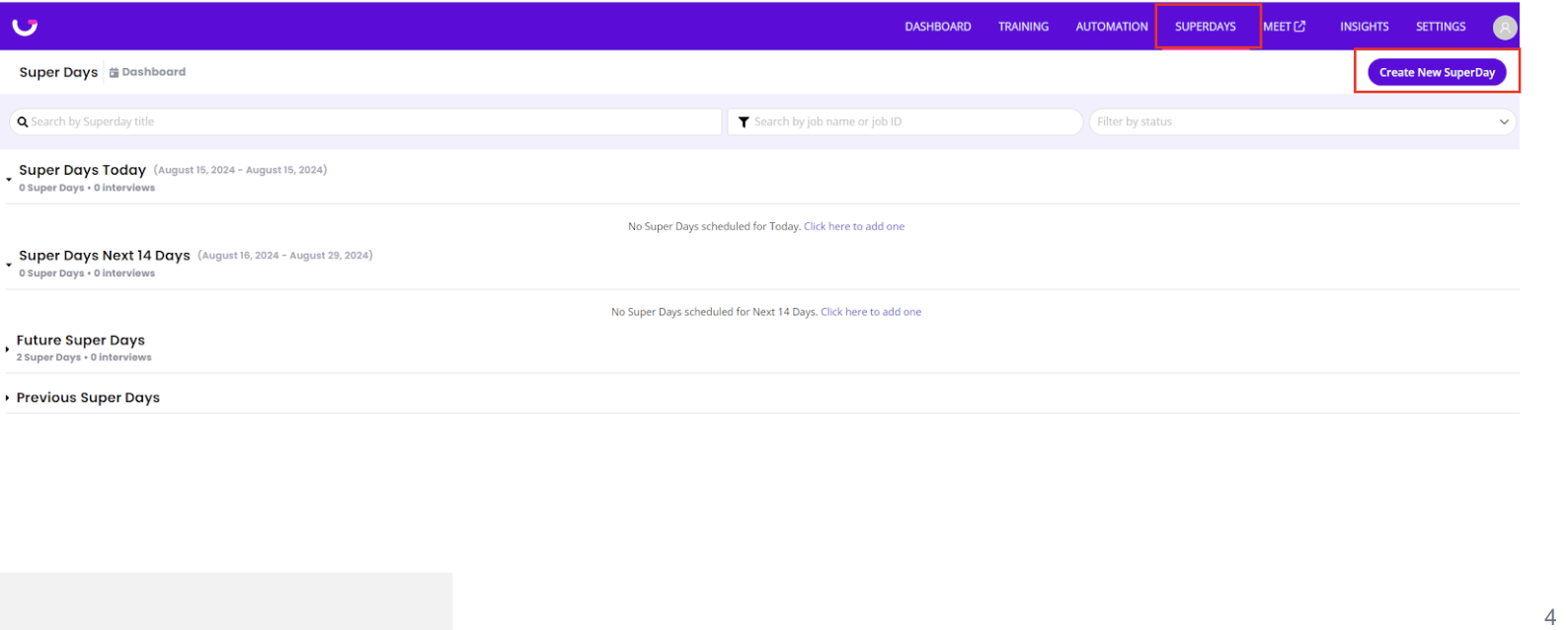
Create and name the Superday. Go to Superdays in the top navigation and choose Create New Superday. The name is how coordinators find it on the Superdays dashboard, so make it clear (e.g. "Fall 2026 Campus – SF").
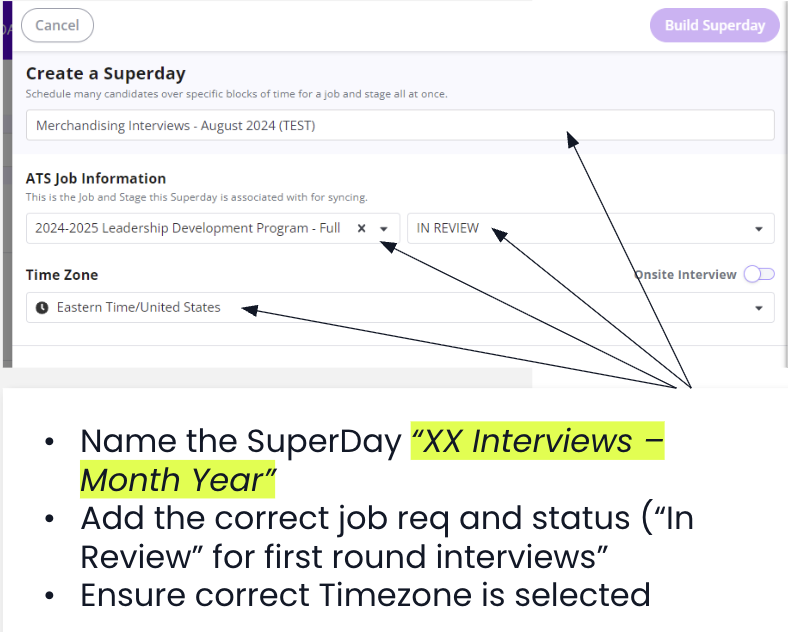
Link the ATS job or jobs. This link is what surfaces candidates for scheduling and lets scorecards attach to interviewer invites.
Select the stage. Pick the stage you're scheduling into. It's used for clean tracking only.
Choose the format and location. Superdays supports both on-site and remote events:
On-site: pick a location from your organization settings (or a custom location). The time zone populates from the location — confirm it.
Remote: set the time zone directly (no physical room). The meeting links come from the Superday template's video integrations (see Step 5), so every candidate and interviewer gets a link automatically.
Multiple jobs can be linked. The job field accepts more than one job, but the UI doesn't make that obvious. Linking several jobs to one Superday gives you one grid and one set of interviewers instead of a separate Superday per job. The jobs must share the same interview plan.
Stage doesn't restrict scheduling. Pick the stage for tidy tracking, but know it isn't a filter — candidates in any stage of the linked jobs can be scheduled.
Before you build: Make sure the event's office already exists in your organization settings. If it doesn't, add it first or use a custom location.
Step 3 — Set the Days and Daily Windows
GOAL: Define exactly when the event runs. GoodTime builds slots only inside these windows.
Pick the event days. Use the calendar picker to select each day (for example, Wednesday through Friday). Dates can be tomorrow or far in the future.
Set each day's window. The start time is a hard floor — nothing can be booked before it, though interviews don't have to start exactly then. Set the end time the same way.
Split windows to protect breaks. Each day can have more than one window — for example, 8:00–12:00 and 1:00–5:00 to protect lunch. The gap between windows produces no slots.
Every day is configured separately. Wednesday can run 8:00–12:00 and 1:00–5:00 while Thursday runs 8:00–5:00. These windows appear as your Time Blocks inside the Superday.
Say it this way: "The start time is a fence, not an appointment. If you put 8 AM, nobody can be booked before 8 — but you're not forced to start at 8."
Step 4 — Build the Interview Panel and Grid
GOAL: Define what each candidate experiences, then assign interviewers so GoodTime can generate the rotation.
Set the number of events and the duration. In the panel builder, event count and duration are set at the top of the screen — not on each event.
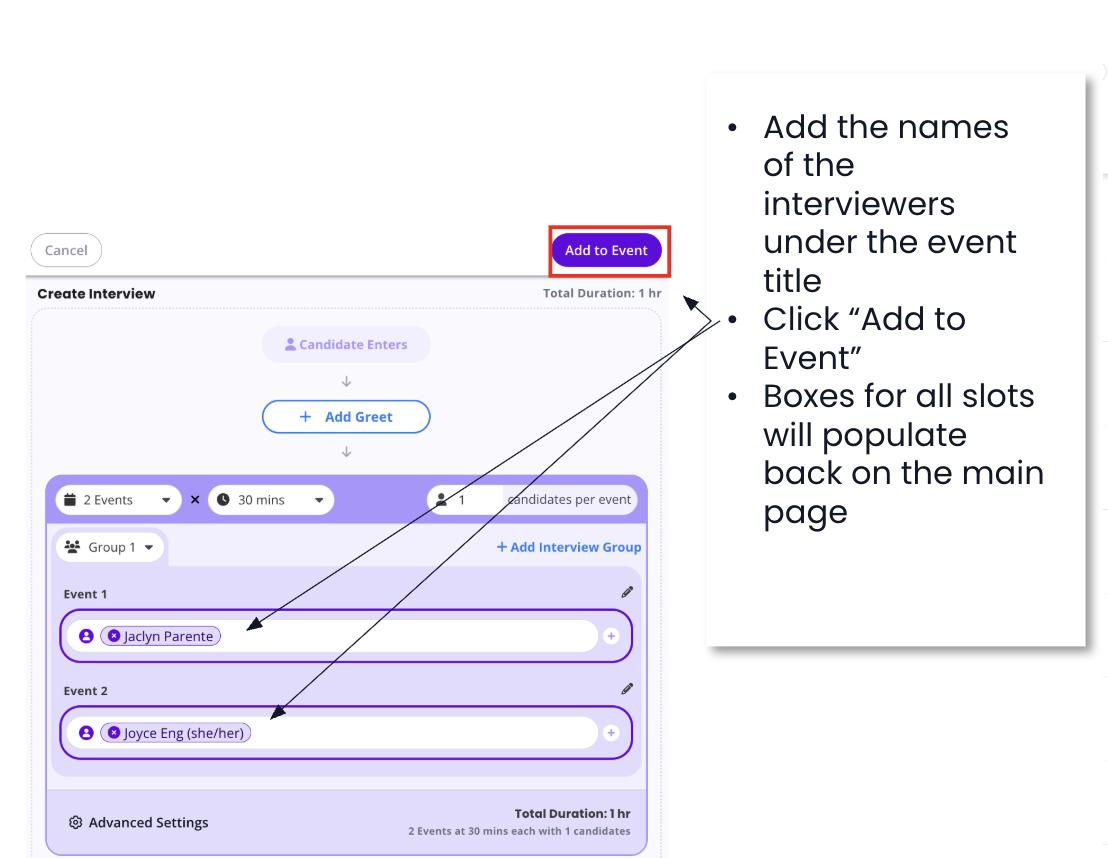
Title each event clearly. Titles tell interviewers what they're assessing (e.g. "Engineering interview," "Culture interview").
Decide on multiple candidates per slot. The default is one candidate per slot. For group exercises or panel-style sessions, allowing several candidates in a slot adds capacity without adding interviewers.
Create Interview Group 1. Assign one interviewer per event. These interviewers are paired for the shift and swap candidates each rotation.
Add more groups to scale. Each additional group duplicates the rotation and adds capacity. More interviewers who run the same interviews means more groups, not bigger groups.
Shape availability per group and day. Remove blocks a group can't cover (for example, mornings), or remove a group from a day entirely. You can also delete individual blocks from the generated grid with the trash icon on a block — for example, removing the noon block to carve out a lunch break. Removed blocks can be added back.
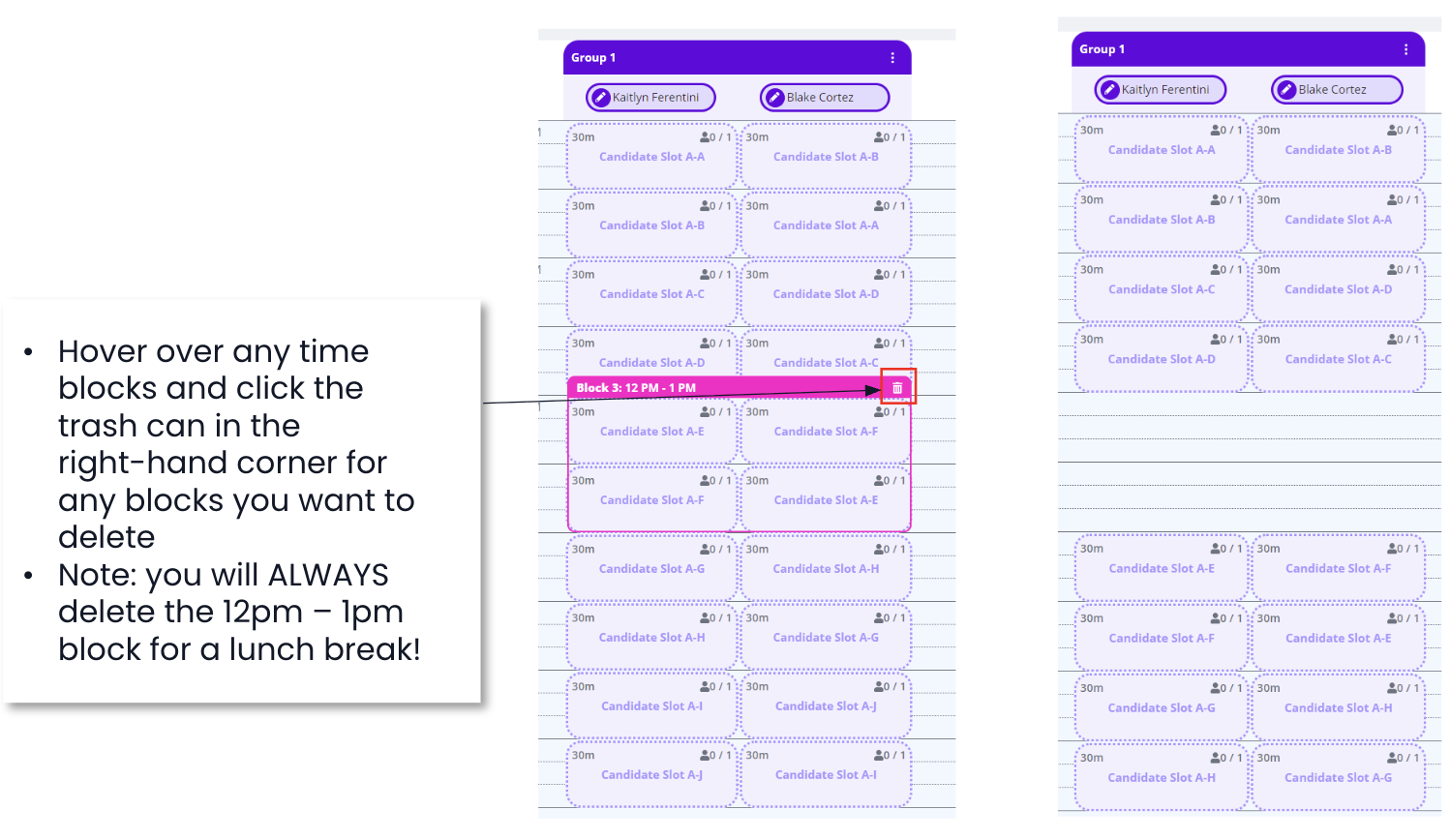
Review the grid with your team. Walk through a day from the candidate's perspective and confirm every group's shifts match what interviewers committed to.
Heads-up — the panel builder looks different. Duration and event count sit at the top of this screen rather than on each event. This catches a lot of people the first time.
Groups are how you scale. One group of two interviewers running two 30-minute events sees two candidates an hour. Two groups see four. Use the capacity formula from Step 1 to decide how many groups you need.
Tip — add every group, then trim. If interviewers work different days, add all groups to the Superday and remove each one from the days or times they aren't working. For a group that only works one morning, it's often faster to "remove all availability" and add just their blocks back.
Breaks and buffers between events. Event durations stay uniform, but you can still build in gaps two ways: longer breaks like lunch come from separate day windows (Step 3), and short buffers between back-to-back events come from the panel builder's Advanced settings — for example, auto-adding a 15-minute buffer before and after an event.
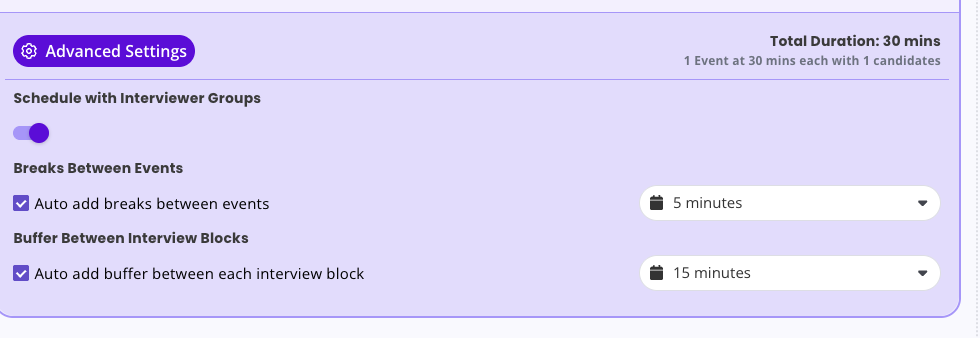
The grid is flexible. You can structure it as several events per candidate with one group (interviewers swap candidates each rotation — the classic panel), or a single event with several groups (each interviewer sees candidates back-to-back in parallel), or a mix. Use whichever shape gets the most candidates in front of the most interviewers for your event.
How the rotation works
With two 30-minute events and one group, two candidates arrive in the 8:00–9:00 hour. Candidate A meets the engineering interviewer while Candidate B meets the culture interviewer. At 8:30 they swap. At 9:00 two new candidates start. Each candidate spends one hour total, and interviewers have no idle time unless you build in gaps.
Calendars are overridden. GoodTime does not check availability for Superday blocks — any open block can be booked even if the interviewer has a meeting. Interviewers must genuinely clear their calendars.
One duration for all events. The grid depends on uniform blocks. A 30-minute technical interview plus a 45-minute culture interview isn't supported in one Superday — use separate Superdays for different durations.
Step 5 — Configure the Superday Template
GOAL: Make the candidate and interviewer experience polished before anyone is invited.
Creating a Superday automatically creates a new, dedicated interview template. It starts nearly blank with generic defaults. Templates already linked to the jobs or stages are not used.
Find the template. Go to Settings → Scheduling Templates → Interview Templates and search by the Superday name. GoodTime appends a few characters to the name (e.g. "…– 056f2") in case two are similar.
Write the calendar content on the Candidate Calendar Event tab: the candidate invite description and the interviewer event descriptions.
Link both emails on the Email Communication tab: the request-availability email for candidates and the confirmation email. You can also link interviewer email templates here.
Configure reminders, prep surveys, and feedback forms on the Interview Prep and Surveys tabs. All standard template settings are available.
For remote events, set your video and conferencing integrations (Zoom, CoderPad, etc.) here so meeting links are generated automatically for each interview.
Set the confirmation-page content — the text candidates see after booking.
Job-linked templates aren't used. Even if the linked jobs or stages already have templates, the Superday uses its own new one. Reminders, emails, prep surveys, and descriptions must all be set here.
Two different emails. The request-availability email and the confirmation (schedule-now) email are separate. If one is set and the other isn't, that email will appear empty during scheduling.
Recommend setting the template up once, now. Inside the Superday itself, only availability, breaks, and event titles are editable — everything else is controlled by this template. If you skip it, you'll be pasting content on the confirmation page while you're about to message hundreds of candidates, which is easy to get wrong.
Step 6 — Run a Dry Run
GOAL: Confirm the candidate experience end to end before any real candidate sees it.
Build a test Superday (or use test candidates on a real one).
Send a request-availability invite to your test candidates.
Book a slot as the candidate and confirm the slot disappears from the grid.
Check that the confirmation email and calendar invites look right, in the correct order.
Fix anything now — not later. You can't add events or times once a Superday is active, so review the whole structure during the dry run. If something's wrong, correct the template or the structure before you invite real candidates.
Checkpoint: Slots disappear when booked, emails and invites look correct, and the grid matches what you intended. Move to Step 7.
Step 7 — Activate and Invite Candidates
GOAL: Turn the Superday on, then let candidates fill the grid themselves.
Activate the Superday. While you're still building, keep it on Save as Draft. When everything is reviewed, Activate it — its status turns green ("active") on the Superdays dashboard. Activate right before you invite so interviewer details are current. After activation you can still swap interviewer names, but you can't change the open blocks or times — so finish the structure first.
Open the Superday and click Add Candidate. GoodTime lists candidates from the linked jobs with their current status, and a counter shows how many interview slots remain so you don't over-invite.
Choose which blocks to offer. Select all blocks to give candidates the most flexibility across days, or select specific blocks to steer scheduling — for example, filling one day first or routing certain candidates to certain days.
Schedule one job per pass. If the Superday covers several jobs, run the flow once per job so tokens like job name stay correct for each candidate.
Select the candidates, then choose the workflow:
Request availability (recommended) — candidates receive a branded link showing only open Superday slots and pick for themselves. This is what Superdays is built for, and what you'll use for virtually all first-round invites.
Schedule now in bulk — places candidates in the earliest open slots with no candidate choice. Rare — mainly for a reschedule, or a candidate who can't make the usual interview times.
Schedule a specific slot — one candidate into one exact slot.
Review the confirmation page. This works like GoodTime's standard confirmation page, with one addition unique to Superdays: you can import calendar-invite and confirmation content from another interview template right here — useful if you didn't finish the Superday template first. Set the Hiring Team — list whoever is sending as both the recruiter and the coordinator, since that's who candidates are directed to for questions and reschedules, and whose calendar the interviews land on (usually the coordinator). Load email templates, set the send timing, and check the email previews, feedback forms, and internal calendars.
Send. GoodTime remembers the calendar content, feedback forms, internal calendars, and email you used — per workflow. Request availability and schedule-now remember their emails separately, so the first send in each needs a quick check; later sends reuse it, which makes large and repeat batches fast.
Pro tip: At high volume, double-check you've matched the right candidate email before sending — similar or duplicate names are common.
Multiple jobs = separate passes. Selecting several jobs on a Superday is supported, but each scheduling pass covers one job. For a three-job event, run the flow three times into the same grid.
Large batches run in the background. Bulk sends above roughly 10 candidates process asynchronously — the Superday shows a pending state with a running count (about four minutes for large batches), and you're emailed when it finishes. Coordinators don't need to wait on the page.
What candidates experience
The same branded Request Availability page as the rest of GoodTime, showing only Superday slots across the event days.
Slots are first-come, first-served. Once a slot is taken, it disappears for everyone.
If a candidate works from a stale page and picks a taken slot, they're told it's no longer available and asked to choose another.
When the event is full, candidates see that no times are available and are told to contact their recruiter.
After booking, they receive the confirmation email and calendar invites for each interview, in order.
No "event full" alert. GoodTime does not notify anyone when an event fills. Assign someone to watch the fill rate and prepare a "this event is full" message plus an overflow plan (another date, or one-off scheduling).
Manage, Monitor & Report
GOAL: Run the event day to day once invites are out.
Dashboard
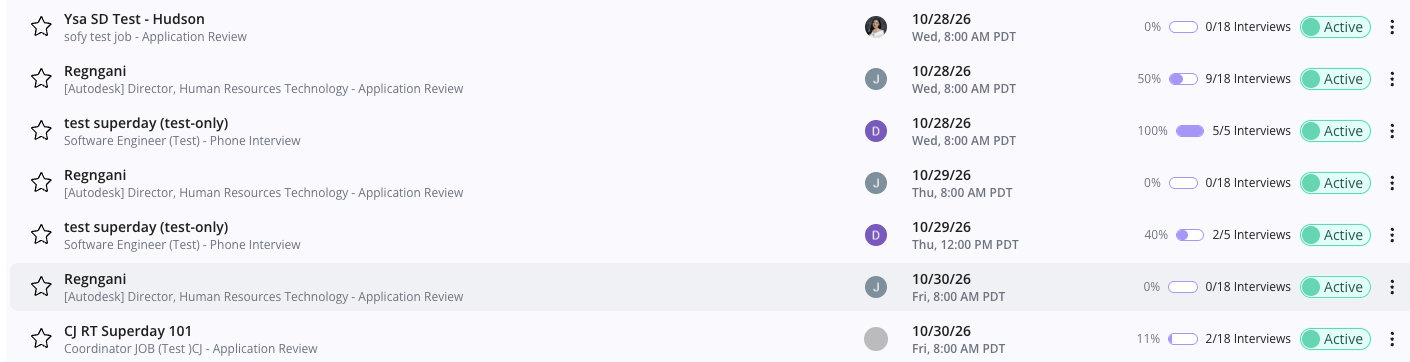
Open the Superdays dashboard to see your events by status — active, draft, or pending (a bulk send still processing). Search by name or job ID.
Each Superday shows per-day fill as a percentage, a graph, and a count (for example, "1 / 78 Interview Slots" or "1 of 24"). It tells you at a glance which days are at 10%, 50%, or 90%, so you know when to invite more candidates. A low fill means it's time to reach out to more people.
Inside a Superday
The left panel lists candidates with their status (Pending, Confirmed) and flags conflicts; conflicts also appear in the grid.
Each booked slot deep-links to the interview on the main dashboard — Superday interviews behave like any other GoodTime interview.
The Edit (pencil) controls let you adjust interviewers, candidates, time blocks, and panel structure, within the limits of an active Superday.
Changes and cancellations
Cancel a day to cancel every interview on that day and remove it from the Superday.
Cancel the Superday to cancel all its interviews and move it to a cancelled state.
Duplicate a Superday to reuse its days, times, and job info — teams build one event and duplicate it for plan A / plan B or the next season.
Cancellations cancel interviews. Cancelling a day or the whole Superday cancels every interview already booked in it. Confirm with your team before using either option.
Reporting
Download CSV gives a spreadsheet view of the Superday: interview ID, candidate name and email, ATS ID, location, time zone, interview status, date and start time, and interviewers. Many teams share this with interviewers as the list of who they're meeting that day, instead of relying on calendar invites alone.
Quick Reference: FAQ & Troubleshooting
Question | Answer |
|---|---|
Does GoodTime check interviewers' calendars? | No. Superday blocks override calendars, like interview blocks. If a block is open, it can be booked — so interviewers must clear their calendars for their shifts. |
Can we run a Superday remotely? | Yes. Superdays was built for on-site events, but you can run it remotely: choose the Remote format and set the time zone (instead of a physical location), and let the Superday template supply the video links (e.g. Zoom, CoderPad). The grid and rotation work the same. |
Can we add breaks or buffers between interviews? | Yes, two ways. Protect a long break like lunch by splitting a day into separate windows (so no slots generate in the gap). Add a short buffer between back-to-back events using the panel builder's Advanced settings (e.g. auto-add 15 minutes before and after an event). Event durations themselves stay uniform. |
Does every candidate have to rotate through multiple interviewers? | No — the grid is flexible. Run a multi-event panel where paired interviewers swap candidates each rotation, or a single event with several groups running interviews in parallel, or a combination. Pick the structure that fits your event. |
Can we run different interviews for different roles at the same event? | Not in one Superday; each supports a single interview plan. Create a separate Superday per plan. Multiple Superdays can run at the same time, and duplicating a base Superday speeds this up. |
Can one interview be 30 minutes and another 45? | No. All events in a Superday share one duration so the grid works. Use separate Superdays for different durations. |
Can we schedule candidates for several jobs in one Superday? | Yes — link multiple jobs that share the plan, then schedule one job at a time so job-specific tokens stay correct. |
What happens if two candidates want the same slot? | Whoever books first gets it, like concert tickets. The other candidate is told the slot is gone and picks another. Near-simultaneous bookings are extremely rare. |
Will we be told when the event is full? | No. Watch the fill counter on the dashboard. Candidates who arrive after it fills are told to contact their recruiter. |
Can an interviewer work only mornings, or only one day? | Yes. Remove their group's blocks for the times or days they aren't working, or clear all availability and add back only their shifts. |
Where do we set reminders, emails, and prep surveys? | In the interview template GoodTime auto-creates for the Superday, found by searching the Superday name under Settings → Scheduling Templates → Interview Templates. |
Can we schedule candidates who aren't in our ATS? | Not with Superdays today — candidates come from the linked ATS job. For walk-ups, use a scheduling link or QR code (see below). |
Can we give interviewers a list of who they're meeting? | Yes. Download the Superday CSV, which lists each candidate's time and interviewers. |
Limitations & Workarounds
Limitation | What to do |
|---|---|
Candidates must exist in the ATS on a linked job. | For walk-ups or career-fair leads, use a scheduling link (optionally as a QR code at the booth). Candidates enter their own details and self-schedule. This is a separate feature from Superdays. |
One interview plan per Superday. | Create separate Superdays per plan; duplicate a base structure to save time. |
One uniform event duration. | Create separate Superdays for different durations. |
One job per scheduling pass. | Repeat the scheduling flow once per linked job. |
No "event full" notification. | Assign an owner to monitor fill rates and prepare overflow messaging. |
You can't add events or times after a Superday is active. | Review the full structure (dry run) with your team before activating. |
Go-Live Checklist
[ ] Event dates confirmed, with the build finished well before them.
[ ] All candidates are in the ATS on the linked jobs (or walk-ups have a scheduling link / QR code).
[ ] One interview plan per Superday, one duration per plan.
[ ] Interviewers committed to half or full days, calendars cleared.
[ ] Location exists in organization settings; time zone verified.
[ ] Days, windows, and lunch gaps match the schedule.
[ ] Groups built and per-day availability reviewed.
[ ] Superday template has invite content, both emails, reminders, prep surveys, feedback forms, and confirmation page.
[ ] Dry run completed with test candidates.
[ ] Owner and message ready for when the event fills.
[ ] CSV export plan for interviewers and reporting.
[ ] Base Superday saved for duplication next season.