Holiday Calendars
Last updated: October 19, 2026
TL;DR: GoodTime Holiday & Company-Wide Calendars let you build calendars inside GoodTime for holidays, company shutdowns, or regional days off, and assign them to individual interviewers or tags. Once assigned, a blocking date behaves like any other calendar event: it shows as a hard conflict and GoodTime will not schedule that interviewer on that day.
This removes the need to share external calendars across your organization just to keep a region's holidays from getting booked.
Some expected use cases for this feature are as follows:
When interviewers in different regions observe different public holidays (for example, US and Mexico);
When your company has shutdown days or company-wide events that should never be booked;
When you want one shared source of truth for time off, instead of maintaining the same events on many individual calendars.
How do I Access the Holiday & Company-Wide Calendars Feature?
In GoodTime HIRE, go to Settings and select Holiday Calendars under the Company section of the left-hand menu.
The Holiday & Company-Wide Calendars page lists each calendar you have created, the number of dates it contains, and its status (Active or inactive).
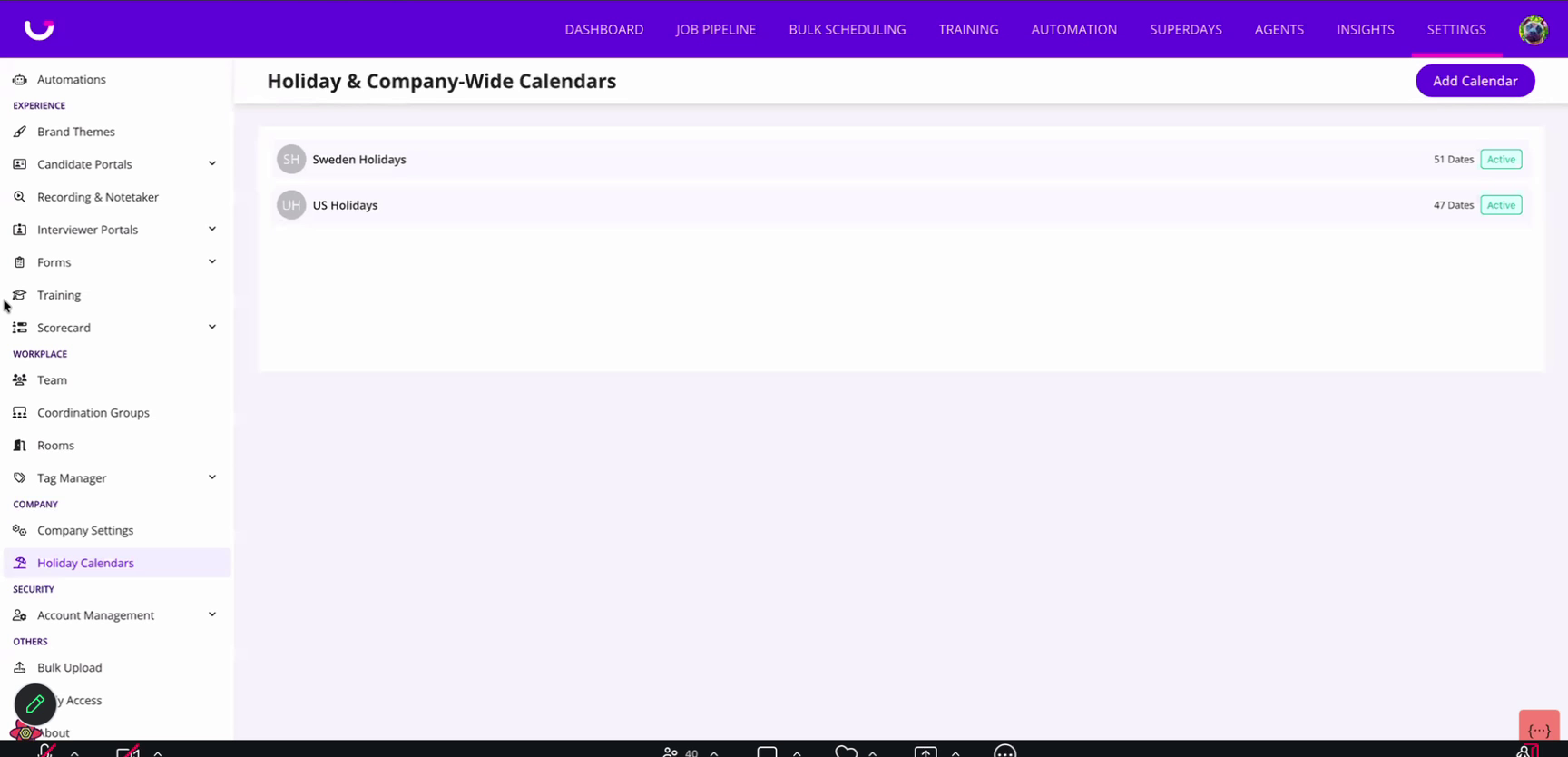
📝 NOTE: If you do not see Holiday Calendars in your Settings menu, please contact your CSM to ask about availability for your account.
How do I Create a Holiday or Company-Wide Calendar?
On the Holiday & Company-Wide Calendars page, click Add Calendar.
Enter a name for the calendar (for example, "Mexico Holidays") and confirm the Status is set to Active.
Add dates to the calendar using either of the two methods below.
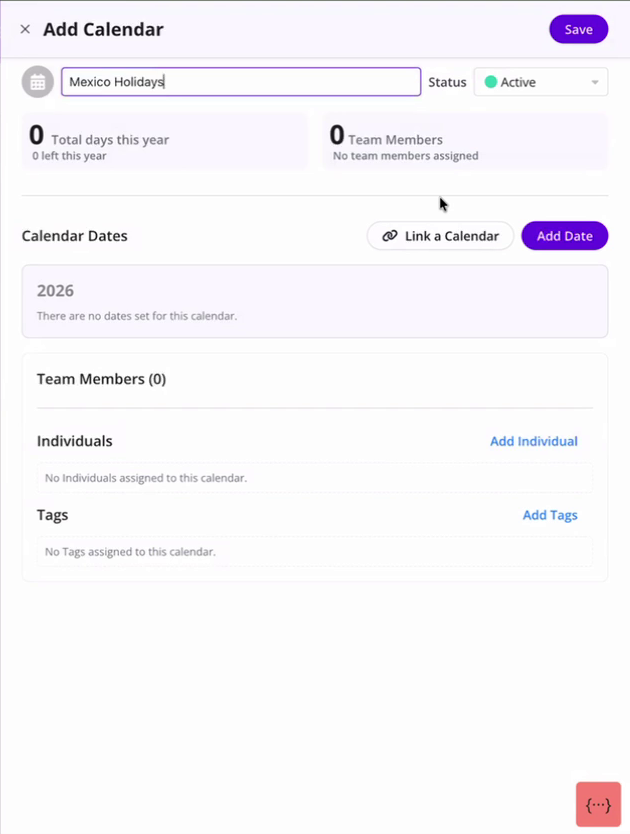
Option 1: Add dates manually
Click Add Date to enter your own dates, such as a company shutdown day or a regional observance that isn't on a public calendar.
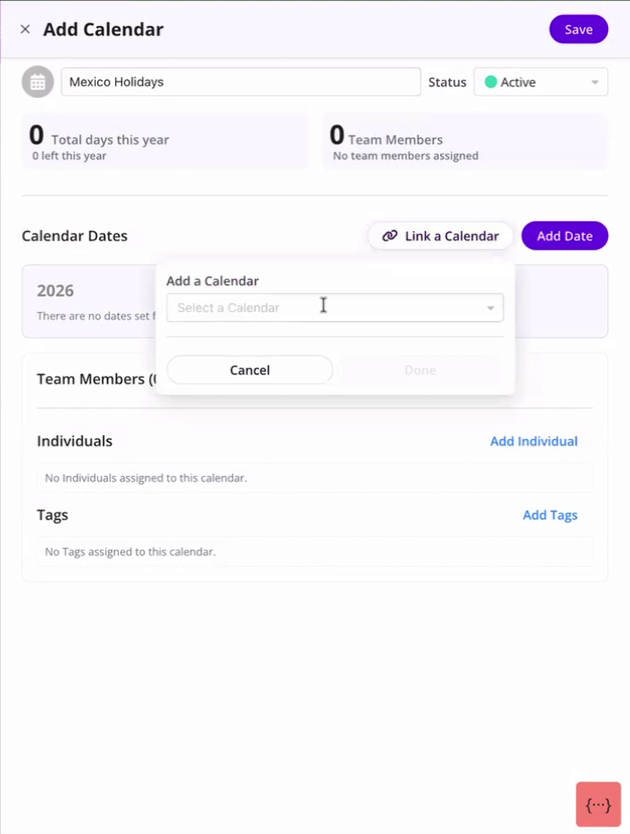
Option 2: Link an existing public calendar
Click Link a Calendar, then choose a calendar from the Select a Calendar dropdown (for example, Mexico holidays) and click Done. The holidays from that calendar are added to your list automatically, and each one shows which linked calendar it came from.
How do I Choose Which Dates Block Scheduling?
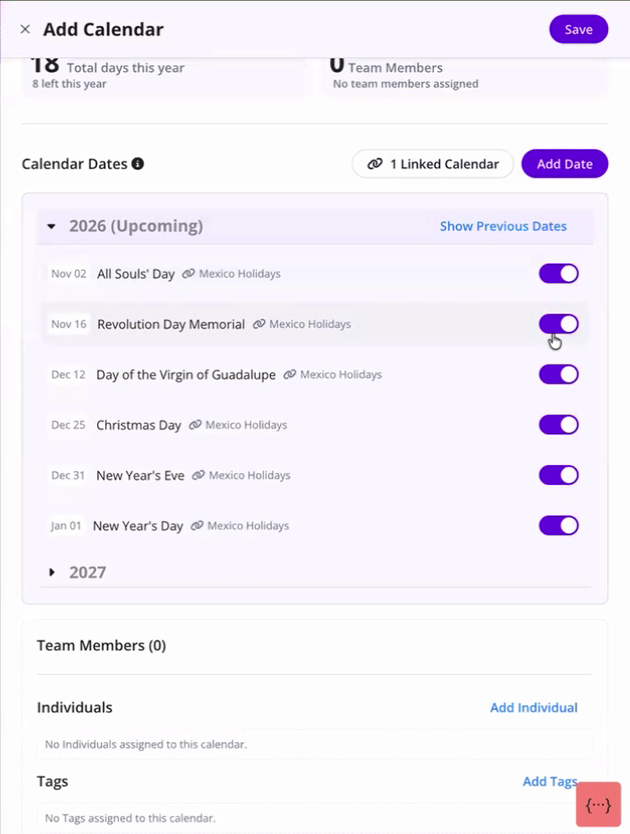
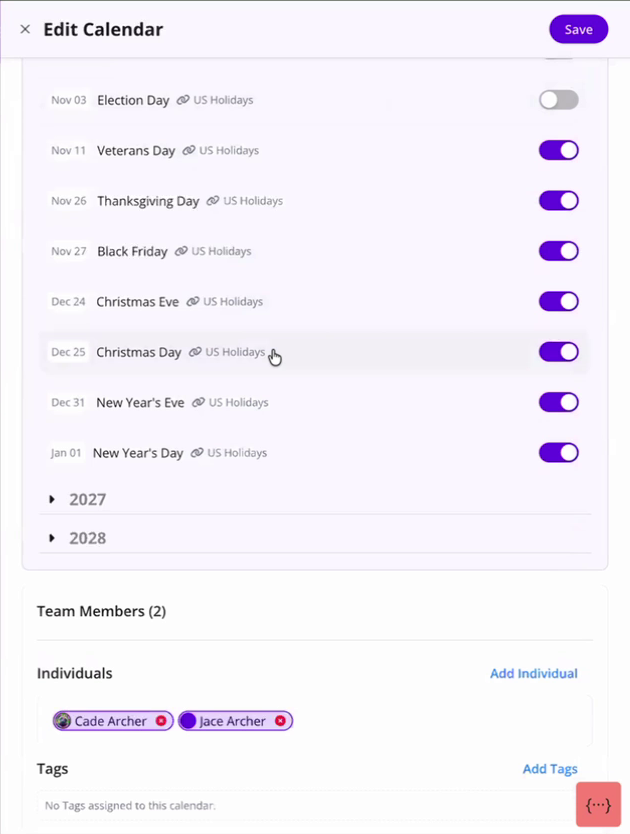
Every date on the calendar has a toggle on the right.
Toggle ON (purple): the date is a blocking date. GoodTime treats it as a conflict and will not schedule the assigned interviewer that day.
Toggle OFF (gray): the date is non-blocking. It stays on the calendar for reference, but the interviewer remains available.
This lets you keep a full holiday list on the calendar while only blocking the days your team actually takes off. Click Save when you are done.
How do I Assign a Calendar to Interviewers?
A calendar only affects scheduling once it is assigned. Scroll to the bottom of the calendar panel and use either option:
Individuals: click Add Individual to assign the calendar to specific interviewers.
Tags: click Add Tags to assign the calendar to everyone in a tag, such as a regional interviewer pool.
Assigned interviewers appear under Team Members at the bottom of the panel. Click Save to apply your changes. From that point on, the calendar works just like any other calendar GoodTime reads for that interviewer.
What Does This Look Like When I Schedule?
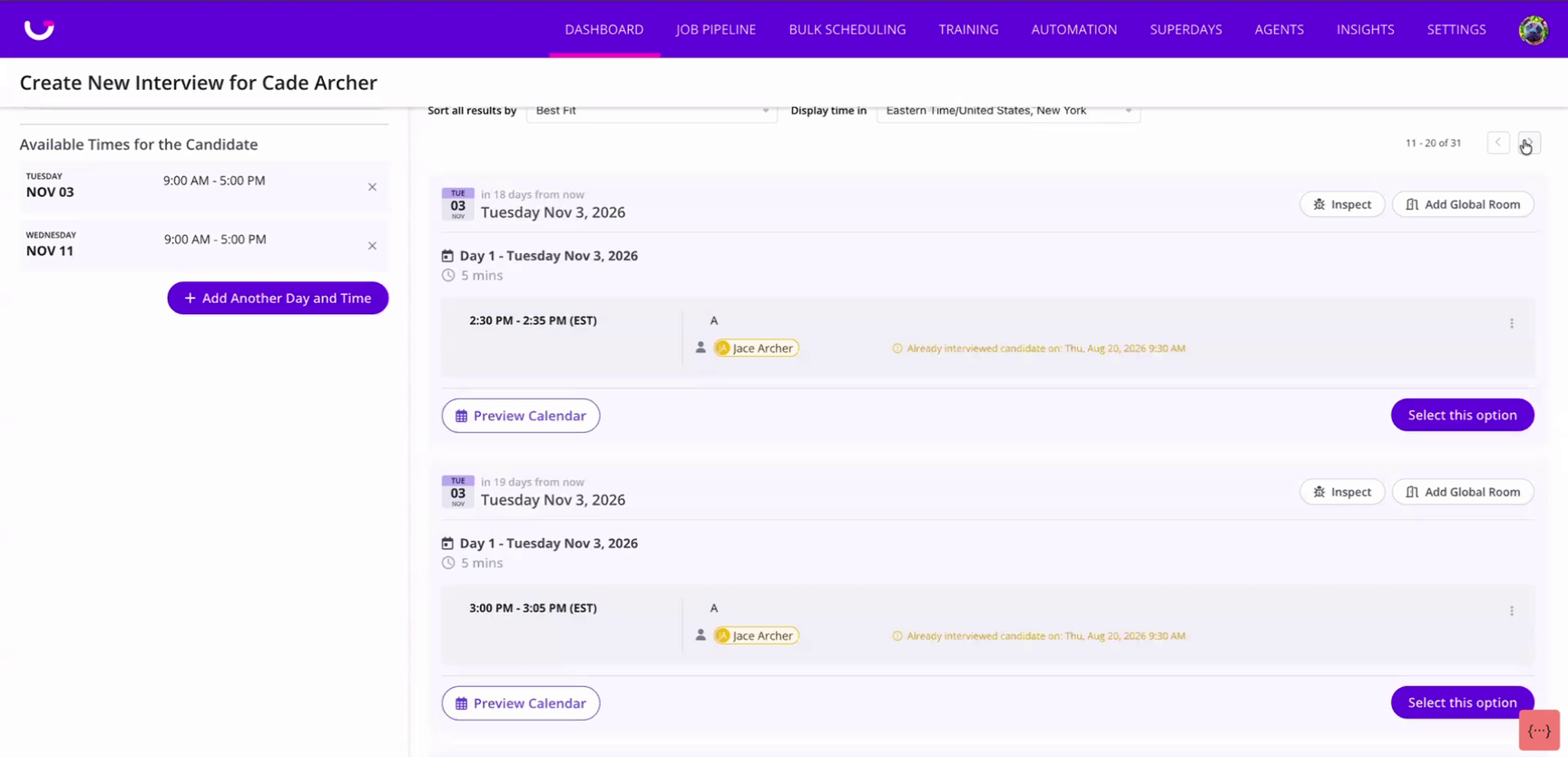
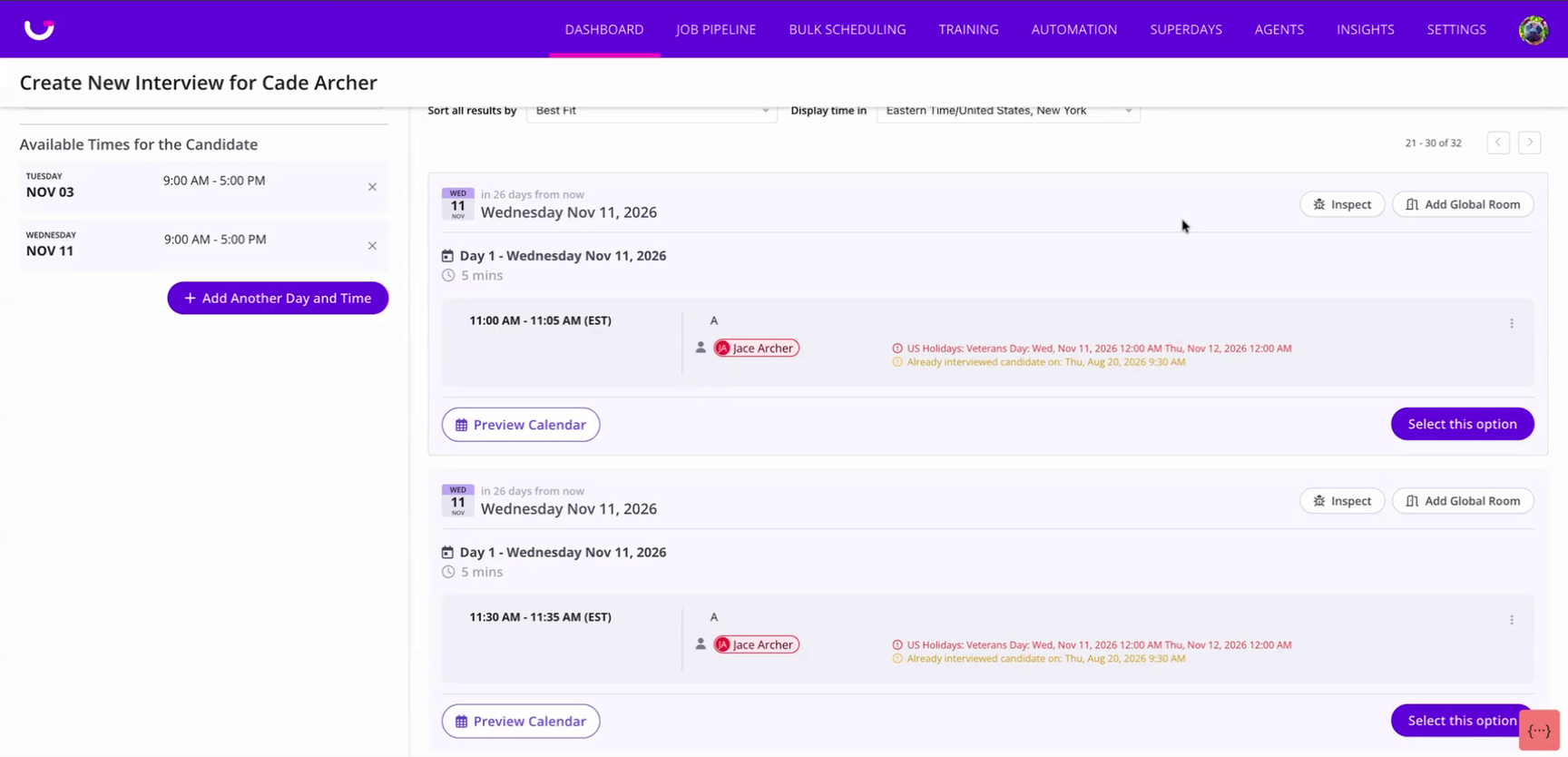
In the example below, an interviewer is assigned to the US Holidays calendar. Election Day (Nov 3) is set to non-blocking, and Veterans Day (Nov 11) is set to blocking.
Non-blocking date: on Nov 3, the interviewer is still available. Their time slots appear as normal, with no holiday conflict shown.
Blocking date: on Nov 11, the same interviewer shows a hard conflict labeled with the calendar and holiday name ("US Holidays: Veterans Day"). This is the same treatment GoodTime gives a regular external calendar event, so the interviewer will not be scheduled in Request Availability (RA) on that day.
💡 IMPORTANT NOTES:
A blocking date is treated as a hard conflict, exactly like an event on a regular external calendar.
A non-blocking date is informational only. The interviewer stays available on that day.
A calendar only affects the individuals and tags it is assigned to. If an interviewer is not assigned, their availability is unchanged.
Holiday and company-wide calendars live inside GoodTime, so you do not need to share an external calendar with your organization to block these days.
Set the toggle for each date individually. Linking a public calendar does not require you to block every holiday on it.