How To - Request Availability (RA) via a 'RA Only' template
Last updated: October 12, 2026
TL;DR: There may be instances where you know you will need to schedule an event across multiple days BUT will be unable to collect availability via your scheduling template. This article provides an overview of how you might use one (purpose designed) template to collect a candidate's Availability only to then use that availability to schedule via a different template.
The following video provides an overview of setting up and using a 'RA Only' Template:
Step by Step guide
STEP 1 - Create your 'RA Only' template:
Because you will be only using this Interview Template to only request availability you will not need to add calendar event details (calendars will be populated using a different scheduling template)
You will also want to create a dedicated Request Availability Email Template that provides your candidates additional context about what is required of them when providing their availability.
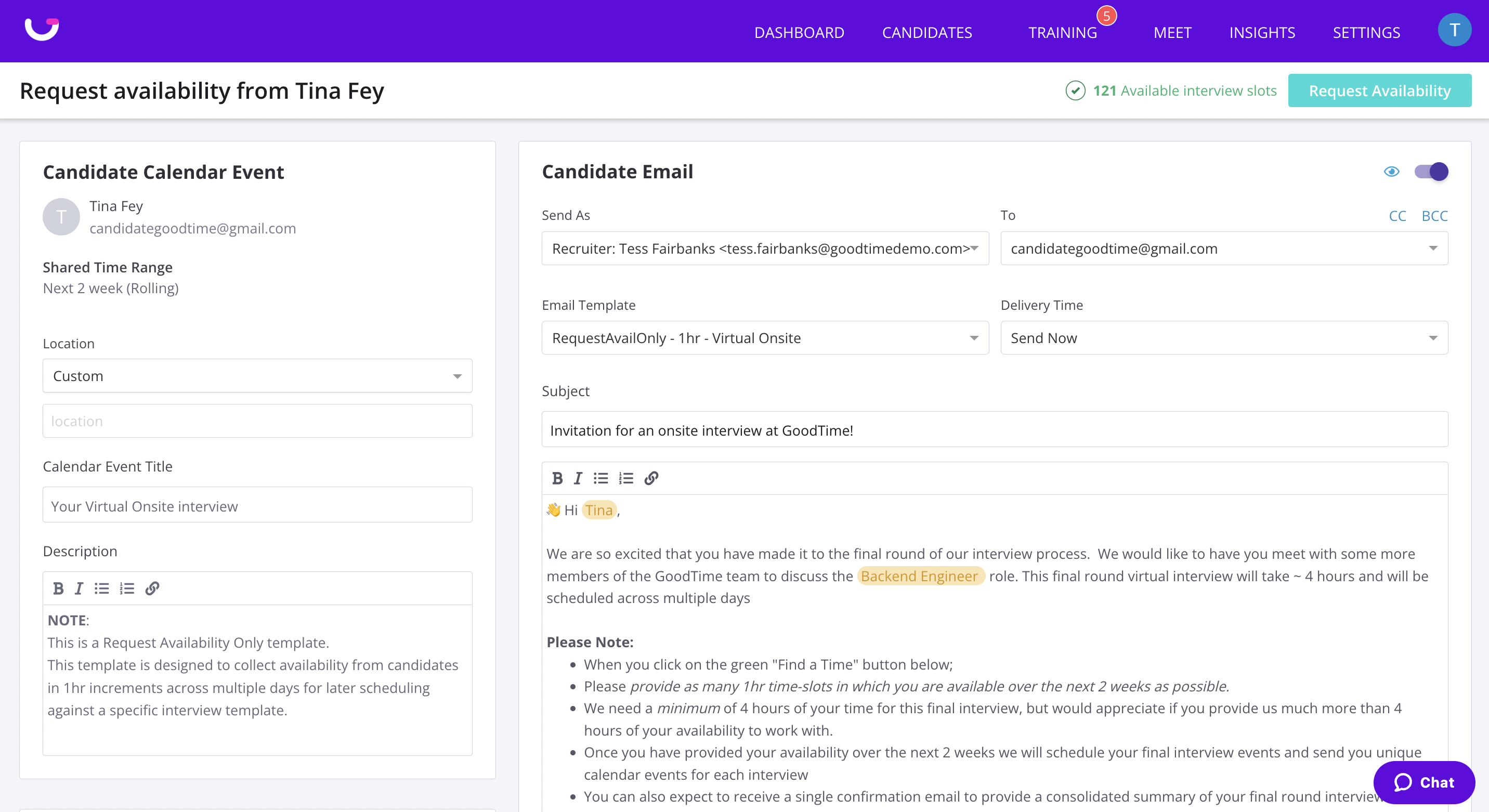
STEP 2
It is crucial in your 'RA Only' Interview template that you toggle it to be seen as an 'Onsite' interview. This means you can 'force' GoodTime to only look at a single time zone.
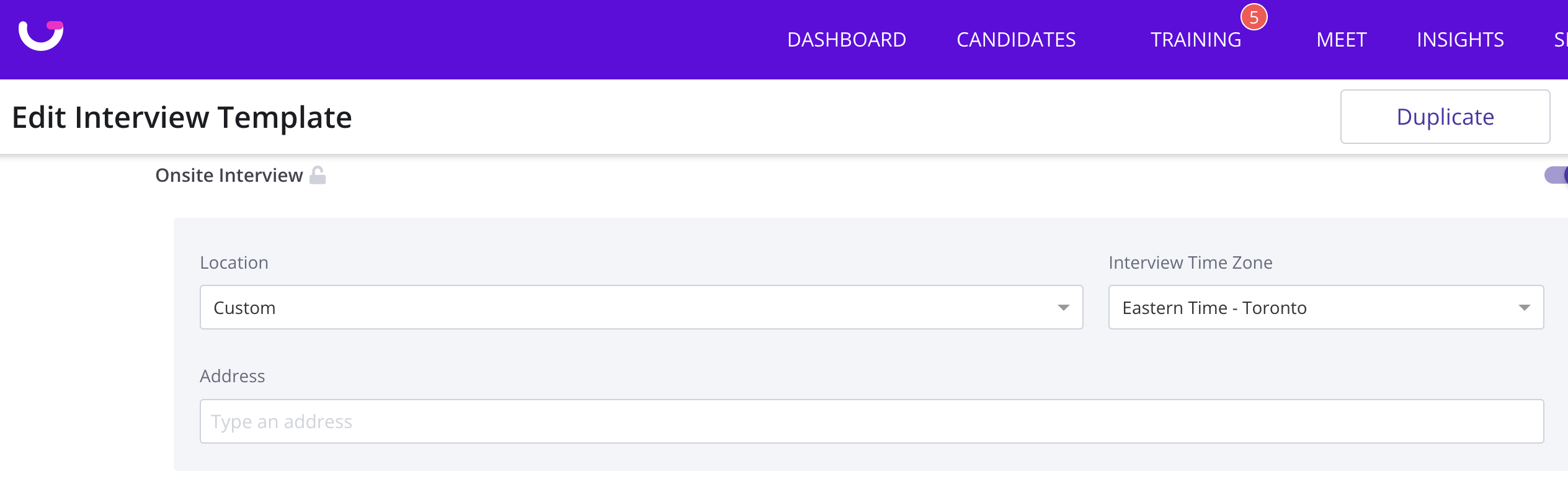
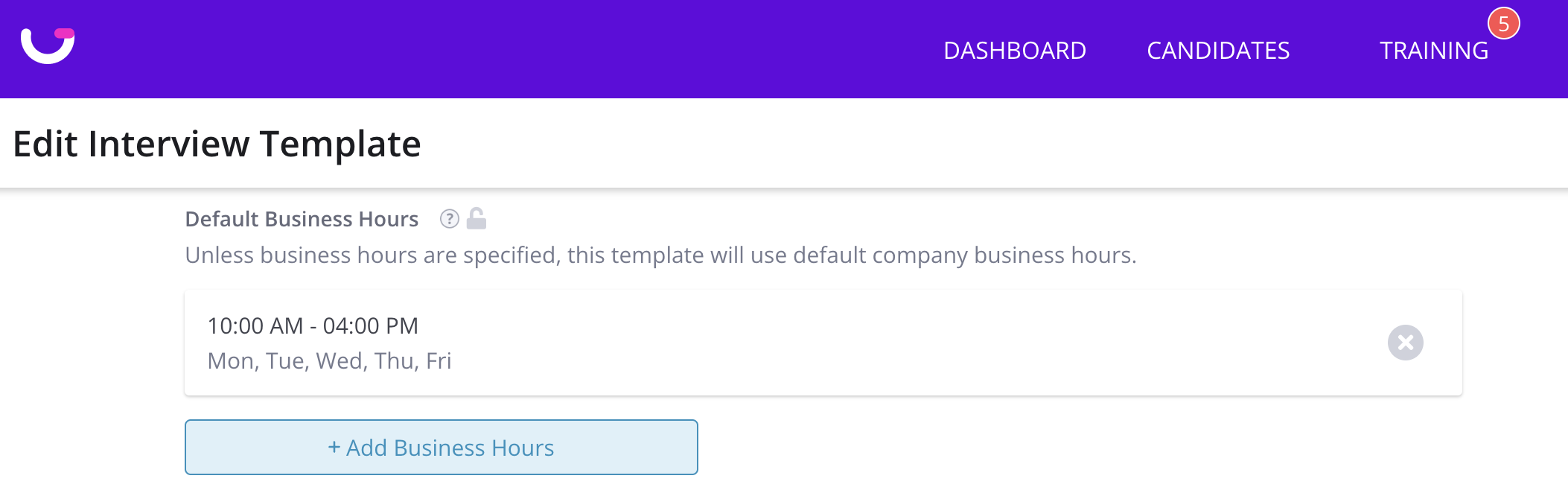
STEP 3
Within your template settings you may also want to restrict the allowable time window at the template level. In the example below, we are only interviewing from 10am to 4pm and have therefore limited the business hours at the template level so that candidates can ONLY provide availability within this specific time range.
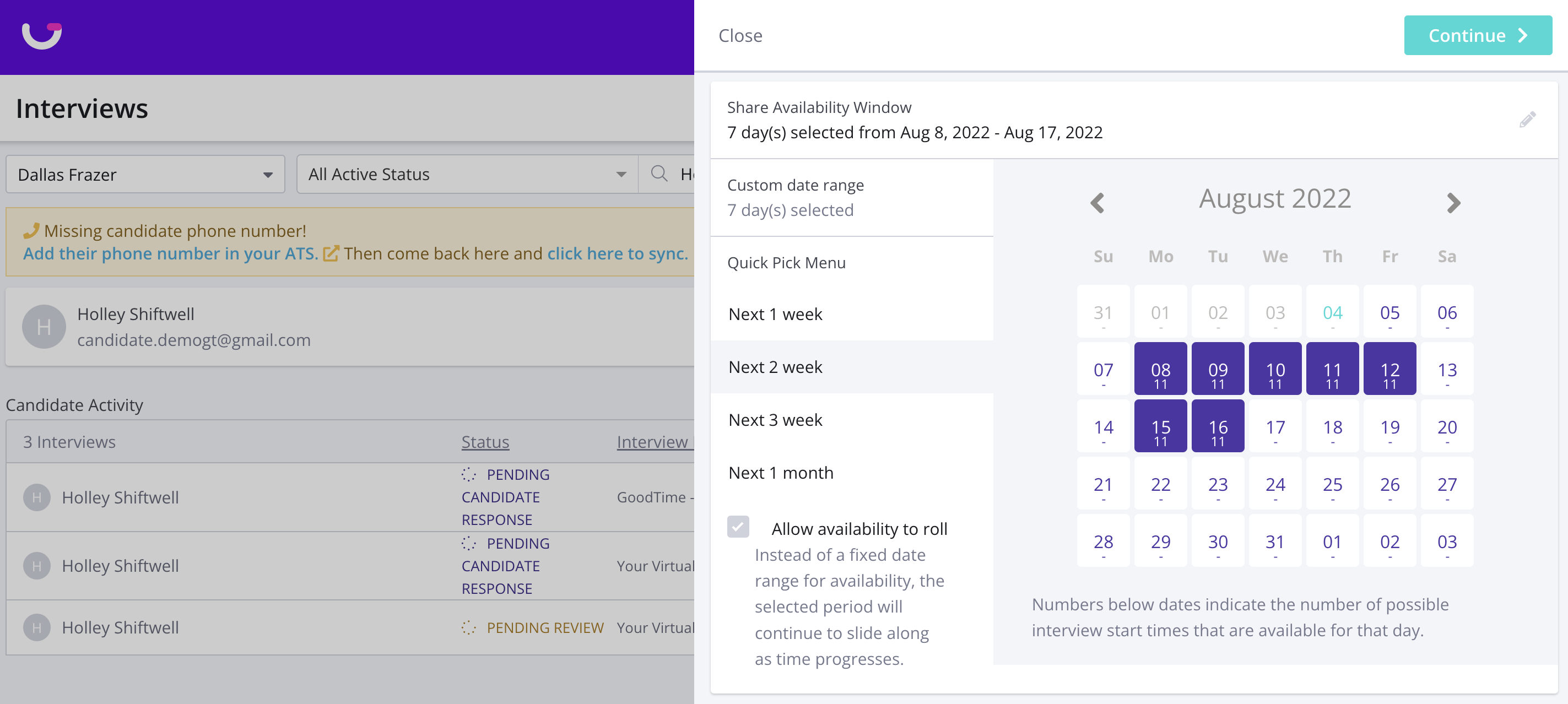
STEP 4 - Send a Request Availability invite using your new RA Only template and email.
When using this RA Only template to Request A Candidates availability best practice is to NOT toggle on the weekends within the preview calendar (so they are never displayed to the candidates as available options).
When using a RA Only template we recommend NOT allowing availability to roll but always selecting the specific window within you want a candidate to offer availability.
What will the Candidate see?
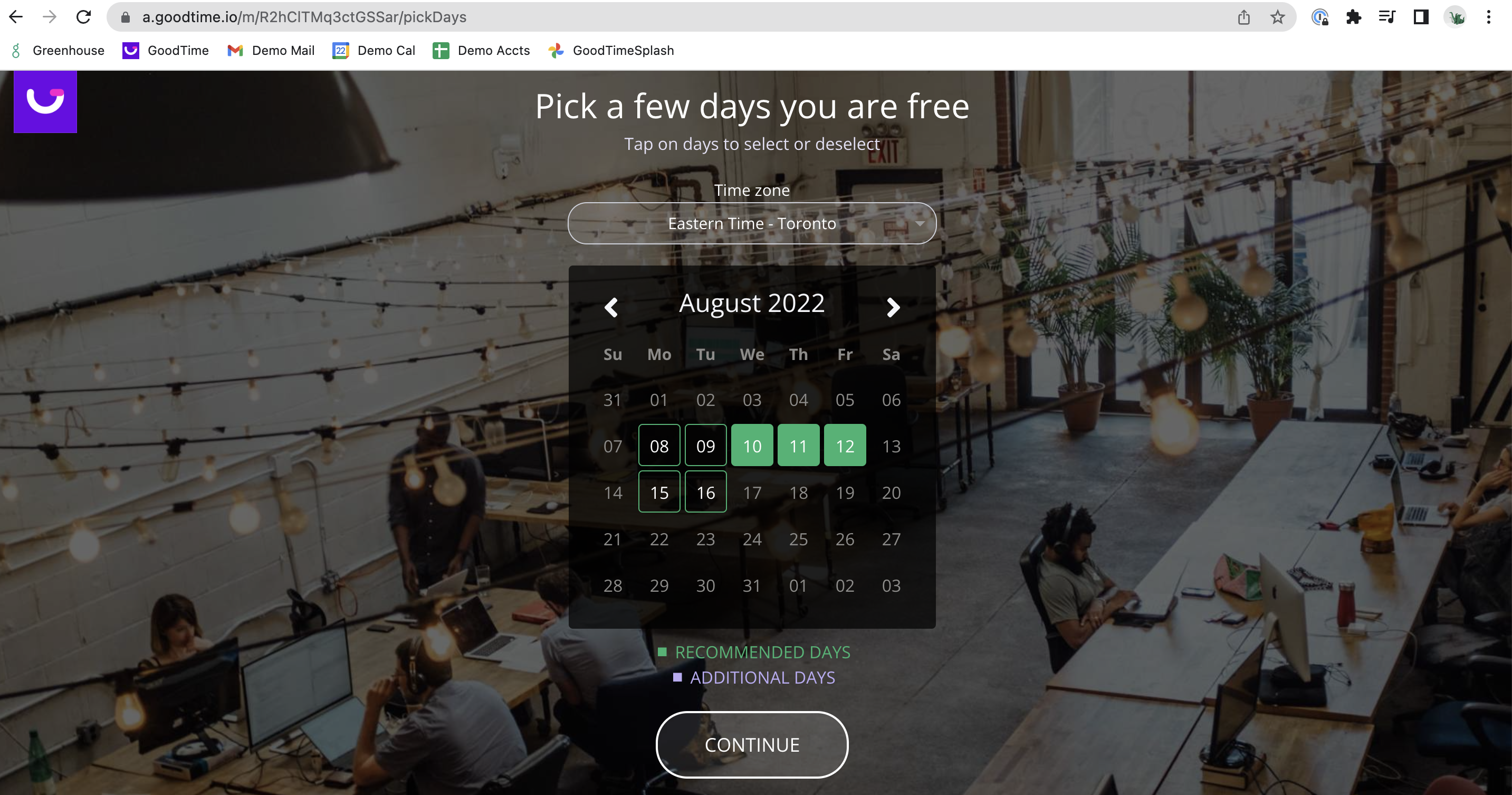
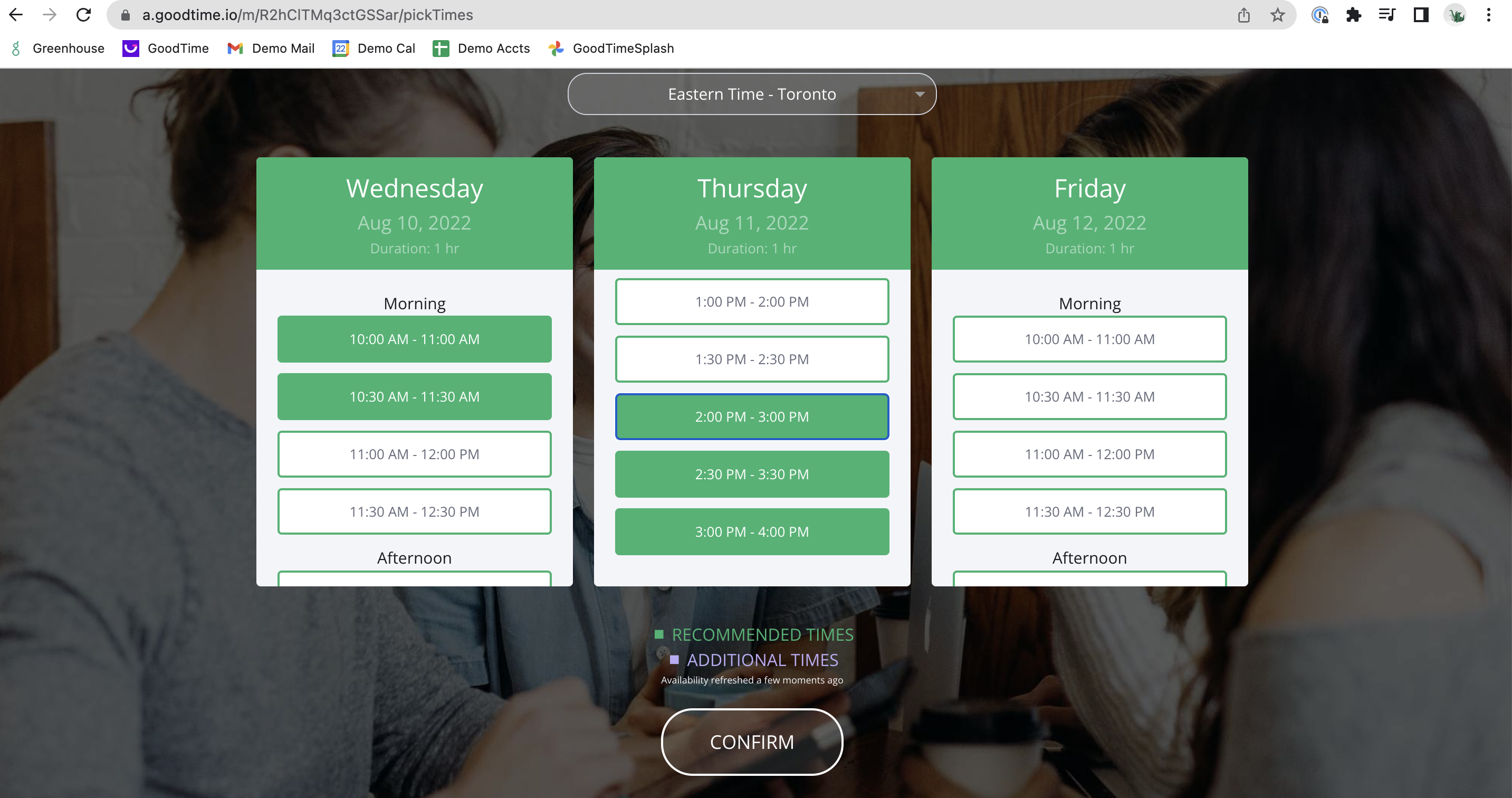
When the candidate receives their Request Availability invite, they will see very clear instructions asking them to provide as many 1hr spots as possible (you can of course build your RA Only template to request different time durations). Given how we have structured the RA Only invite we have intentionally 'hemmed them in' to providing availability within a restricted/preset time window.
If the candidate is outside of the time zone you have set within the for the RA Only template, they will see less options to choose from. We recommend that you set the RA Only template's time zone to reflect the time zone where the majority of your interviewers are based.
What do I do now I have collected availability?
Once you have used this RA Only template to collect a candidates availability you will, as usual, see the candidates status in the GoodTime dashboard more to 'Pending Review'.
When you, as the scheduler, click into the candidates profile in the dashboard to review their availability you will want to SWITCH TO YOUR SCHEDULING TEMPLATE and continue the scheduling process using your interview template that reflects the interviewers necessary to host your event.