GoodTime's Integration for Slack
Last updated: October 12, 2026

TL;DR: GoodTime's integration for Slack takes advantage of Slack's latest APIs to provide you with more functionality and automation. This integration allows for you to send DM (Direct Message) reminders to interviewers via Slack. In addition to the DM feature, this integration also allows for you to create Slack channels inside of the interview editing drawer or during the scheduling workflow. GoodTime generated Slack channels are designed to assist in aligning the different interviewers who will be meeting with a candidate (or group of candidates). This article provides an overview of the GoodTime integration for Slack setup.
GoodTime's Integration for Slack setup:
To activate the integration for Slack you will need to follow these steps:
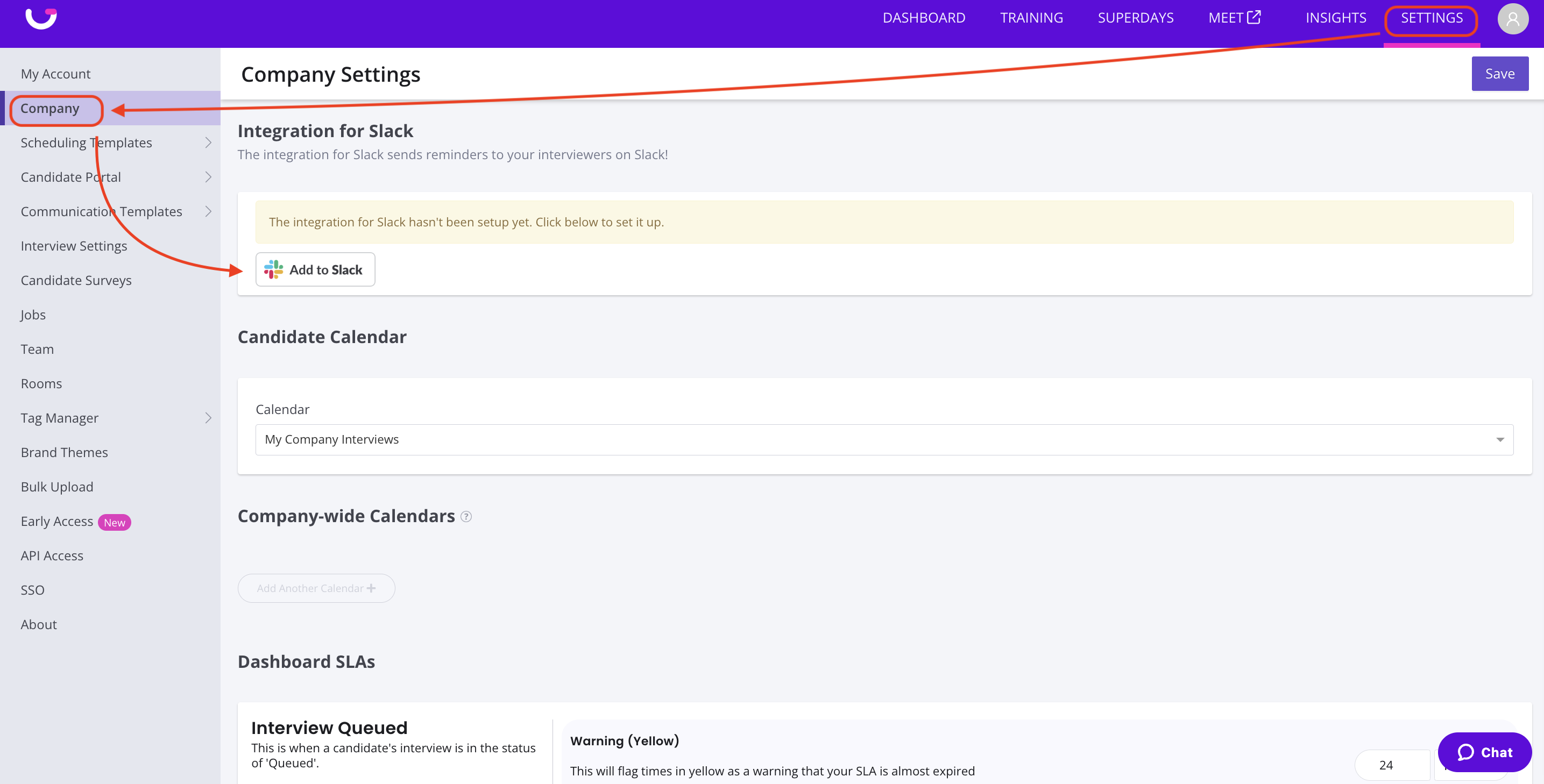
Ask your Slack administrator to log in to GoodTime in GoodTime and go to the Settings > Company tab. Scroll down to the integration for Slack and Click the 'Add to Slack' to start the integration process.
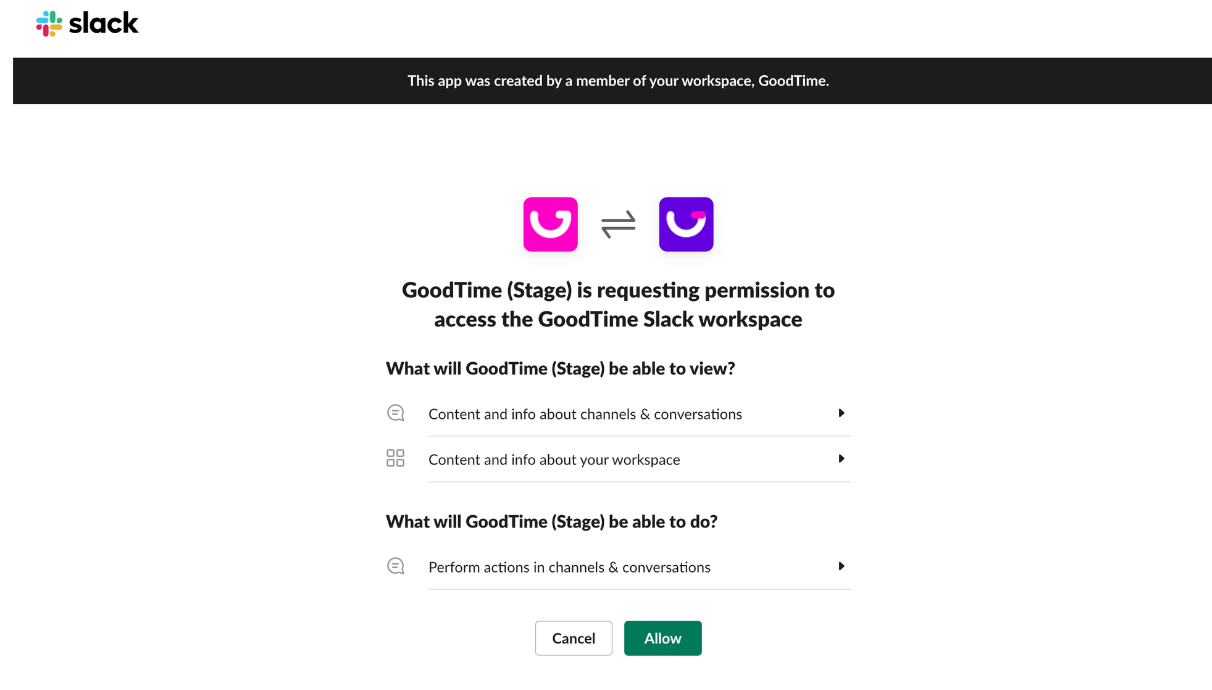
Your organization's Slack admin will then need to log into Slack and click 'Allow' authorize GoodTime to access your Slack workspace via the integration pop-up (see below).
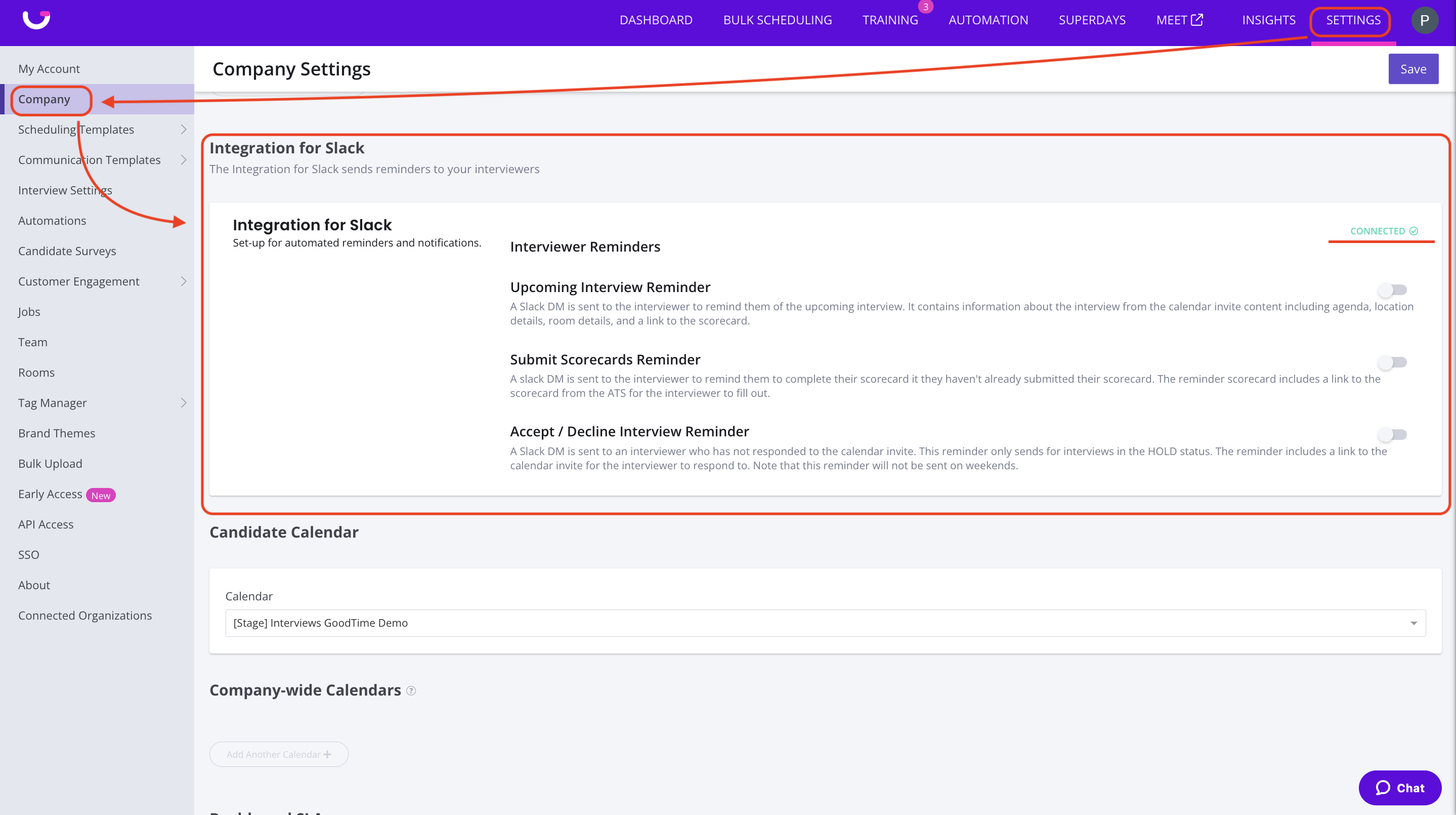
Once your Slack Admin authorizes the integration for Slack, your GoodTime Company settings page will provide additional Slack settings and should look like this:
For more details of the specific features and functionality of the GoodTime + integration for Slack please see the following help article: GoodTime + Integration for Slack - Features and Use