Proxyclick by Eptura + GoodTime Integration Guide
Last updated: February 26, 2026

TL;DR: GoodTime offers an integration to the Proxyclick by Eptura visitor Management system to help further automate your candidate sign-in and greeting processes when conducting interviews IRL (in real life). This article walks though the steps necessary to integrate the Proxyclick / Eptura visitor Management system with GoodTime.
Integration Steps:
- Go to GoodTime’s Setting>Company Page
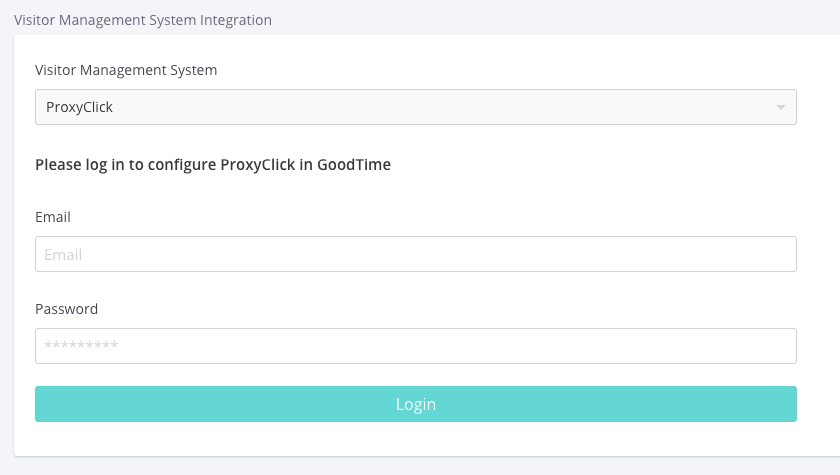
- Click on Company and scroll down to the “Visitor Management System Integration” section and select “Proxyclick” option
- Log into your account using your Proxyclick account credentials
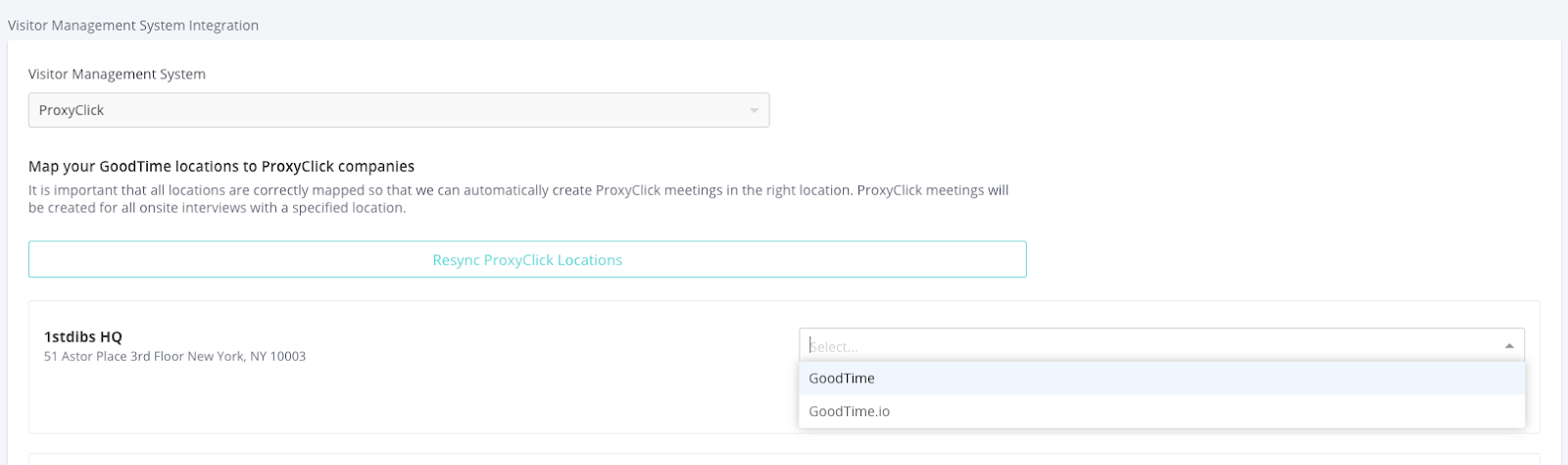
- After logging in, assign Proxyclick locations to GoodTime locations using the dropdowns.
- Press “Save” in the top right hand corner of the page to save changes
Using the Integration:
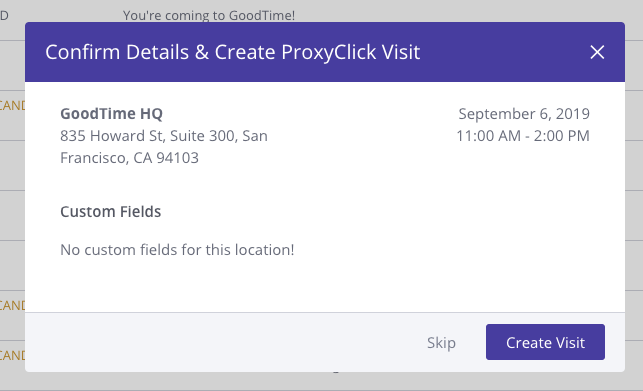
After completing the Integration Steps above, interviews scheduled as onsite will now have additional user interface to allow the user to create a Proxyclick/Eptura visit. Clicking on “Create Visit” will sync information about the candidate and their expected interview from GoodTime into Proxyclick/Eptura.