Greenhouse + GoodTime Integration Guide (via V3 Harvest API)
Last updated: August 21, 2026

Overview:
The GoodTime + Greenhouse Recruiting integration enables recruiting teams to automate interview scheduling while maintaining a seamless flow of candidate and interview data between GoodTime and Greenhouse.
Once configured, GoodTime can:
Import candidate information directly from Greenhouse
Sync interview scheduling activity back to Greenhouse
Import jobs, applications, and interview stages
Import hiring team assignments (Recruiters, Coordinators, Hiring Managers, and Sourcers where supported)
Populate scheduling templates using Greenhouse candidate data
Launch GoodTime directly from a Greenhouse candidate profile using the GoodTime Chrome Extension
This integration uses the Greenhouse Harvest API V3 and requires a Greenhouse administrator authorize the Integration with the appropriate permissions.
Before You Begin:
Before configuring the integration, ensure you have:
A GoodTime Super Admin account
Greenhouse Site Admin permissions
Permission to create Harvest API credentials in Greenhouse
Google Chrome (required for the GoodTime Chrome Extension)
How the Integration Works
The Greenhouse integration keeps recruiting data synchronized between the two systems.
Data imported into GoodTime includes:
Candidate information
Job applications
Interview stages
Hiring team assignments
Recruiters
Coordinators
Hiring Managers
Sourcers (when available)
GoodTime also syncs scheduled interviews back to Greenhouse, ensuring both systems remain aligned throughout the hiring process so that Greenhouse remains your source of truth for all recruiting processes.
Configure the Integration:
Navigate to the Company Settings area under SETTINGS
Click the button "Integrate Greenhouse (v3 API)"
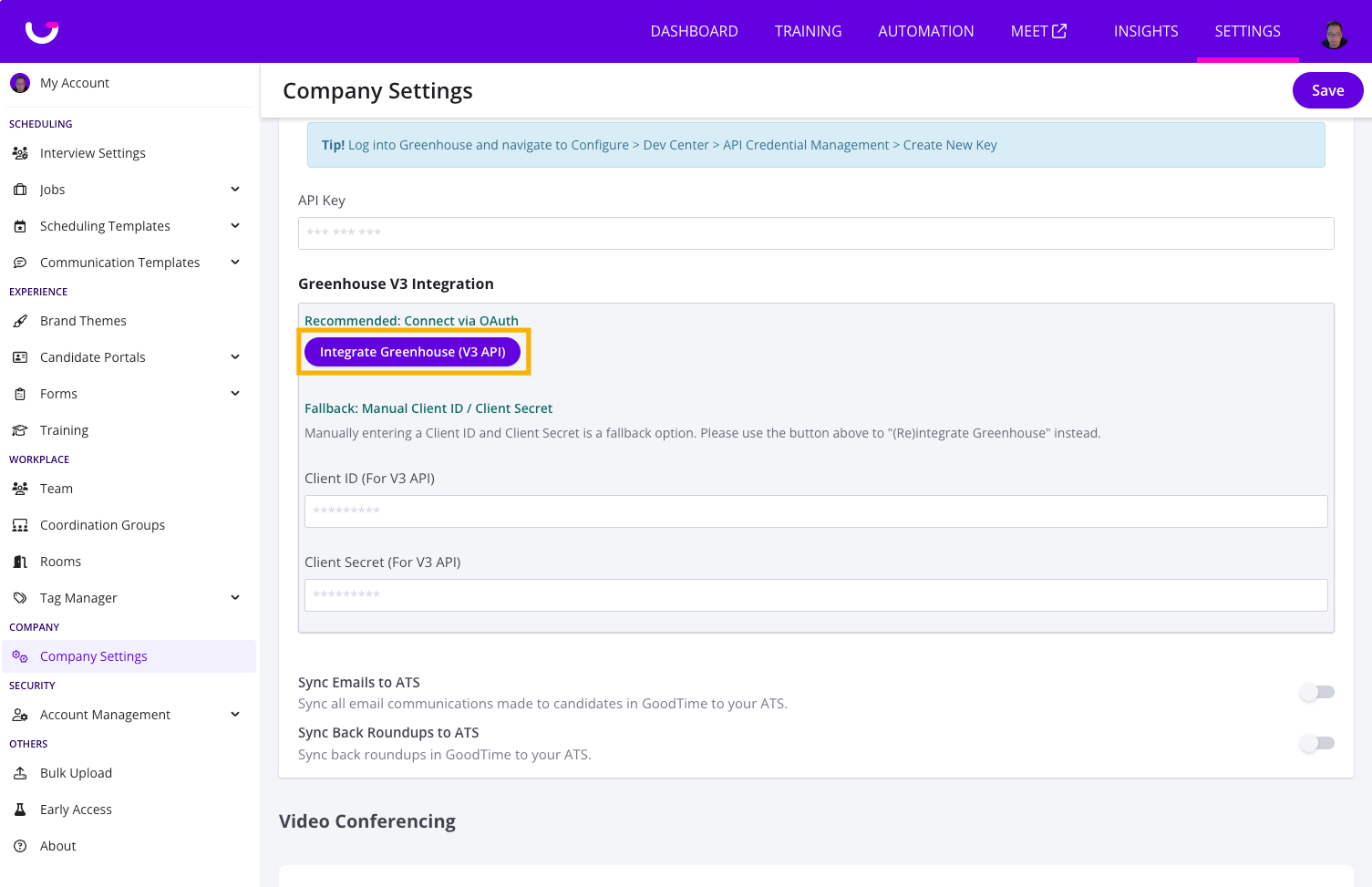
You will be directed to Greenhouse where the Admin logs into the Greenhouse site using their Admin credentials.
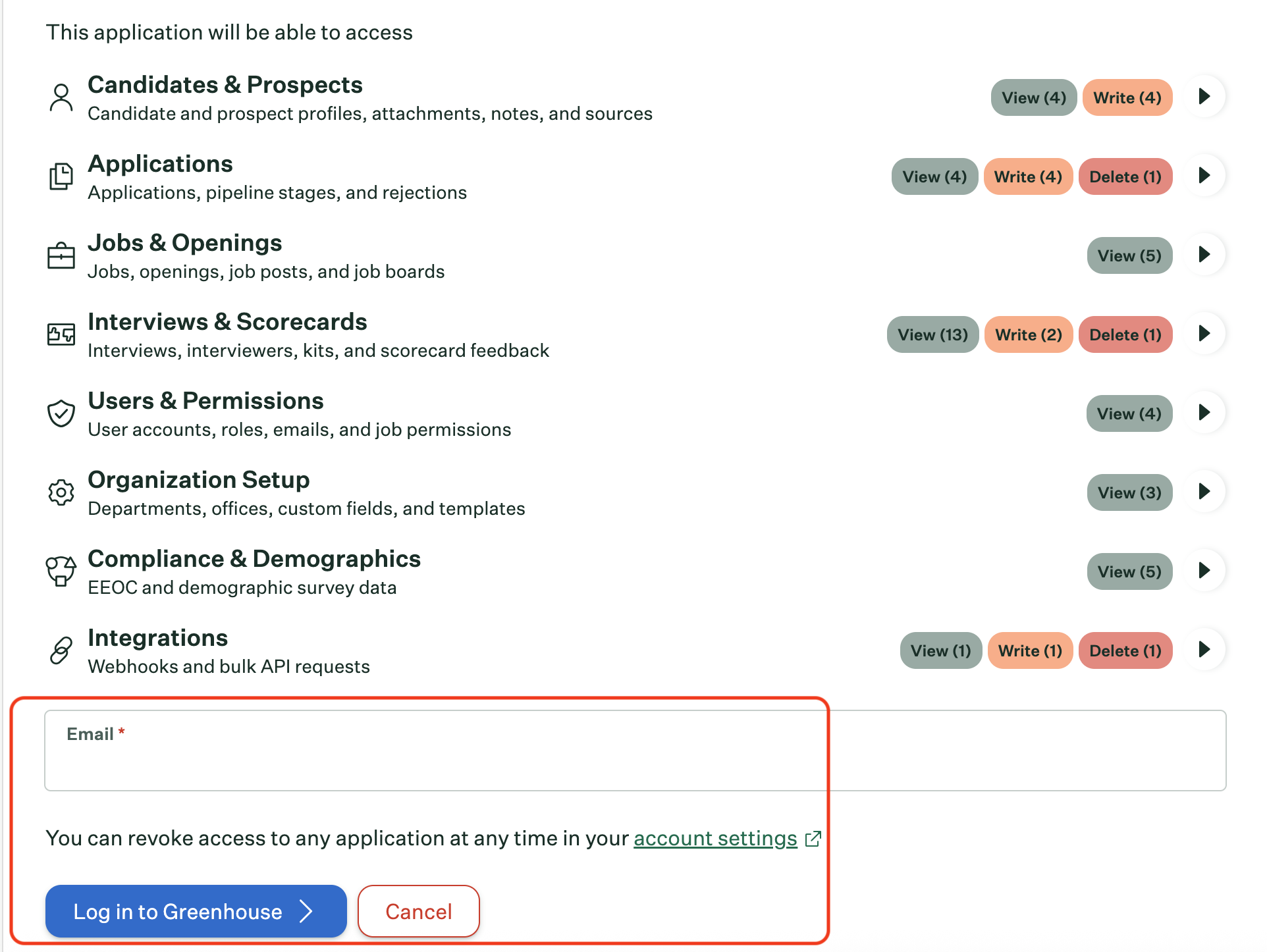
In the Greenhouse Permissions UI, the Admin approves the requested permissions by entering their email and clicking "Log in to Greenhouse".
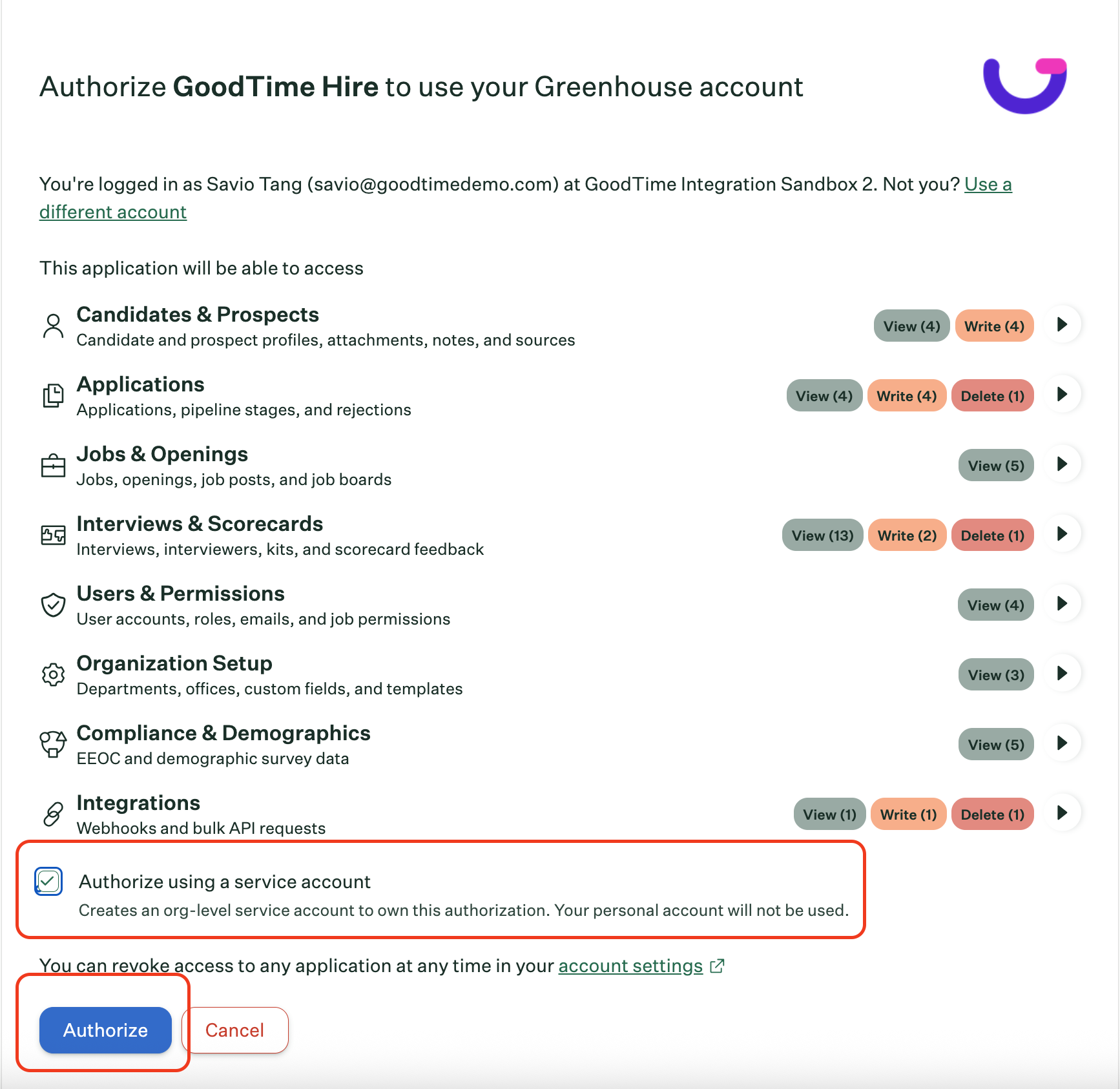
Then on the next screen, check "Authorize using a service account" and click "Authorize". This is important. If this option is not checked, the credentials will be linked to the Admin's personal Greenhouse account, as opposed to the org-level service account.
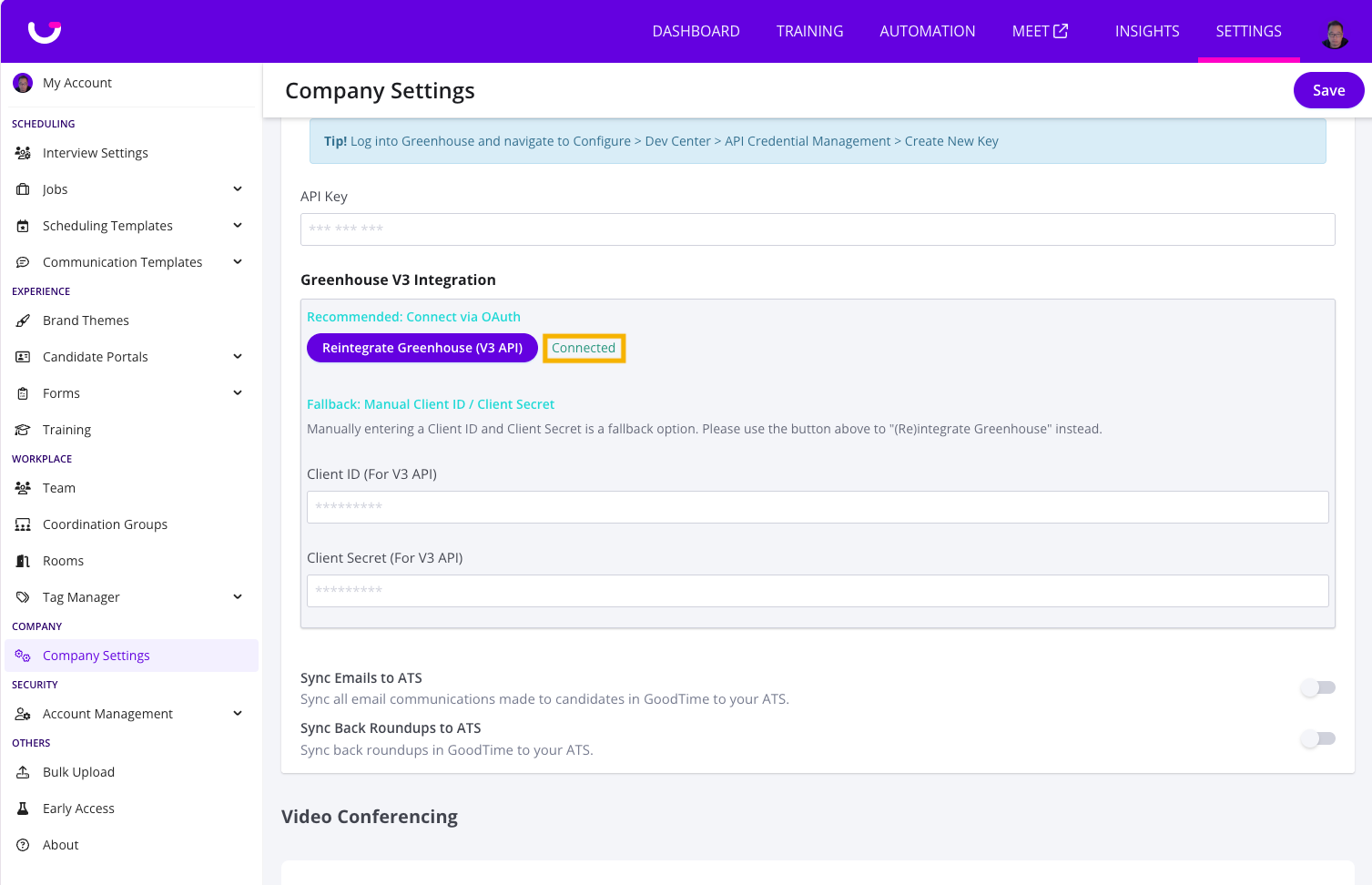
The Admin is redirected back to the GoodTime Company Settings page. This is the end of the OAuth workflow.
Install the GoodTime Chrome Extension
(This may already be downloaded by individual users)
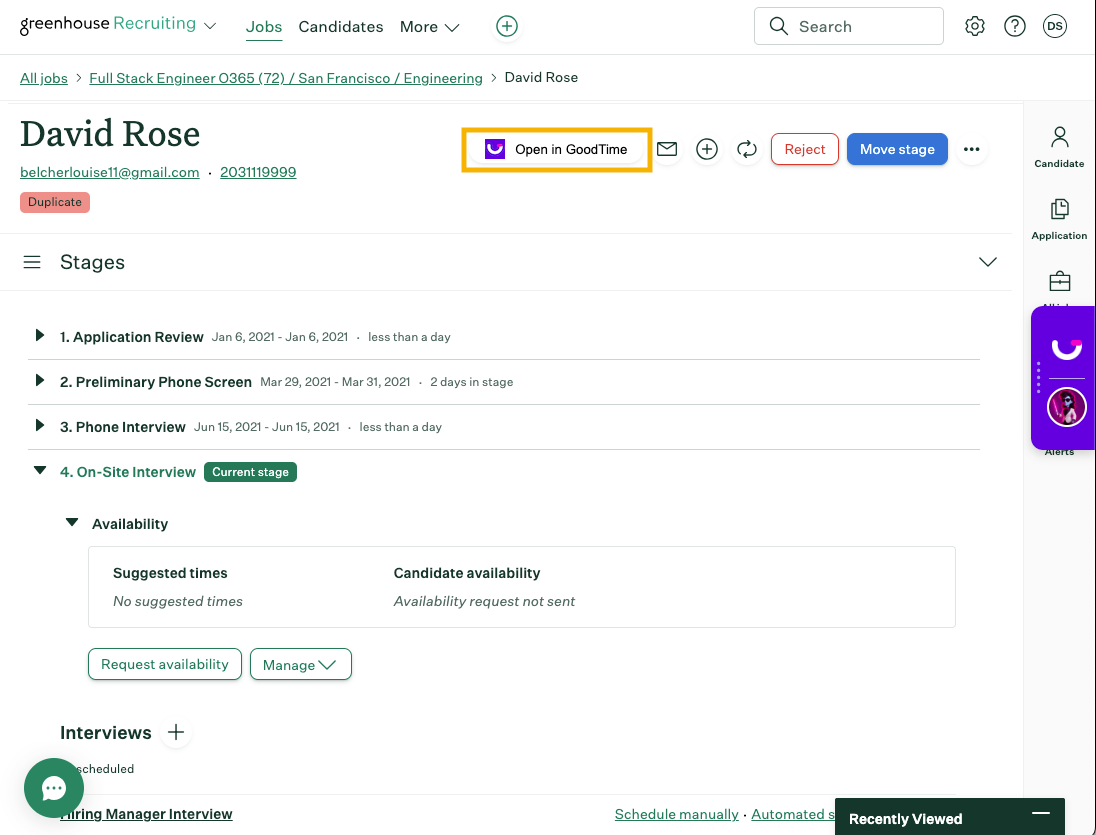
It is recommended that users download the GoodTime Chrome Extension to their individual browser. The Chrome extension acts as a shortcut. When a user is navigating to a candidate's application page inside Greenhouse, the Chrome Extension presents a shortcut button to open that particular candidate's application inside GoodTime. The Chrome Extension is available on the Google Chrome Web store:
Download the GoodTime Google Chrome Extension here.
The Chrome Extension enables users to launch GoodTime directly from Greenhouse candidate profiles.
To install:
Log in to GoodTime.
Select your profile avatar.
Click Download Plugin.
Install the extension from the Chrome Web Store.
Refresh your Greenhouse Recruiting browser window.
Once installed, the Open in GoodTime button will appear on Greenhouse candidate profiles.
Using the Integration:
Launch GoodTime from Greenhouse
From any Greenhouse candidate profile, select Open in GoodTime to begin scheduling.
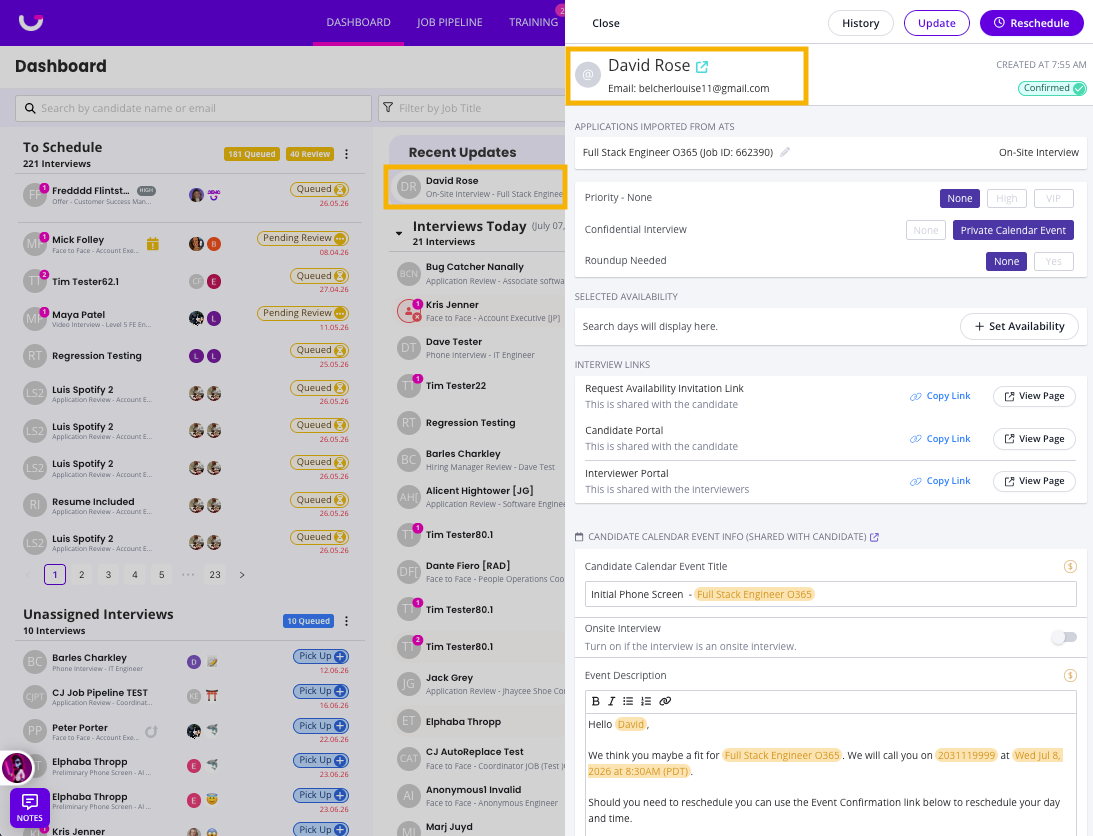
The following information is automatically carried into GoodTime:
Candidate name
Email address
Phone number
Job
Interview stage
Hiring team assignments (where available)
This eliminates duplicate data entry and ensures scheduling is associated with the correct application.
Personalize Scheduling Templates
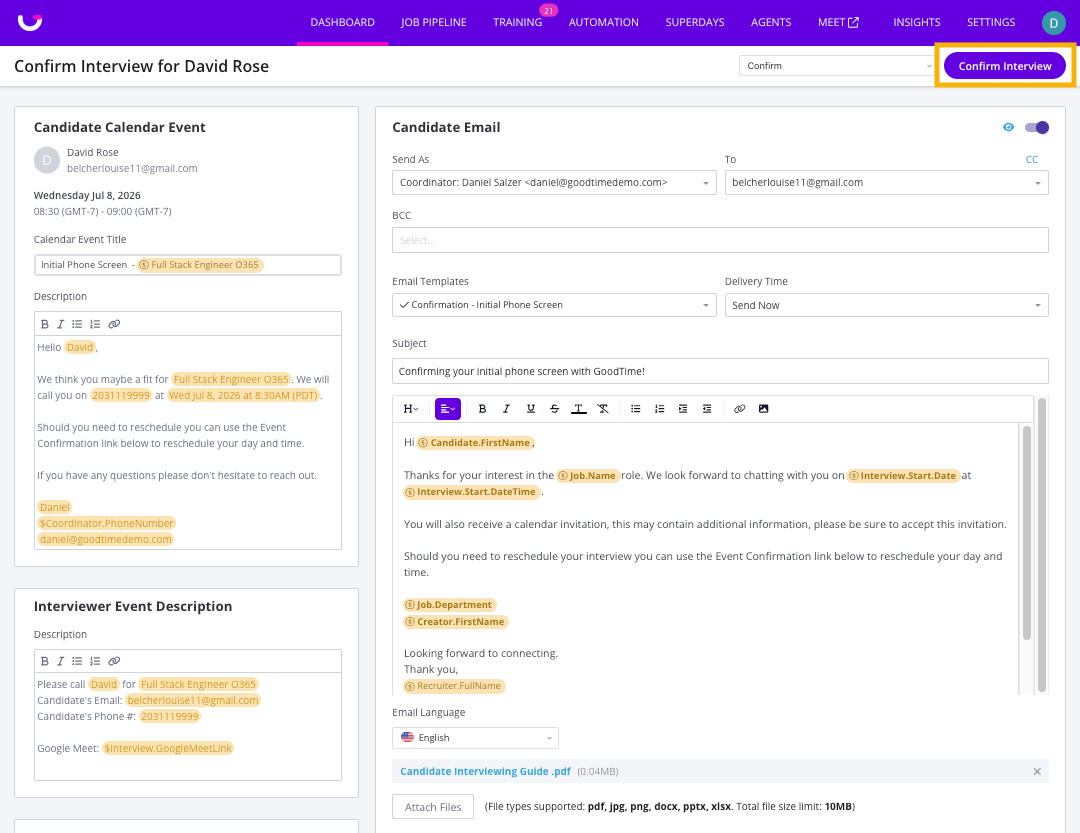
GoodTime variables allow you to automatically populate communications using information imported from Greenhouse.
Examples include:
Candidate Name
Candidate Phone Number
Job Title
Recruiter Name
These variables can be used in:
Candidate emails
Calendar invitations
Scheduling templates
This helps maintain accurate, personalized communication throughout the scheduling process.
Interview Synchronization
GoodTime automatically syncs interviews it schedules back to Greenhouse.
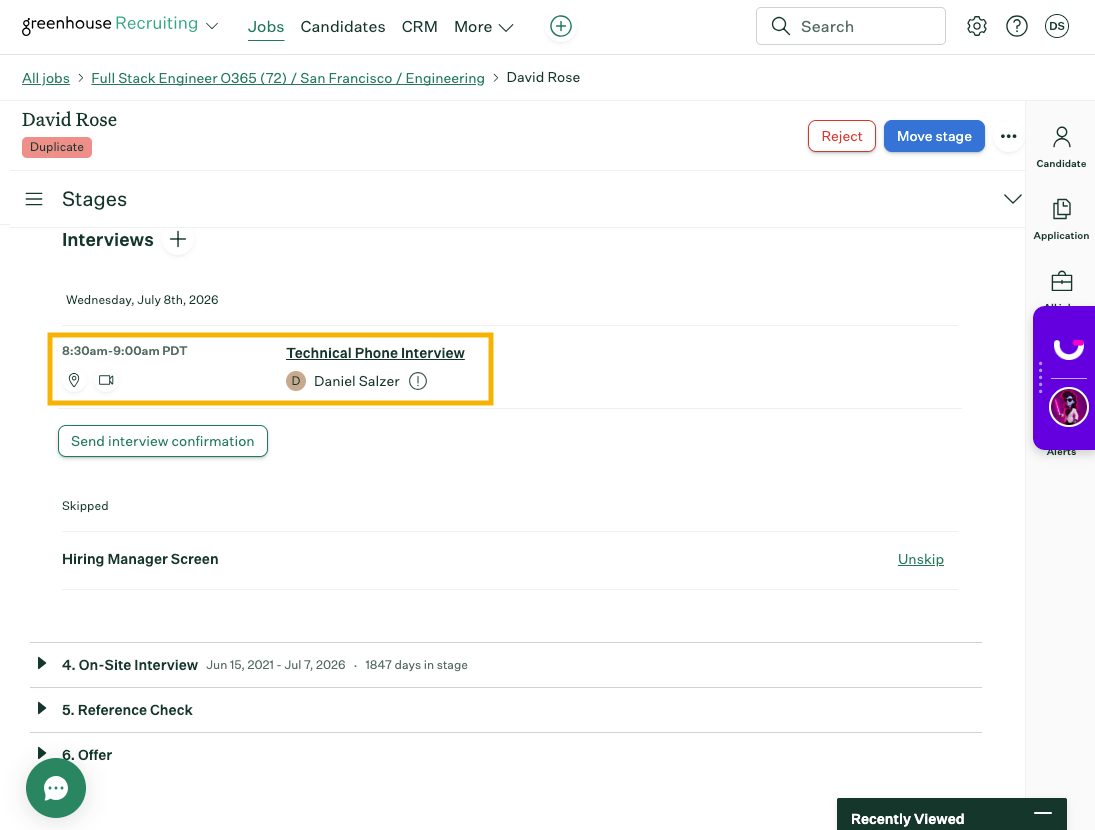
If interviews are not appearing in Greenhouse, verify that:
Feedback forms are assigned to interview events (excluding greets or walkouts).
The feedback forms correspond to the candidate's current interview stage.
The candidate is associated with the correct job in both systems.
Your Greenhouse User ID has been configured in GoodTime, if required by your implementation.
Troubleshooting:
The "Open in GoodTime" button is missing
Verify that:
The GoodTime Chrome Extension is installed.
You're using Google Chrome.
The page has been refreshed after installation.
You're logged into both Greenhouse and GoodTime.
Candidate information isn't syncing
Confirm that:
The Harvest API key is valid.
Required API permissions are enabled.
The candidate exists in Greenhouse.
The candidate is assigned to the expected application and interview stage.
Need Additional Help?:
If you're experiencing issues with your Greenhouse integration:
Contact your GoodTime Customer Success Manager
Submit a request to GoodTime Support <support@goodtime.io>
Or refer to the Greenhouse integration guide for GoodTime here: https://support.greenhouse.io/hc/en-us/articles/53430670103835-GoodTime-Hire-integration