
TL;DR:
GoodTime integrates with the SAP Success Factors Applicant Tracking System (ATS) in order to provide the scheduling benefits of GoodTime on top of the regular candidate and recruitment process management offered by the SAP Success Factors ATS.
This article provides a step-by-step guide on how to integrate SAP Success Factors with GoodTime
Permissions Needed to Establish Integration:
To integrate SAP Success Factors with GoodTime, the user performing the OAuth Integration for the first time must have the following permissions in SAP Success Factors:
Recruiting Permissions:
- OData API Create/Update Interview Central
- OData API Application Export
- OData API Candidate Export
- OData API Job Requisition Export
- OData API GET User
Manage Integration Tools:
- Manage OAuth2 Client Applications
- OData API SAML2 Setting
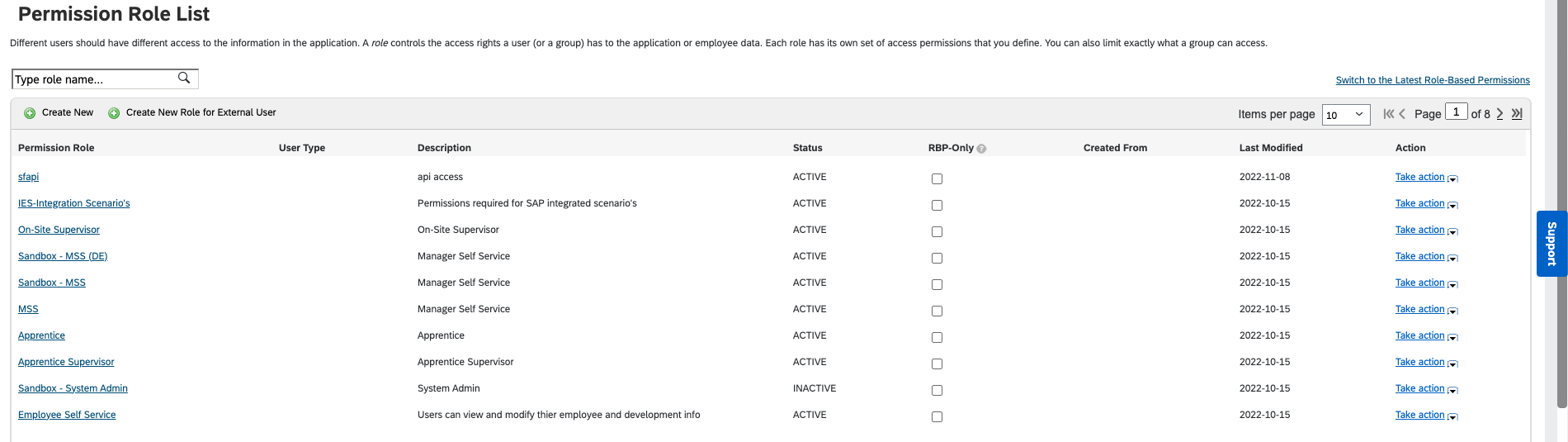
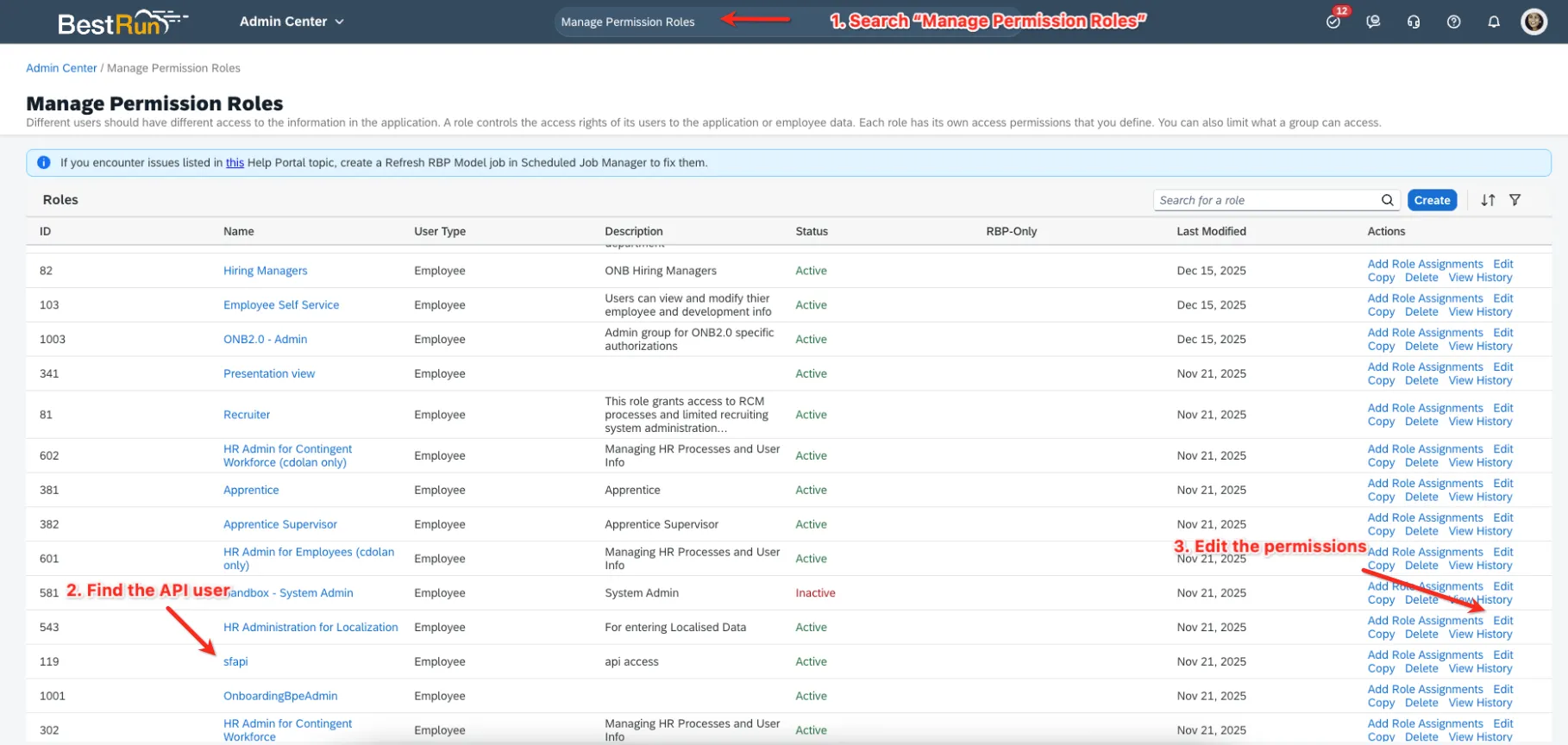
Permission Roles are managed through the “Manage Permission Roles” page. If you are an Admin user in SAP Success Factors searching for "Manage Permission Roles" on the search bar should display the following menu item:

It’s mandatory that the user establishing the integration have all the above-mentioned permissions to correctly establish the SAP Success Factors + GoodTime Integration. The screenshot below demonstrates Permission Roles affecting multiple users. By clicking each of these items, users can see whether they do or don’t have a specific permission. Please validate that your integration user has all necessary permissions before moving to the next integration step.
OAuth workflow:
GoodTime uses OAuth 2 to authenticate SuccessFactors users securely. To Authenticate your org with GoodTime, you must set up a new OAuth 2 Client from within the ATS. In this section, we present the instructions on how to do this.
-
Create a new OAuth2 Client Application
From the ATS homepage, search for “OAuth”, and click the option “Manage OAuth 2 Client Applications”.

- Create a new Client Application by clicking the "Register Client Application” button.
- Fill in the form, making sure the “Application URL” corresponds to your SuccessFactors instance API URL, ending with the “
/oauth/token” path. If you don’t know your API URL, see these SAP support docs.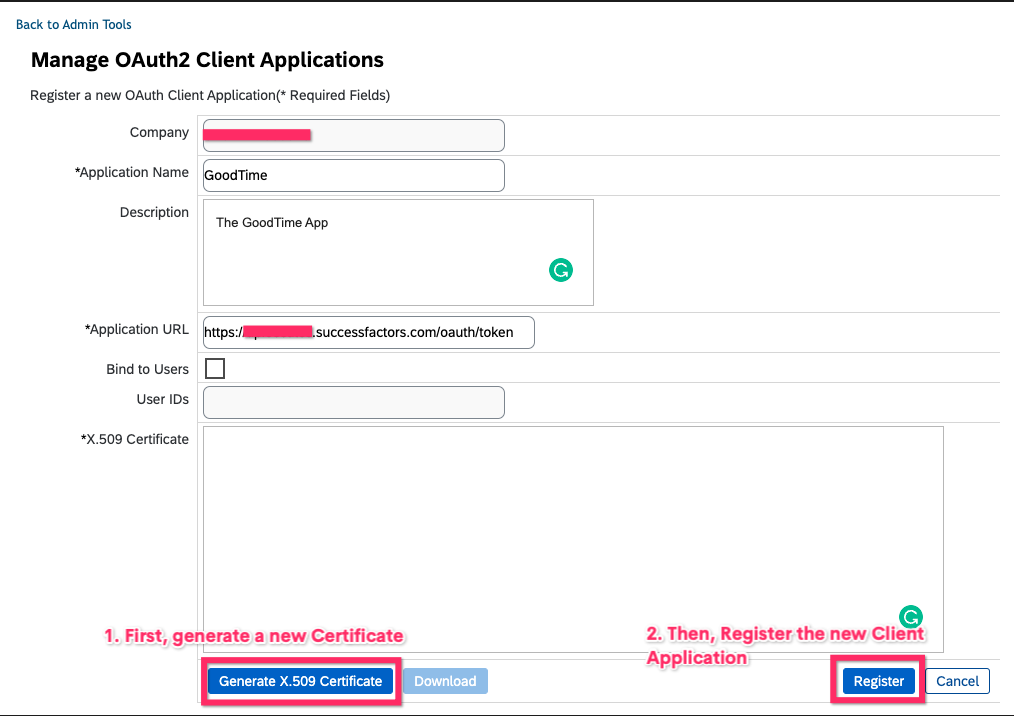
- After filling in the fields, generating the certificate, and clicking “Register,” and then on the next screen add a descriptive name hit "Generate"
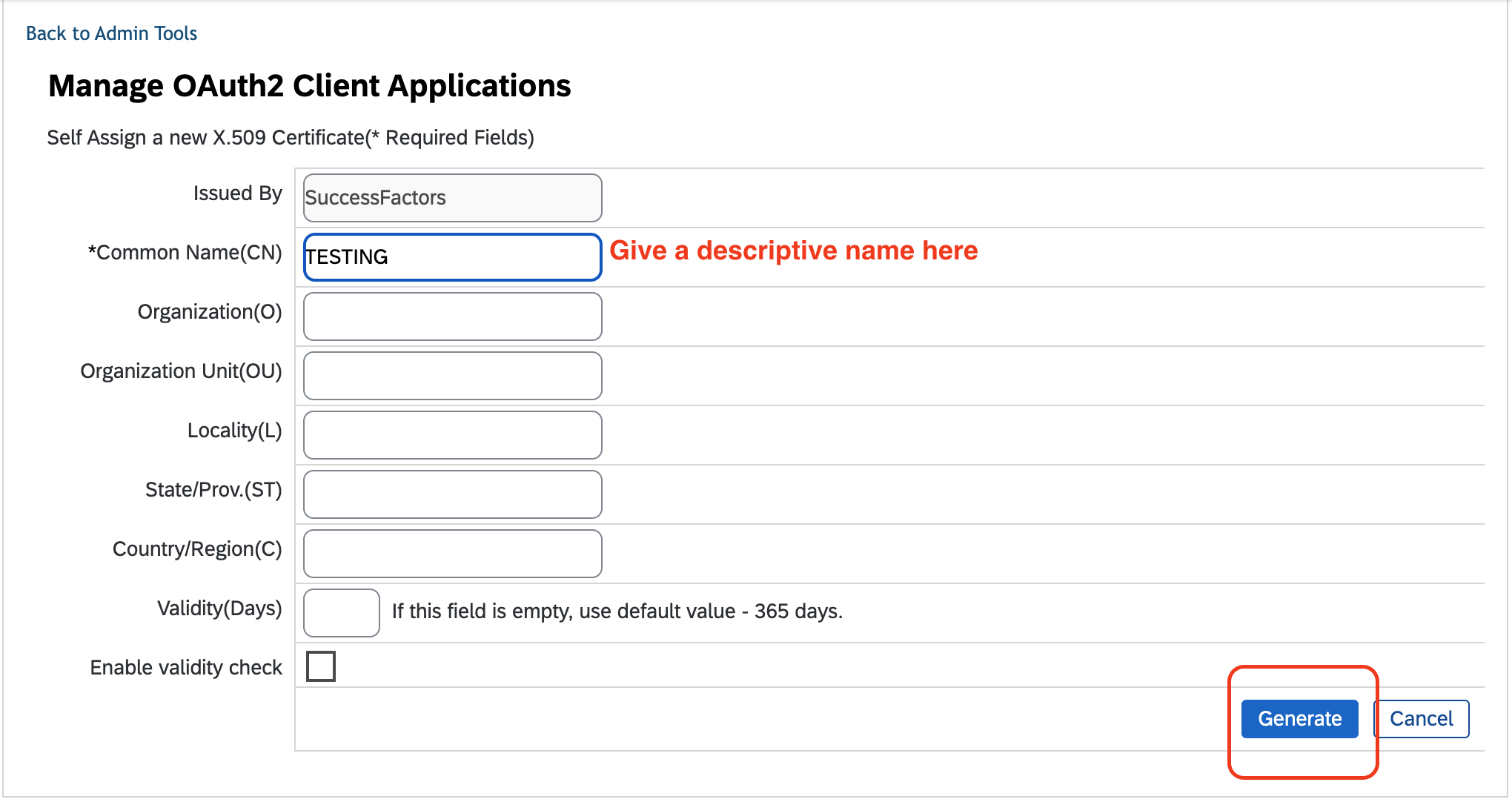
- Your created Client Application should look like the screenshot below.
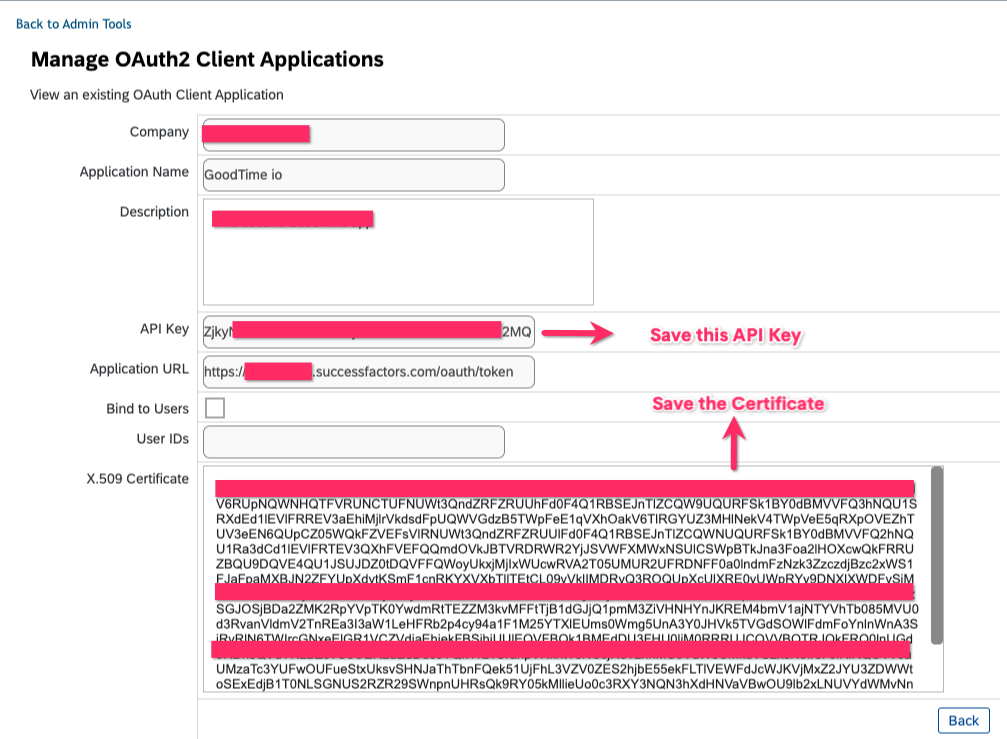
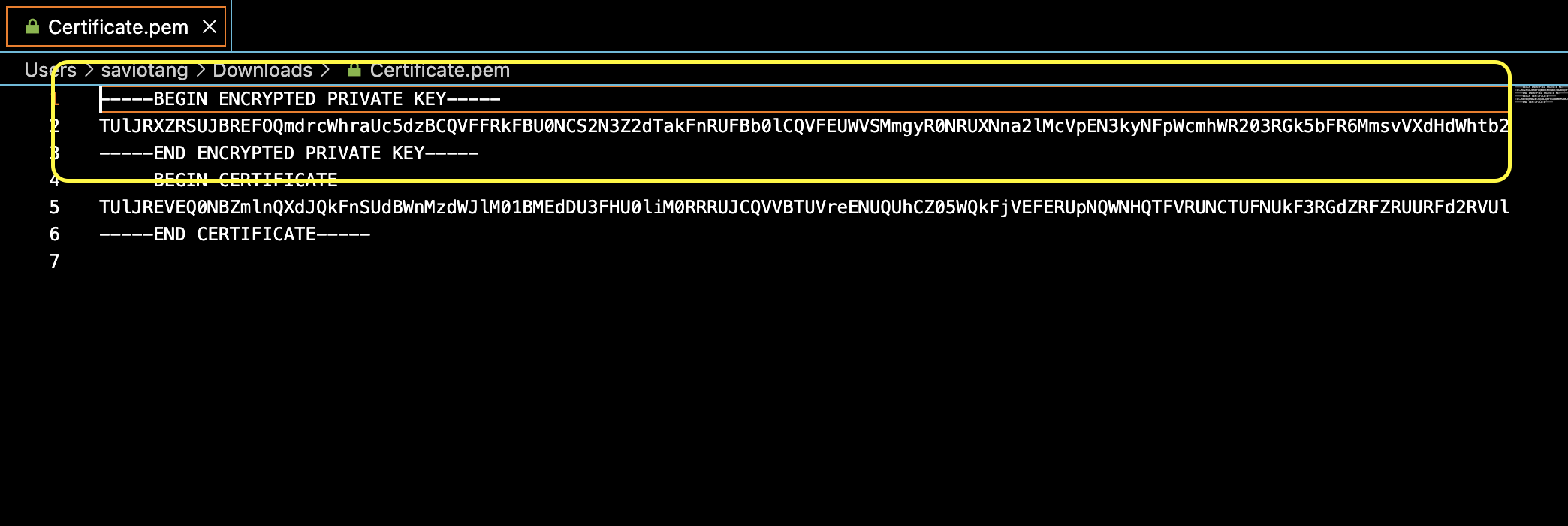
- Make sure you save the generated API Key, and the generated Certificate
- Open the downloaded file in any text editor, copy the long string PRIVATE KEY - you will need it in the next step. The string can be very long, make sure to copy it all.
- Share the following information with the GoodTime Professional Services Integration team in order for us to establish your integration between GoodTime and your SAP Success Factors account:
- Company ID: the ID of the company in the SuccessFactors ATS
- API Key: the API key available in the OAuth2 Client Application (step 4 screenshot)
- Token URL: the “Application URL” field available in the OAuth2 Client Application (step 4 screenshot)
- X.509 Certificate: the certificate generated in the OAuth2 Client Application (step 4 screenshot) **Must be the full .pem file
- API User ID: the ID of the user with the API permissions who generated the certificate for the Client Application
- candidateProfileUrlTemplate: The URL of your SuccessFactors portal
- Once all steps are completed, GoodTime can begin the data sync. The length of the sync is dependent on how much data (candidates/jobs/users) is in SuccessFactors.
OData API Permissions
Goodtime needs permission to read Candidates, Users, and Jobs. To enable that:
Go to Admin Center → Manage Permission Roles → [API Role] → Recruiting Permissions → Candidate and enable “OData API Candidate Export”
This example is for Candidates, but the process is the same for other entities. The screenshots below demonstrate how to enable that step-by-step:

ODATA API Dictionary Configuration
- SuccessFactors OData API requires extra setup in some cases to use the $expand query param.
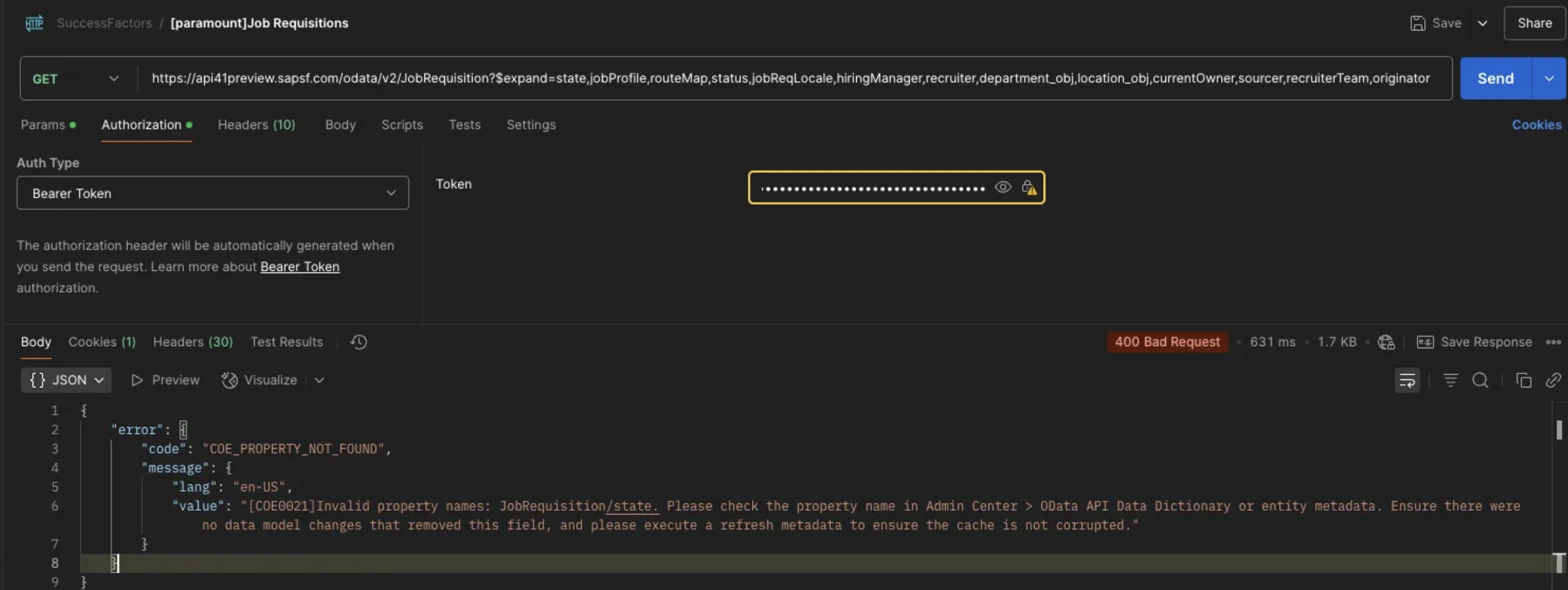
- The screenshot below demonstrates that the API request fails when this is not properly set up for the JobRequisition entity.
-
The 400 response with the code
COE_PROPERTY_NOT_FOUNDmeans one of the attributes used in the $expand query parameter is not configured. In the screenshot example, the JobRequisition entity is missing the config for the “state” field.
- To set up the properties, follow the steps:
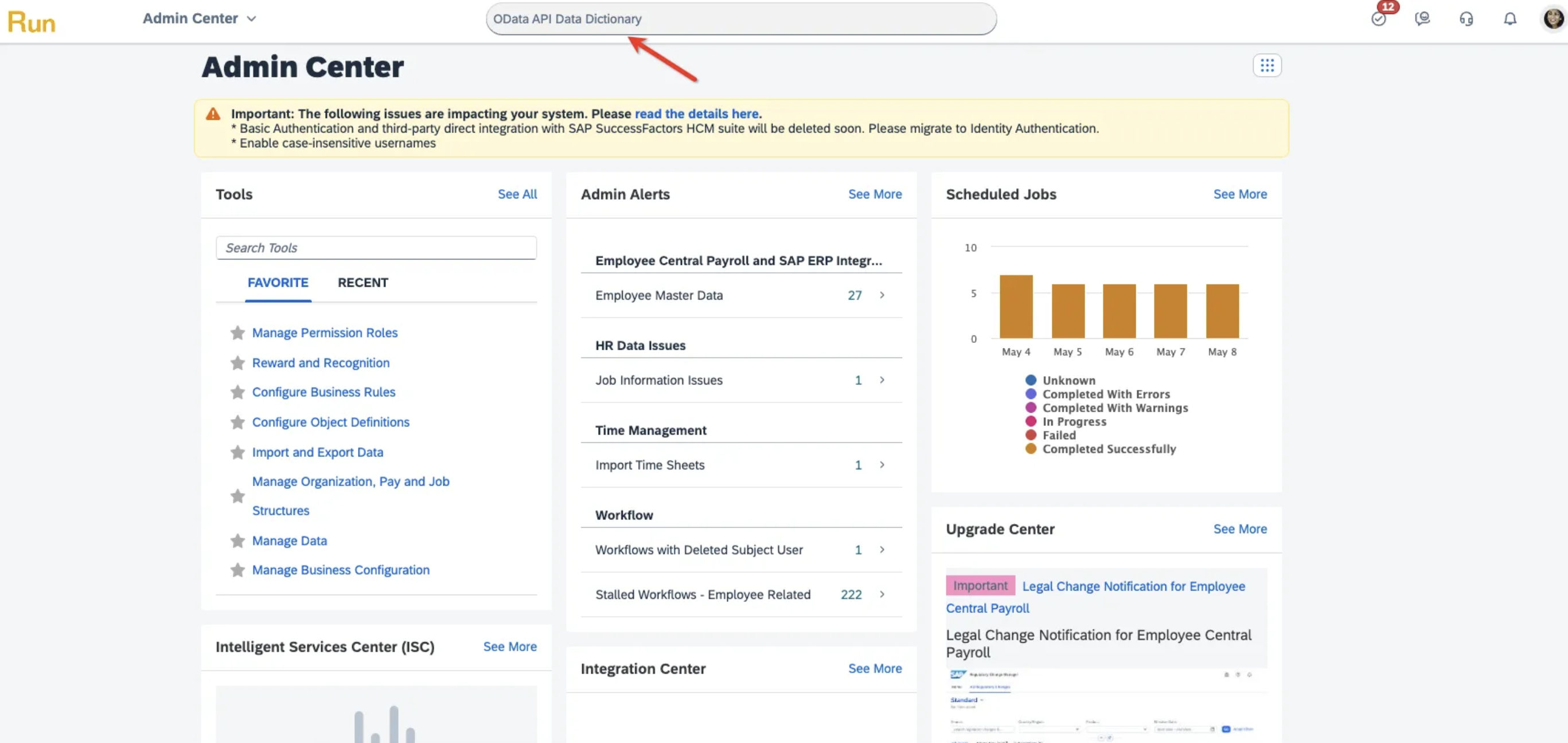
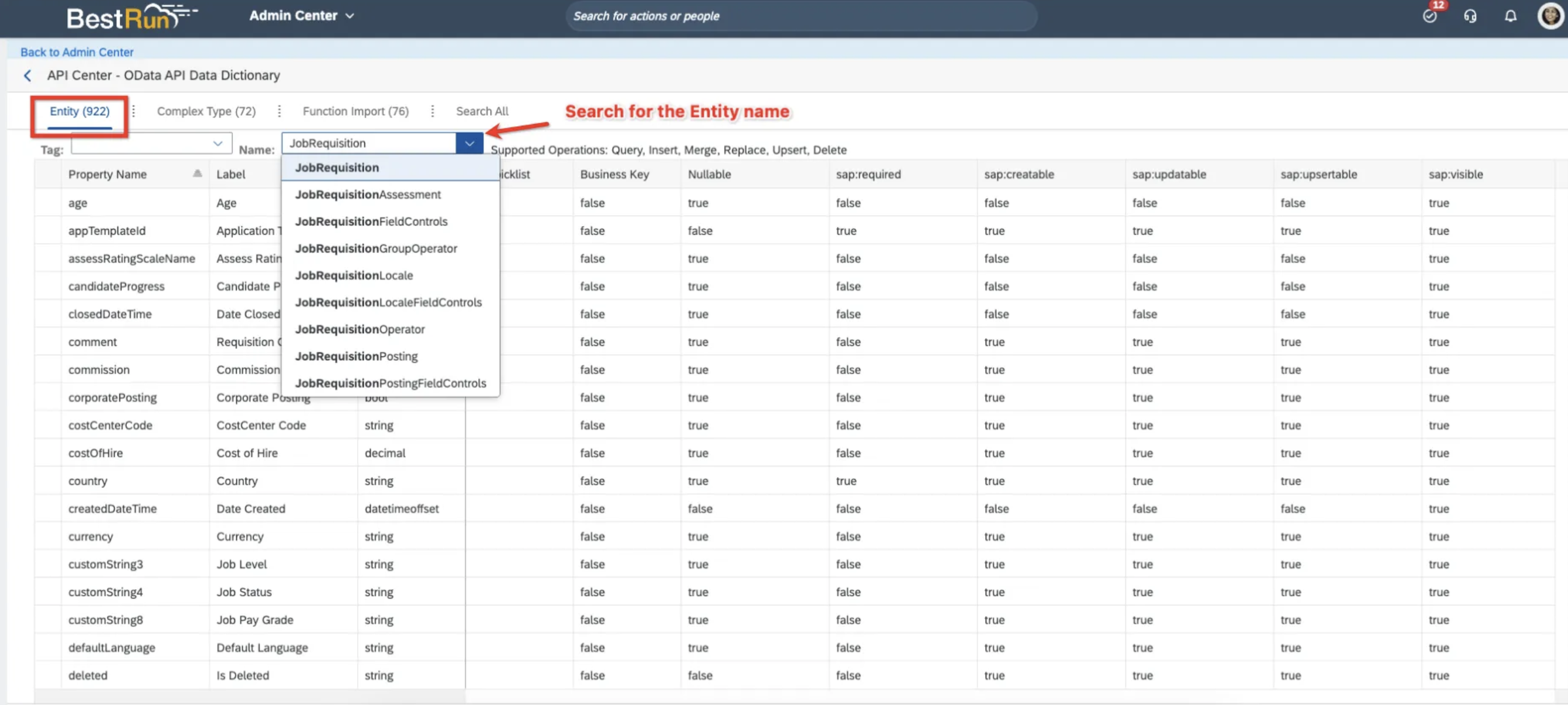
- Search for “OData API Data Dictionary” in the search bar on the home page of SuccessFactors
- In the OData API Data Dictionary page, click the “Entity” tab, and search for the entity name in the search field, for example, “JobRequisition”
-
Look for the property name, and make sure the values for columns “sap:visible, sap:sortable, sap:filterable” are set to
true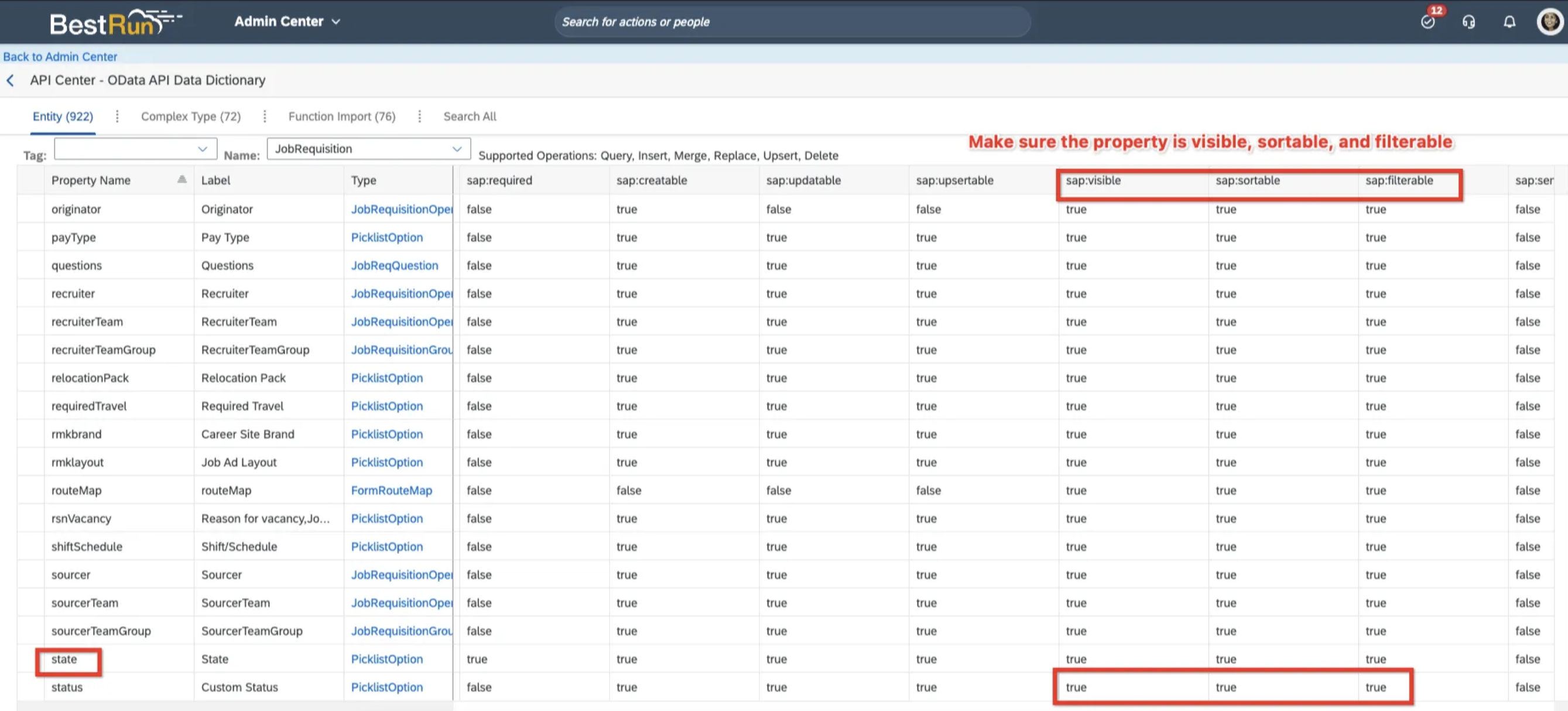
- Search for “OData API Data Dictionary” in the search bar on the home page of SuccessFactors
Data Entities Synced from SAP Success Factors to GoodTime:
GoodTime ATS integrations operate on a principle of least access, meaning we will only access the data necessary for us to support your scheduling processes and nothin more. While GoodTime uses API calls to pull basic candidate, job and user data we do not store this information outside of the time needed for it to support the scheduling workflow. All details of scheduled events are pushed back to your SAP Success Factors account and as such you ATS will always remain the source of truth for candiate and pipeline related information. GoodTime will simply hold a record of any interview scheduled via GoodTime for your candidates.
Candidate Data: (click to learn more)
- candidateId
- creationDateTime
- lastModifiedDateTime
- firstName
- lastName
- currentTitle
- shareProfile
- photo_url
- emails
- phoneNumbers
- social_media_addresses
- status
- custom_fields (optional)
Jobs Data: (click to learn more)
- jobReqId
- createdDateTime
- lastModifiedDateTime
- closedDateTime
- internalStatus
- jobTitle (where locale is ‘en_US’)
- jobReqLocale
- department
- managers
- recruiters
- interviewers
- jobAdmins
- sources
- coordinators
User Data: (click to learn more)
- usersSysId
- hireDate
- lastModifiedDate
- firstName
- lastName
- nickname
- title
- company
- emails
- phoneNumbers
- businessSegment
- businessSegment
- status
- settings
Job Applications Data: (click to learn more)
- applicationId
- createDateTime
- lastModifiedDateTime
- jobName
- jobReqId
- stageId (appStatusSetId:appStatusId)
- applicationStatus
- startDate
- candidateId
- recruiterId
- hiringManagerId
Interview Stages Data: (click to learn more)
- stageId
- dbCreatedAt
- dbUpdatedAt
- jobRequisitionId
- stageName
Data synced back to SAP Success Factors from GoodTime:
GoodTime will sync the interviews created within GoodTime into the SAP Success Factors ATS.
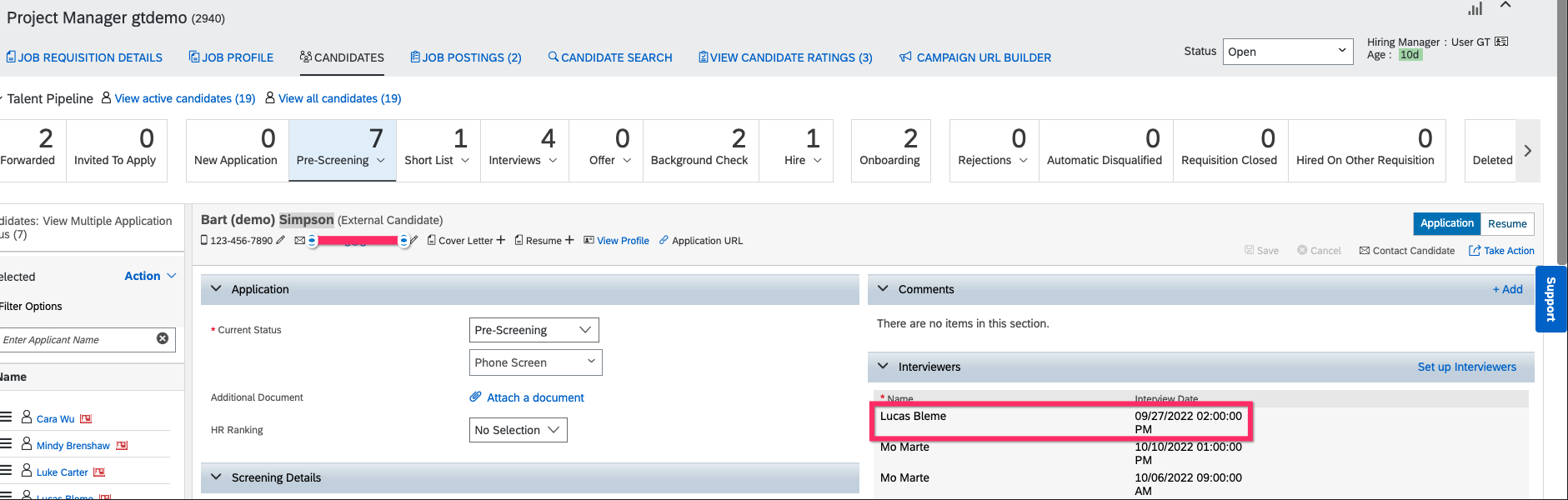
Interview details that will appear within the SAP Success Factors candidate profile when an interview is scheduled via GoodTime are:
- Interview Date & Time
- Name of Interviewer(s) scheduled.
Sync Times:
After your initial sync, newly created candidates may take up to 1 hour to appear in GoodTime.
When moving candidates to a new status, there may be a sync delay of up to 1 minute.
Considering moving to SAP Success Factors?
If you are thinking of moving from your current ATS to SAP Success Factors we encourage you to speak to your CSM as early as possible to walk though the attached document and jointly build-out an ATS migration plan.
Downloadable Integration Guide:
The attached SAP Success Factors + GoodTime Integration Guide provides a downloadable version of this Success Factors + GoodTime integration process.