Interview Templates - Adding a Break or Lunch to an Interview
Last updated: February 26, 2026
TL;DR: It is possible to intentionally build in a break or a 'lunch' into an Interview Template via the following steps:
Add a 'Break' Into an Interview Template:
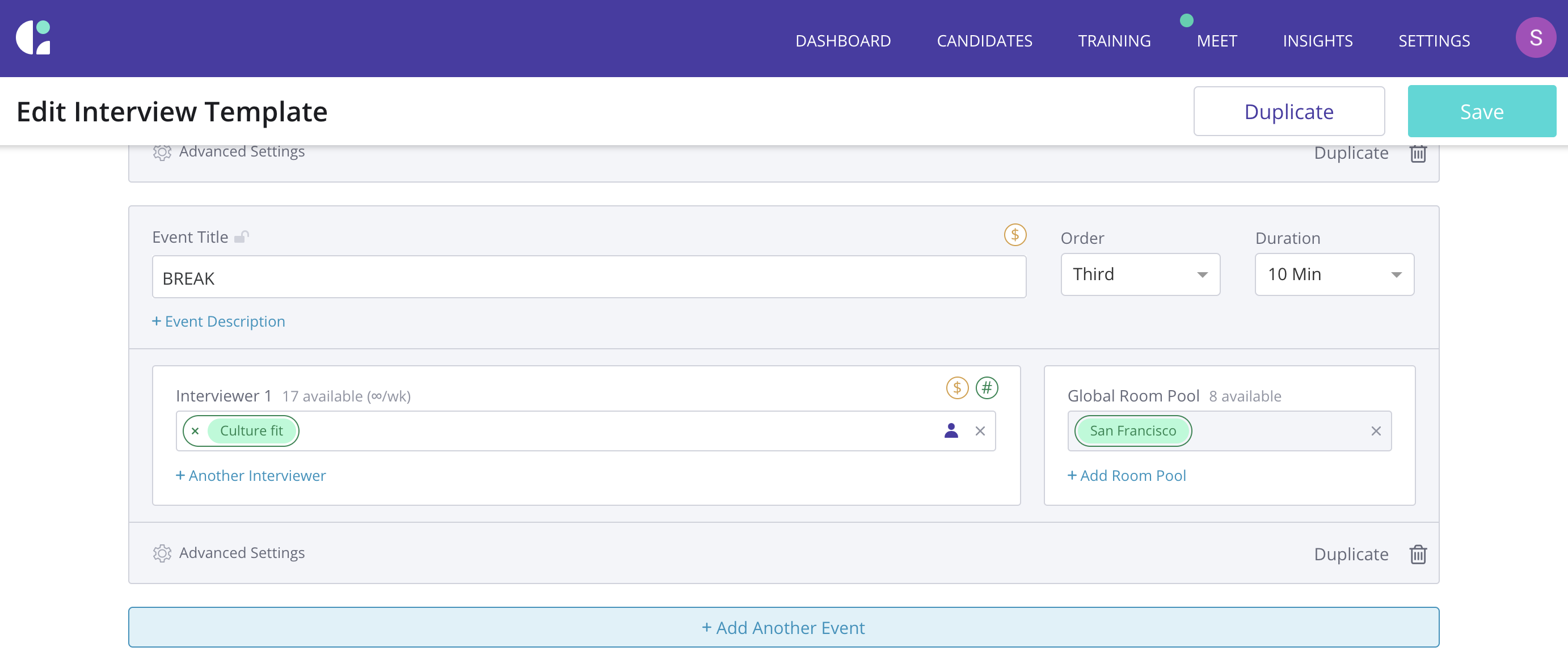
Go to Settings > Interview Templates > Click on the template you want to edit > Under the last event, click “Add Another Event” > Edit the event settings (be sure the set the 'order' so this break occurs at the correct point in the interview lineup) > Click “Save” in top right corner
Adding a 'Break' to a Previously Scheduled Event:
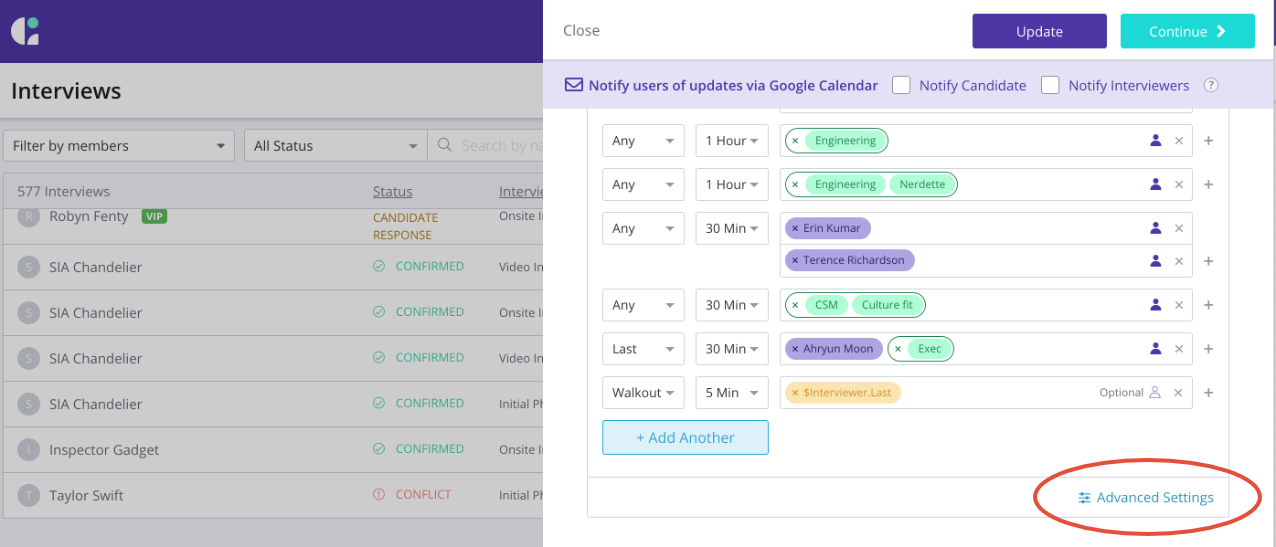
If it's for an interview that has already been scheduled, you can click into the interview, scroll to the last event, click on Advanced Settings.
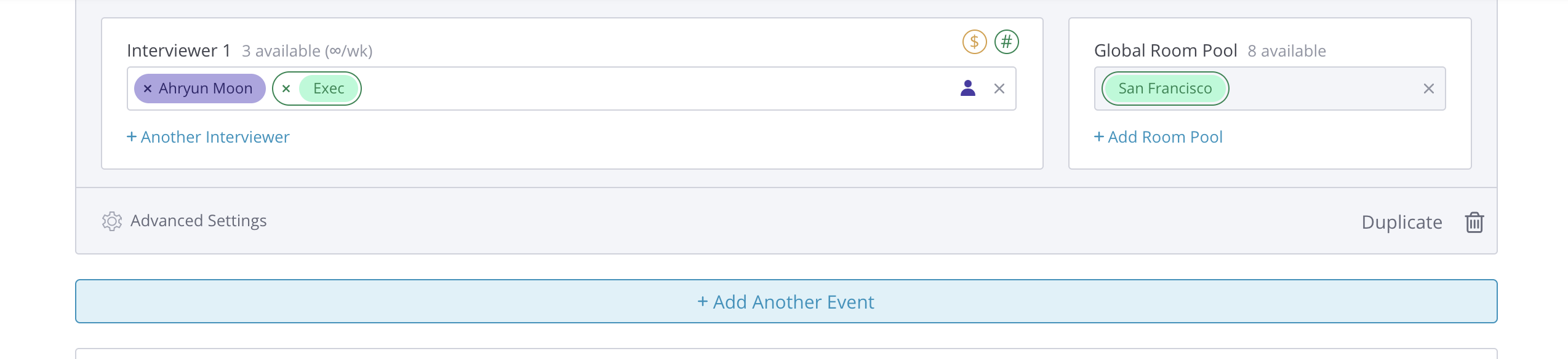
Click on the blue Add Another Event Button
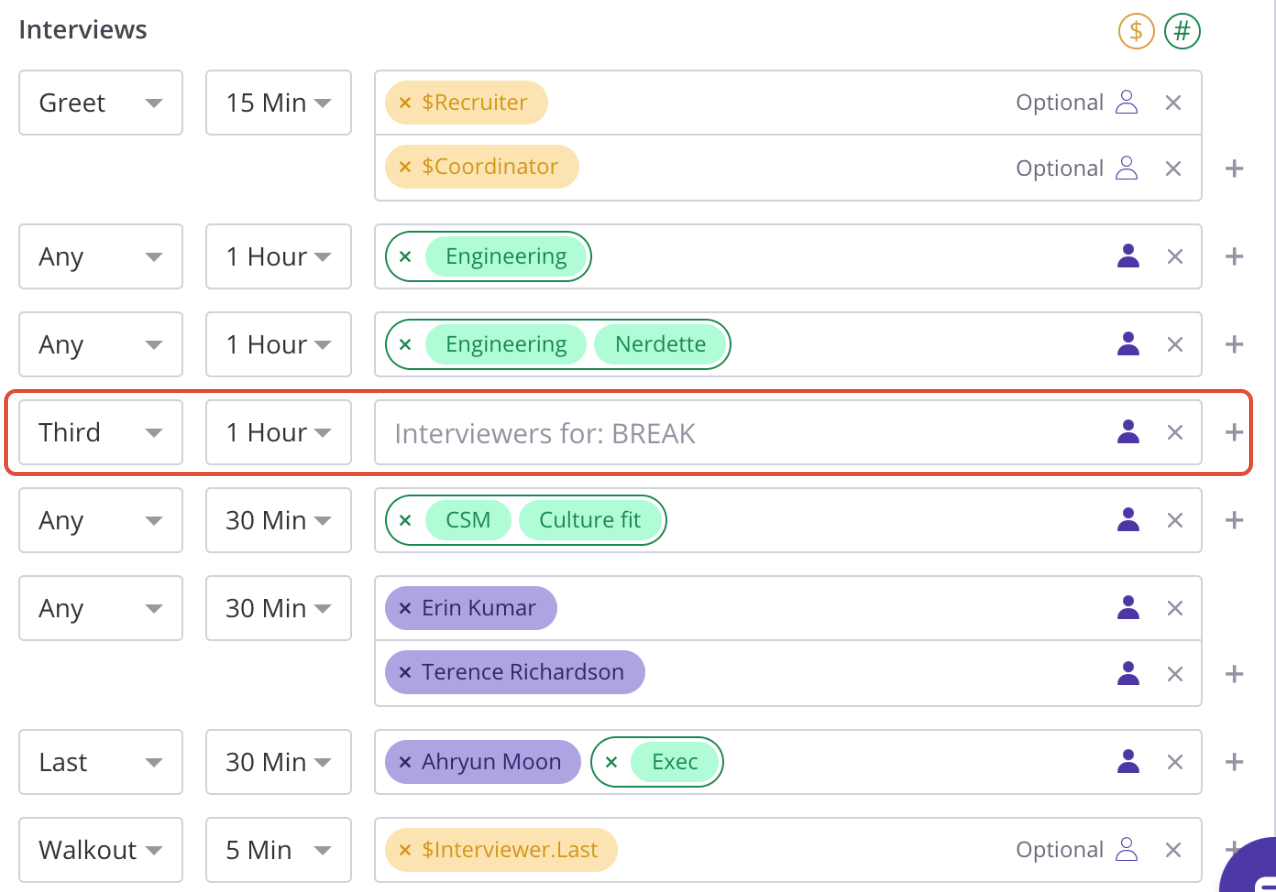
You can add the word "BREAK" into the Event Title and Remove the Interviewer. If the break needs to happen in a specific sequence in the list of the events, you set where the event needs to land in the "Order" dropdown. In the example below, the break would happen third.
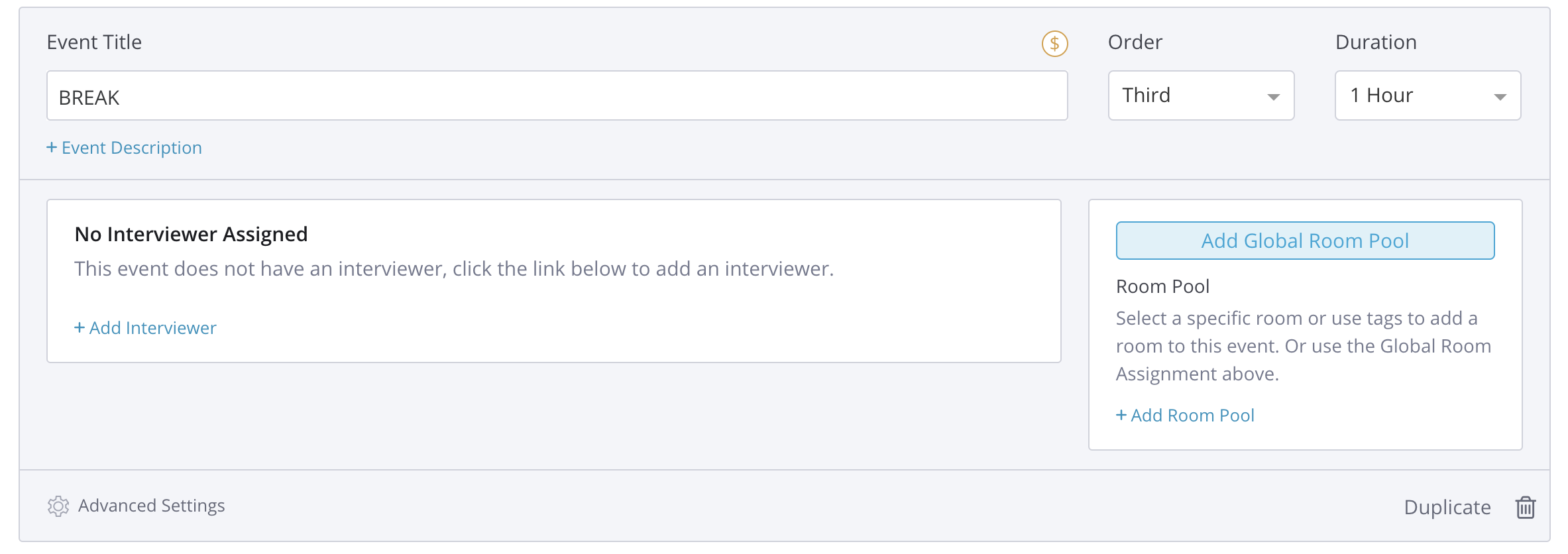
The new sequence of events now includes a break.