Ashby + GoodTime Integration Guide
Last updated: September 24, 2026
Overview
The Ashby integration with GoodTime allows you to connect your Ashby account to GoodTime and synchronize recruiting data between the two platforms.
Once the integration is completed, GoodTime can import candidate and job information from Ashby, while interviews scheduled through GoodTime are synced back to Ashby.
Requirements
Before setting up the integration, make sure you have:
Administrative access to your Ashby account.
An Ashby API key with the required permissions.
Access to Company Settings in GoodTime.
Step 1: Create an API Key in Ashby
Here is a video clip showing the steps to generate an API key in Ashby:
GoodTime uses an API key to securely access the data required from your Ashby account.
Sign in to Ashby using an account with administrative permissions.
From the top navigation bar, select Admin.
From the left-hand sidebar, select Integrations → API Keys.
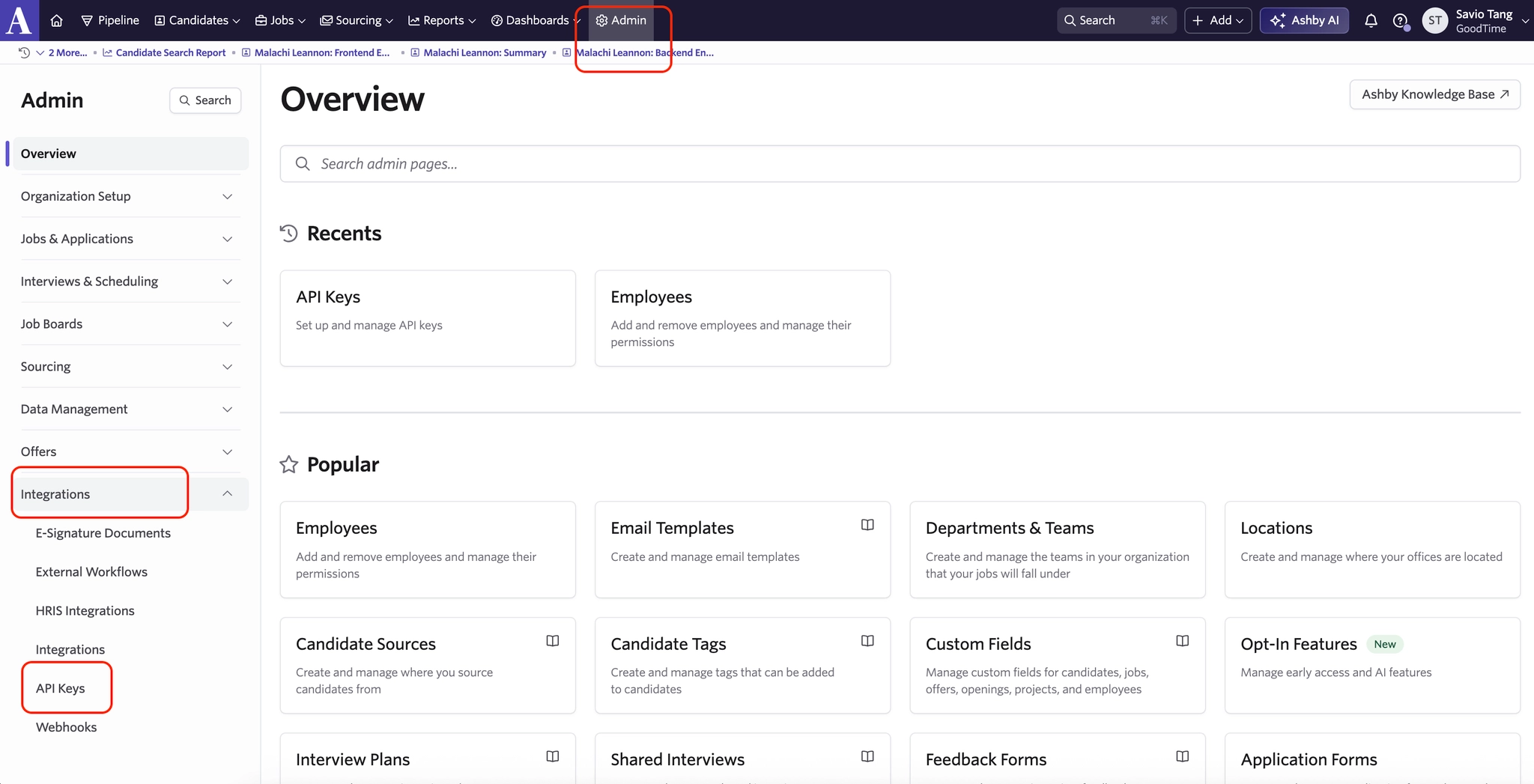
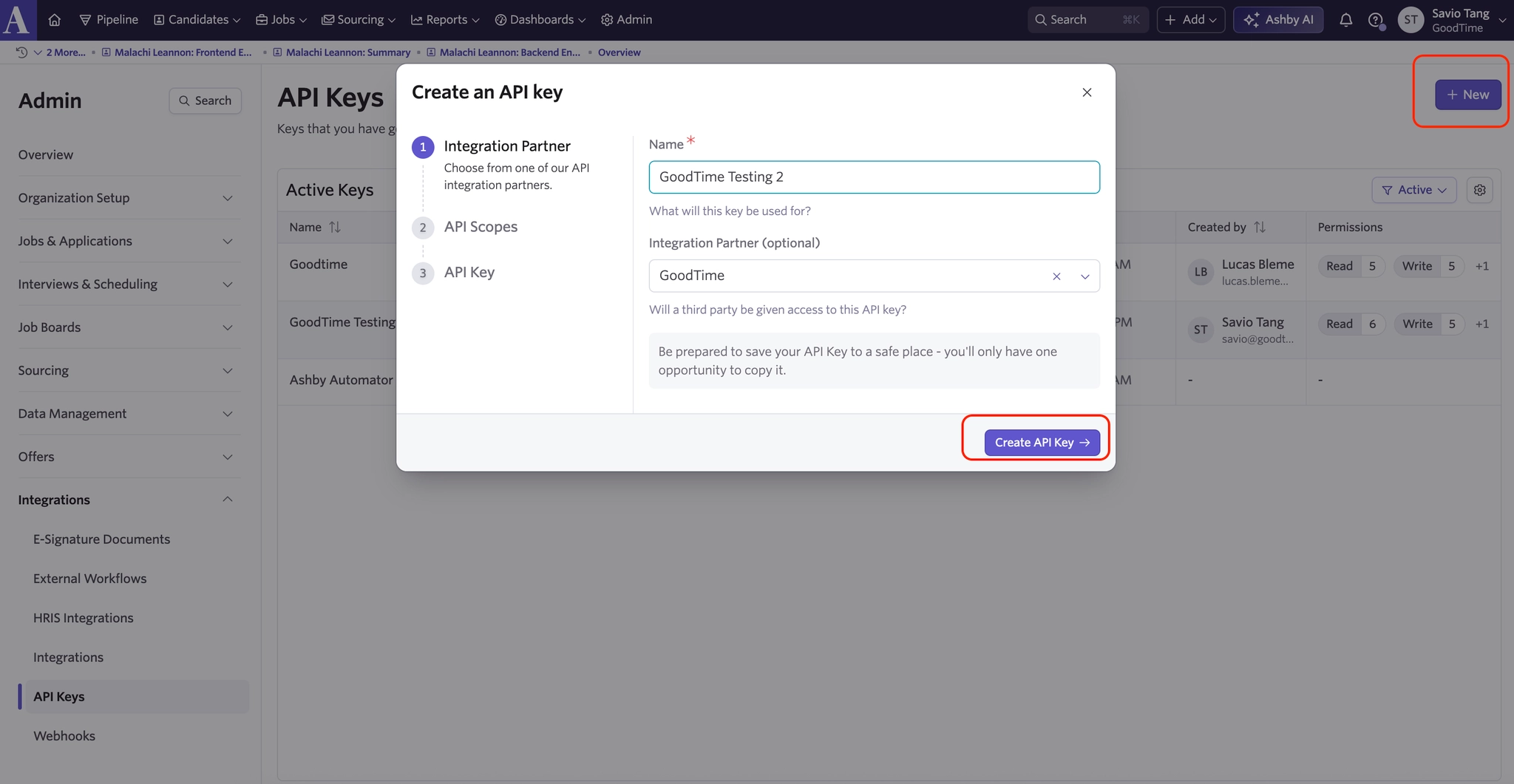
Select + New in the upper-right corner.
Enter a descriptive name for the API key, such as "GoodTime Integration".
Select Create API Key.
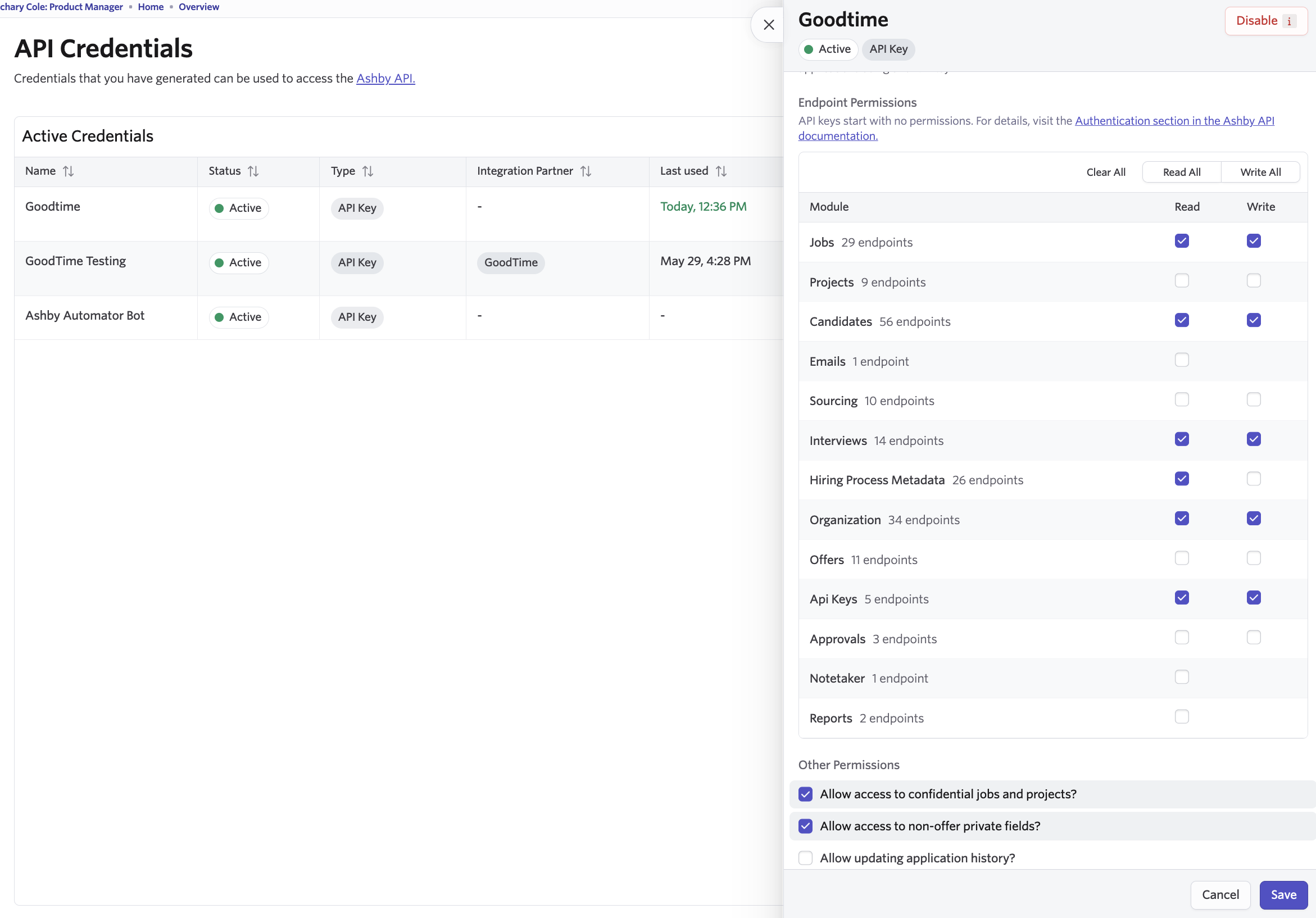
Configure API Key Permissions
When creating the API key, make sure all required permissions are enabled.
The API key must have the appropriate permissions for GoodTime to access and synchronize the required data from Ashby.
After creating the API key, keep it available. You will need it to complete the integration setup in GoodTime.
Step 2: Connect Ashby to GoodTime
After creating the API key in Ashby:
Sign in to GoodTime.
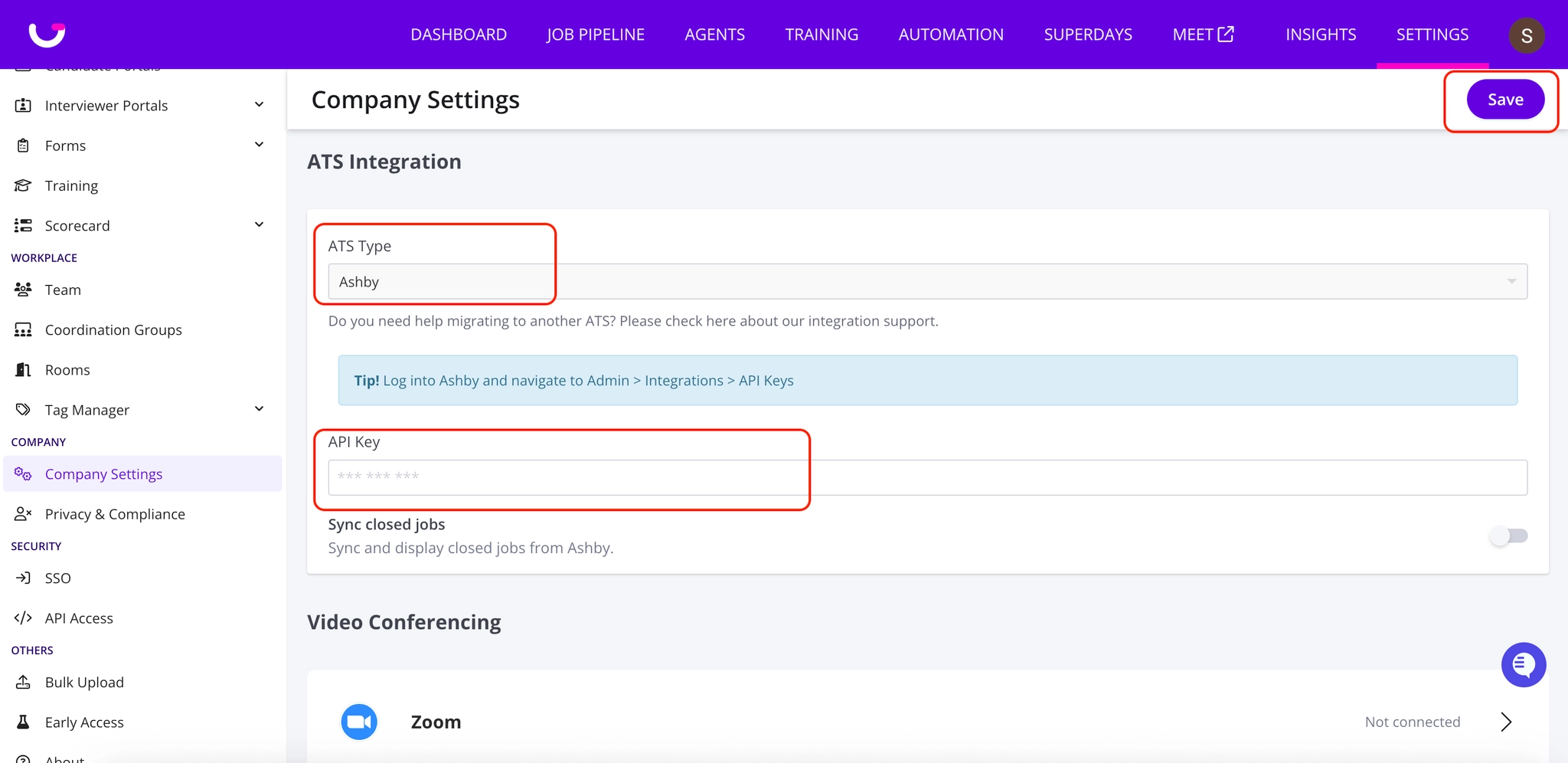
Navigate to Settings → Company Settings.
Locate the ATS Integration section.
Under ATS Type, select Ashby.
Enter your Ashby API key in the corresponding field.
Select Save.
Once saved, the integration will be connected and data synchronization can begin.
Data Synchronization
Once connected, the integration synchronizes the following data between Ashby and GoodTime.
Ashby → GoodTime
The following information is synchronized from Ashby to GoodTime:
Data | Description |
Candidates | Candidate records from Ashby |
Jobs | Jobs configured in Ashby |
Job Stages | Stages associated with a job |
Job Applications | Candidate applications associated with jobs |
Users | Users from Ashby |
Candidate Stage | The candidate's current stage |
Hiring Team | Hiring Manager, Sourcer, Recruiter, and Recruiting Coordinator information |
GoodTime → Ashby
The following information is synchronized from GoodTime to Ashby:
Data | Description |
Scheduled Interviews | Interviews scheduled through GoodTime |
Troubleshooting
If your Ashby integration is not connecting or data is not synchronizing as expected, verify the following:
Confirm that the Ashby API key was created by a user with the required administrative permissions.
Verify that the API key has all required permissions.
Confirm that the correct API key was entered under GoodTime → Settings → Company Settings → ATS Integration.
Make sure Ashby is selected as the ATS Type in GoodTime.
Make sure to select Save after entering or updating the API key.
If the issue persists after completing these steps, please contact GoodTime Support for further assistance.
Frequently Asked Questions
What is an Interview Plan in Ashby?
An Interview Plan is a series of steps or activities that define the interview process for a job.
For example, an Interview Plan might include:
Recruiter Screen
Technical Quiz
Hiring Manager Screen
Panel Interview
An organization can have multiple Interview Plans, but each job can be associated with only one Interview Plan.
How are Feedback Forms managed in Ashby?
Feedback Forms are created and managed in Ashby and are stored in a central pool.
Groups can be assigned to Feedback Forms to help organize them. For example:
Engineering
Design
Product
People
Sales
To assign a Feedback Form, create or use an existing Shared Interview and associate the Feedback Form with that Shared Interview.
Because Feedback Forms are closely tied to the Interview type in Ashby, GoodTime currently has limitations around selecting Feedback Forms during scheduling.