Office 365 + GoodTime Integration Guide (O365)
Last updated: May 29, 2026
Overview / TL;DR:
This guide provides a step-by-step process on how to integrate Office 365 with GoodTime. This guide is designed for Office 365 Admins with access to create security groups. This allows the GoodTime System to access interviewer calendars to determine which times are available for interviews.
While GoodTime requires access to your interviewers calendars to streamline your scheduling workflows, we are committed to the Engineering and Security principle of Least Privilege. This means that GoodTime will never request more permissions than we need. The following video provides an overview of the GoodTime O365 calendar integration and addresses some key FAQs. The remainder of this article provides detailed integration steps for your O365 Admin to follow.
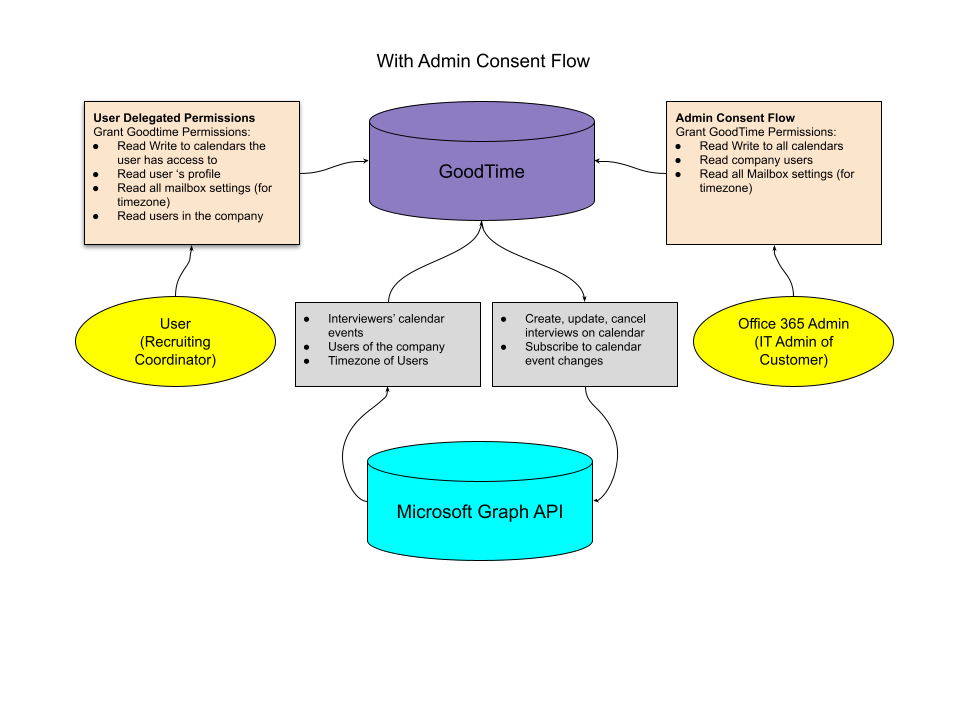
GoodTime utilizes the Office 365 Graph API to do the following:
Read/Write to calendars ('Write' is only for events created by GoodTime)
Read/Write to calendars shared with individuals ('Write' is only for events created by GoodTime)
Get timezone for users
Get directory information: user’s name, email, and other profile information
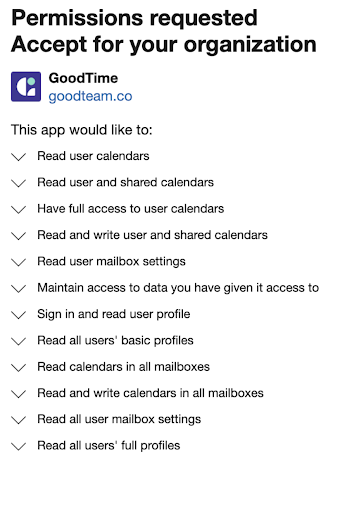
Integration with the GoodTime Platform requires each user who wants to access the GoodTime system to sign in using Office 365’s OAuth login system. GoodTime authenticates using the Microsoft Graph API and requires the following permissions from the user: *Please note, in all instances regarding mailboxes, GoodTime cannot read or write to your user email mailboxes*
|  |
How to verify if we can Integrate with your version of Office 365?
GoodTime support organizations on Office 365 and Office 365 Hybrid environments. To check if your Office 365 is compatible with GoodTime, please go to https://outlook.office365.com/calendar and see if you can view your calendar on the browser. If yes, then go to https://a.goodtime.io/login and pick "Sign in with Office 365". If you can reach the "Permissions requested" page with an Accept button, then we're good. (No need to click accept for now)
Integration Diagram:
Permissions Granted to GoodTime via by Admin:
Permissions Granted to GoodTime by the User:
Opt-In Permissions Granted to GoodTime by the User:
Certain GoodTime features, such as the Automation Tab, are included in upgrade packages and require additional permissions. There permissions are not requested by default but are opt-in.
What calendar information is displayed inside of GoodTime:
What GoodTime displays inside of the tool is specific to the user that is logged in. GoodTime follows standard calendar settings of the current user.
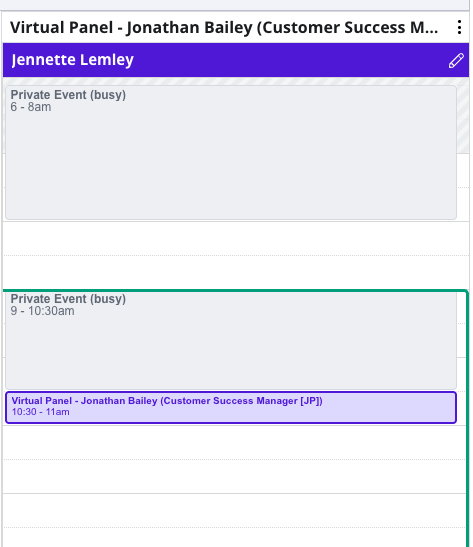
This means if an employee's calendar is marked "private" and the user cannot see the event titles inside of Outlook calendar, they will also not be able to see event titles inside of GoodTime.
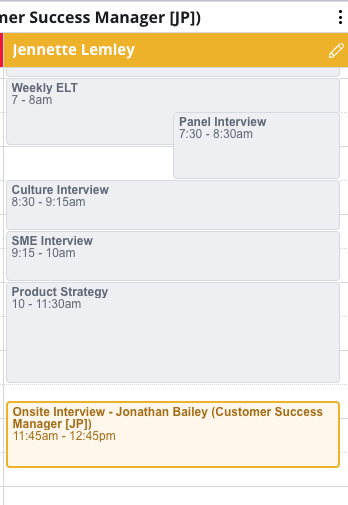
If the employee (ie. interviewer) shares their calendar ("can view all details") with a specific user (ie. coordinator), that user will be able to see calendar event titles displayed in GoodTime.
Example of scheduling with an interviewer with a private calendar (top) vs. an interviewer with a shared calendar (bottom):
Integration Steps:
The following steps will grant the GoodTime system the necessary access to create and edit interviews for employees at your company.
Admin Consent: | |
1. Office 365 users who have not finished setup Admin consent to allow for interview scheduling will show an alert on the top of the Company Page (Settings Company). The alert shown in the yellow box has an email template. Copy the template and send the email to your Office 365 Administrator. They are usually in the IT department. | 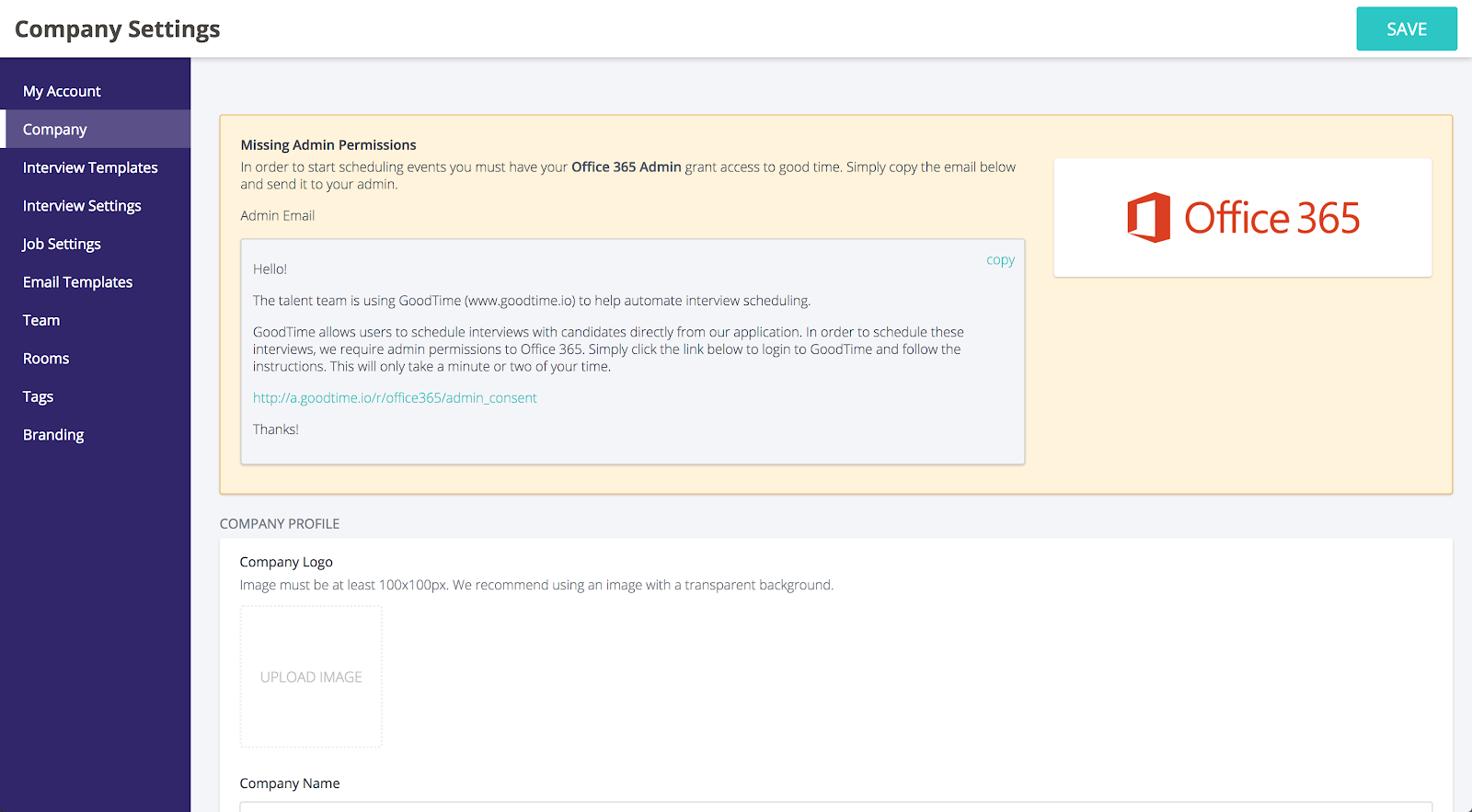 |
2. As an admin, click on the link provided in the email from your Talent Acquisition partner. The link will take you to an authentication page on GoodTime. Click “Continue” to authorize GoodTime to schedule interviews for your Talent Team. | 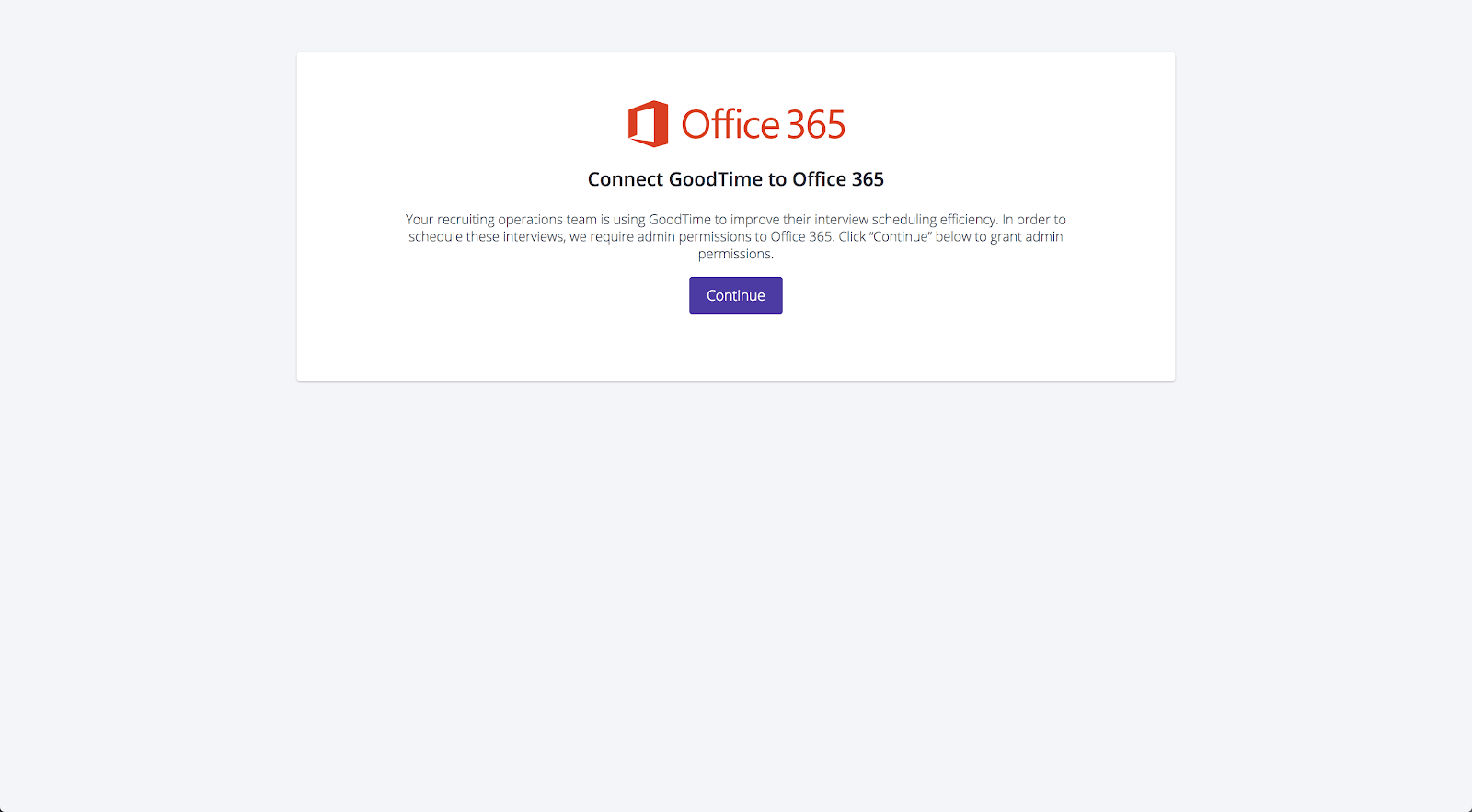 |
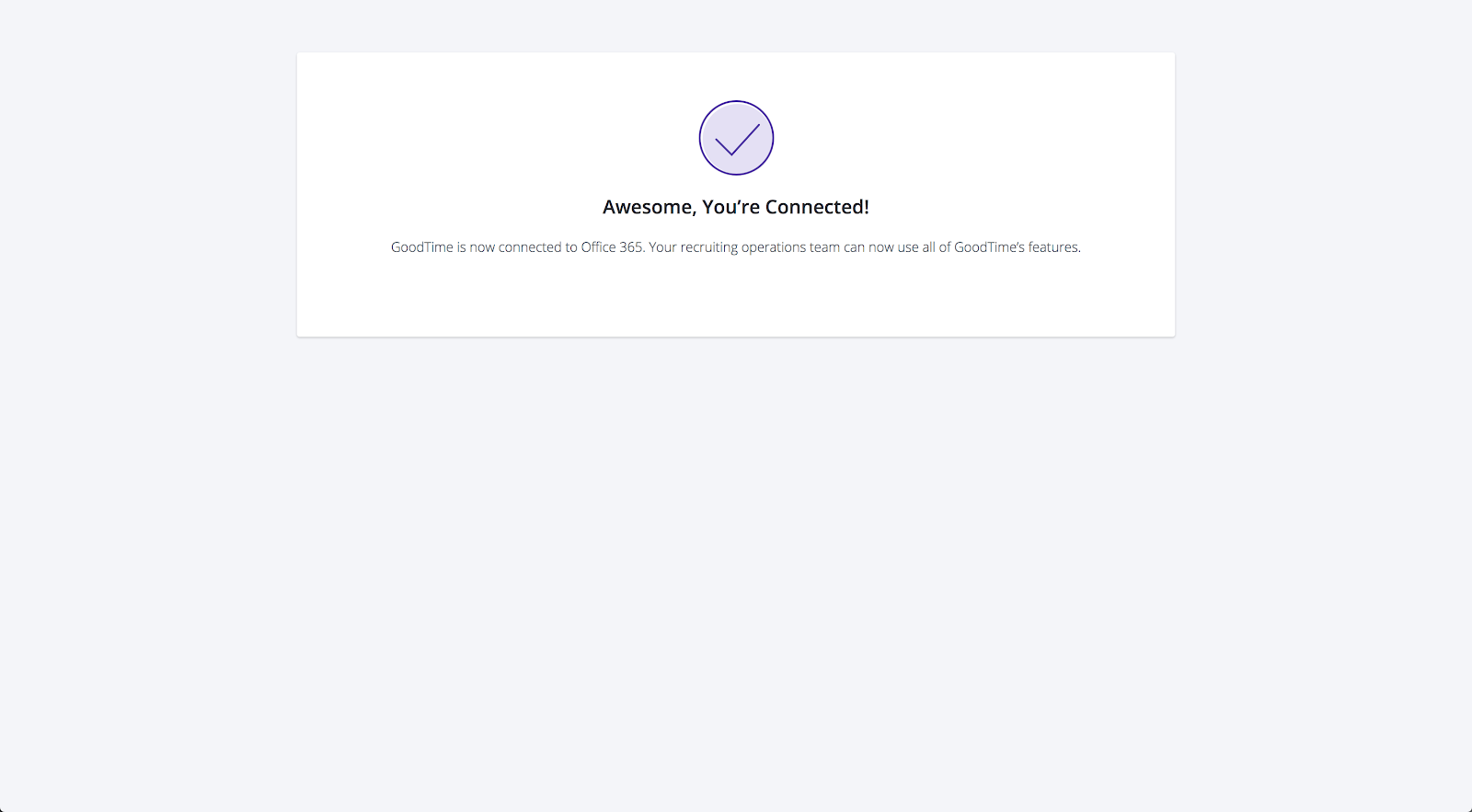
3. If everything was successful, you will arrive on a confirmation page.
|  |
Instructions For Office 365 Admins - setting up Mail-enabled Security Group, Candidate-facing calendar and “Webhook” calendar
The following steps outline how to set up the recruiting team with access to a shared group. This allows them to write to shared recruiting calendars. In addition, this allows 2 way sync for interview events created in calendars.
Create the Mail-enabled Security Group | |
2. Navigate to Groups - Groups - + Add a group | 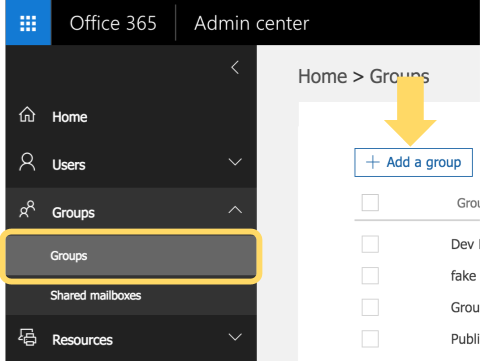 |
3. Create a group as the following Type: Mail-enabled security group Name: Recruiting Team GoodTime Email: recruitingteamgoodtime@ (auto filled) Allow people outside of my organization to send email to this distribution group: OFF Add | 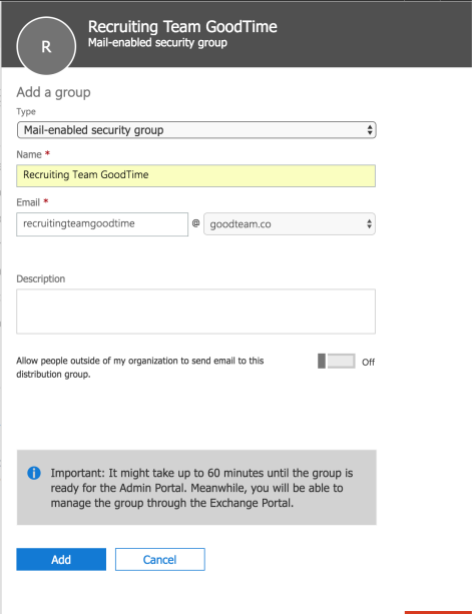 |
4. Wait a few minutes and refresh until the group you just created shows up in the list (https://portal.office.com/AdminPortal/Home#/groups) | |
5. Click on the “Recruiting Team GoodTime” group and add GoodTime Super Admins to be owners. Ask the recruiting team who these Super Admins will be. | 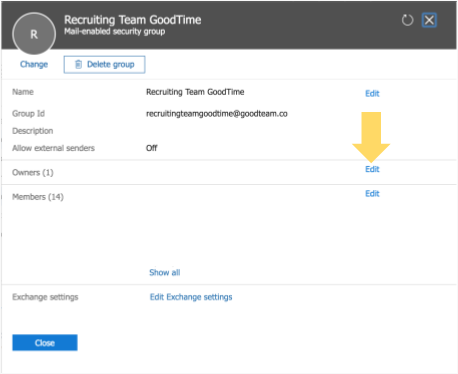
|
Create the "Webhook calendar" user mailbox | |
1. On the left sidebar, Groups - Shared mailboxes - + Add a mailbox | 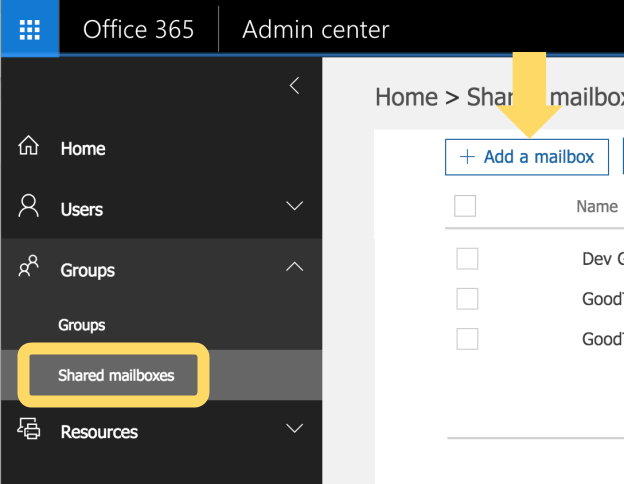 |
2. Name: GoodTime Sync, Email: goodtimesync@ (auto filled) | 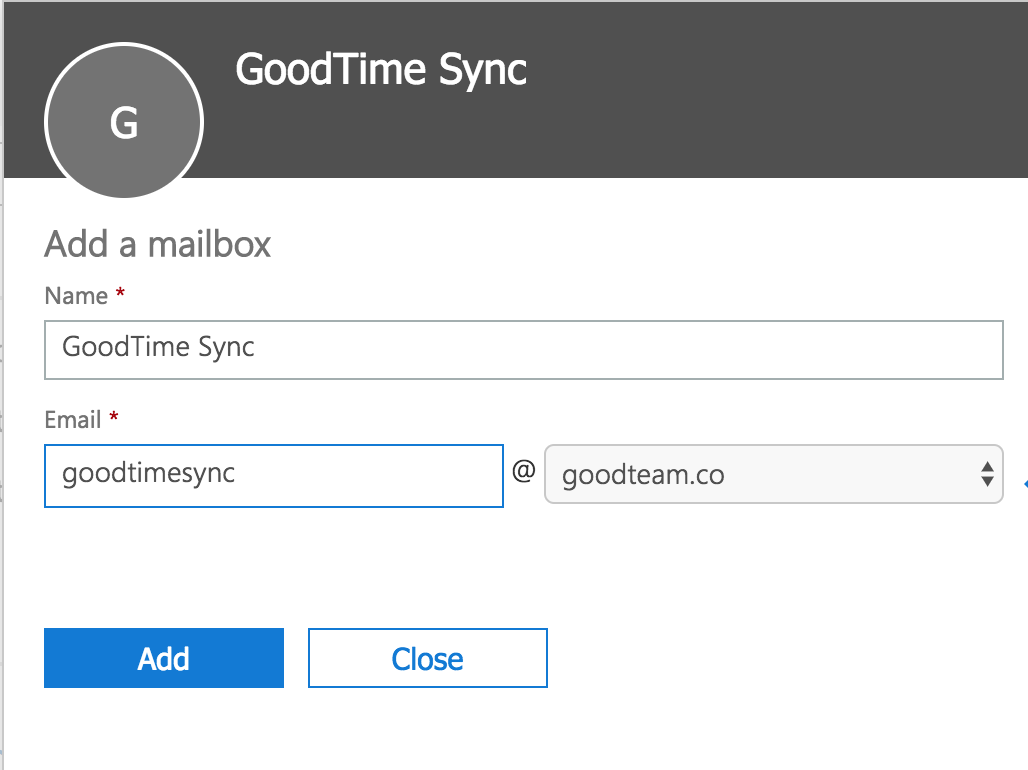 |
3. Add | |
4. Click on the “GoodTime Sync” | |
5. Click “edit” button next to “Members” | 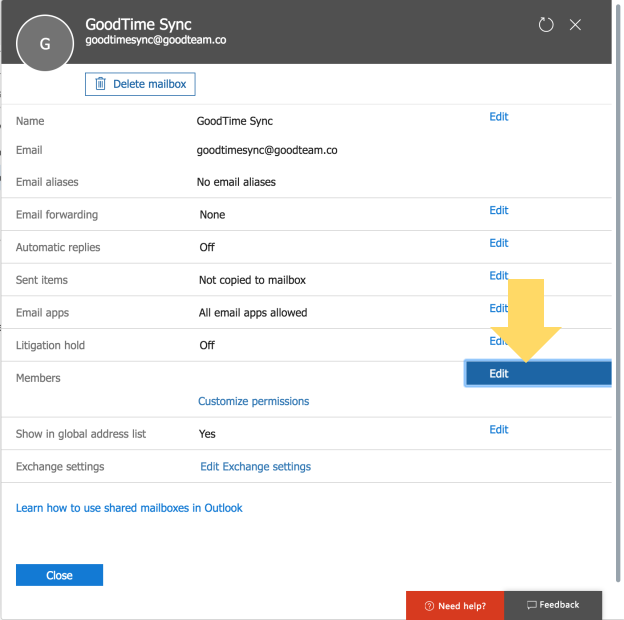 |
6. + Add members | |
7. In the search box, type “recruitingteamgoodtime@” | 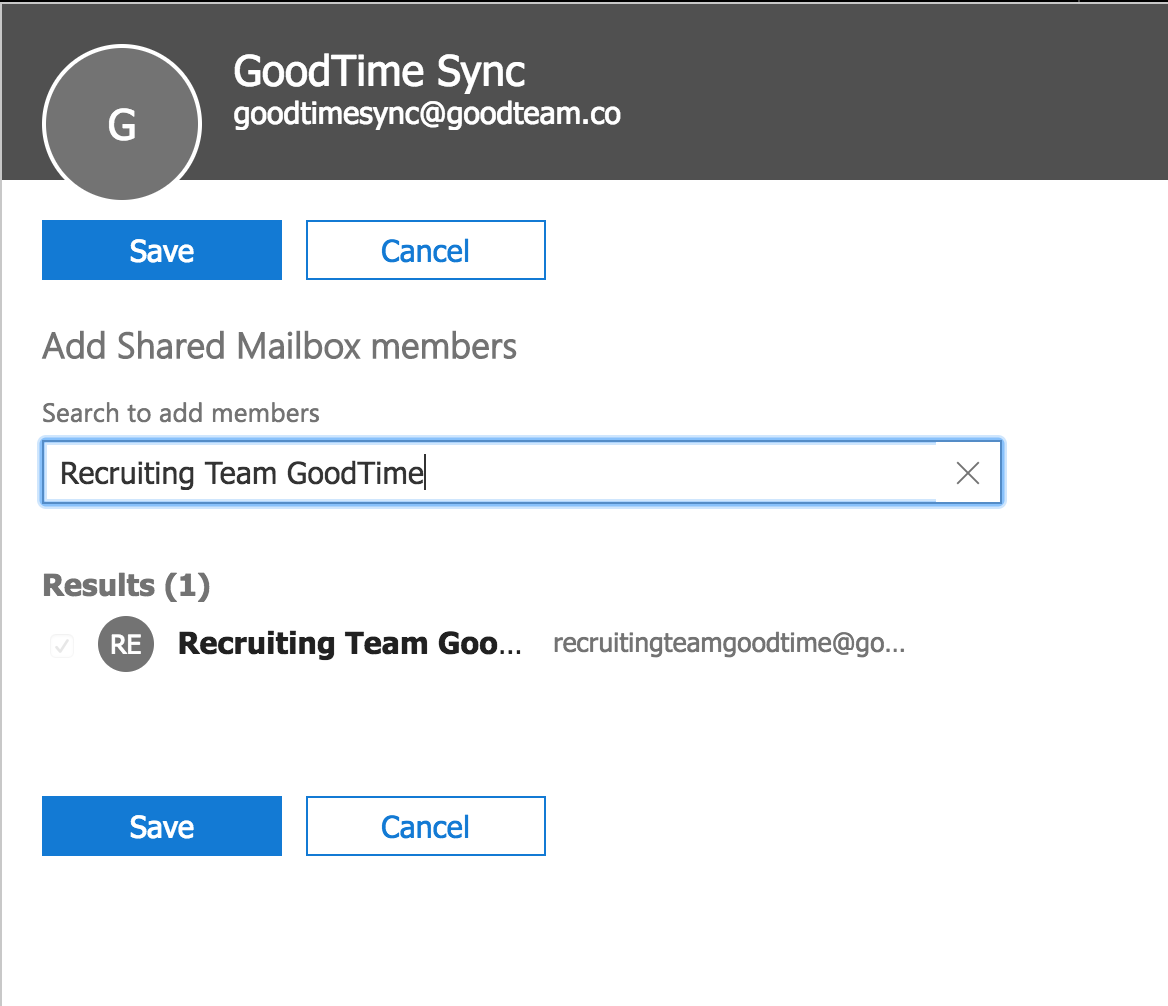 |
8. Select “recruitingteamgoodtime@” | |
9. Save |
Create Candidate Calendar |
1. On the left sidebar, Groups - Shared mailboxes - + Add a mailbox |
2. Fill in the fields a. Name: Interviews (ie. GoodTime Interviews). |
3. Add |
4. Click on the “ Interviews" you just created |
5. Click “edit” button next to “Members” |
6. + Add members |
7. In the search box, type “recruitingteamgoodtime@” |
8. Select “recruitingteamgoodtime@” |
9. Save |
10. Notify your GoodTime Implementation Manager that all steps have been completed. |
Office365 Hybrid Deployments for Exchange Server On-Premises
GoodTime.io can support on-premise Outlook if it is configured for the hybrid deployment option. Please send your IT team that manages the Exchange server the following documentation to confirm if the hybrid deployment is currently available or is on the roadmap.
Microsoft Documentation
https://docs.microsoft.com/en-us/office365/enterprise/hybrid-modern-auth-overview
Known Limitations
Using a Secondary calendar in Outlook will prevent RSVP status updates
It is a known issue that when a user creates a secondary calendar in Outlook and uses it for scheduling interviews in GoodTime, the RSVP changes cannot be detected by GoodTime, nor do they show up inside Outlook. It is confirmed by Microsoft Support that this behavior is expected and by design. The following statement is from Microsoft Support.
When using secondary calendars in Outlook, the Calendar Change Notification feature does not work. This means that events or changes made in a secondary calendar will not trigger notifications or alerts. The behavior is by design, and only events on your primary calendar impact your availability and trigger notifications. This applies to both the new Outlook for Windows and the classic Outlook.
In order to fully take advantage of GoodTime’s mechanism to detect attendees’ RSVP status, please ensure users in your Organization are not using a secondary calendar for scheduling in GoodTime.
FAQs:
How does GoodTime prevent unauthorized use?
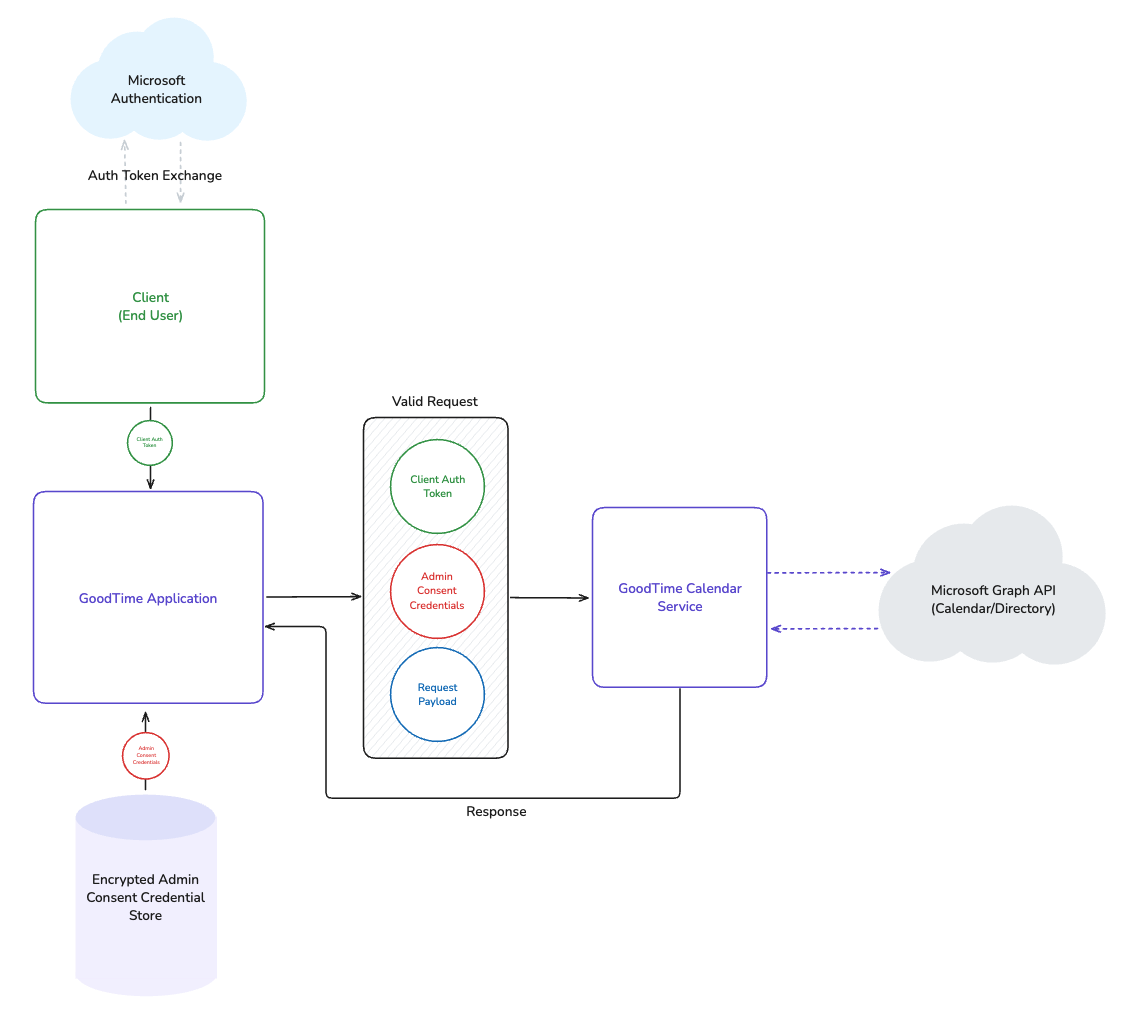
This diagram outlines a multi-token strategy to prevent unauthorized use of GoodTime
Note the Client is the end user and their web browser.
The GoodTime Application operates in segregated environments from the GoodTime Calendar Service
The admin consent token is encrypted at rest and in transit
The Client Auth Token is provided by an end user who has authorized via O365
A valid version of these two tokens are required in order to make a valid request to GoodTime Calendar Service
Attachments:
Office365_Integration_Requirements_Guide.pdf