3. Logging in for the First Time
Last updated: February 26, 2026
The first time you login to GoodTime you will be prompted to login using Google or Office 365, whichever your company uses for its corporate email.
**Please note, if your company uses a SSO service (such as Okta, Azure, or OneLogin), please sign in from your SSO provider
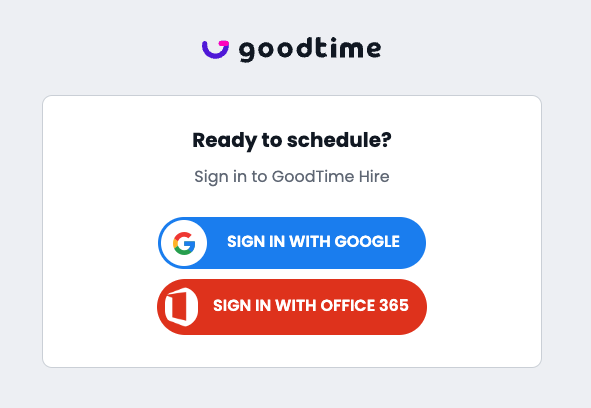
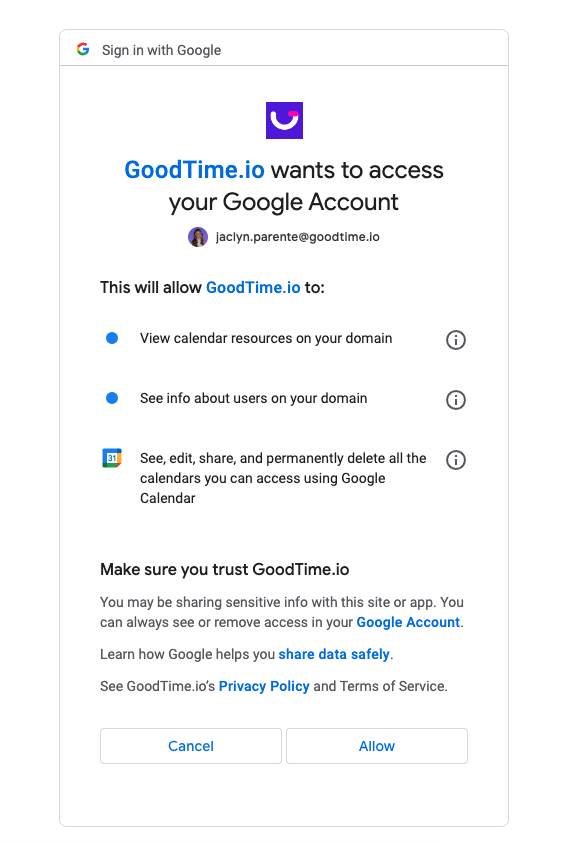
Google Users: You will then be prompted to select an account and approve access to your calendar.
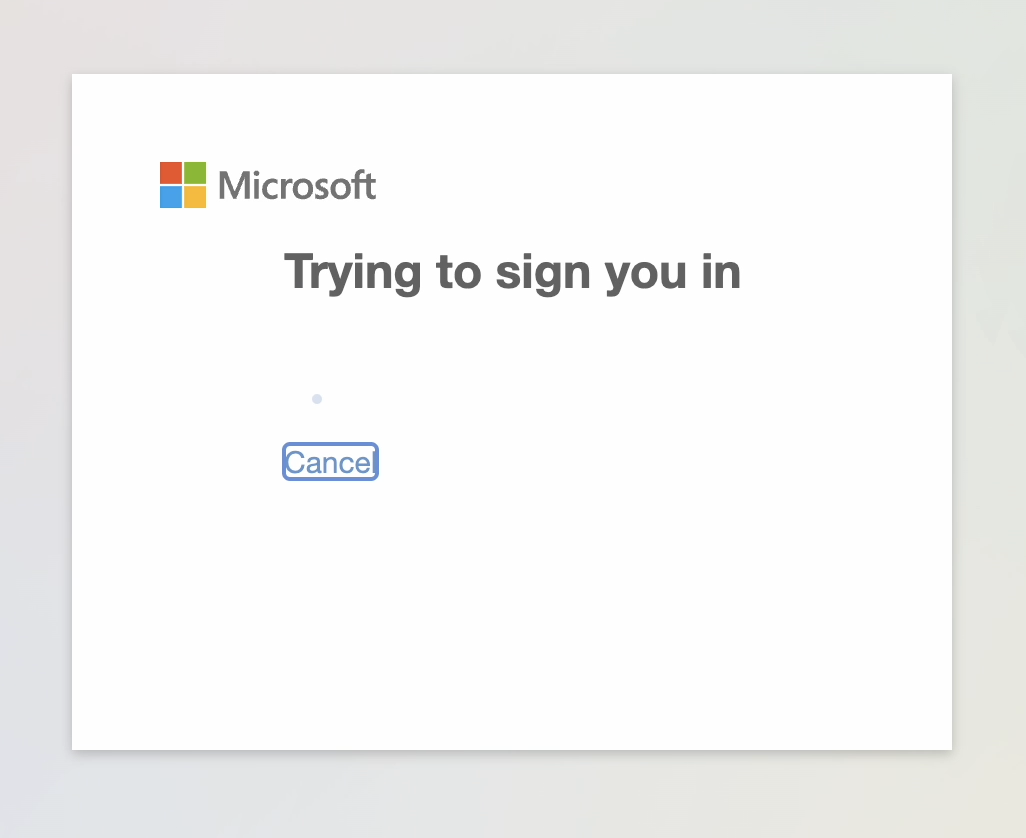
O365 Users: You will be automatically signed in
That's it! You won't have to login again. Be sure to save the link to your bookmarks!
Add your profile photo and timezone
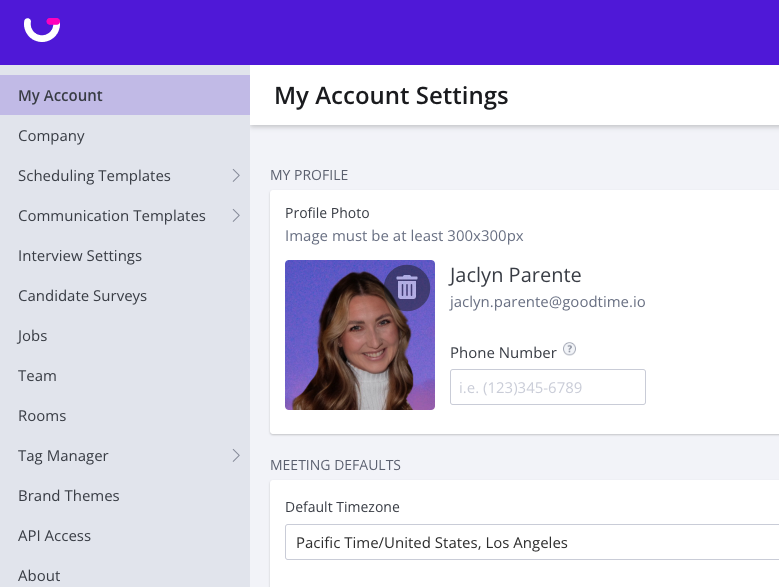
Once you've logged in, add your photo under Settings > My Account
- This photo will be the friendly face that will display on the welcome screen when the candidate goes to select their availability. It's always great to have a face to a name!
Additionally, add your “Default Timezone” under Settings > My Account
Add the GoodTime Plugin to Chrome
To add the GoodTime plugin to your Google Chrome browser, click here to be taken to the chrome web store for GoodTime and "Add to Chrome".
For Greenhouse users & Workday users; after installing you will see the "Open in GoodTime" button in your ATS.