How To - GoodTime Interview Blocks (GTIB)
Last updated: October 15, 2026
TL;DR: The GoodTime 'Interview Blocks' feature allows you to build interview templates that will intentionally schedule an interviewer ONLY where it sees a GoodTime Interview Block (as defined by an event with the title 'GT Interview Block' or any event with the 'GTIB' prefix to its title).
To clarify, when setting a template to use interview blocks that template will not look for open space in your interviewer's calendar but will only schedule an interviewer where it sees a pre-defined GoodTime Interview Block (prefixed with a 'GTIB' or 'GT Interview Block').
Some expected use cases for this feature are as follow:
When hosting a hiring event that will only occur at a specific date and time;
When scheduling interviews with an Exec interviewer via a dedicated template;
When working with interviewers that have busy calendars/limited availability.
The following video from our Early Access launch of interview blocks provides an overview of this feature.
Please read below for further UPDATES and clarification of how to best use this feature.
How do I Access the Interview Blocks Feature?
This feature is now available to all GoodTime HIRE customers (and operates on both Google and O365 Calendars)
To access this feature you will need to toggle on the 'Use Interview Blocks' setting within the 'Template Settings' of the specific template you want to leverage this feature.
The interviewer-level 'Use Interview Block Availability' setting in Team or interviewer settings can also affect availability separately. If it is enabled for an interviewer, GoodTime evaluates that interviewer's availability using GTIB even when the interview template is not configured to use GTIB. If no eligible GTIB calendar events exist, candidates may see no available times despite open calendar space. In that case, add eligible GTIB events or disable the interviewer-level setting if regular calendar availability is intended.
📝NOTE: If you do not see this option in the template settings of your GoodTime account please contact your CSM to ask that it be activated.
How do I use the Interview Blocks Feature?
When interview blocks are enabled for a scheduling template or for an interviewer through the interviewer-level 'Use Interview Block Availability' setting, GoodTime will schedule that interviewer only where it sees an interview block inside their calendar.
For the template to provide you and your candidate interviewer availability to select from, you must ensure that there are enough interview blocks placed within the calendars of the interviewers listed on that interview template.

What do I have to name my Interview Blocks?
Interview blocks should be labelled as follows:
"GT Interview Block"; or
Be an event with the prefix in the event title of "GTIB"
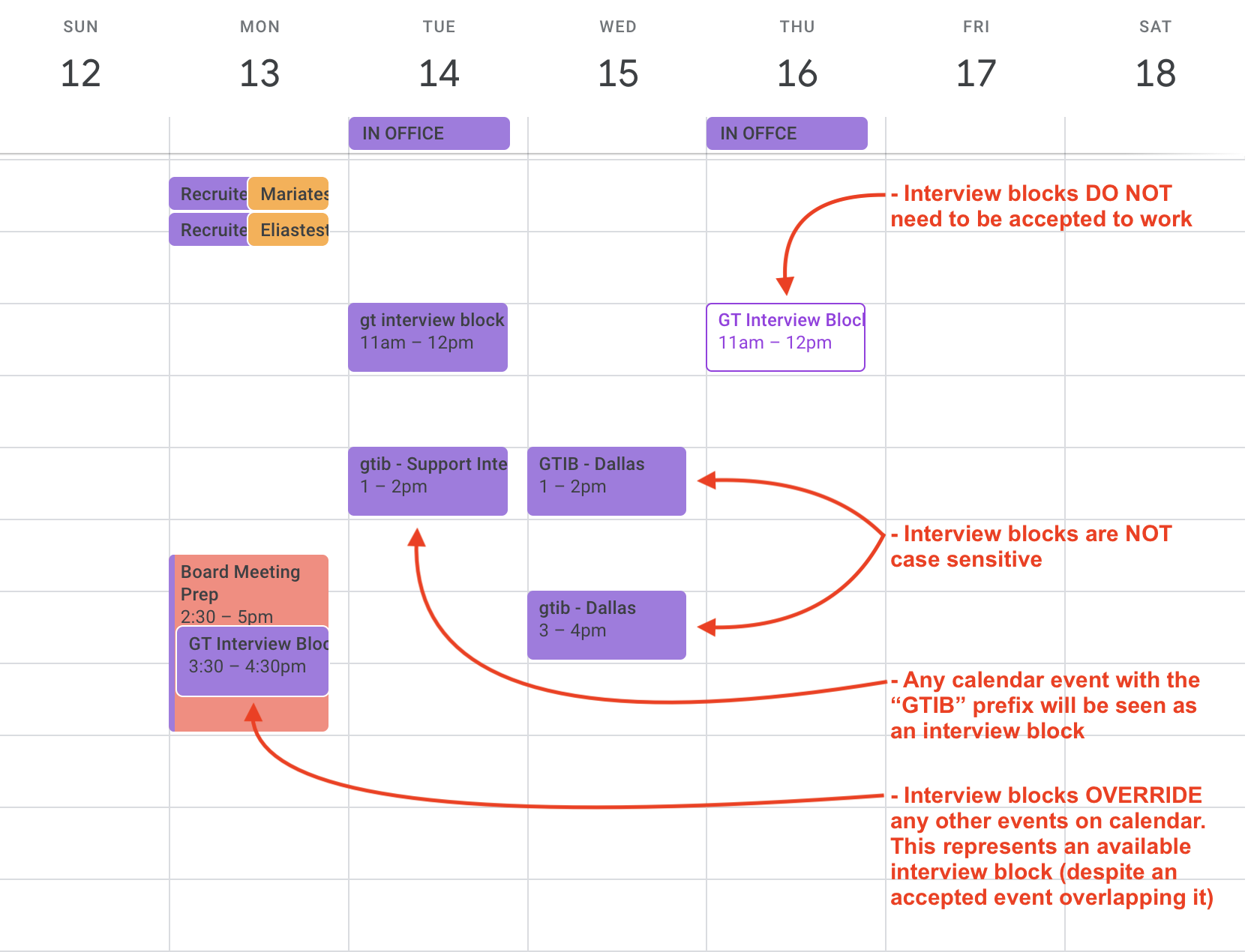
The Interview Block feature is looking for those specific keywords within your interviewers calendars and will ONLY schedule your interviewers listed on that interview template where it sees interview events with those specific keywords.
💡 IMPORTANT NOTES:
The "GT Interview Block" and "GTIB" keywords are not case sensitive.
Anyone with access to an interviewers calendar can place these interview blocks, meaning this could be an interviewer responsibility to add blocks to their calendar, or the coordination team or Exec Assistants could add the blocks to calendars too.
An interview block DOES NOT need to be accepted by the calendar owner for GoodTime to schedule in that blocked time.
If an interview block is DECLINED, GoodTime will not schedule in that block; but if a block is accepted OR sitting unaccepted then GoodTime may schedule within that interview block.
Interview blocks OVERRIDE anything else on the calendar. If an interviewer has an interview block placed on top of an accepted event GoodTime will still see that interview block as able to be scheduled within.
For the GTIB feature to work, GoodTime must be able to read the specific GTIB events and the relevant calendar details. On Google Calendar, a GTIB event on a calendar with a Private default visibility does not universally need to be made Public: in a tested configuration, GoodTime could read a private GTIB event when the calendar was shared with GoodTime with “See event details” access. This may vary with the calendar provider and permission configuration, so when access has not been verified, check calendar-sharing and event-detail permissions rather than assuming that changing the event to Public will fix the issue. Event-level Public visibility alone does not provide access to a calendar that the relevant GoodTime viewer cannot read. The image below shows how to set event visibility on a Google Calendar:
If the interviewer’s calendar cannot be shared with GoodTime or the relevant scheduling users because of privacy or policy, GoodTime cannot detect GTIB events or confirm calendar availability and conflicts on that calendar. Interviews can still be scheduled manually in GoodTime, but the scheduler must coordinate availability directly with the interviewer and check for conflicts themselves. This manual process does not retain automatic availability or conflict detection.
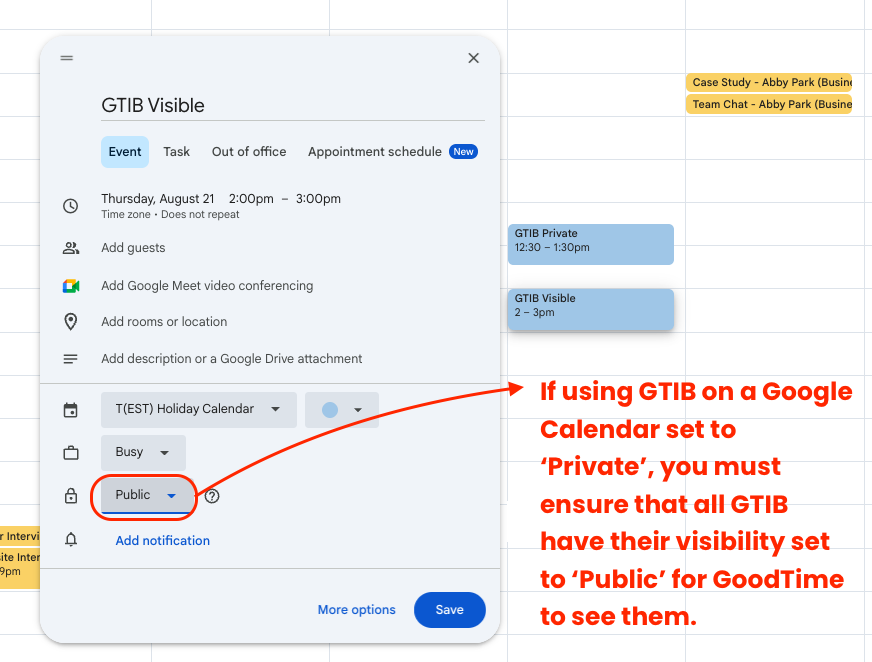
*O365 users are not able to set individual events as public. Instead, it is recommended that interviewers share calendar access with the relevant schedulers so they can see the event details.
COMING SOON: Here is a sneak peek at an upcoming update to the GTIB feature!