Interview Templates - Min and Max Times Between Interview Events

Last updated: October 16, 2026

TL;DR: To provide greater scheduling options or restrictions you are able to specify the Minimum and Maximum times between events within your individual interview scheduling templates. 
How do I Adjust Min/Max Time Between Event Settings?
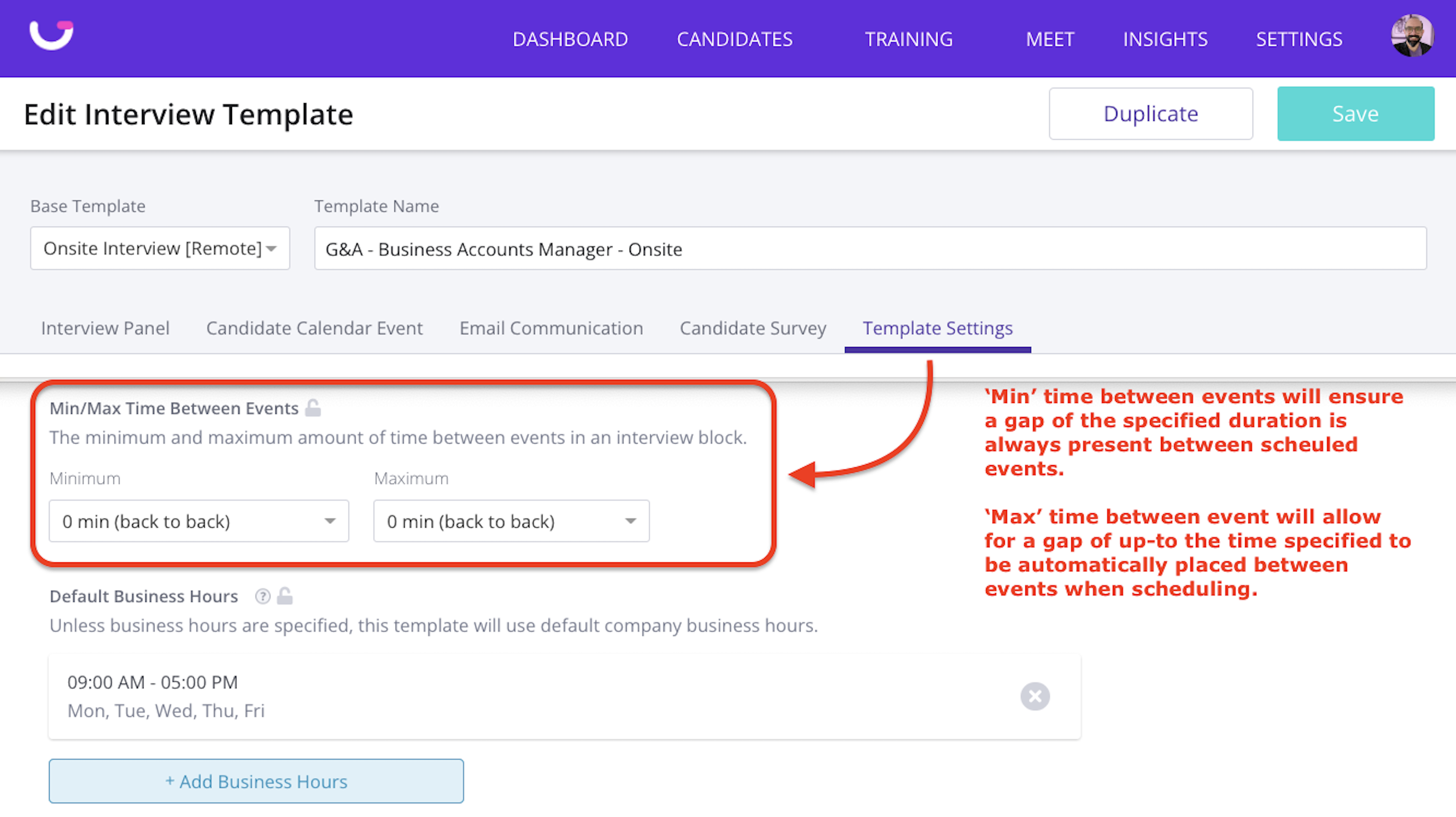
  1. Go to Settings >
  2. Interview Templates > Select the template you want to adjust >
  3. Go to the “Template Settings” section >
  4. Scroll down to “Min/Max Time Between Events” and select your preferred option
  5. > Click “Save” in top right corner
Screen_Shot_2022-10-07_at_10.17.53_AM.png

NOTE:

  • Setting a 'Minimum' time between events will ensure a gap of the specified duration is present between scheduled events.
  • Setting a 'Maximum' time between events will allow for a gap of up-to the specified amount to be automatically placed between events when scheduling.  This is also a good way of allowing the algorithm to return more options when working with particularly busy interviewer calendars.
  • Setting both the Min and Max value to 0 will indicate to the algorithm that you prefer results that will schedule all events back-to-back without any breaks.
  • The GoodTime scheduling algorithm will not see these setting as a hard constraint so it may still offer results that do not match your min/max settings if it can find no other options.  The algorithm will rank results that meet your preferred min and max settings as higher than those which do not.
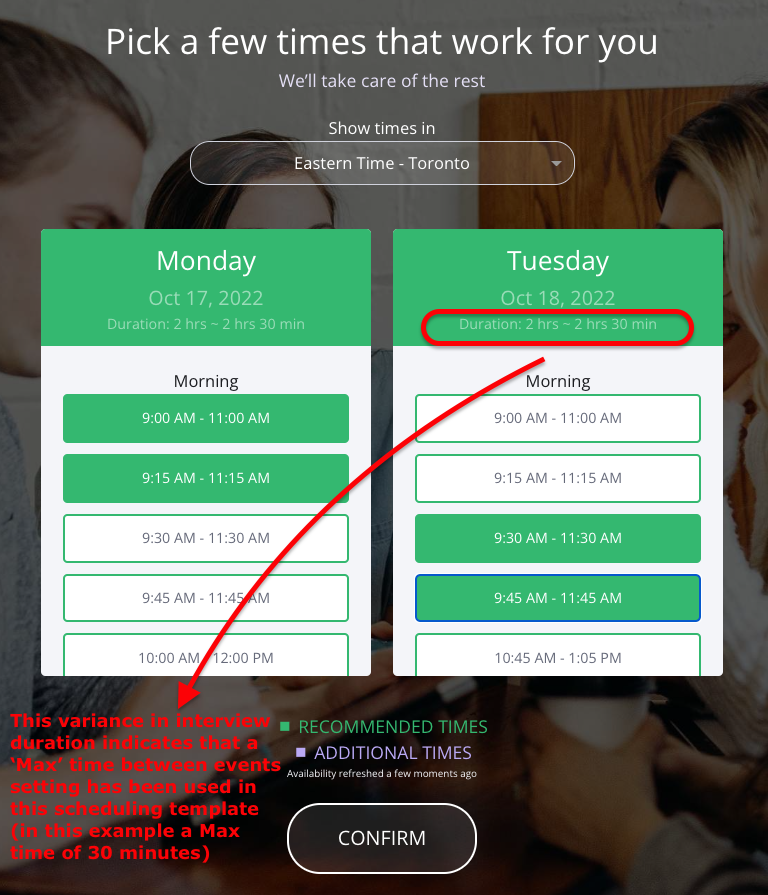
  • When your candidates see a variance in the interview duration during the Request Availability workflow it is because a max time between event has been set.
    Screen_Shot_2022-10-07_at_10.29.02_AM.png

    When options are clustered on fewer days

    For a multi-event search, if the returned options are clustered on fewer days than the candidate submitted availability for, review the Min/Max Time Between Events setting. For an individual interview, this setting is under Advanced Settings > Template Settings. In one tested case, the setting was 0 minutes minimum and 15 minutes maximum; changing both values to 120 minutes produced a four-day option. In that interface, changing the minimum to 120 minutes automatically updated the maximum to 120 minutes. This is a case-specific example, not a universal recommendation or guarantee: results still depend on the candidate's availability and other scheduling constraints. After changing the setting, run Search Options again and review the returned options.