Greenhouse + GoodTime Integration Guide
Last updated: August 19, 2026

TL;DR: This guide is a step-by-step process on how to integrate Greenhouse with GoodTime. This guide requires the user to create a Harvest API key from Greenhouse, which gives GoodTime’s system access to candidate data as well as other data about job applications and the stages candidates are in.
GoodTime utilizes the Harvest API to do the following:
Sync candidate information between the Greenhouse and GoodTime so the candidate information does not have to be re-entered into GoodTime.
Sync a list of job applications/application stages for each candidate to properly assign the correct interview kits
Create interview kit links to share with interviewers so they can be shared on calendar invites to interviewers
Import recruiter/coordinator assignments for each candidate
Greenhouse API Key for GoodTime
1. Go to: https://app.greenhouse.io/configure/dev_center/credentials (replace “app” with your company’s unique URL) in your web browser (If you are not already logged in, log into Greenhouse)

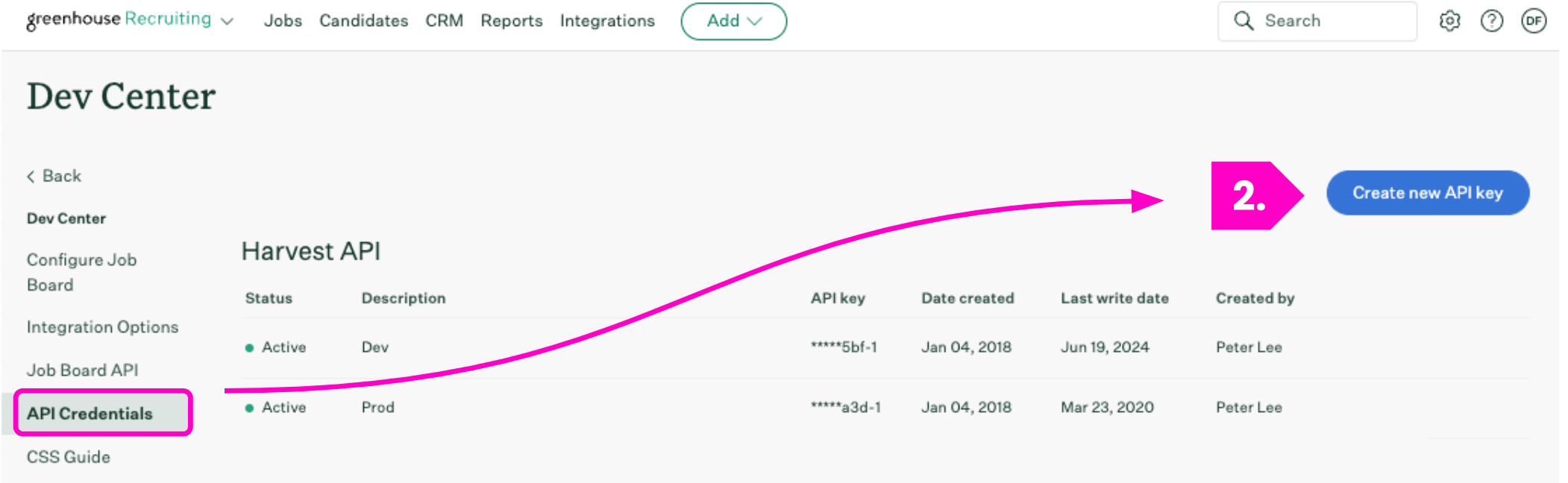
2. Tap “Create New API Key.”
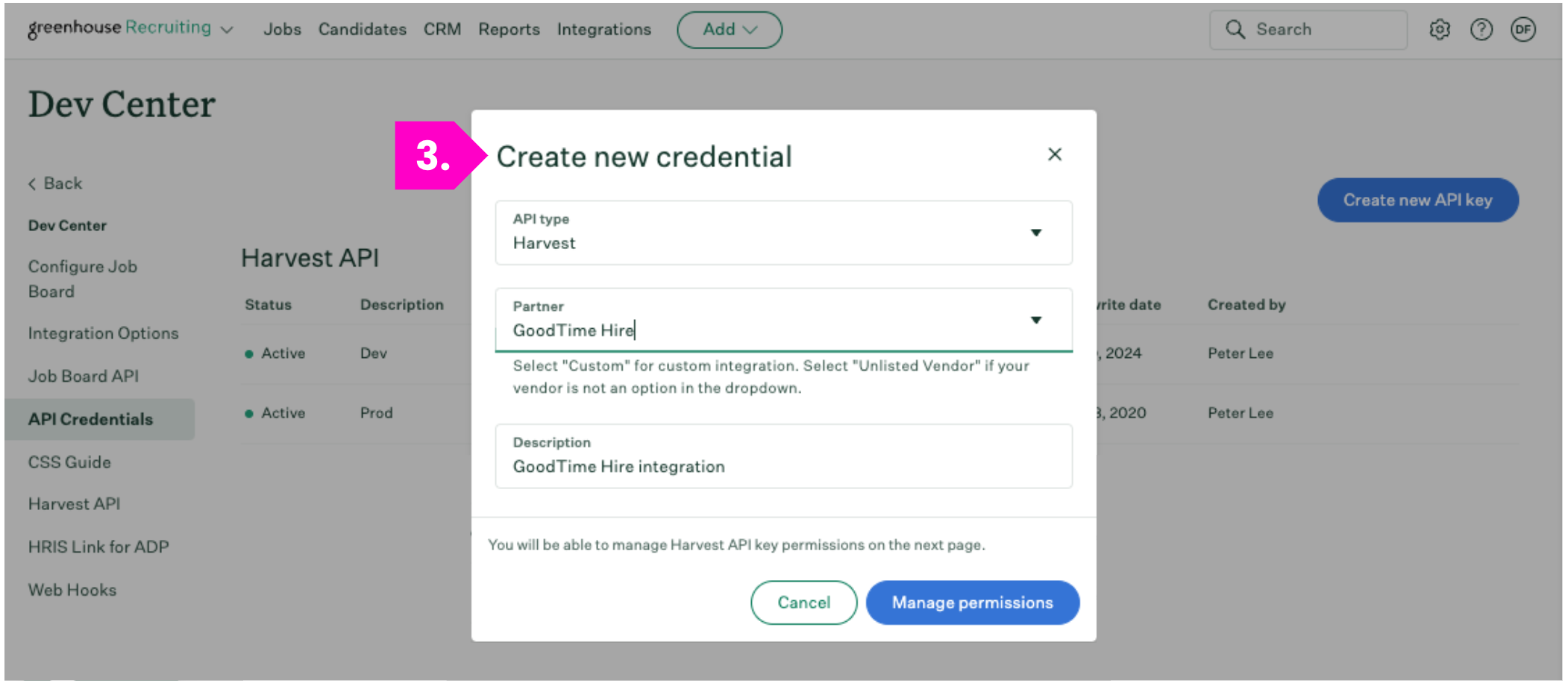
3. Within the 'Create New Credential' popup select “Harvest” as the API type; select “GoodTime Hire” as the Partner and add a description for the API key. Click “Manage permissions” to create a new key.
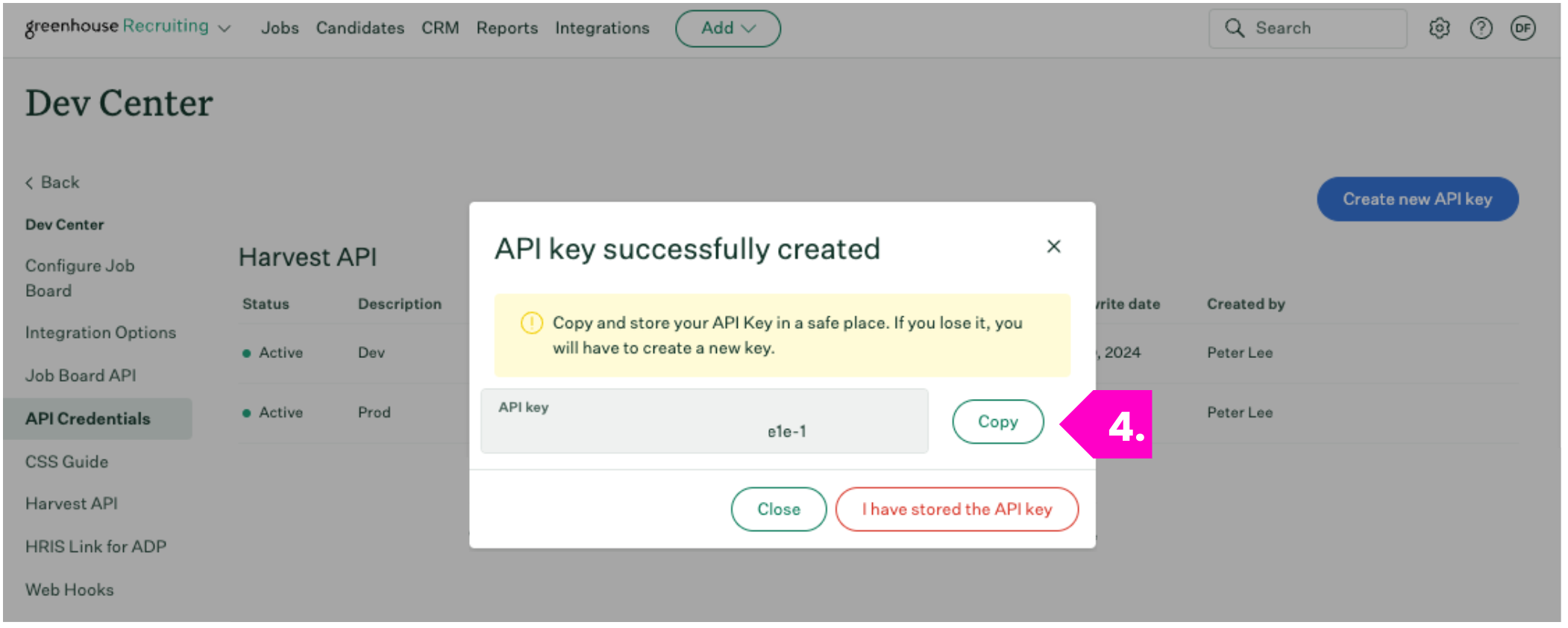
4. Copy the newly created key
For the new API key, ensure the following 45 permissions are all provided. GoodTime needs access to the following permissions to accurately pull and push data to and from Greenhouse. As a general rule of thumb, GoodTime mostly needs GET access to all endpoints.
Permission Group | Permission Needed |
Activity Feed |
|
Applications |
|
Candidates |
|
Departments |
|
Email Templates |
|
Job Posts |
|
Jobs |
|
Job Stages |
|
Offices |
|
Rejection Reasons |
|
Scheduled Interviews |
|
Scorecards (NOTE *2) |
|
Sources |
|
Tags |
|
Users |
|
NOTE *1 These API permissions are necessary if using the GoodTime Autopilot+ 'Scheduling Links' and 'Automated Workflow' features.
NOTE *2 The 'Scorecards' API permissions are necessary if using the GoodTime Scorecard reminder for Slack and/or
GoodTime's AI Assisted Scorecard feature as part of the Experience+ package.
NOTE *3 These API permissions are necessary if using the GoodTime Agent+ feature to support stage change automation and candidate rejection workflows from within GoodTime.
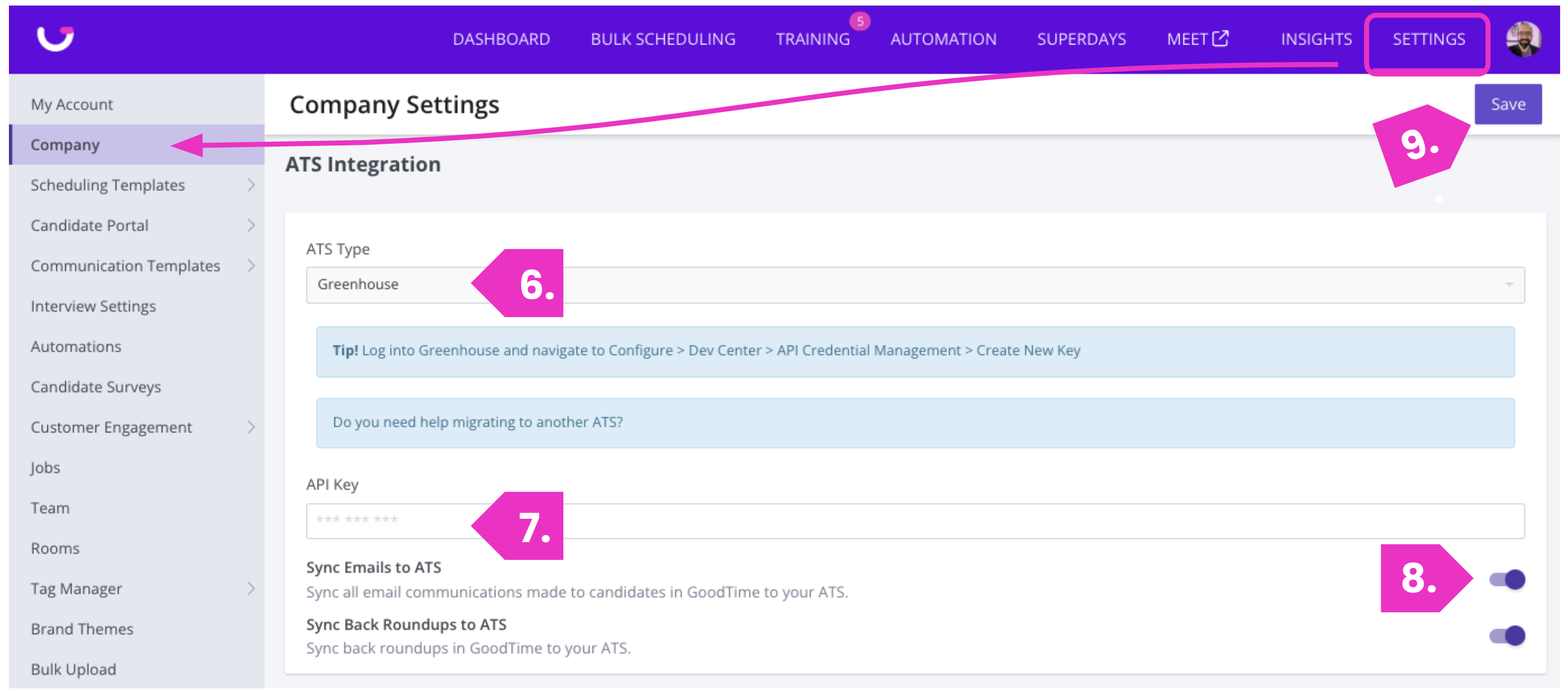
5. Go to https://a.goodtime.io/dashboard/settings/company and scroll down to integrations
6. Select “Greenhouse” as the ATS type
7. Paste copied text into the “API Key” field
8. Set "Sync Emails to ATS" setting to o
9: Click "Save" at the top left of the "Company Settings" page to finalize your integration.
GoodTime Chrome Extension for Greenhouse
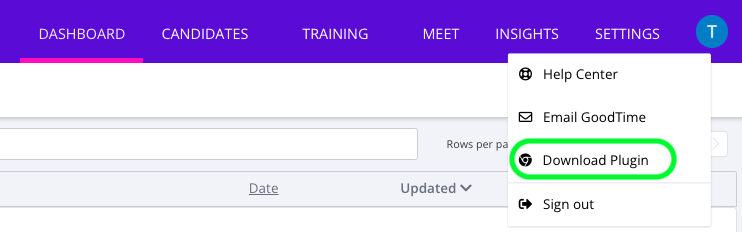
1. Log into GoodTime, tap on your photo, and click on “Download Plugin”
2. Download the Plugin from Chrome Web Store
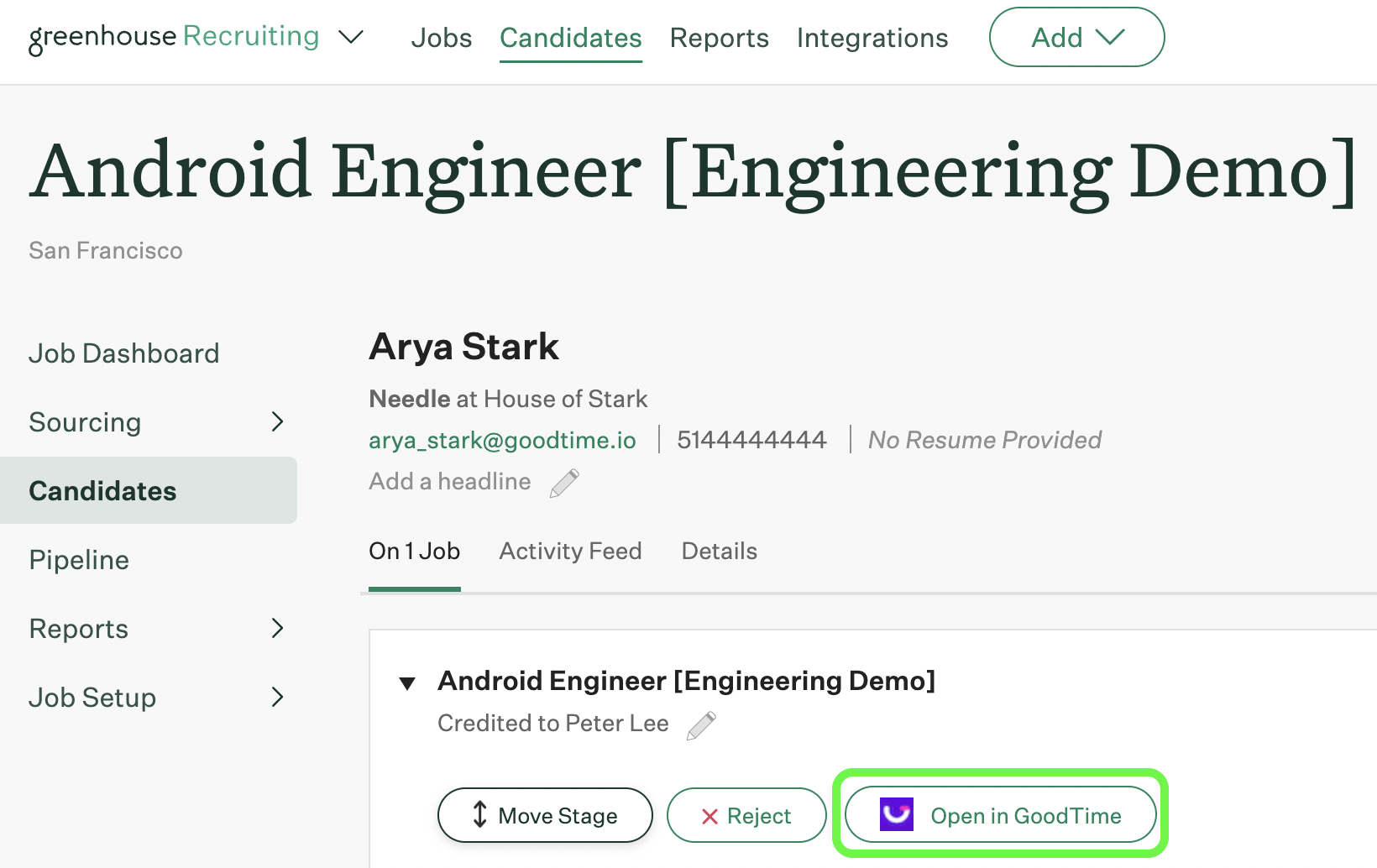
3. Refresh Greenhouse and the GoodTime button will be displayed on candidate pages