Zoom - Waiting Room and Passcode Requirements
Last updated: February 26, 2026
Zoom requires that all meetings have a Passcode or a Waiting Room enabled.
Summary of Changes
-
For meetings that do not have a Passcode or Waiting Room, a Waiting Room will be enabled by Zoom.
-
You can customize the Waiting Room experience with an approved list of domains that can bypass the Waiting Room and directly join the meeting
-
You can find meetings that are scheduled without a Passcode by pulling the following report
-
For meeting join information, we are renaming “Passwords” to “Passcodes” to better align with its role of allowing people in a meeting
How this will affect scheduling in GoodTime
-
If passcodes or waiting rooms are already enabled in your Zoom account, no further action needs to be taken. You can continue to use the Zoom variables provided in GoodTime.
-
Step 1: Enable passcodes on a Company level.
-
New meetings with passcodes shouldn't have waiting rooms.
-
Existing meetings without passcodes will require waiting rooms.
-

-
-
Step 2: Update Waiting Room Options
-
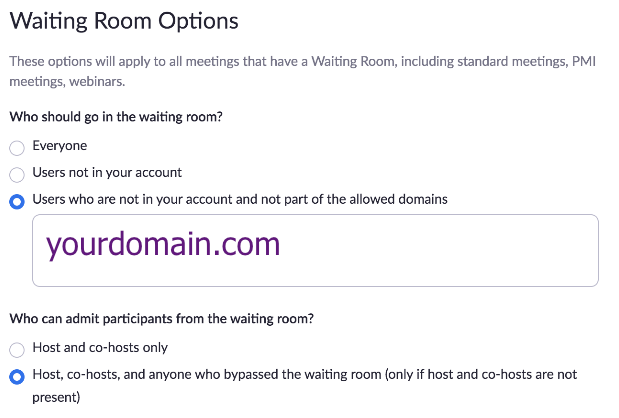
You can update the waiting room settings on a Company Level to allow your own users to bypass the waiting room. This will allow anyone with your domain to enter the meeting and allow the candidate to join.
-
-
-
If you do not have passcodes or waiting rooms enabled, we advise you to enable this setting prior to the Zoom update on 9/27.
-
We strongly recommend that passcodes are enabled vs waiting rooms. Waiting rooms will require interviewers to be added as alternative hosts.
-
When enabling passcodes, please do so towards the end of day, once interviews have already occurred for that day.
-
Any future Zoom interviews created prior to passcodes being enabled will need to be updated.
-
Steps to update in GoodTime for any interviews created prior to passcodes being enabled: Remove Zoom variable, click Update, re-add the Zoom variable, click Update (notify candidates/interviewers)
-
-
No action needs to be taken for interviews created after passcodes is enabled.
-
How to use Passcodes in GoodTime
-
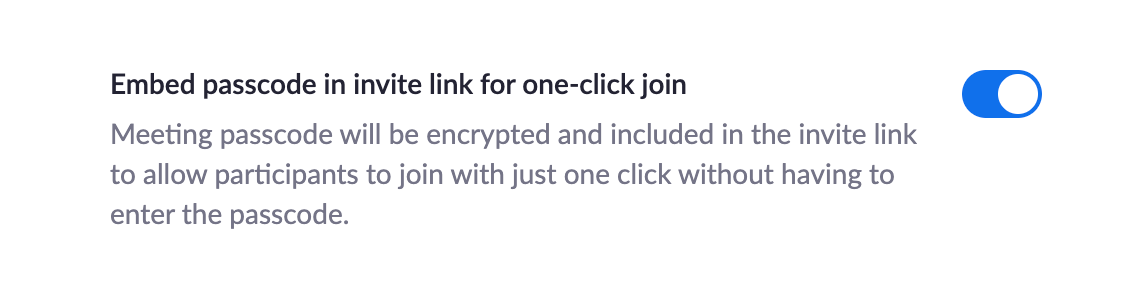
Once passcodes is enabled, you can continue to use the $Interview.Zoom.Link. The link will include an encrypted passcode within the URL which will allow the candidate to click on the link to access the Zoom interview without having to enter a passcode.
-
$Interview.Zoom.MeetingPassword can be used along with the Zoom variable as seen below.
-
$Interview.Zoom.Invitation will include all Meeting details typically seen when generating an invitation directly in your calendar. It will include meeting ID and passcode.

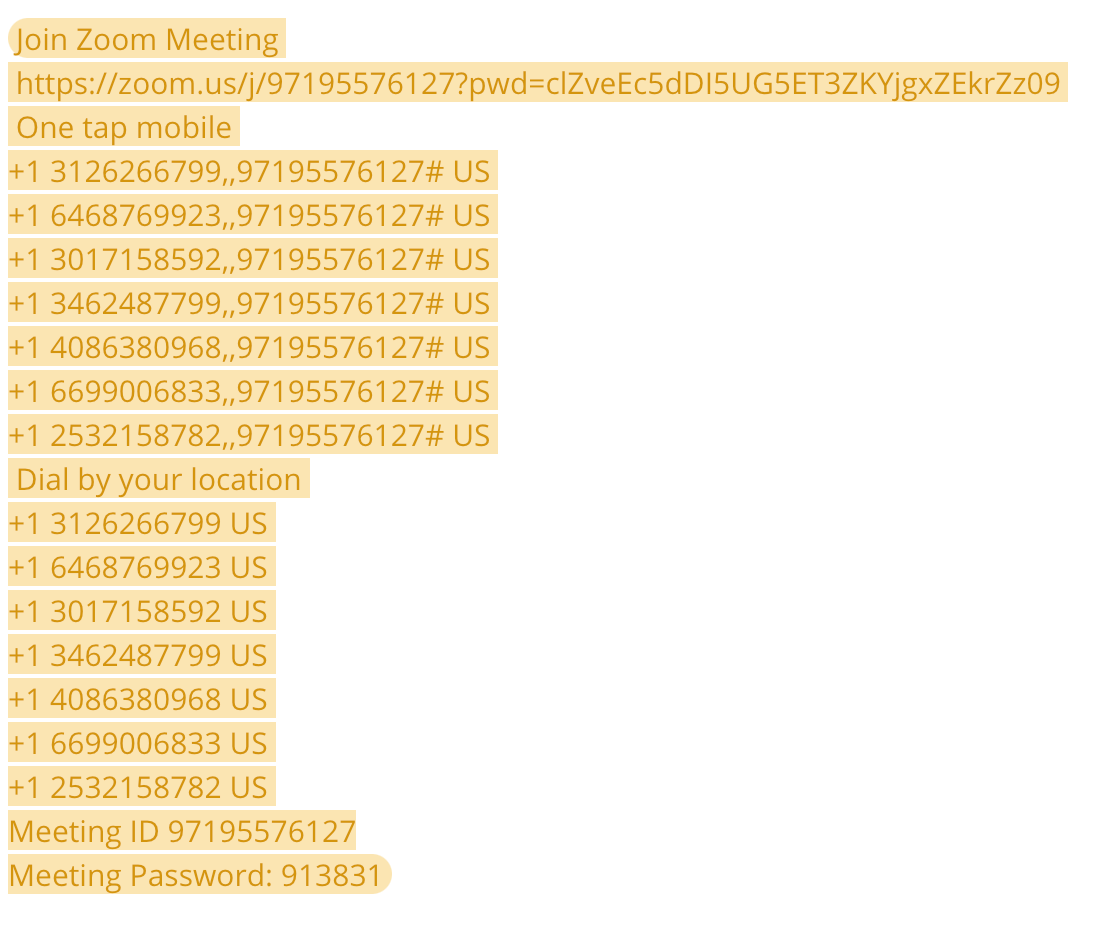
Zoom Invitation variable (example):