Interviewer Pools: Identifying Bottlenecks + How to Expand Pools
Last updated: October 19, 2026
TL;DR: Small interviewer pools are the hidden cause of slow scheduling and interviewer burnout. This guide shows you how to spot the tag groups and templates that need more interviewers — in the GoodTime dashboard, or by asking Claude or ChatGPT through the GoodTime MCP connector — and how to close the gap with Interviewer Training. Both routes read the same live data, so pick whichever is faster for you.
Before You Start
GOAL: Know the pieces this guide refers to, and what a healthy pool looks like.
Term | Meaning |
|---|---|
Tag / tag group | A skill label on an interviewer (e.g. "Java"). A pool is everyone who shares a tag — that's what you're sizing. |
Interview template | The saved schedule for a role or stage. Its events reference tags to pick interviewers. |
Open Calendar Space | GoodTime's read of each interviewer's free time within business hours. It powers every capacity number below. |
Weekly Interview Limit | The per-person cap on interviews per week (load balancing). "Remaining" is what's left for next week. |
GoodTime MCP connector | Lets you ask Claude or ChatGPT questions against your live GoodTime data in plain language. Admin / Super Admin only. |
Healthy benchmark: a tag group with 5+ interviewers gives candidates roughly a 95% chance of booking on the first try. Below that is where lead times start to climb.
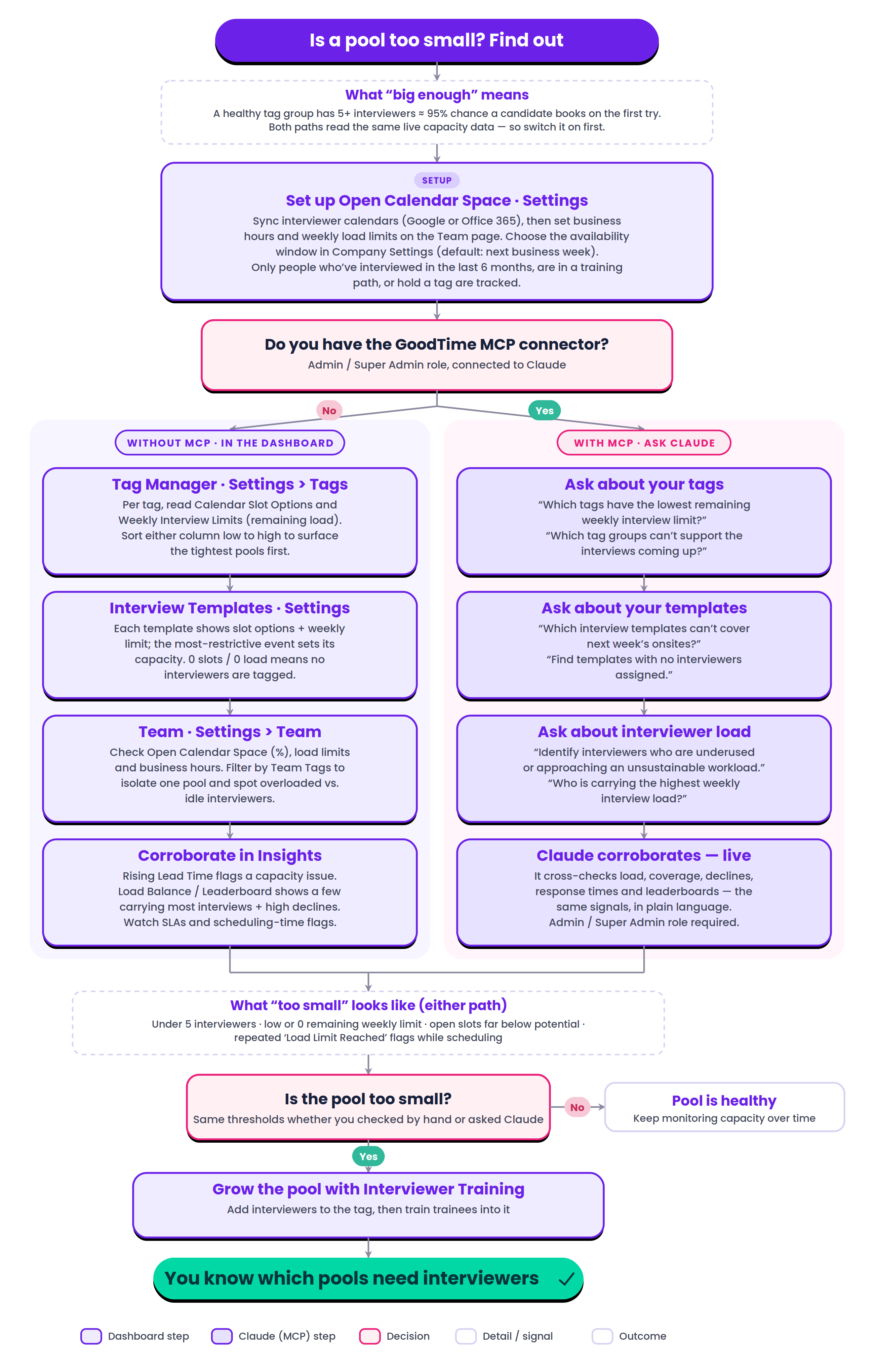
At a Glance
The whole check on one page — set up your capacity data once, then run the check in the dashboard or through Claude or or ChatGPT.
Step 1 — Switch On Your Capacity Data
GOAL: Make sure GoodTime can see availability, so every pool number is accurate — required for both routes.
1.1 Sync interviewer calendars. Capacity Planning reads availability from Google or Office 365 calendars. Confirm interviewers' calendars are connected.
1.2 Set business hours & weekly load limits. On Settings › Team, set each interviewer's business hours and Weekly Interview Load Limits — these drive the "remaining capacity" math.
1.3 Choose your availability window. In Settings › Company Settings, pick the window used for all availability math. Default is the next business week; you can also choose two business weeks, or a rolling 5-day or 10-day window (each with a 48-hour buffer).
1.4 Know who's tracked. GoodTime only calculates availability for people who interviewed in the last 6 months, are in a training path, or hold a tag. If someone's numbers look empty, this is usually why.
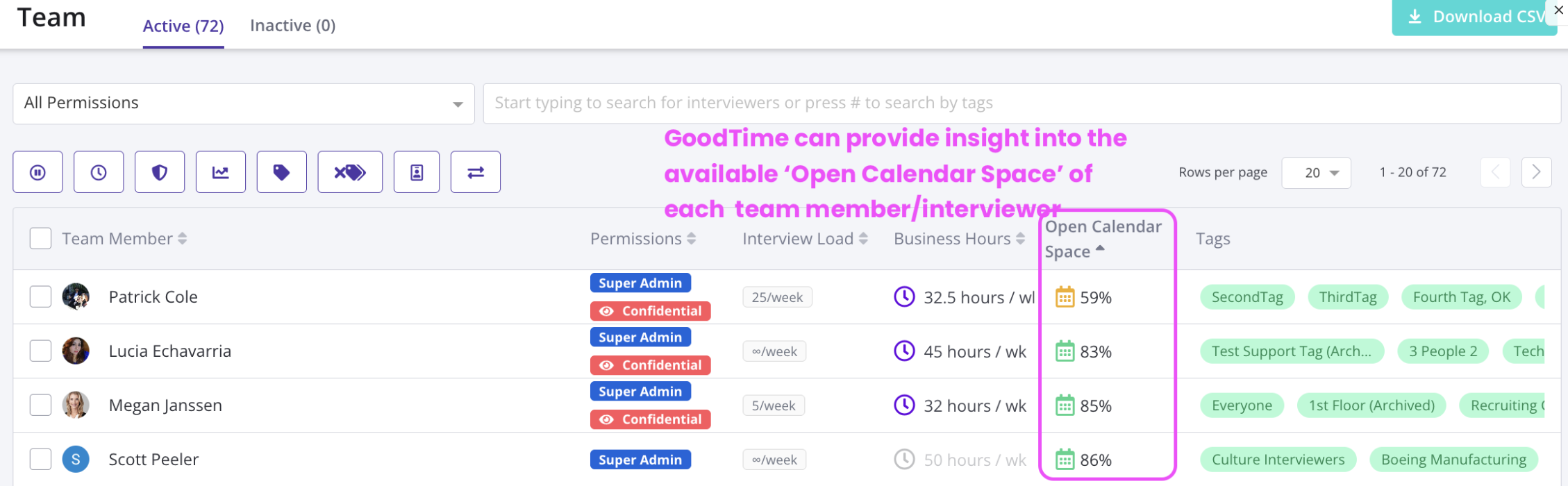
Checkpoint: an Open Calendar Space percentage now shows on the Team page — your capacity data is on. Team, tag, and template figures refresh about every 8 hours (and update live in the template editor).
Step 2 — Pick Your Route
GOAL: Decide whether you'll check pools in the dashboard or ask Claude or or ChatGPT.
In the dashboard — no special role needed. Continue to Step 3.
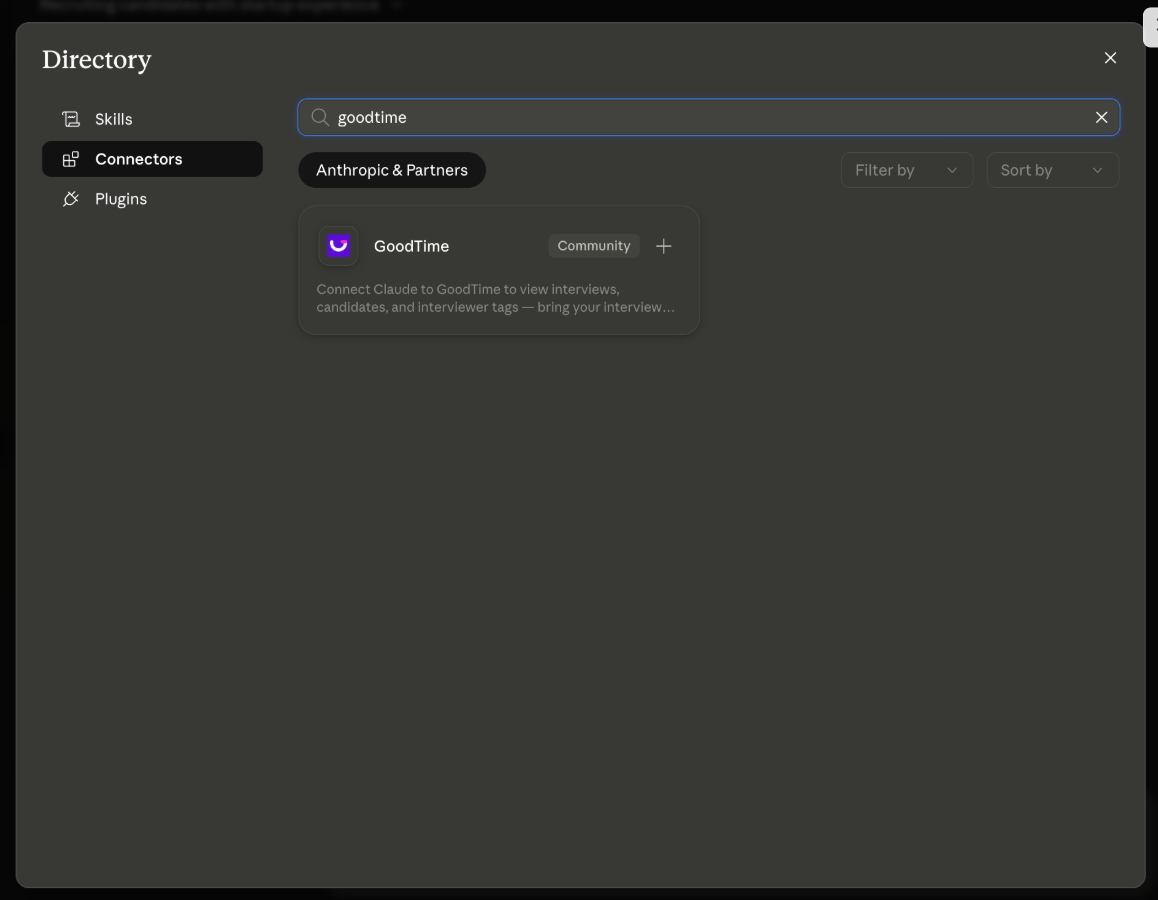
Ask Claude or ChatGPT(MCP) — needs the Admin or Super Admin role plus the GoodTime connector added in Claude or ChatGPT. Jump to Step 4.
Tip: both routes read the same live GoodTime data, so you'll reach the same answer either way. Use the dashboard for a visual scan; use Claude or ChatGPT when you'd rather ask a question and have it ranked for you.
Step 3 — Check Your Pools in the Dashboard (Without MCP)
GOAL: Find the tags and templates that can't keep up.
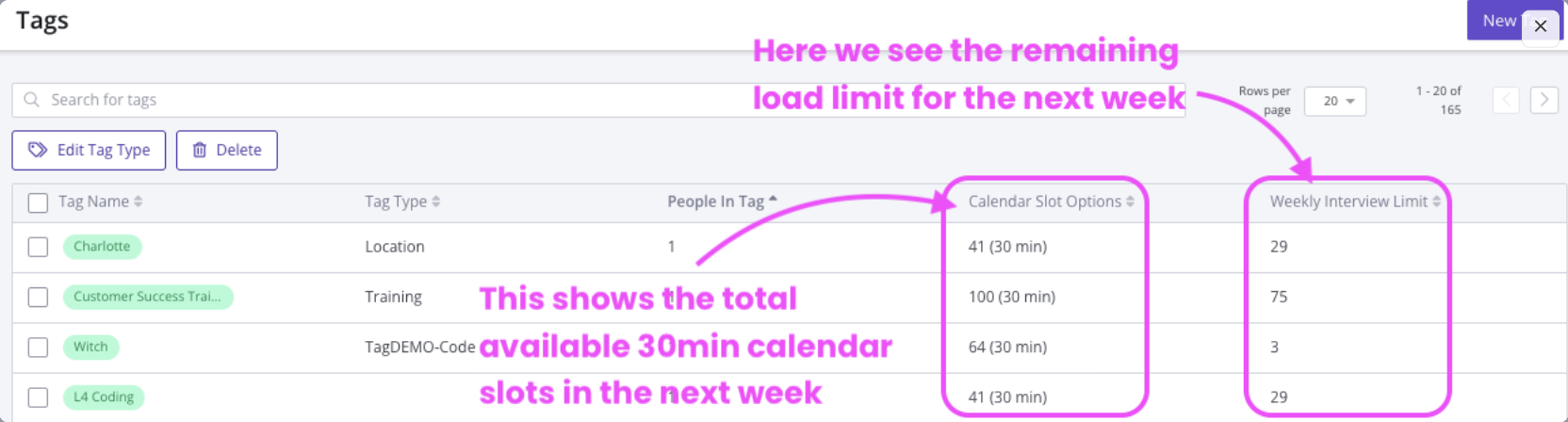
3.1 Tag Manager — Settings › Tags
For each tag, read Calendar Slot Options (free slots across everyone in the tag, with the slot size) and Weekly Interview Limits (the tag's combined remaining load). Click a column header to sort low-to-high and bring the tightest pools to the top.
Signals it's too small: fewer than 5 people in the tag · low or zero remaining weekly limit · open slots far below the potential (e.g. a 9-person tag with 200 potential slots but only 43 available because of load limits).
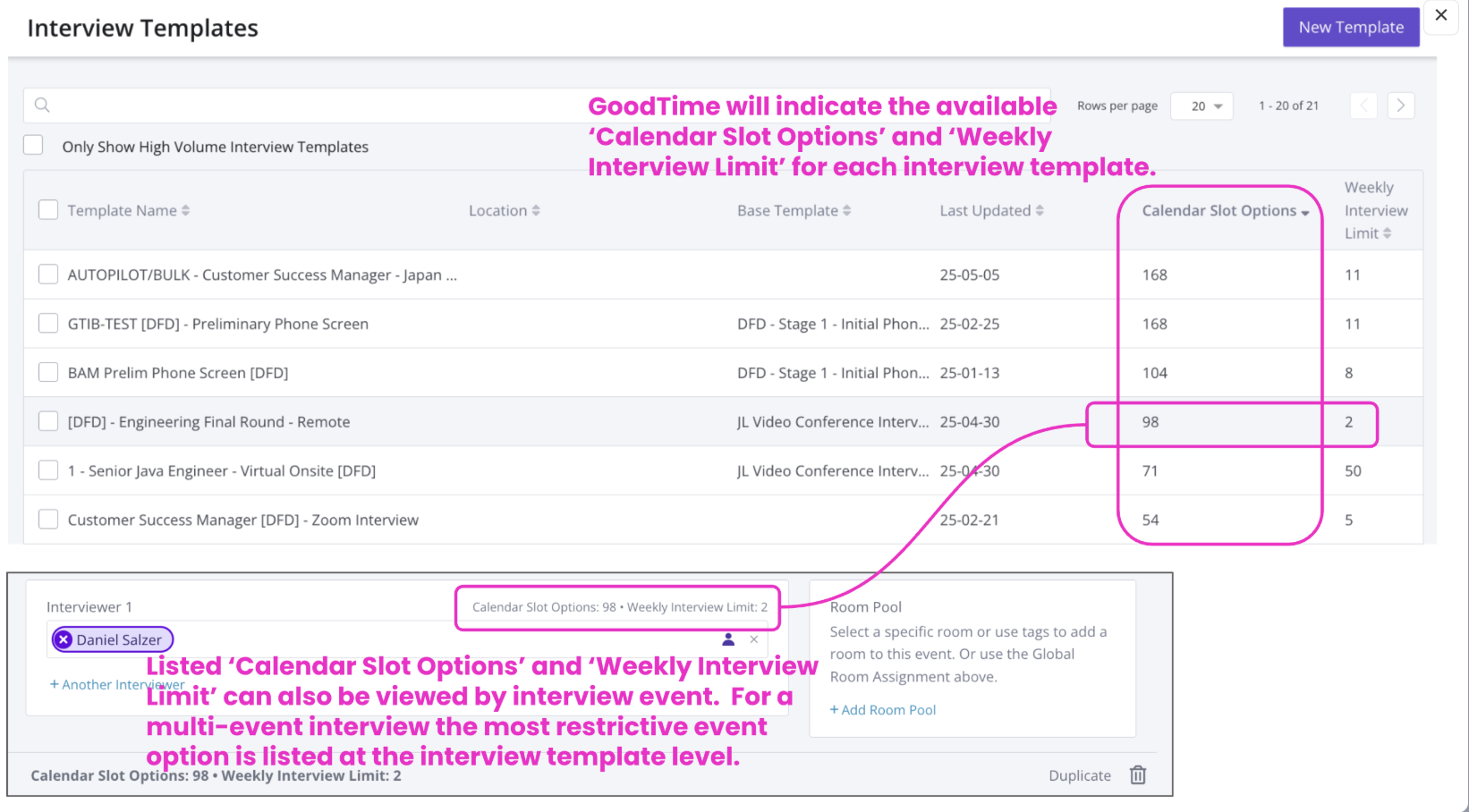
3.2 Interview Templates — Settings › Interview Templates
Each template shows the same Calendar Slot Options and Weekly Interview Limit. GoodTime reports the most-restrictive event as the template's overall capacity, so open a multi-event template to find the "weakest link."
Signals it's too small: 0 slots / 0 load (no interviewers or tags assigned) · one bottleneck event throttling the whole template · capacity can't cover forecast volume.
3.3 Team — Settings › Team
Check Open Calendar Space (%), Weekly Interview Load Limits and Business Hours per Week. Filter by Team Tags to isolate a single pool.
Signals it's too small: a few "go-to" interviewers near their limits while others sit idle · low percentage of open calendar space.
3.4 Corroborate in Insights
Lead Time climbing → a capacity issue (prioritize training).
Load Balance / Interviewer Leaderboard → a few people carrying most interviews, plus high declines.
Dashboard SLAs turning yellow or red.
While scheduling, watch for the
Load Limit ReachedandBlocked Calendarguidance flags.
Step 4 — Check Your Pools with Claude or ChatGPT (With MCP)
GOAL: Ask the same questions in plain language and let Claude or ChatGPT rank the gaps.
4.1 Ask about your tags
"Which tags have the lowest remaining weekly interview limit?" "Which tag groups can't support the interviews coming up?"
4.2 Ask about your templates
"Which interview templates can't cover next week's onsites?" "Find templates with no interviewers assigned."
4.3 Ask about interviewer load
"Identify interviewers who are underused or approaching an unsustainable workload." "Who is carrying the highest weekly interview load?"
4.4 Let Claude or ChatGPTcorroborate. Claude or ChatGPT cross-checks interviewer load, coverage, declines, response times and the interviewer leaderboard — the same signals as Step 3.4. It runs against your live data using your own permissions, so the Admin / Super Admin role is required.
Tip: ask Claude or ChatGPTto rank and plan in one go — e.g. "List my five smallest Engineering pools and suggest who I could train into each."
Step 5 — Decide: Is the Pool Too Small?
GOAL: Turn the signals into a yes / no. The thresholds are the same whether you checked by hand or asked Claude or ChatGPT.
Too small if: under 5 interviewers · low or zero remaining weekly limit · open slots far below the potential · repeated "Load Limit Reached" flags while scheduling.
Healthy? Keep monitoring capacity over time — no action needed.
Too small? Grow the pool (Step 6).
Step 6 — Grow the Pool with Interviewer Training
GOAL: Add qualified interviewers to the tight tags so capacity goes up and lead time comes down.
The fastest fix is to add existing, qualified interviewers to the tag. To build lasting capacity, train new ones:
Align training tags to live tags so trainees graduate into the exact pool you're growing — don't create a duplicate.
Prep the template: clear event titles and the right skill tag on each trainable event.
Build a training path (reading → shadow → reverse shadow), enroll trainees, and link the template.
Graduate: trainees earn the tag and become schedulable — the pool grows automatically.
With the MCP connector you can do this through Claude or ChatGPT, too: "Create a training path for new Engineering interviewers," "Enroll these five interviewers," "Link this template to the path."
Full walkthrough: Training Paths: Setup + Best Practices.
Keep It Healthy (Ongoing)
Re-check your tags and templates after each graduation wave.
Remember capacity refreshes about every 8 hours (and live in the template editor).
Grow the tightest pools first, and re-run the check each quarter or before a hiring spike.
Quick Reference — Troubleshooting & FAQ
Symptom / question | What's going on / what to do |
|---|---|
A tag or template shows 0 slots / 0 load | No interviewers or tags are assigned. Add interviewers, or tag an existing group on the template's events. |
Someone's numbers look empty | They haven't interviewed in 6 months, aren't in a training path, and hold no tag — so they aren't tracked. |
Lots of potential slots, few actually available | Load limits are the ceiling. Raise limits where appropriate, or add interviewers to the tag. |
Who can use the MCP route? | Admin or Super Admin only. Claude or ChatGPT reflects that user's own GoodTime permissions. |
Dashboard and Claude or ChatGPT show different numbers | Same live data — differences are usually the availability window (Company Settings) or the ~8-hour refresh timing. |
Where is the availability window set? | Settings › Company Settings. It applies to team, tag, and template availability alike. |
Pool still small after training | Confirm graduates actually earned the tag, and that the tag is on the template's events. |