Request Availability - Coordinator Workflow
Last updated: October 12, 2026
Overview
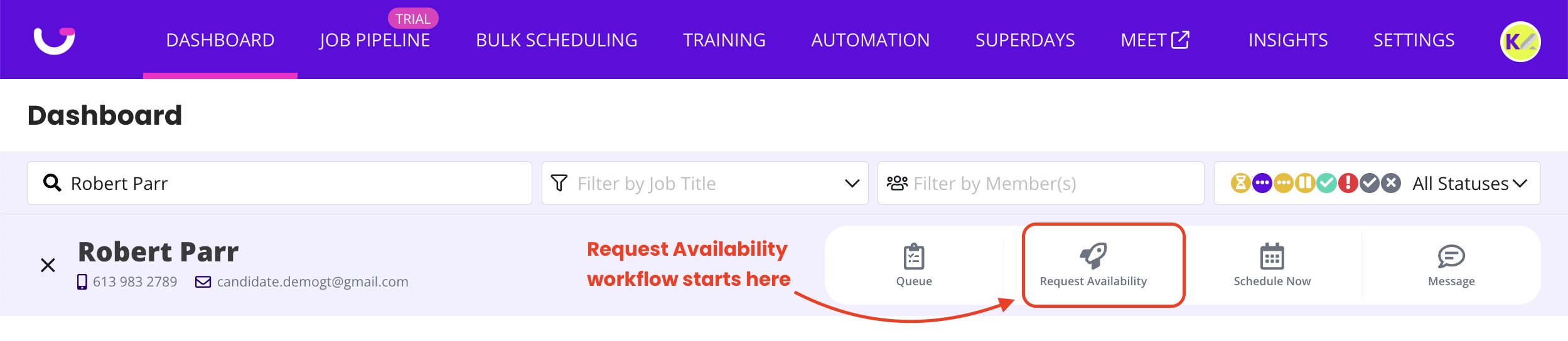
The GoodTime Request Availability workflow is used whenever you want to reach out to a candidate to ask for the specific dates and times they are available for an interview.
With GoodTime's Request Availability workflow, you also have the opportunity to do one of the following:
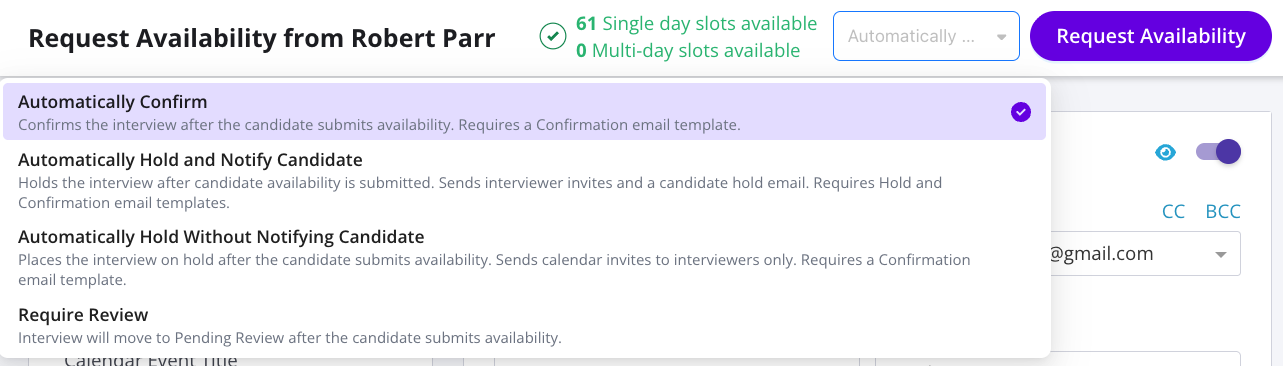
Request candidate availability and [Automatically Confirm] - This allows GoodTime to automatically schedule the interview based on the candidates availability, or
Request candidate availability and [Require Review] - This allows users to review the candidate's shared availability before scheduling.
Request candidate availability and [Automatically Hold and Notify Candidate] - This sends a calendar invite to the interviewers, asking them for their attendance first before users manually confirm the schedule. A notification email is also sent to the candidate without actually sending a calendar invite yet.
Request candidate availability and [Automatically Hold Without Notifying Candidate] - This sends a calendar invite to the interviewers, asking them for their attendance first before users manually confirm the schedule. A notification email isn't sent to the candidate in this case.
The Request Availability workflow allows recruiting teams to collect availability upfront and schedule faster with confidence, helping reduce the time-to-schedule and ensuring alignment with your interview team’s calendars.
How To: Request Availability
Request candidate availability and [Automatically Confirm]
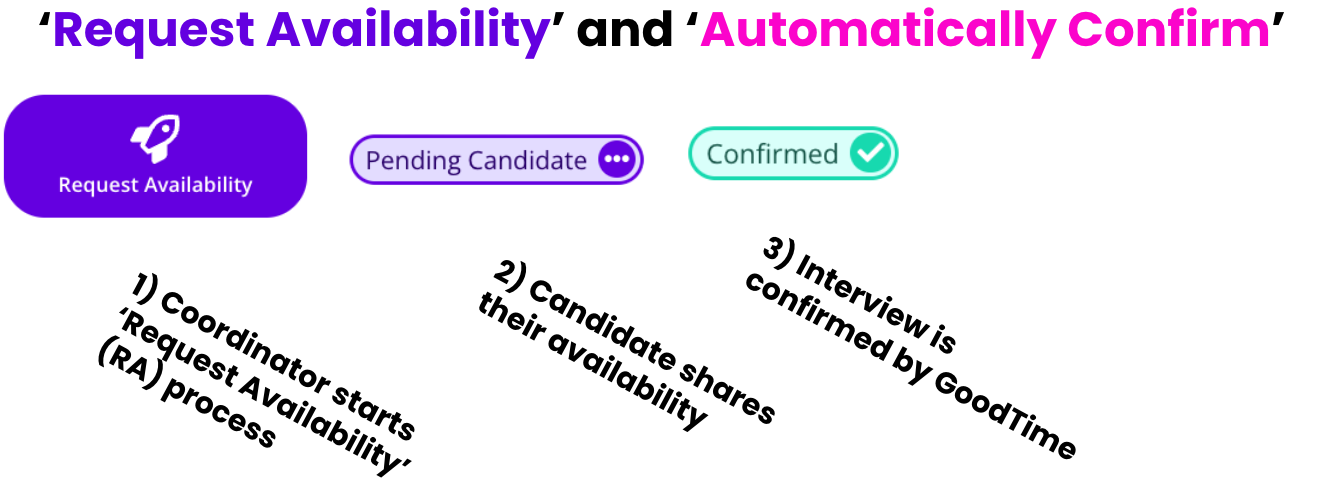
Follow these steps to request candidate availability and 'Automatically Schedule'
Open your candidate in GoodTime.
Click the Request Availability rocket button to start the workflow.
Ensure your candidate is in the appropriate job/stage
(this should be automatically imported from your ATS).Select the appropriate interview template (if not already linked).
For example, a 30-minute recruiter screen with a preferred interviewer.
Confirm or adjust the availability window (e.g., two-week rolling schedule).
NOTE: When automatically scheduling you should verify at this stage that the Preview Calendar is showing ample availability for the candidate to choose from. If limited availability is seen, you should troubleshoot your interview template to increase availability (by adding additional interviewers, adjusting the interview events, or increasing the availability window for instance) before moving forward in the Request Availability process.
Review your Hiring Team: recruiter, coordinator, hiring manager, and sourcer.
Click Continue in the top right corner.
Review your email template to the candidate (e.g., with role name, interview type, interviewer).
Confirm once again that there are enough Available Interview Slots based on the candidate’s and interviewer’s calendars.
If your template is not already set to Automatically Confirm you can adjust this setting prior to reaching out to the candidate to request their availability
Click Request Availability.
Once sent, the candidate will appear in your dashboard under the Pending Candidate Response status until they respond.
When the candidate shares their availability they will be moved to the Confirmed status on the dashboard indicating that they have been scheduled to meet with your interviewers based on the availability they shared.
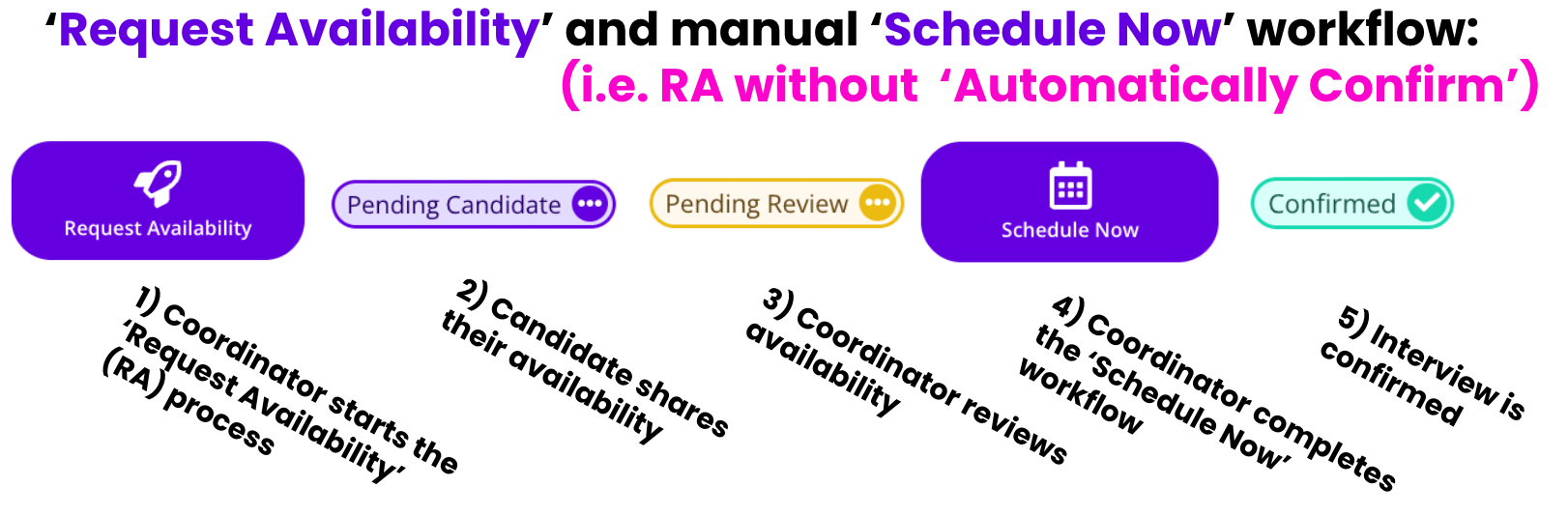
Request candidate availability and [Require Review]
Open your candidate in GoodTime.
Click the Request Availability rocket button to start the workflow.
Ensure that your candidate is in the appropriate job/stage
(this should be automatically imported from your ATS).Select the appropriate interview template (if not already linked).
For example, a 30-minute recruiter screen with a preferred interviewer.
Confirm or adjust the availability window (e.g., two-week rolling schedule).
Review your Hiring Team: recruiter, coordinator, hiring manager, and sourcer.
Click Continue in the top right corner.
Review your email template to the candidate (e.g., with role name, interview type, interviewer).
Confirm that there are enough Available Interview Slots based on the candidate’s and interviewer’s calendars.
If your template is not already set to Require Review, then you can adjust this setting prior to reaching out to the candidate to request their availability
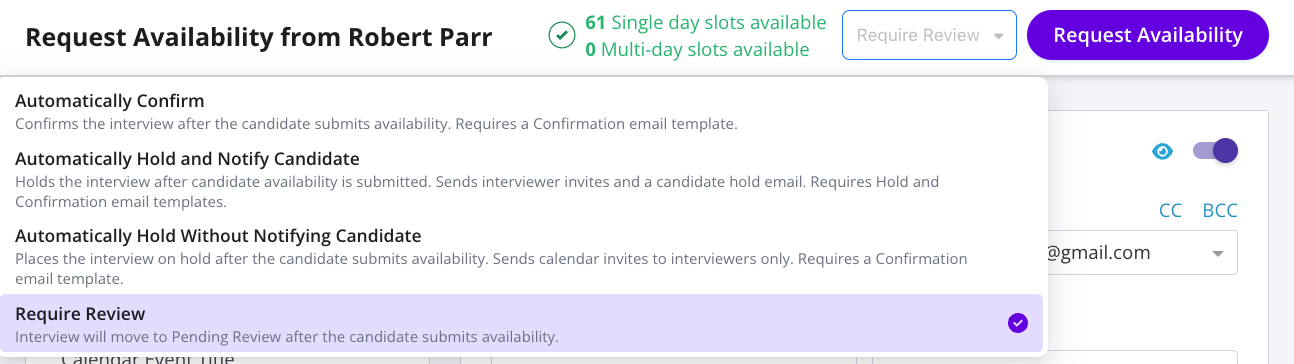
Click Request Availability.
Once sent, the candidate will appear in your dashboard under the Pending Candidate Response status until they respond.
When the candidate shares their availability they will be moved to the Pending Review status on the dashboard as a call to action for your scheduler to continue the scheduling process.
Request Availability Minimum Requirement Setting.
GoodTime also provides the ability to 'force' a candidate to provide a minimum amount of availability when going through the Request Availability workflow.
Once this feature is activated, the default setting at first will be to not require candidates to provide a minimum amount of availability. Users can then adjust this setting at the company level (which will impact ALL candidates across all roles) in the Interview Settings page. Or it can be activated at the Interview Template level where users set a minimum amount of availability specific to the template.

🎥 Please watch the video below for a demo of this feature:
Request Availability - Candidate View:
To understand the Request Availability process from a candidates perspective please review the following Help Centre Article: