Template Basics - Template Variables
Last updated: February 26, 2026
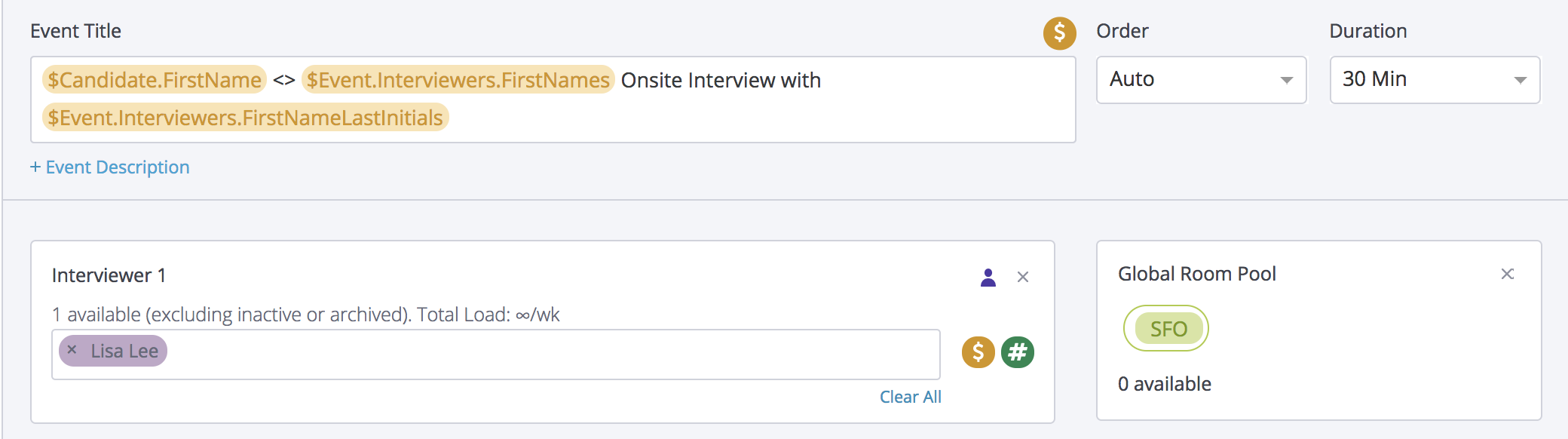
TL;DR: Though GoodTime's integration with your Applicant Tracking System (ATS) we are able to pull many pieces of data from each of your candidate's ATS profile to help personalize their scheduled interview. Interview variables can be used anywhere in text boxes that are labeled with a ($) icon
You can add a new variable by pressing ($) and start searching for a variable (type a few characters of the variable you want and the list will shorten).
Some ($) variables are only available within certain areas of your Templates - for a full overview of what templates can be used where see: GoodTime Variables. See below for a list of most common variables used within templates.
Candidate Variables
|
Template Variable Name |
Definition |
|
$Candidate.FirstName |
Display the candidate’s first name (i.e. Sue) |
|
$Candidate.LastName |
Display the candidate’s last name (i.e. Parker) |
|
$Candidate.FullName |
Display the candidate’s full name (i.e. Sue “Suzi” Parker) |
|
$Candidate.FirstNameLastInitial |
Display the candidate’s first name followed by their last initial (i.e. Sue P) |
|
$Candidate.Email |
Display the candidate’s email (i.e. sue@gmail.com) |
|
$Candidate.PhoneNumber |
Display the candidate’s phone number (i.e. 415-229-1234) |
Recruiter Variables
|
Template Variable Name |
Definition |
|
$Recruiter.FirstName |
Display the recruiter’s first name (i.e. Sue) |
|
$Recruiter.LastName |
Display the recruiter’s last name (i.e. Parker) |
|
$Recruiter.FullName |
Display the recruiter’s full name (i.e. Sue “Suzi” Parker) |
|
$Recruiter.FirstNameLastInitial |
Display the recruiter’s first name followed by their last initial (i.e. Sue P) |
|
$Recruiter.Email |
Display the recruiter’s email (i.e. sue@gmail.com) |
|
$Recruiter.PhoneNumber |
Display the recruiter’s phone number (i.e. 415-229-1234) |
Coordinator Variables
|
Template Variable Name |
Definition |
|
$Coordinator.FirstName |
Display the coordinator’s first name (i.e. Sue) |
|
$Coordinator.LastName |
Display the coordinator’s last name (i.e. Parker) |
|
$Coordinator.FullName |
Display the coordinator’s full name (i.e. Sue “Suzi” Parker) |
|
$Coordinator.FirstNameLastInitial |
Display the coordinator’s first name followed by their last initial (i.e. Sue P) |
|
$Coordinator.Email |
Display the coordinator’s email (i.e. sue@gmail.com) |
|
$Coordinator.PhoneNumber |
Display the coordinator’s phone number (i.e. 415-229-1234) |
Interview Variables
|
Template Variable Name |
Definition |
|
$Job.Name |
Display the job application name (i.e. Full Stack Engineer) |
|
$Stage.Name |
Display the current stage in the job assigned to the interview template (i.e. Technical Phone Screen) |
|
$Interview.Start.Date |
Wed Feb 15, 2017 |
|
$Interview.Start.Time |
11:00AM (PST) |
|
$Interview.Start.DateTime |
Wed Feb 15, 2017 at 11:00AM (PST) |
|
$Interview.End.Date |
Wed Feb 15, 2017 |
|
$Interview.End.Time |
3:00PM (PST) |
|
$Interview.End.DateTime |
Wed Feb 15, 2017 at 3:00PM (PST) |
|
$Interview.HangoutLink |
Will provide a Google Hangouts link (taken from the external event Google Hangouts link sent to the candidate). Please note, your company must be using Google Business Suite and must have allow automatic creation of Hangouts links to be turned on to utilize this feature. |
|
$Interview.BlueJeans.Link |
Will provide a BlueJeans Video conference link (the same link will be provided to all attendees of an interview). This allows the candidate to stay on the same video hangout while interviewers can join and leave (helpful for video interviews with sequential meetings with different interviewers). Please note, this variable is only available to companies that have activated a BlueJeans integration through GoodTime. Ask your admin if you are unsure |
|
$Interview.Zoom.Link |
Will provide a Zoom Video conference link (the same link will be provided to all attendees of an interview). This allows the candidate to stay on the same video hangout while interviewers can join and leave (helpful for video interviews with sequential meetings with different interviewers). Please note, this variable is only available to companies that have activated a Zoom integration through GoodTime. Ask your admin if you are unsure See also: Editing or updating Zoom links |