How to - Utilize Calendar Availability & Capacity Planning
Last updated: February 26, 2026
TL;DR: The GoodTime Calendar Availability & Capacity Planning feature helps your team to identify interviewer availability bottlenecks across individuals, tags and interview templates so you can meet hiring goals with clarity and precision. NOTE: This feature is available for both Google and Office 365 calendar integrations.
🔍 What It Does
This feature scans interviewer calendars (Google or Office 365) to assess open availability and remaining capacity—helping you answer critical questions like:
- Which interviewers have time to conduct interviews?
- Which tags or teams are overloaded or underutilized?
-
Can this template/tag/individual support our upcoming hiring needs?
🧠 How It Works
1. Team Member/Interviewer Calendar Availability
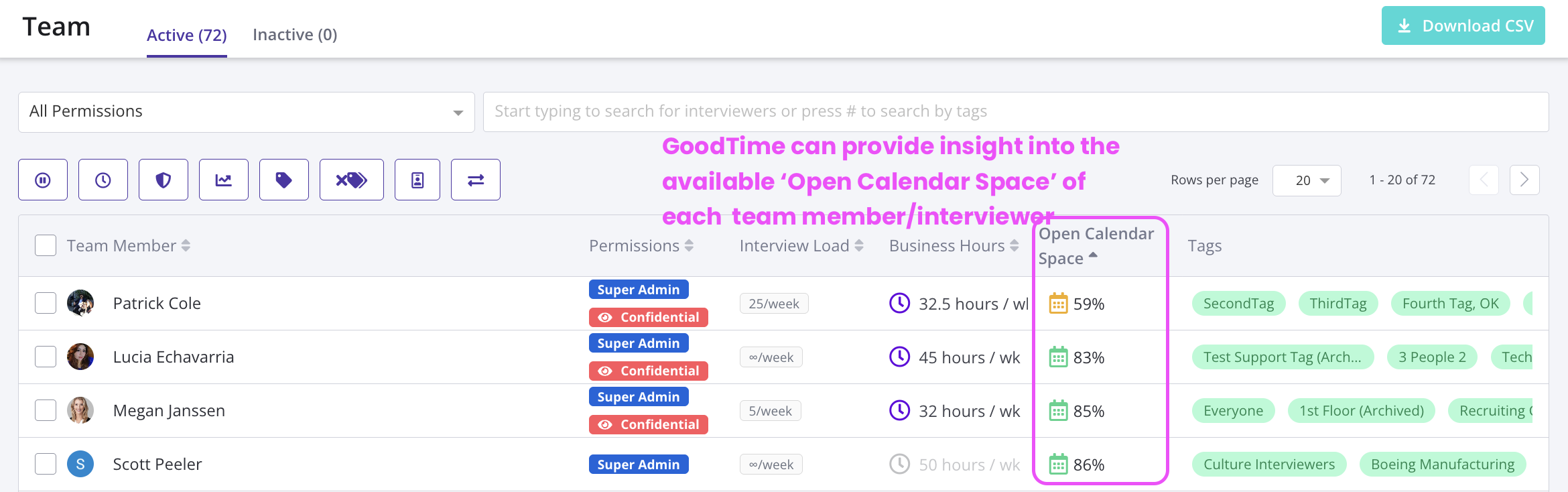
On your Team Settings page, you’ll see a new column: Open Calendar Space. This shows the percentage of free calendar space within the business hours and time zone of the interviewer. Availability is fetched for all users who have conducted an interview in the last 6 months and / or are part of a tag. Events that match transparent keywords are considered available. Any gaps in the calendar that are smaller than 30 minutes are disregarded. If you hover over the column tool tip you will also see the specific time range used in calculating this data.
💡 Note: We only track availability for people who either:
- Have conducted an interview in the last 6 months,
- Who are in a traing path, or
- Belong to an interview tag.
2. Tag-Level Capacity Insights
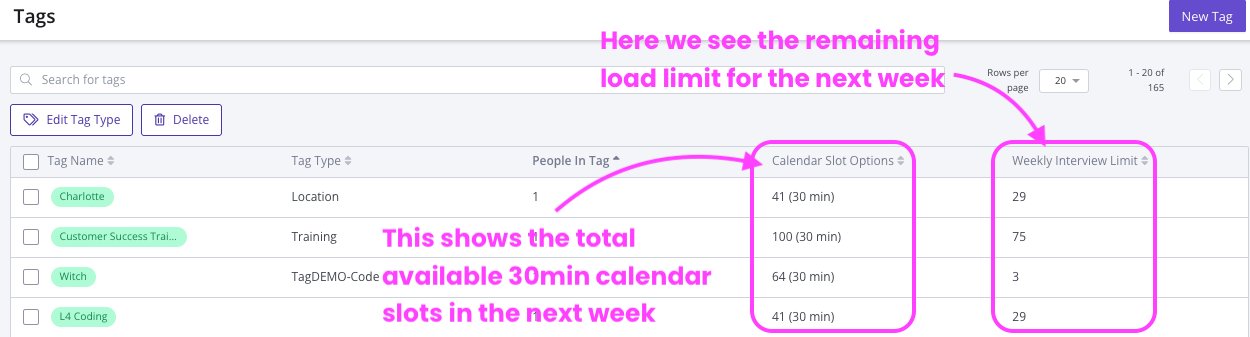
In Tag Manager, you’ll find a capacity analysis for each tag. For each tag, we show the following data:
- Calendar slot Options: This is the number of free calendar slots available from all people in the tag, followed by the specified slot size in minutes. The slot size is the most commonly used interview event duration that this tag has been used for. If you hover over the column tool tip you will also see the specific time range used in calculating this data.
- Weekly Interview Limits: This is the combined remaining load balance for the people in the tag. If you hover over the column tool tip you will also see the specific time range used in calculating this data.
🔍 Use this to identify overbooked tags and decide whether to:
- Add more interviewers to the tag
- Reassign training resources
3. Interview Template-Level Bottlenecks
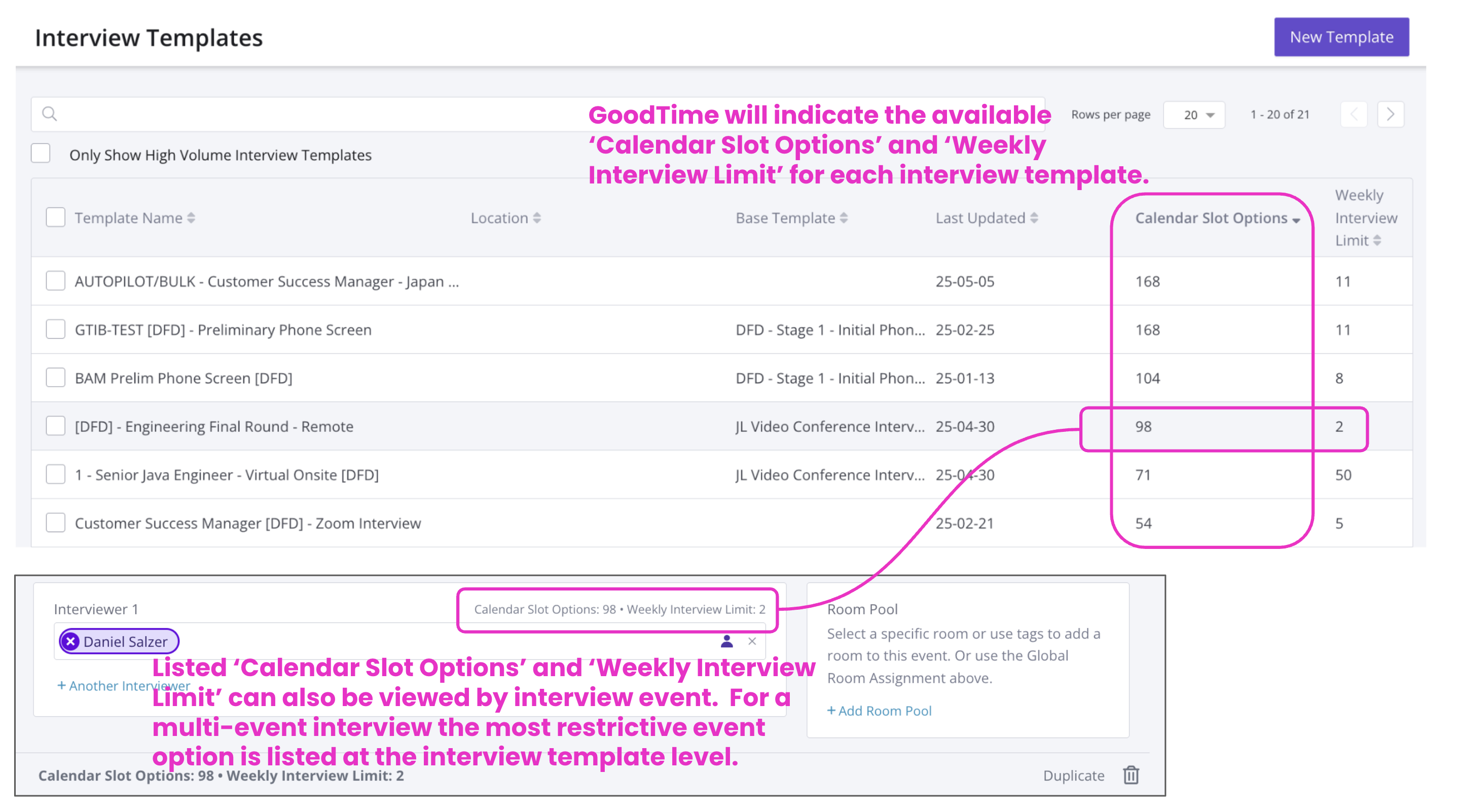
To assist you in quickly identifying potential scheduling bottlenecks both when building/editing a template or when scheduling, you can now clearly see within your Interview Templates the following bottleneck flags:
- Calendar Slot Options: This is the number of calendar slot options that the interviewers in the most restricting event of the template can produce. If you hover over the column tool tip you will also see the specific time range used in calculating this data.
- Weekly Interview Limit: This is the combined remaining load balance for the interviewers in the most restricting event of the template. f you hover over the column tool tip you will also see the specific time range used in calculating this data.
💡 Note:
- This information is visible both in the interview template when you build or edit a template AND in the interviewer drawer when you pull up a template to schedule from it.
- If a template has no interviewers or tagged groups, it will show 0 slots and 0 load balance.
- At the template level we will list the most restricted interview event within each template as the overall template capacity.
- if you open a multi-event interview template you can further view the the 'Calendar Slot Options' and 'Weekly Interview Limit' to identify the “weakest link” within the template that has the most restrictive scheduling options.
🙋♀️ FAQs
Q: What happens if a template has no interviewers assigned?
A: It will show 0 available slots and 0 remaining load balance.
Q: Are Transparent Keywords Considered in these calculations?:
A. Yes. We do consider transparent keywords when calculating availability, including looking over GoodTime interview blocks. NOTE: If a listed interviewer is using “Use Interview Block Availability” setting on in the teams page, then calendar availability is solely based on the user's availability within interview blocks only.
Q: Can I see this while scheduling?
A: Yes. These insights are available directly within the scheduling drawer as well as in the following sections of your GoodTime settings.
- 1. Team Member/Interviewer Calendar Availability = Team Settings page
- 2. Tag-Level Capacity Insights = In the Tag Manager page
- 3. Interview Template-Level Bottlenecks = The Interview Templates page
Q: What’s the time window for availability calculations?
A: The time window for calculating availability is configurable via the company settings page.
Team, tag, and interview template availability will all have the same time window, with the default being the next business week. The other possible options that can be set are two business weeks, rolling five day window with 48 hr buffer, and rolling ten day window with 48 hr buffer
Q: Are Weekly Load Limits always rolling?
A. Weekly Load Limits are calculated based on what’s left in next week’s load balance, minus already scheduled interviews.
Q: Is this data live?
A: Great question. Interview template availability will update in real time in the editor as you make changes to the template or is you make changes in the schedule now drawer (so Yes, this data is live)! Changes made to team member, tag, and interview template availability will be updated every 8 hours and then pulled into your scheduling flows in real time.
Q: Do these calculations only consider Business Hours?
A. Yes. When presenting the capacity data we only consider bookable time based on each interviewer’s business hours (not midnight or off-hours).
Q: How do I see the most restrictive templates/tags/user calendars in my GoodTime account?
A: When viewing any of the reports listed above, you are able to click on the column header to sort the table by the data in that specific column (big to small or small to big)