Fixing "Unable to Load Candidate" errors in iCIMS
Last updated: November 14, 2026
Overview
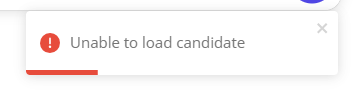
If you encounter an "Unable to load candidate" error when attempting to schedule a candidate in GoodTime, the most common cause when using iCIMS is that the candidate's iCIMS folder has not been synced to GoodTime. GoodTime needs to be explicitly configured to sync each folder you use in iCIMS in order for candidates in those folders to appear for scheduling.
Steps to Resolve the Error
Identify which iCIMS folder the affected candidate is currently assigned to.
Determine whether that folder should be treated as an internal or external candidate folder in GoodTime.
Contact GoodTime Support and provide the folder name(s) and the desired candidate type mapping (internal or external). GoodTime will update the sync configuration on the backend.
Once the folder has been synced, verify that the candidate now appears in GoodTime and can be loaded for scheduling.
Important Notes
Folder names must match exactly — spacing and spelling in the folder name must match precisely as configured in iCIMS. For example,
Emp:Former EmployeeandEmp: Former Employee(with a space after the colon) are treated as different values.If candidates are still not appearing after a folder has been synced, provide a sample candidate name and iCIMS ID to GoodTime Support so they can investigate further.
If you are unsure whether GoodTime has the necessary API permissions to access a particular folder field in iCIMS, confirm with your iCIMS administrator that GoodTime has permissions to make API calls to the relevant person folder field.
Need Help?
If you are still seeing the "Unable to load candidate" error after confirming folder sync, please reach out to GoodTime Support with the following information:
The name of the iCIMS folder the candidate is in
Whether the candidate should be treated as internal or external
A sample candidate name and iCIMS ID for investigation