GoodTime MCP Server
Last updated: October 6, 2026
🎥 ^^ Watch above for a (Jun 2026) Demo of GoodTime's MCP Server in Action.
The GoodTime MCP connector brings your live recruiting operations data into Claude, and other MCP-compatible AI tools, so you can find information, analyze trends, and complete supported GoodTime tasks using natural language. Every request runs live against GoodTime using your own login and permissions.
You can use Claude to:
Review upcoming and completed interviews.
Analyze interviewer workload, participation, and response times.
Investigate cancellation and rescheduling trends.
Explore jobs, stages, interview steps, and candidate applications from your ATS.
Analyze candidate feedback and NPS trends.
Review candidate-evaluation disparities across available demographic categories.
Manage interviewers and interviewer pools.
Create and manage interviewer training programs.
Enroll interviewers in training paths and monitor their progress.
The current connector provides many tools across GoodTime’s scheduling, insights and analytics, candidate-experience, and interviewer-training capabilities.
Before You Connect
You'll need:
A GoodTime account with the Admin or Super Admin role. Users with other roles cannot access GoodTime through MCP.
A Claude account. On a Claude Team or Enterprise plan, an Owner or Primary Owner may need to enable the GoodTime connector first (see Team and Enterprise Accounts below).
Using a different AI tool? See Connect Other AI Tools below.
Connect GoodTime to Claude
GoodTime is available in Claude’s Connectors Directory. You do not need to generate an API token, install Node.js, or manually edit a configuration file.
Add GoodTime from a Claude conversation
Open Claude.
Select the + button in the lower-left corner of a conversation. You can also type / to open the menu.
Select Connectors, followed by Manage connectors.
Select the + button next to Connectors.
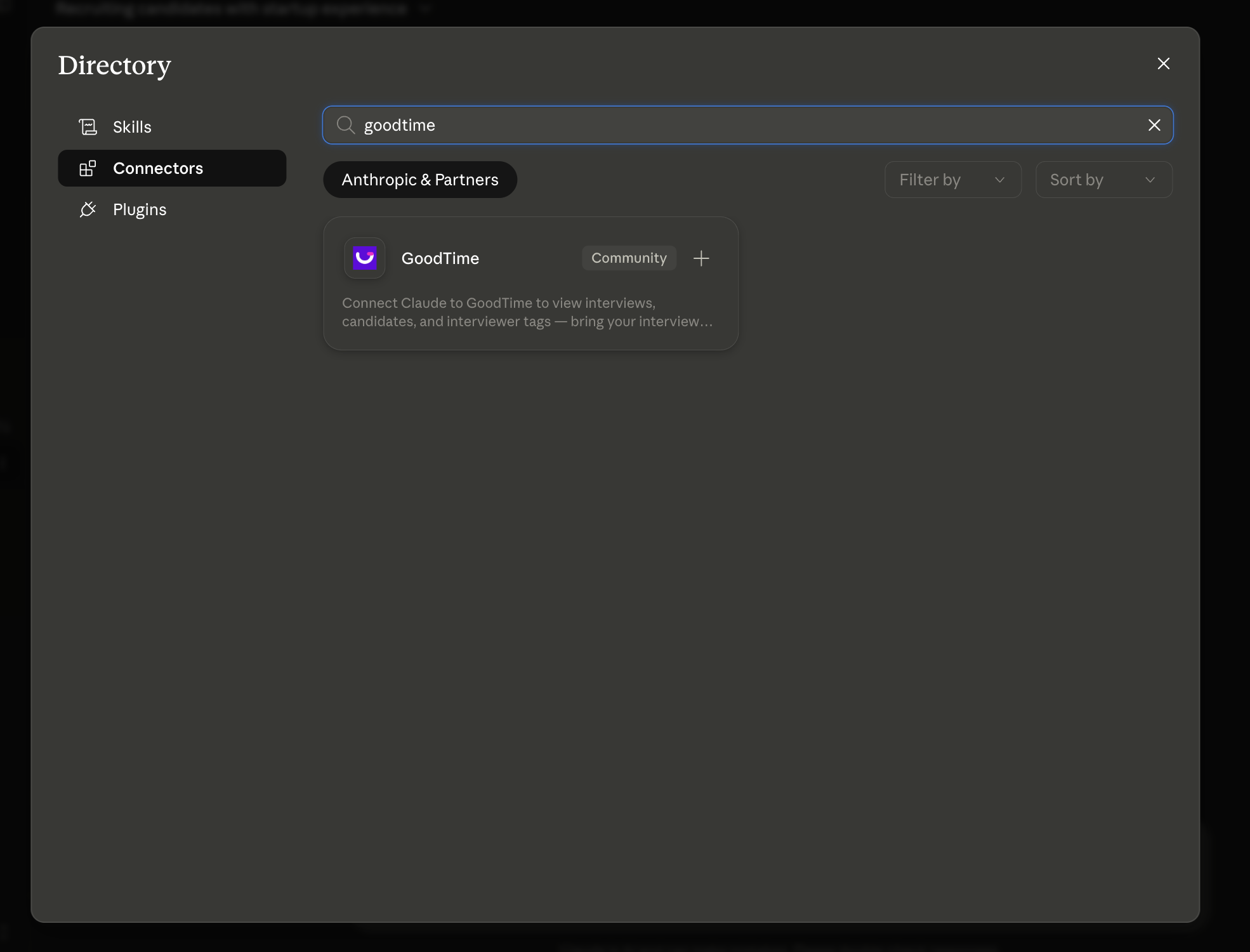
Search for GoodTime.
Select the GoodTime connector and choose Connect, Install, or Add.
Follow the prompts to complete the connection.
Add GoodTime from Claude settings
Navigate to Customize → Connectors in Claude.
Select the + button next to Connectors.
Search for GoodTime.
Select the GoodTime connector.
Follow the prompts to complete the connection.
Once connected, GoodTime will be available across supported Claude experiences associated with your Claude account.
Team and Enterprise Accounts
If your organization uses a Claude Team or Enterprise plan, an Owner or Primary Owner may need to enable the GoodTime connector before members can use it.
Organization administrators can:
Navigate to Organization settings → Connectors.
Select Browse connectors.
Search for and select GoodTime.
Choose Add to your team.
Individual users can then connect GoodTime from their own Claude connector settings.
If you see a Request button instead of an option to connect, select it to ask your Claude organization administrator to enable GoodTime.
Use GoodTime in a Conversation
To make GoodTime available in a conversation:
Select the + button in the lower-left corner of the conversation.
Select Connectors.
Confirm that GoodTime is enabled.
You can then ask Claude to use your GoodTime data. For example:
Use GoodTime to show me all interviews scheduled for next week.
Claude can also select the GoodTime connector automatically when it is relevant to your request, so you do not need to mention GoodTime every time.
Connect Other AI Tools
GoodTime is officially published in Claude's Connectors Directory and has been tested with Claude. The server follows the standard MCP specification, so other MCP-compatible clients that support the Streamable HTTP transport can also connect. Clients other than Claude aren't officially supported.
Server endpoint: https://mcp.service.goodtime.io/mcp
Claude Code:
claude mcp add --transport http goodtime https://mcp.service.goodtime.io/mcpClients that use a JSON config file:
{
  "mcpServers": {
    "goodtime": {
      "type": "http",
      "url": "https://mcp.service.goodtime.io/mcp"
    }
  }
}
The first time you use a GoodTime tool, your client opens GoodTime's standard login screen. Sign in, approve access, and your client stores the authorization until it expires. See Authentication and Security for details.
MCP (Model Context Protocol) is an open standard that allows AI assistants to securely connect to external applications through structured tools.
Unlike uploading data into an AI model, MCP gives Claude live, secure access to your GoodTime account whenever you ask a question.
The flow looks like this:
You
   ↓
Claude
   ↓
GoodTime MCP Server
   ↓
GoodTime Public API
   ↓
Live GoodTime data
This means Claude is always working from your current recruiting data, not stale exports or spreadsheets. The MCP server calls the GoodTime Public API using your own login and permissions. It does not store or cache GoodTime data: every request is answered live.
Learn more about MCP at:
https://modelcontextprotocol.io/docs/getting-started/intro
Authentication and Security
OAuth sign-in with individual user grants
The GoodTime MCP server uses OAuth, following the MCP authorization specification, and supports Dynamic Client Registration for custom login workflows.
Your AI client connects to the GoodTime MCP server.
You sign in on GoodTime's standard login screen.
You review and approve a consent screen.
GoodTime issues a token to you, and you're redirected back to your AI client.
Every user authorizes individually with their own GoodTime account, so OAuth connections never use shared, team, or service-account credentials.
Role-based access
Only users with the Admin or Super Admin role can use the GoodTime MCP connector. Users with any other role cannot access GoodTime through MCP.
Within that, the connector can only see and do what the signed-in user can already see and do in GoodTime. Connecting does not create new access. See GoodTime permission levels for what each role can access.
Deprovisioning
When a user is archived in GoodTime, or disabled through your SSO identity provider, their MCP access ends. Every request is validated live, so the next request fails. See SAML SSO for how identity-provider changes apply to GoodTime.
API keys
GoodTime API keys are issued at the organization level and are not tied to an individual user. They can only be created by Super Admins, and the feature must be enabled for your organization. Because they are not tied to a user, API keys are not revoked when a user is archived.
We recommend connecting through OAuth, which ties every request to an individual, active user with an authorized role.
Data handling
The MCP server does not store or cache GoodTime data. Each request is answered live from the GoodTime API. Data returned to your AI assistant is processed by your AI provider under your organization's agreement with that provider.
Rate limits
MCP requests go through the GoodTime Public API, so the standard API rate limits apply. See GoodTime API rate limits.
What Can You Do with the GoodTime MCP Connector?
Manage Interviewers, Users, and Interviewer Pools
Claude can help you find and manage interviewers, recruiters, coordinators, administrators, and other contacts in your GoodTime organization.
You can:
Search for contacts by name, email address, status, or interviewer-pool tag.
View a contact’s title, status, availability settings, notes, and tags.
Find people using combinations of interviewer-pool criteria.
Add or remove people from interviewer pools.
Update contact titles, statuses, notes, and interview-availability settings.
Create, rename, and organize interviewer-pool tags and tag categories.
Make supported updates across multiple contacts or tags at once.
Example prompts:
“Find all active Engineering interviewers in the Senior or Staff pools, excluding anyone tagged Do Not Contact.”
“Add these interviewers to the Backend Systems interviewer pool.”
“Show me which interviewer pools Jordan Lee belongs to.”
“Update the interview availability settings for these five interviewers.”
“Create a new interviewer pool called Mobile Engineering under the Engineering tag category.”
Explore ATS Jobs and Applications
Claude can retrieve recruiting data synchronized from your applicant tracking system.
You can:
Find jobs by name, external ID, or status.
Review job details, custom fields, metadata, and settings.
Explore the stages and interview steps configured for a job.
Review scorecard templates and preparation kits associated with interview steps.
Find candidate applications by job, stage, status, or candidate.
Retrieve the candidate and organization details associated with an application.
Example prompts:
“Show me all active Engineering job requisitions.”
“List the stages and interview steps for the Senior Product Manager role.”
“Find active applications currently in the onsite interview stage.”
“Show me the scorecard template and preparation kit for this interview step.”
ATS data is currently available for retrieval and analysis. The connector does not create or modify jobs, stages, interview steps, or applications.
Review Interviews and Templates
Claude can help you examine scheduled and completed interviews and understand what happened during the scheduling process.
You can:
Find interviews by status, date range, job, stage, or other ATS linkage.
Retrieve complete interview details, including scheduling information, candidates, events, assigned roles, templates, calendar synchronization, and change reasons.
Review a chronological activity log for an interview.
Find and inspect reusable interview templates.
Example prompts:
“Show me all interviews scheduled for next week.”
“List the completed interviews for the Product organization last month.”
“Give me the full activity timeline for this canceled interview.”
“Which interview template was used for this candidate?”
“Find interview templates associated with Engineering roles.”
The connector can retrieve interview and template data, but it does not currently schedule, reschedule, cancel, or otherwise modify interviews.
Analyze Interview Operations
Claude can use GoodTime Insights data to help recruiting teams understand workload, efficiency, and scheduling outcomes.
You can analyze:
Time spent interviewing by job, interviewer, or department.
Cancellation, rescheduling, and decline reasons.
Change reasons by job, department, coordinator, or interviewer.
Interviewer load, including accepted and declined assignments.
Algorithmically assigned versus manually assigned interviews.
The distribution of weekly interview load across your organization.
Highest- and lowest-activity interviewers.
Interviewer coverage, declines, and response times.
Recruiting-coordination activity by coordinator, job, or department.
Performance trends over time.
GoodTime industry benchmarks where available.
Example prompts:
“Which interviewers have the highest weekly interview load?”
“Identify interviewers who may be underused or approaching an unsustainable workload.”
“Compare interviewer activity this quarter with the previous quarter.”
“What were the most common reasons interviews were canceled or rescheduled?”
“Break down scheduling changes by department and coordinator.”
“Compare our interviewer activity with the available industry benchmark.”
“Which coordinators scheduled, rescheduled, or canceled the most interviews this month?”
Analyze Candidate NPS and Pulse Feedback
Claude can analyze candidate-experience data collected through GoodTime NPS and Pulse surveys.
You can:
Review NPS and Pulse score trends over time.
Compare scores by job, stage, coordinator, department, or interview.
See promoter, neutral, and detractor counts.
Compare your organization’s scores with available benchmarks.
Identify the highest- and lowest-scoring areas.
Review feedback tags and their frequency by sentiment.
Retrieve candidate feedback comments.
Summarize promoter, neutral, or detractor feedback.
Analyze responses to specific survey templates.
Example prompts:
“Show our candidate NPS trend over the last six months.”
“Which jobs and stages have the highest and lowest candidate-experience scores?”
“Compare NPS results by department.”
“What themes appear most often in detractor feedback?”
“Summarize promoter feedback from the last quarter.”
“Show candidate comments associated with scheduling or communication concerns.”
Review Candidate-Evaluation Disparities
Claude can help authorized teams examine candidate-evaluation outcomes across the demographic categories available in GoodTime.
You can:
Identify the locations and demographic categories available for analysis.
Retrieve candidate-evaluation records over a selected date range.
Compare recommendation rates with an established baseline.
Review disparities by demographic category, department, or job.
Generate a narrative summary of observed disparities.
Example prompts:
“What demographic categories are available for our Detroit location?”
“Compare candidate recommendation rates across the available categories for the last six months.”
“Show evaluation disparities by department and job.”
“Summarize the largest differences from the baseline and identify areas that may warrant further review.”
These insights are intended to support auditing and investigation. Results should be reviewed by qualified stakeholders and should not be used as the sole basis for employment decisions.
Manage Interviewer Training
Claude can help you create, organize, and administer GoodTime interviewer-training programs.
Training paths and classes
You can:
Create, update, archive, and restore training paths.
Build ordered training programs from multiple classes.
Create and update custom reading, quiz, or video classes.
Archive classes or replace them in active training paths.
Search training paths and classes by name, type, or status.
Review trainee counts, graduation rates, and average completion time.
See which paths use a particular custom class.
Example prompts:
“Create a structured interviewer-training path for new Engineering interviewers.”
“Add a reading class on structured interviewing and a quiz on prohibited questions.”
“Update the content of the Interview Foundations class.”
“Show all active training paths and their graduation rates.”
“Which active paths currently use this class?”
Enrollments and progress
You can:
Enroll one or more people in one or more training paths.
Find enrollments by trainee, path, or status.
Review individual class-enrollment details.
Mark an enrollment as complete.
Archive an enrollment when training is no longer required.
Review the activity history for a trainee’s enrollment.
Identify interviewers assigned to provide class feedback.
Count active, completed, or otherwise filtered enrollments.
Example prompts:
“Enroll these five interviewers in the Engineering Interviewer Certification path.”
“Who is currently enrolled in an active training path?”
“Show trainees who have not completed Interview Foundations.”
“How many active enrollments does each training path have?”
“Show the activity history for this trainee’s enrollment.”
“Mark this enrollment as complete.”
Training organization and automation
You can:
Create, rename, and archive folders used to organize training paths.
Search folders and their associated paths.
Review progress and tag information across folders.
Link interview templates to training paths for automatic enrollment.
Review which training paths are linked to specific interview templates.
Analyze training enrollment and graduation trends.
Example prompts:
“Create a folder called Engineering Interview Training.”
“Move these training paths into the Engineering folder.”
“Link the Backend Technical Interview template to the Backend Interviewer training path.”
“Which training paths are linked to this interview template?”
“Show monthly training enrollments and graduations for the past year.”
Data and Action Summary
The connector supports both read and write operations.
Retrieval and analysis
Claude can retrieve and analyze:
Contacts and interviewer-pool membership
ATS jobs, stages, interview steps, and applications
Interviews, activity logs, and templates
Interview load and operational analytics
Interviewer and recruiting leaderboards
Candidate NPS, Pulse scores, comments, and sentiment
Candidate-evaluation and disparity data
Training paths, classes, enrollments, folders, and progress
Supported changes
Claude can make supported changes to:
Interviewer/User status, title, notes, and interview-availability settings
Contact membership in interviewer pools
Tags and tag categories
Training paths
Custom training classes
Training enrollments and completion status
Training folders
Links between interview templates and training paths
Currently unsupported changes
The connector does not currently:
Create or modify ATS jobs, stages, interview steps, or applications
Schedule, reschedule, cancel, or modify interviews
Create or update interview templates
Submit or modify candidate evaluations
Modify analytics, NPS, or candidate-feedback records
Permissions and Approvals
The connector is available only to GoodTime Admin and Super Admin users, and operates with the signed-in user's own access. It does not grant access to GoodTime data or actions the user is not otherwise authorized to use. See Authentication and Security for details.
Depending on your Claude organization’s connector and tool-permission settings, Claude may ask for approval before completing an action that changes GoodTime data.
Before approving a change, review the proposed action carefully—particularly bulk contact updates, tag changes, training-path replacements, enrollment completions, and archive operations.
Troubleshooting
GoodTime Does Not Appear in Search
Confirm that you are searching from Claude’s Connectors Directory.
If you use a Team or Enterprise account, your organization may require an administrator to enable the connector before it appears as available to you.
The Connector Shows “Request”
Your Claude organization requires administrator approval. Select Request to notify your organization’s administrators.
Claude Is Not Using GoodTime
Open the + menu in the conversation, select Connectors, and confirm that GoodTime is enabled.
You can also make your request explicit:
Use GoodTime to show me all interviews scheduled next week.
Claude Cannot Find Expected Data
Confirm that:
Your GoodTime account has the Admin or Super Admin role and has access to the requested data.
GoodTime is enabled in the current Claude conversation.
Your request includes enough information, such as a date range, job, department, interview, or contact name.
A Change Is Not Available
Not every GoodTime object supports write actions through the connector. Review the supported changes above.
If a requested operation is not supported, Claude can still retrieve the relevant information and help you determine the next step in GoodTime.
Connection or Authorization Fails
Navigate to Customize → Connectors, disconnect GoodTime, and then reconnect it. Follow the authorization prompts again.
Access Denied After Connecting
The connector is only available to GoodTime Admin and Super Admin users. Confirm your GoodTime role with your GoodTime administrator.
You're Asked to Sign In Again
Authorizations expire periodically, and access ends if your GoodTime account is archived. Sign in again when prompted. If sign-in keeps failing, confirm your GoodTime account is active.
A Message About Rate Limits
MCP requests share the GoodTime Public API rate limits. Wait a moment and retry. This is expected under heavy use.
Additional Resources
GoodTime MCP remote server (recommended): https://mcp.service.goodtime.io/mcp
GoodTime MCP local package (npm): runs locally over stdio and authenticates with an organization-level API key. We recommend the remote server with OAuth instead. https://www.npmjs.com/package/goodtime-mcp
Model Context Protocol documentation: https://modelcontextprotocol.io/docs/getting-started/intro
MCP authorization specification: Understanding Authorization in MCP
OAuth 2.0 Dynamic Client Registration: RFC 7591