3. Interview Training - Building Training Paths (Shadow, Reverse Shadow & Reading Classes)
Last updated: July 3, 2026
TL;DR: Training paths describe the series of classes (reading, shadows, reverse shadows) a trainee must complete in order to graduate as a trained interviewer. Training paths also link those classes to specific events within an interview templates. Once built, paths drive how trainees are automatically added to live interviews, the feedback process supporting their training, and which tags they will ultimately receive on graduation.
Anatomy of a Training Path
A Training Path has six main parts:
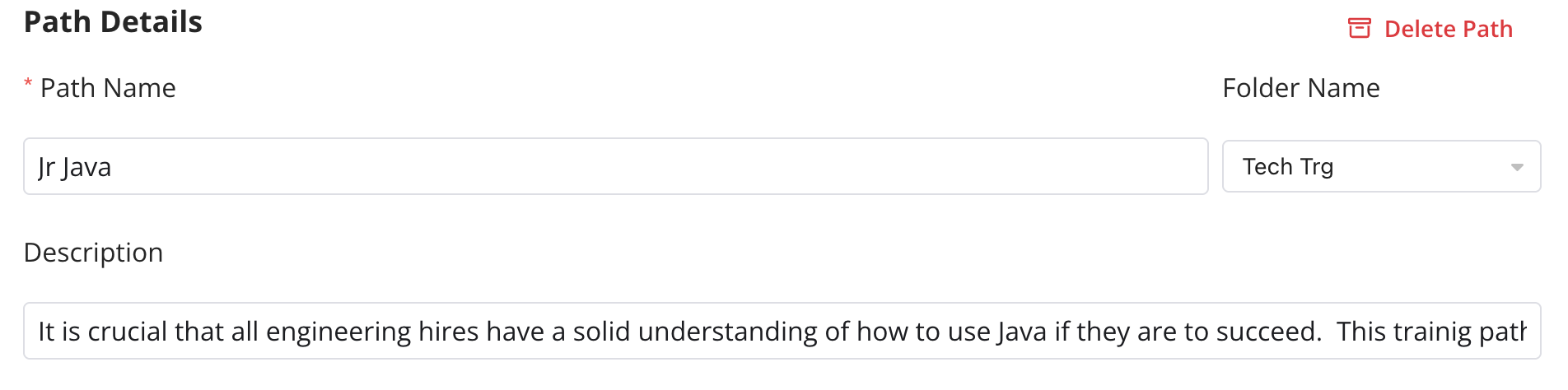
Training Path Details:
- Path name (internal only).
- Description (internal only; explain the goal and audience).
- Folder (optional – for organizing paths).
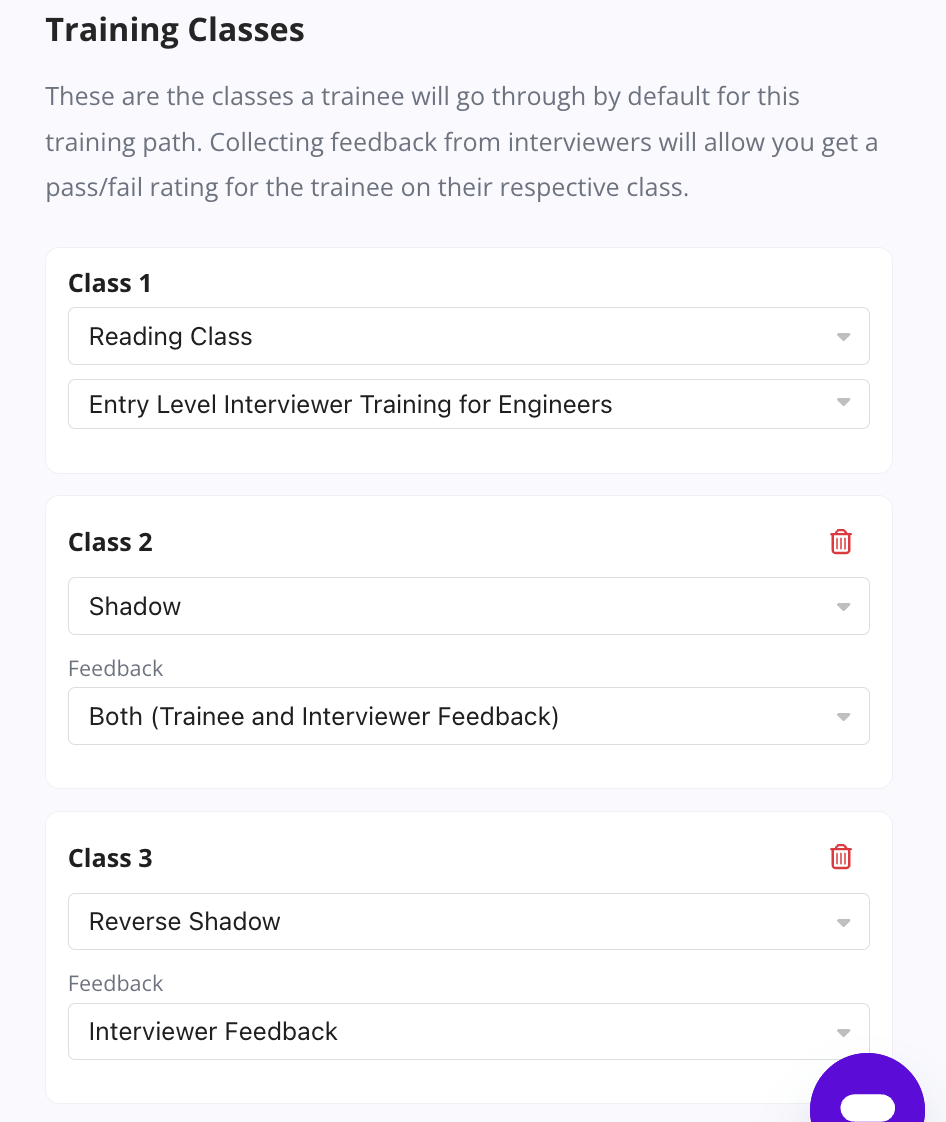
Class list:
- Sequence and counts of classes (e.g. 1 reading class + 2 shadows + 1 reverse shadow).
> Feedback collection rules for each class
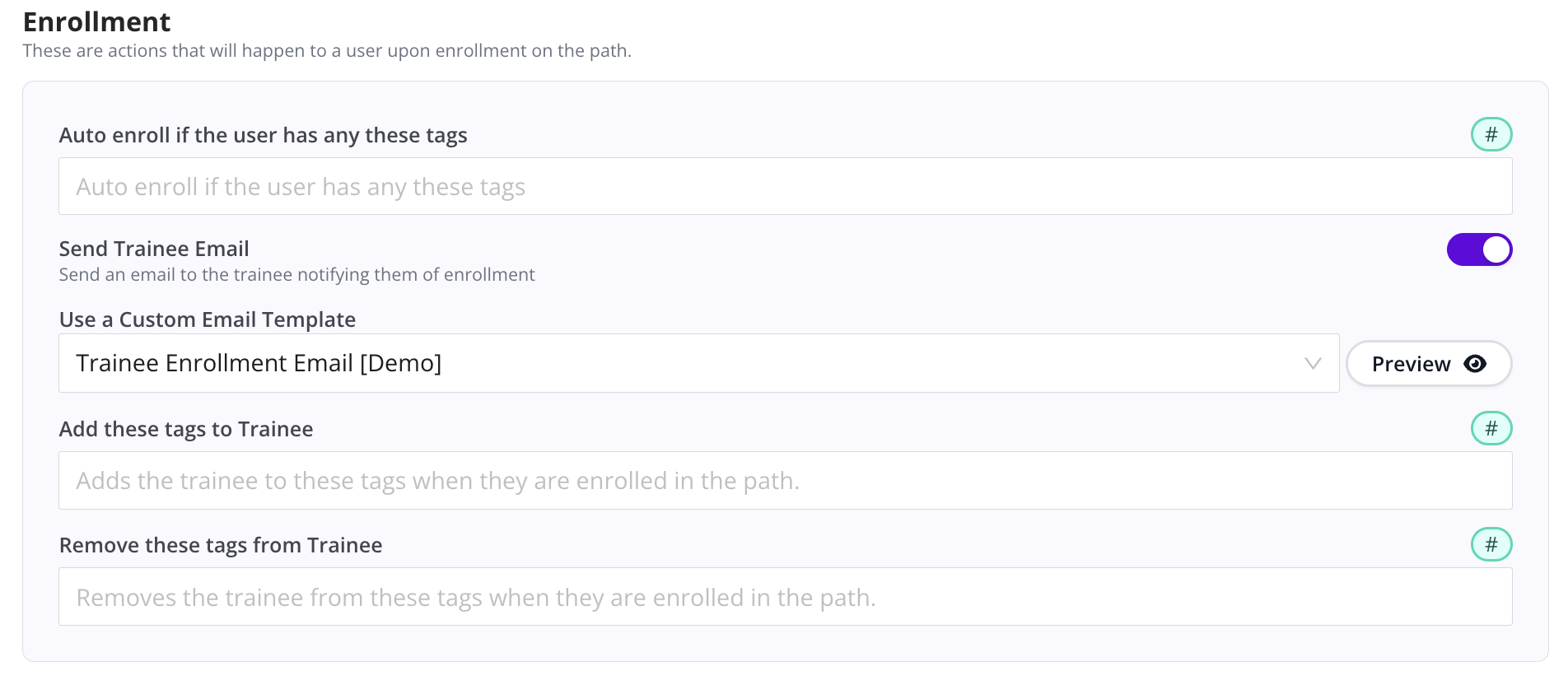
Enrollment rules:
- Enrollment email notifications.
- Tags added/removed on enrollment.
- Optional auto-enroll based on assigned tags
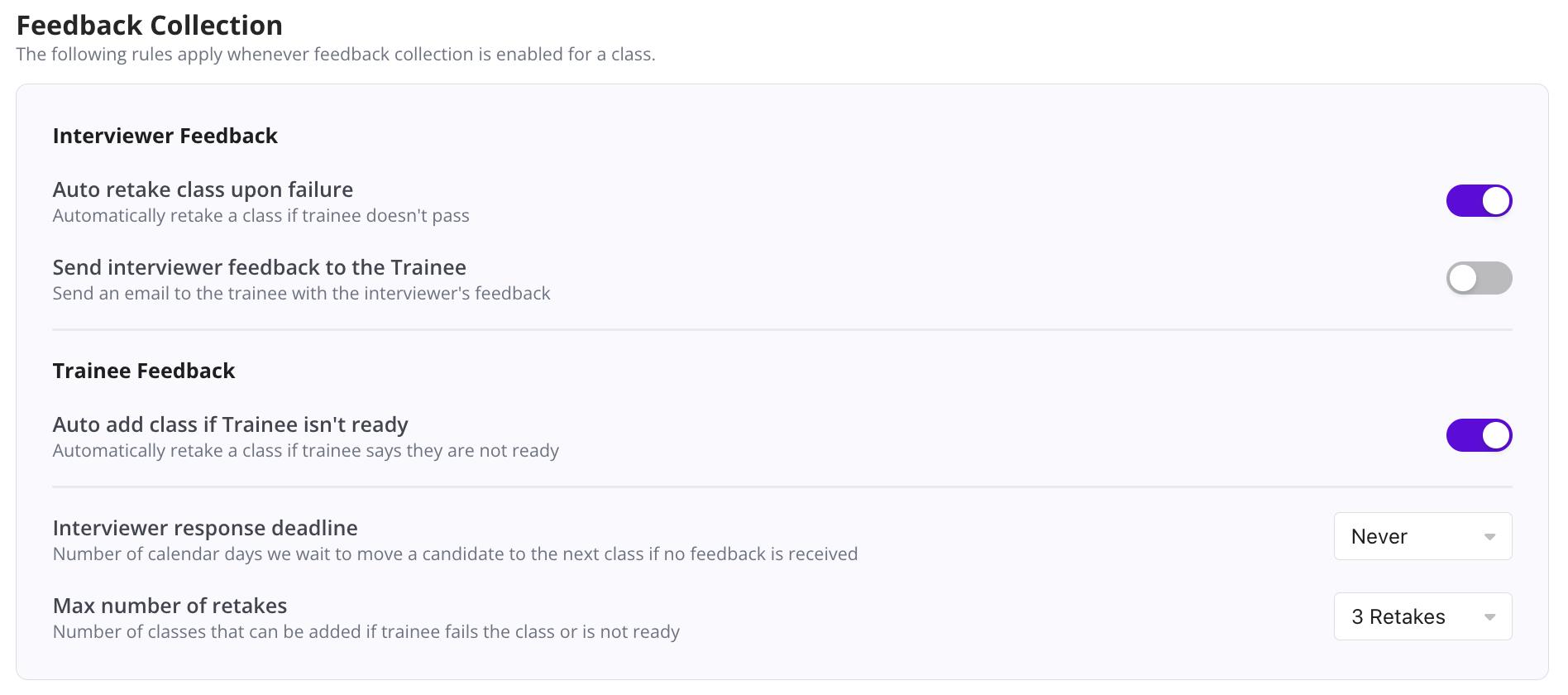
Feedback Rules:
- Interviewer Feedback sharing rules, and auto-retake a class upon negative Interviewer feedback
- Auto-retake a class if Trainee feedback indicates they are not ready
- Max number of class retakes allowed
- Interviewer response deadline settings (move forward with training if interviewer feedback is not received)
Graduation Rules:
- Auto-Graduation upon class completion setting
- Graduation email notifications
- Tags added/removed on graduation.
- Optional auto-enroll into next path upon graduation
Linked Interview Templates & events:
- Which templates (and which events within each) this path uses for scheduling training sessions.
1. Creating a new Training Path
Go to Training > Path Manager.
Click + New Training Path.Fill out the Basics:
> Name: e.g. Backend Engineer – Java Coding.
> Description: briefly describe the scope and expectations.
> Folder: (optional) place in a folder (e.g. Engineering, Sales).
2. Adding classes: Reading, Shadow & Reverse Shadow
3.1. Add a Reading Class (optional but recommended)
>Use reading classes to cover theory before any live sessions.
Examples of reading-class content:
- Interviewing legalities for the region in which you are interviewing
- Unconscious Bias training (how to impartially assess a candidate's suitability during an interview)
- Interview role overview (what the panel is responsible for).
- Evaluation rubric, sample scorecards.
- Example questions, do’s & don’ts.
- Tooling instructions (e.g. CoderPad, Zoom expectations).
In the path:
1. Click + Add Class.
2. Choose Reading Class.
3. Set it as the first class in the sequence.
3.2. Add Shadow classes
Shadows allow trainees to observe experienced interviewers as they conduct a live interview.
1. Click + Add Class and choose Shadow Class.
2. Set the number of shadows required (e.g. 2).
3. Optionally configure feedback collection for these classes (most teams keep shadows as informational only, with no formal feedback).
3.3. Add Reverse Shadow classes
Reverse shadows are usually the final evaluation step: the trainee leads the interview; a trained interviewer observes.
1. Click + Add Class and choose Reverse Shadow Class.
2. Set the number of reverse shadows required (e.g. 1–2).
3. Configure Feedback Automation (recommended) so interviewers can give simple “Move Forward / Needs Retraining” feedback after each session.
Tip: Think of your class list as the baseline. You can always add/remove classes per trainee later if someone needs more or fewer sessions.
Also of note; based on your feedback sessions, you can ask GoodTime to automatically schedule a trainee to retake a class based on either Trainee or Interviewer feedback.
3, 4, 5. Enrollment, Feedback & graduation settings
3.1. Enrollment:
In the path’s Enrollment section:
- Choose whether trainees are added:
> Manually, or
> Via Auto-Enroll rules (driven by assigned tags – see Automations article).
- Select the Enrollment email template for this path (created in Communication > Email Templates).
- Choose any tags to remove on enrollment (e.g. remove Junior Java if this is a Senior Java path and you consider them mutually exclusive).
4.1. Feedback collection per class:
For each class, you can configure feedback collection:
- Collect feedback from:
> Interviewer,
> Trainee,
> Both, or
> None.
- Enable Training Feedback Automation to:
> Email evaluators after the session.
> Require “Move Forward” votes from all to advance.
> Trigger automatic retake of classes when evaluators select “Needs Retraining.”
Note: Based on your feedback sessions, you can ask GoodTime to automatically schedule a trainee to retake a class based on either Trainee or Interviewer feedback.
You also control timeout/auto-advance (e.g. auto-advance if no feedback within 7 days, up to a max of 30 days).
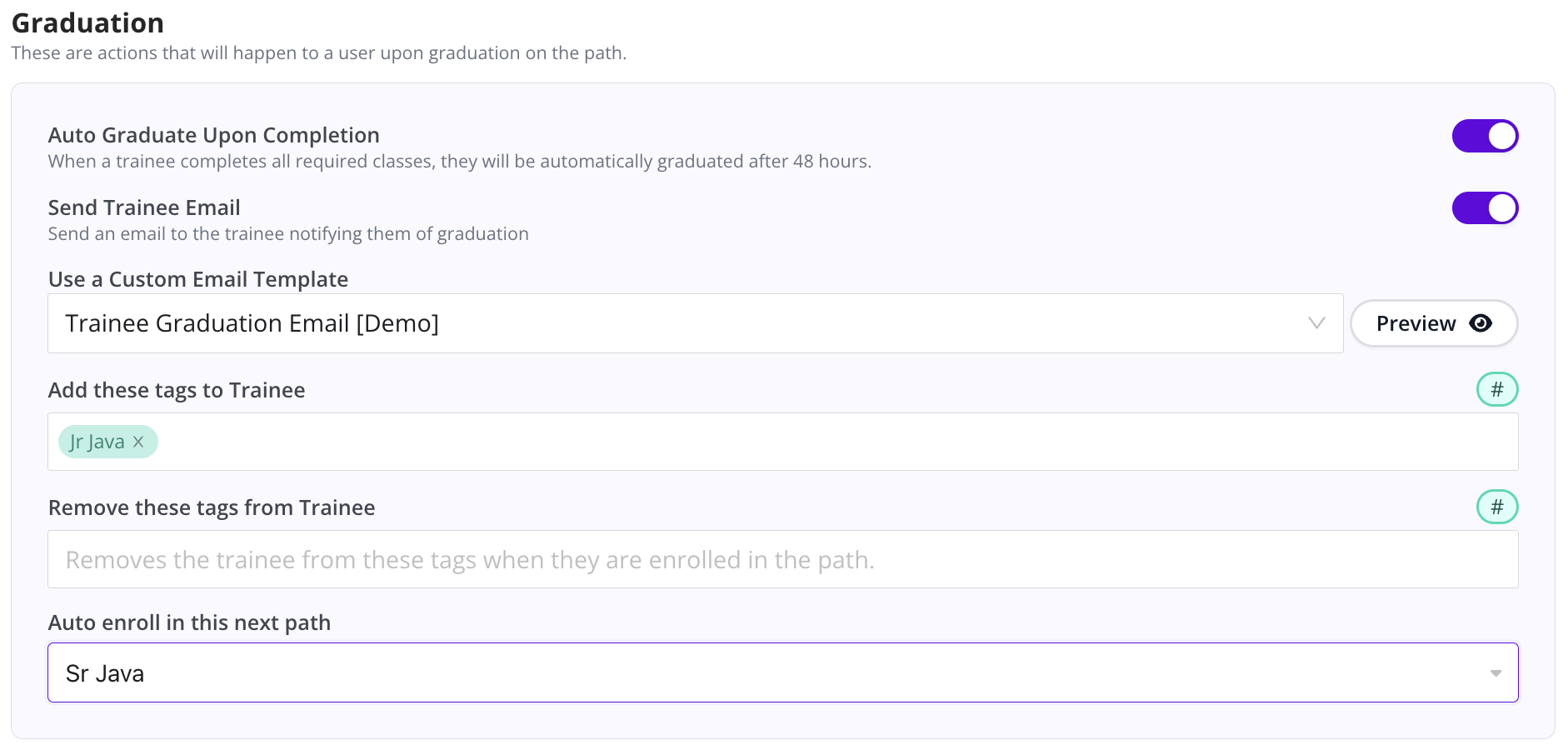
5.1. Graduation:
In the Graduation section:
- Decide when trainees move from Completed → Graduated:
> Automatically after all classes (and feedback rules) are satisfied, or
> Manually, with a coordinator review step.
- Select the Graduation email template for this path.
- Configure Tags to:
> Add: e.g. (Backend), (Java), (Coding), (Leadership), etc.
> Remove: e.g. a trainee graduating the "Senior Java" Training path may need to have their (Junior Java) skill tag removed.
> (Optional) Auto-enroll into next path, e.g.: After Junior Java, automatically add them to Senior Java.
5. Linking templates & events to the path
This step connects the path to real candidate interviews.
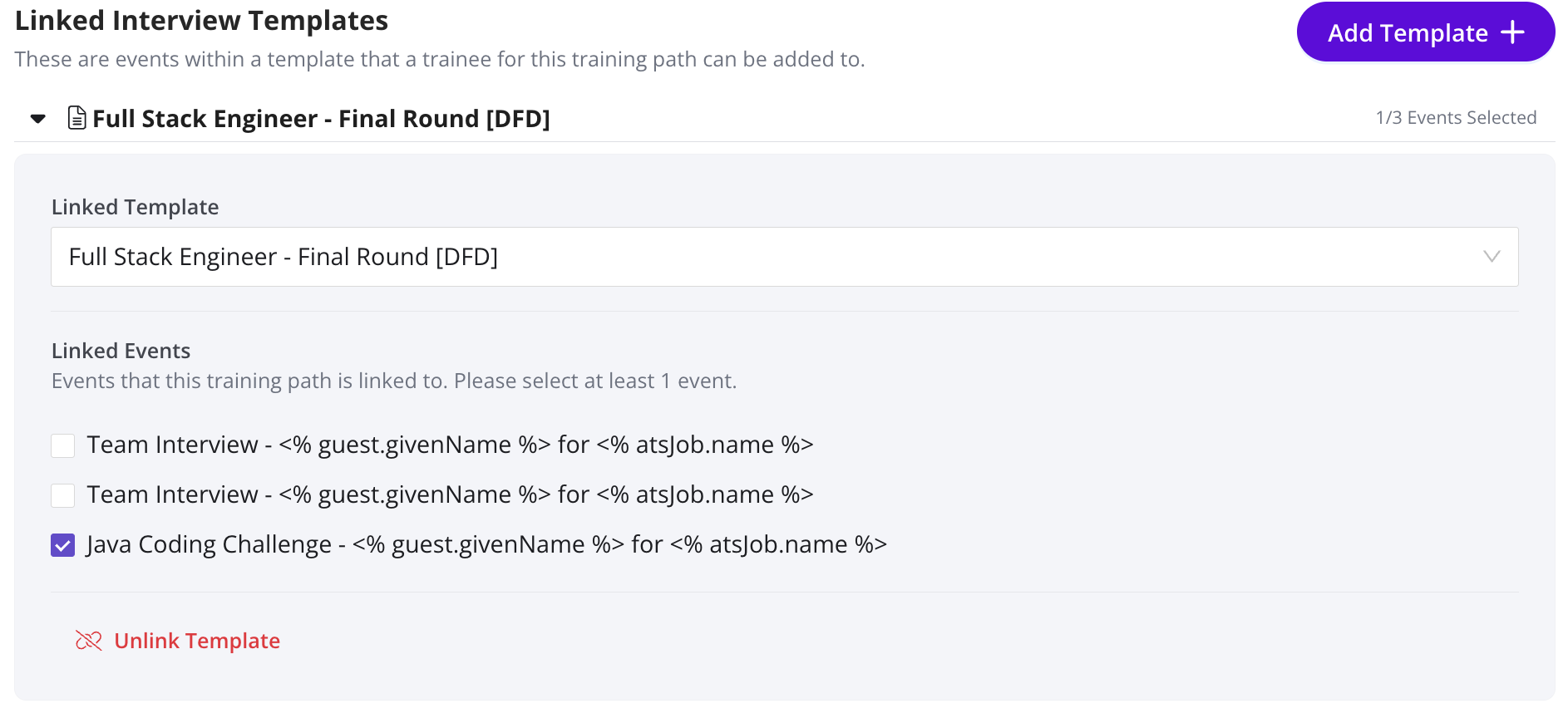
In the path’s Linked templates section:
- Add each relevant interview template (e.g. Senior Java – Virtual Onsite).For each template:
- Expand the dropdown of events.
- Select only the events relevant to this path (e.g. Java Skills Test, not Offer Call).Save the path.
Result:
When you schedule using these templates:
- You’ll see a graduation cap and “Linked Training Path” in the scheduler.
- You can add trainees with one click, and GoodTime will pick an available trainee closest to graduation.
Tip: If you forget to link an Interview Template to a Training Path, or to add a Trainee to a Training Path before you start to schedule you are able to make these changes on-the-fly during the scheduling workflow. See: Interview Training - On-The-Fly Training Path Enrollment & Linking
🎥 also see this recent update to further streamline how you can link Interview Templates to Training Paths:
Customizing the path per trainee
Even when a baseline or default path has been built, you can tailor the experience at the trainee level.
From Training > In Training:
Open a trainee’s profile and:
Give credit for past experience (mark classes as completed).
Duplicate classes if they need more practice.
Remove classes they don’t need (e.g. skip reading for experienced interviewers).
Use this to balance rigor (a consistent class list that ensures all trainees receive a common standard of training) with flexibility (editing training class lists to support the learning styles or existing skills of trainees.