How to: Create and use a secondary calendar for GTIB (Google)
Last updated: November 17, 2026
Overview
This is done in the scenario where an interviewer wants different calendars to track specific events or if they want coordinators to only see events from a specific calendar. If a user wants to use a different calendar to track their GTIB events, they will need to follow the steps below.
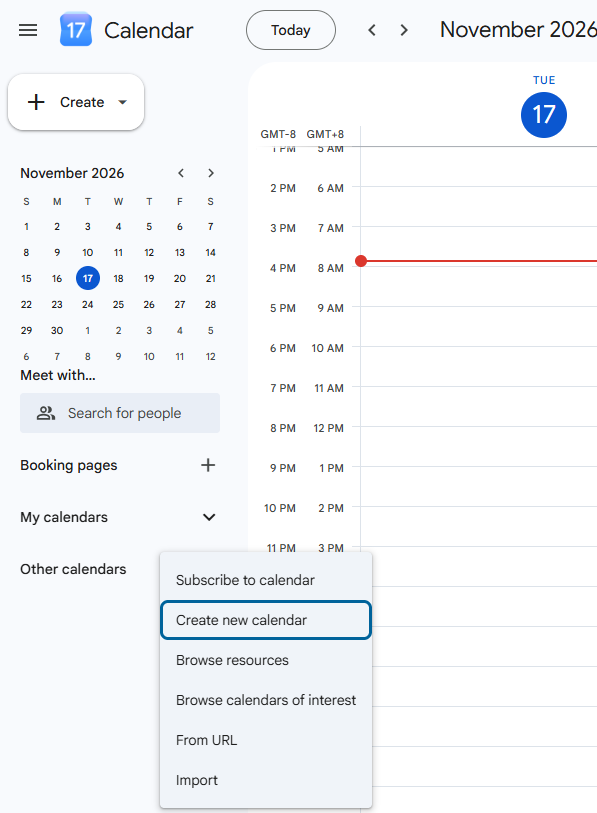
Create a new calendar.
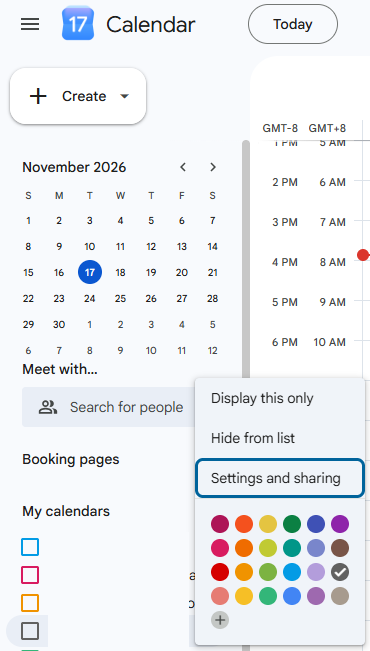
Open the Calendar Settings.
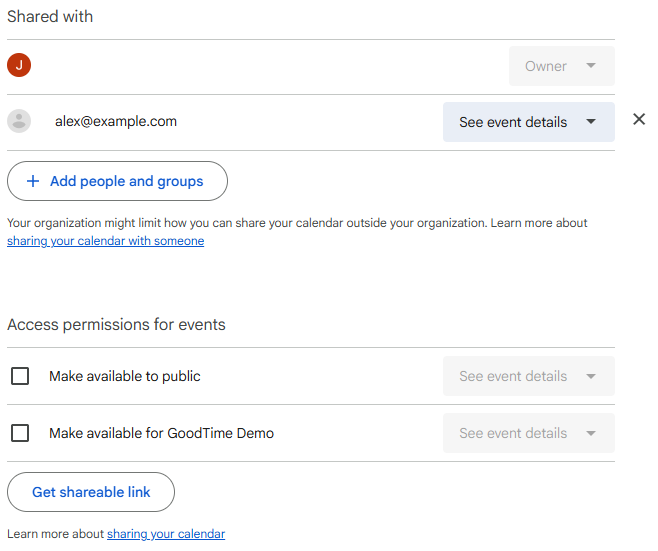
Adjust the Shared with and Access permissions for events settings to suit your needs.
Please note that the See event details permission is needed for coordinators to be able to see the event titles in GoodTime.
See the image below for sample settings where only alex@example.com has event detail access to the new calendar.
Go to My Account Settings in GoodTime.
Under ADDITIONAL CALENDARS TO SYNC, click the Add Another Calendar+ button.
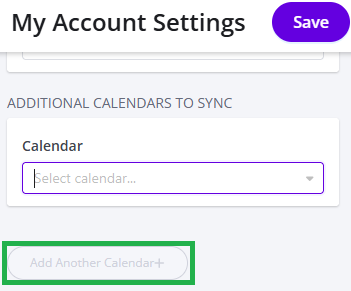
Under the Calendar dropdown, select the secondary calendar you'd like to use for GTIB.
Select the desired Show as busy for setting.
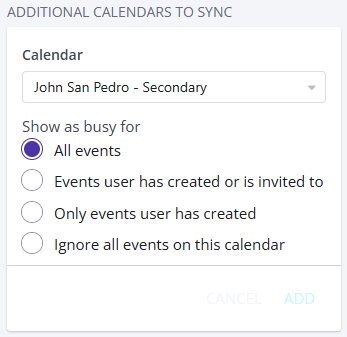
Click the ADD button.
Click the Save button on the upper right of the page.
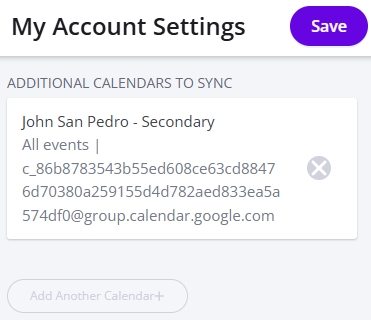
You should now be set!